Repository navigation
Transforms
English · Deutsch · Español · Français · Italiano · 日本語 · 한국어 · Polski · Português (Brasil) · Русский · Türkçe · 简体中文 · 繁體中文 · Български · Magyar · Norsk · Українська · Tiếng Việt · العربية · فارسی · ไทย
Transforms change the shape of a scaled grid. They are what turn a plain row or rectangle into something with gaps, height changes, offsets, or arcs.
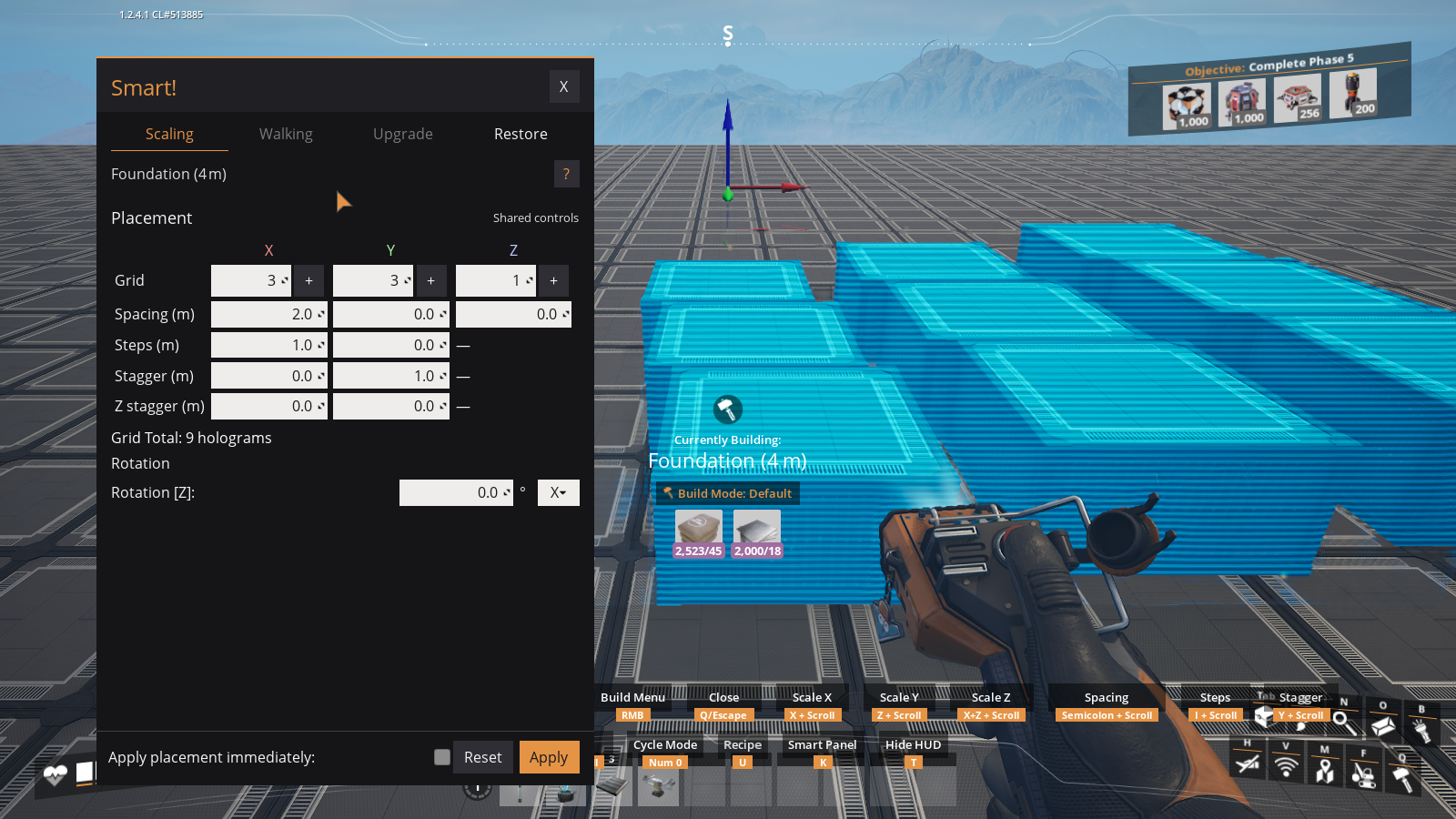
Open K → Scaling → Placement to enter Spacing (m), Steps (m), Stagger (m) and Z stagger (m) directly in the Smart Panel. Use the Rotation row below for the per-copy angle and its X/Y progression selector. The Panel keeps the grid's X/Y/Z axes even with Player Relative controls enabled.
Alternatively, use the modifier keys with the mouse wheel or numpad described below. The runtime HUD shows the active transform, target axis and value while you adjust it; it is not a separate value-entry panel. With Apply placement immediately off, Panel geometry edits wait for Apply. Applying updates the preview; firing the build gun constructs it.
Spacing adds extra distance between each copy.
Use it for:
- Machine rows that need belt space.
- Foundations with deliberate gaps.
- Cleaner production layouts.
Controls:
- Hold
;. - Use
Num 8,Num 5, or mouse wheel. - Press
Num 0to switch between X, Y, and Z spacing.
Steps raise or lower each row or column.
Use it for:
- Stair-step foundation layouts.
- Terraced factories.
- Ramps and decorative structure work.
Controls:
- Hold
I. - Use
Num 8,Num 5, or mouse wheel. - Press
Num 0to switch between X and Y stepping.
Stagger offsets rows or layers.
Use it for:
- Diagonal-looking patterns.
- Offset machine rows.
- Leaning or angled multi-layer layouts.
Controls:
- Hold
Y. - Use
Num 8,Num 5, or mouse wheel. - Press
Num 0to toggle between the Stack and Flat stagger families; re-tapYto switch direction within a family (Num 9/Num 3jump straight to Stack or Flat).
Rotation places copies around a horizontal arc — each copy is yawed a little more than the last.
Use it for:
- Curved walls.
- Circular foundation patterns.
- Decorative arcs.
Controls:
- Hold
,. - Use
Num 8,Num 5, or mouse wheel to set the per-copy angle. - Press
Num 0(or use the X/Y selector on the Rotation row of the Smart! Panel) to choose which grid axis the rotation builds up along:- X (default) — the rotation accumulates along the columns, so the run curves as it extends.
- Y — the rotation accumulates along the rows, so the rows fan out around the vertical instead.
Grid Rotation creates a horizontal yaw arc; it does not add a vertical-arch tool. Wall rotation on Pipeline/Hypertube wall supports is a separate native 45° control that turns the support itself, including vertical runs. Native tilted pillars also retain their selected parent frame when repeated.
Last updated: 2026-10-20 · Smart! v35.0.0 / Smart Camera v2.0.0
Smart!
Home · Quick Start · Videos and Tutorials · Controls · Controller & Steam Deck · Smart Panel and HUD · FAQ · Feature Gallery · Buildable Gallery
Features
Smart Assistance · Grid Scaling · Transforms · Auto-Connect · Lift-assisted Auto-Connect · Conveyor Lift Grids · Water Extractors · Blueprints · Extend · Smart Walking · Smart Restore · Smart Upgrade · Smart Dismantle · Smart Camera · Camera Integration for Mod Authors
Reference
Glossary · Supported Buildings · Settings Reference · Compatibility and Multiplayer · FAQ · History and Credits · Support Development · Troubleshooting · Screenshot Checklist