Repository navigation
Extend
English · Deutsch · Español · Français · Italiano · 日本語 · 한국어 · Polski · Português (Brasil) · Русский · Türkçe · 简体中文 · 繁體中文 · Български · Magyar · Norsk · Українська · Tiếng Việt · العربية · فارسی · ไทย
Extend is for copying something that already works.
Instead of building another blank row, you aim at an existing factory module and Smart! previews the next copy of that module.
Use Extend when you already built:
- One constructor with belts and power.
- One smelter line segment.
- One manifold module.
- One pipe-connected production block.
Then let Smart! continue the pattern.
- Build one working module manually and equip the same building type in the build gun.
- Open K → Extend and press Select Source.
- Click the existing source building in the world outside the Panel. Compatible sources highlight while selecting. Escape cancels selection; clicks inside the Panel stay in the interface.
- Check the source name, captured companions and repeat counts. Use Change Direction and the placement controls to shape the preview.
- Close the Panel, inspect the proposed copies and material quote, then fire the build gun to build normally.
Selecting a source does not construct anything. A miss retains the previous preview. Replacing a source or a nontrivial unbuilt placement asks for confirmation before discarding it. The selected source remains pinned for inspection until the placement is cancelled, built or the recipe changes.
Hover shortcut: with the matching building held, aim directly at an existing source to trigger Extend automatically. The HUD identifies the source and shows the current Panel key for Extend. You can keep using this shortcut without opening the tab.
The tab is offered for compatible factory buildings and Water Extractors. If it is unavailable, equip the matching source building first.
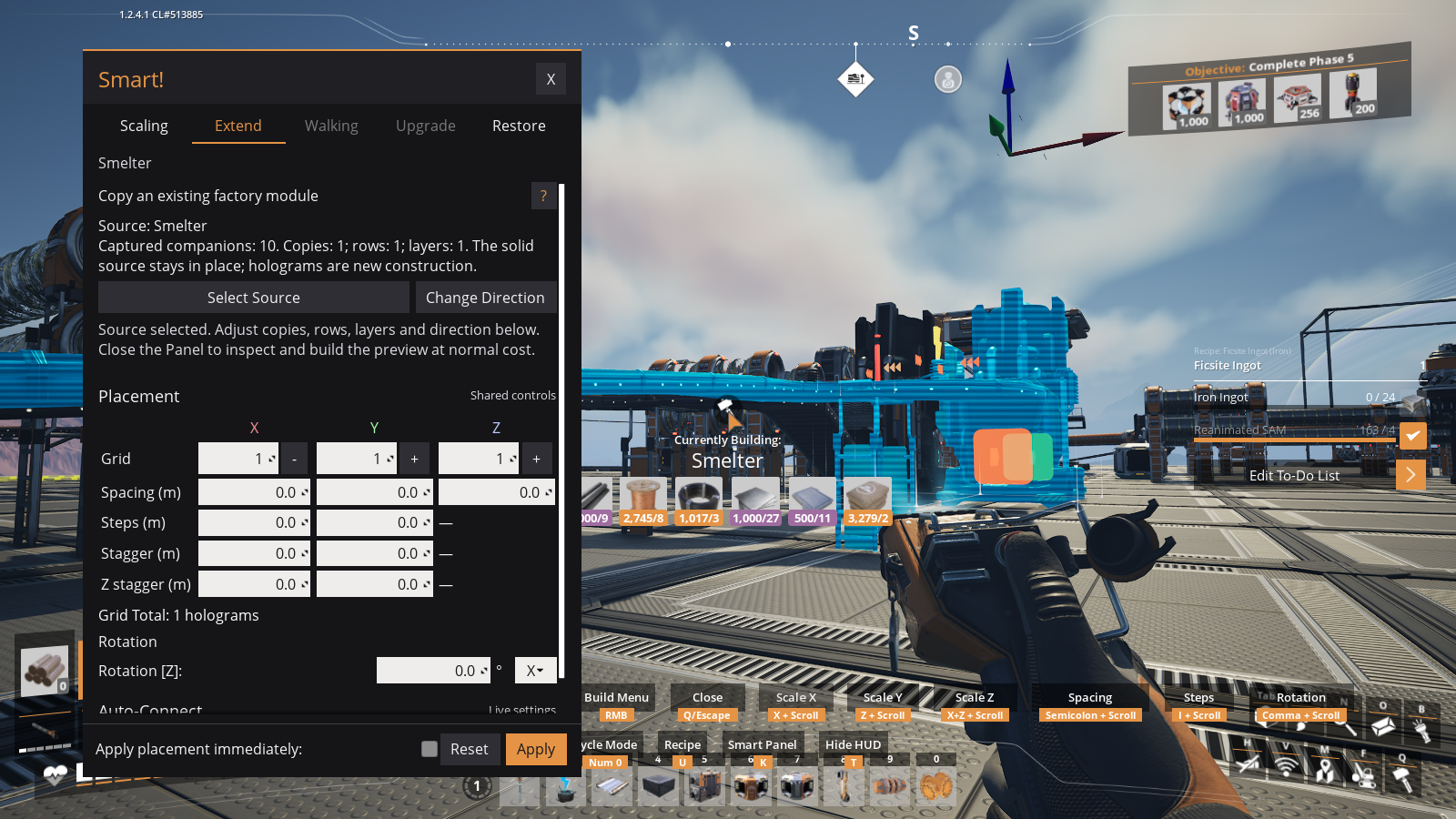
The Extend tab shows the selected Smelter and its captured companions. Select Source chooses another matching building; Change Direction changes the continuation side. The existing grid and transform controls shape the proposed copies. The solid source stays in place.
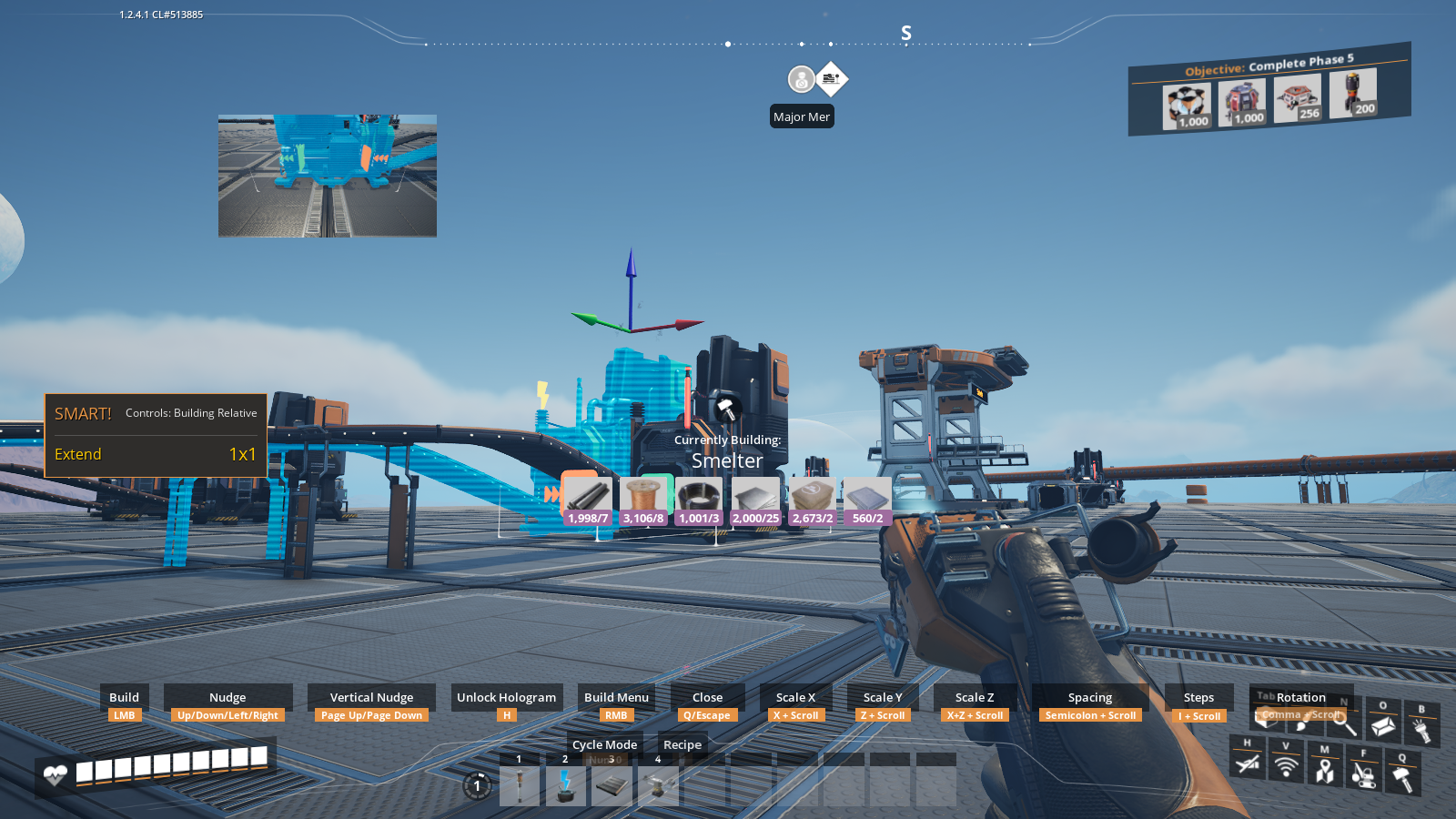
The solid Smelter is the existing source. The cyan Smelter, belts and supports are the proposed copy; the HUD reads Extend 1×1. This is an unbuilt preview.
When Extend is active, mouse wheel cycles the extension direction as long as no other Smart mode key is held.
Start explicitly through K → Extend → Select Source, or use the hover shortcut. The Extend tab reuses the placement controls for grid counts, spacing and supported transforms. You can also use the same wheel/numpad controls as Grid Scaling. Without a modifier held, the wheel selects the Extend direction. The runtime HUD identifies the run/rows and active adjustment so you can check what will change before building.
Scaled Extend combines Extend with grid controls. Use it when you want several copies or several rows of the same module.
Use X for the run, Y for additional rows, and Z for vertical layers. Z spacing adjusts the distance between floors. Each floor repeats the captured horizontal factory and logistics layout; Smart! does not automatically connect belts or pipes between floors.
Spacing, steps, and horizontal rotation can shape the result. Check each layer before building.
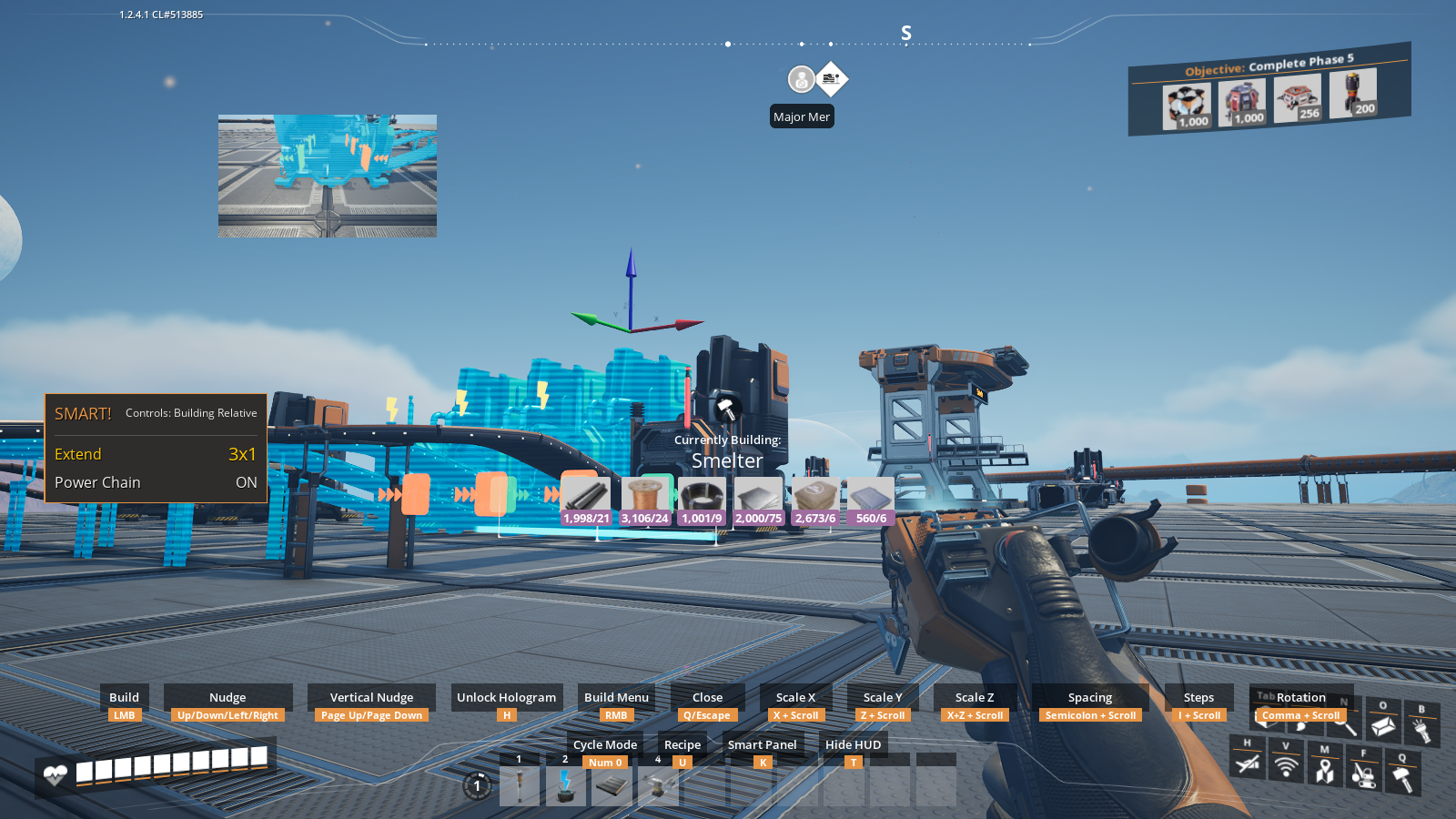
The same source now produces three cyan module copies, including their conveyor routes and supports. The HUD reads Extend 3×1 and the material quote grows with the copies. The solid source remains in place.
Water Extractors support horizontal Extend and Restore. Every child must pass the same water-depth and terrain checks used by scaling. This does not enable vertical Water Extractor grids or free placement of other resource extractors.
Depending on the source module and current support, Extend may copy:
- Buildings.
- Belts and lifts.
- Splitters and mergers.
- Pipes and junctions.
- Associated Conveyor floor, stackable, wall and ceiling supports, and Pipeline floor, stackable and wall supports.
- Recipes.
- Power connections.
Always check the preview before building. Only supported connected parts are copied; nearby objects are not automatically part of the module. Copies retain captured support poses and selected settings.
Copied recipes, Power Shards, and Somersloops use the placing player's inventory. Already installed items are retained; running out of shards or sloops can leave a copied machine with fewer installed items.
On a listen server, a client's Extend or Restore keeps its settings and construction state separate from the host's held preview. Both players should use the same Smart! version.
A curved Extend cannot place a module back on the source or an earlier copy. If the HUD reports an overlap with an earlier copy, reduce the count or change the rotation, spacing or steps. This check prevents repeated module placement; it is not a general collision detector.
Copies do not duplicate cargo from existing conveyors. Inspect the quoted materials and the resulting connections. If an operation reports incomplete settlement, check the world before repeating it; an already completed part may remain.
Extend preserves the captured route shapes. Inspect the full connected module as well as the machine body before repeating it: long source pipes or belts can cross neighbouring copies when the repeat interval is too small for that layout.
See the Feature Gallery for connected factory layout examples.
Last updated: 2026-11-02 · Smart! v35.1.0 / Smart Camera v2.0.0
Smart!
Home · Quick Start · Videos and Tutorials · Controls · Controller & Steam Deck · Smart Panel and HUD · FAQ · Feature Gallery · Buildable Gallery
Features
Smart Assistance · Grid Scaling · Transforms · Auto-Connect · Lift-assisted Auto-Connect · Conveyor Lift Grids · Water Extractors · Blueprints · Extend · Smart Walking · Smart Restore · Smart Upgrade · Smart Dismantle · Smart Camera · Camera Integration for Mod Authors
Reference
Glossary · Supported Buildings · Settings Reference · Compatibility and Multiplayer · FAQ · History and Credits · Support Development · Troubleshooting · Screenshot Checklist