Repository navigation
Configuration
🌐 Language: English | Français
This page is the reference for the dictee-setup UI. Every tab and sub-section is documented below with a screenshot and a short description. For the conceptual details behind each feature, follow the cross-links to the dedicated pages — this page is meant as an at-a-glance tour of the settings window.
dictee-setup is the single place where every option is tunable; it writes its decisions to ~/.config/dictee/dictee.conf. The Setup Wizard is the same binary in first-run mode; this page covers the classic sidebar mode you get once the first setup is done.
New in v1.3.0 — a dedicated LLM Diarization sidebar page lets you manage LLM providers and analysis profiles used to summarise / chapter / clean up diarized transcripts. Full walkthrough on the LLM-Diarization page.
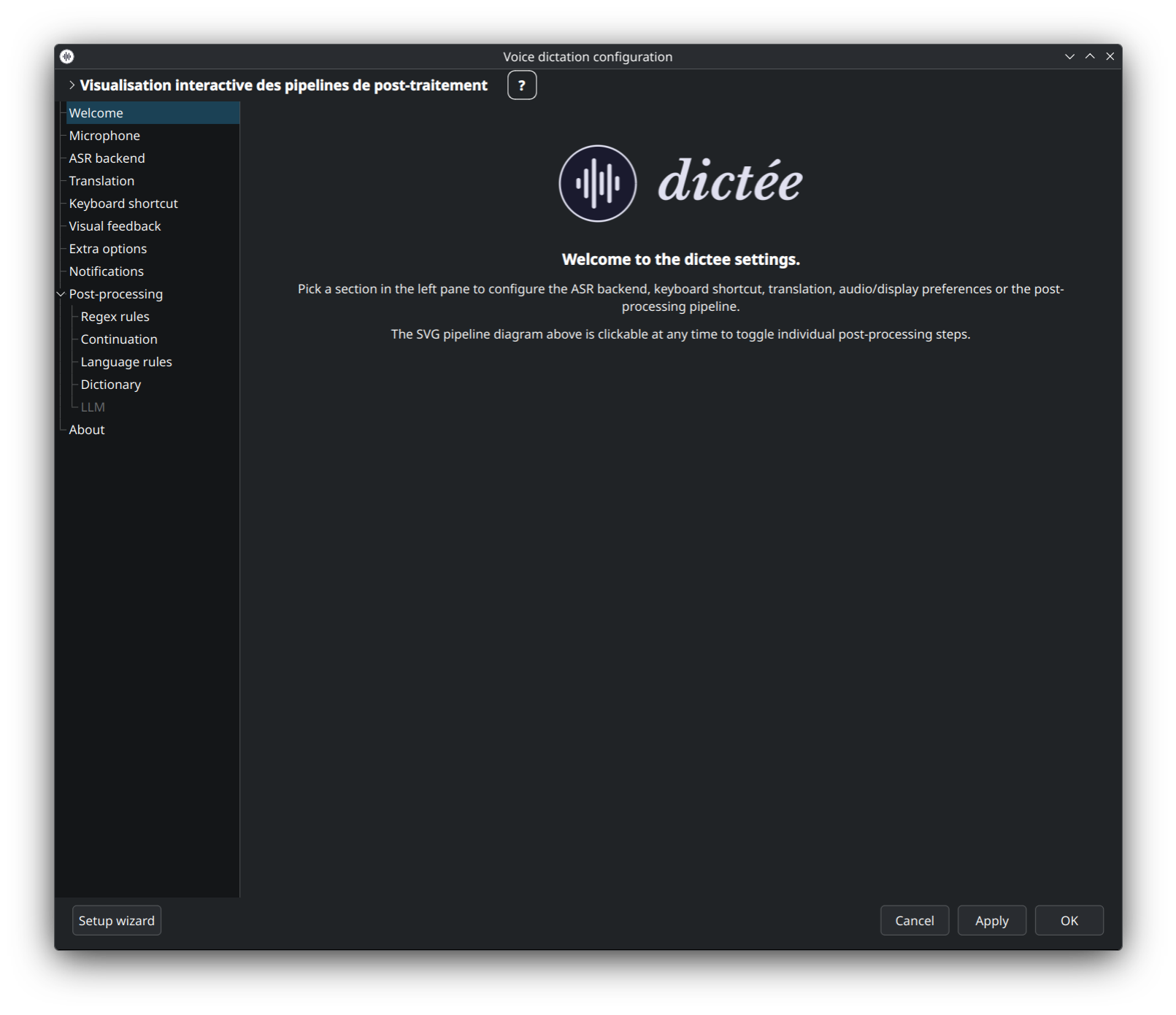
- Launching dictee-setup
-
ASR backend
- Parakeet-TDT · faster-whisper · Vosk · Canary · Nemotron
-
Translation
- Google · Bing · LibreTranslate · Ollama · Canary built-in
- Keyboard shortcuts
- Microphone
- Visual feedback
- Notifications
- Options
- Post-processing
- About
- Where is the config file?
Four entry points, all open the same binary:
| Method | Command / Action |
|---|---|
| Terminal |
dictee-setup (classic sidebar) — dictee-setup --wizard (force the first-run flow) |
| App launcher | Search for « Dictee Configuration » (Settings · Accessibility) |
| Tray icon | Right-click the dictee tray icon → Configure Dictée |
| Plasmoid widget | Right-click the dictee plasmoid → Configure (KDE Plasma 6) |
The first time you launch it (no ~/.config/dictee/dictee.conf) the guided Setup Wizard opens automatically. After completion, the same command re-opens in sidebar mode documented below.
Pick the speech-recognition engine that turns your voice into text. dictee ships with five backends, each surfacing its own specific options (model variant, language, hotwords, VAD, beam size, compute type) in the ASR tab.
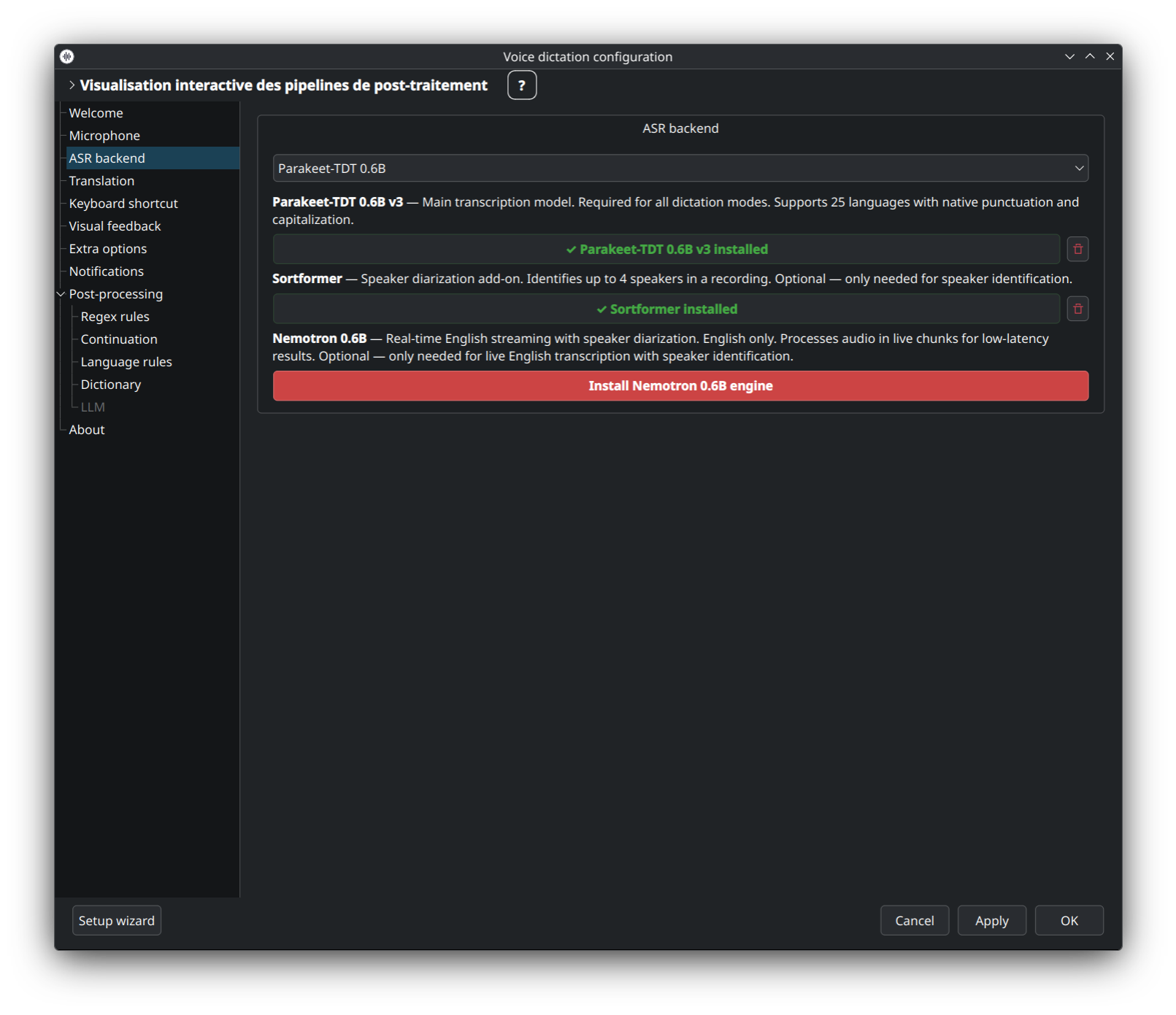
Recommended default — 25 languages, native punctuation + capitalization, best accuracy on GPU. VRAM-friendly thanks to the TDT decoder (factored duration prediction). Covers most European + Asian languages.
👉 Deep dive: Parakeet-TDT-Deep-Dive.
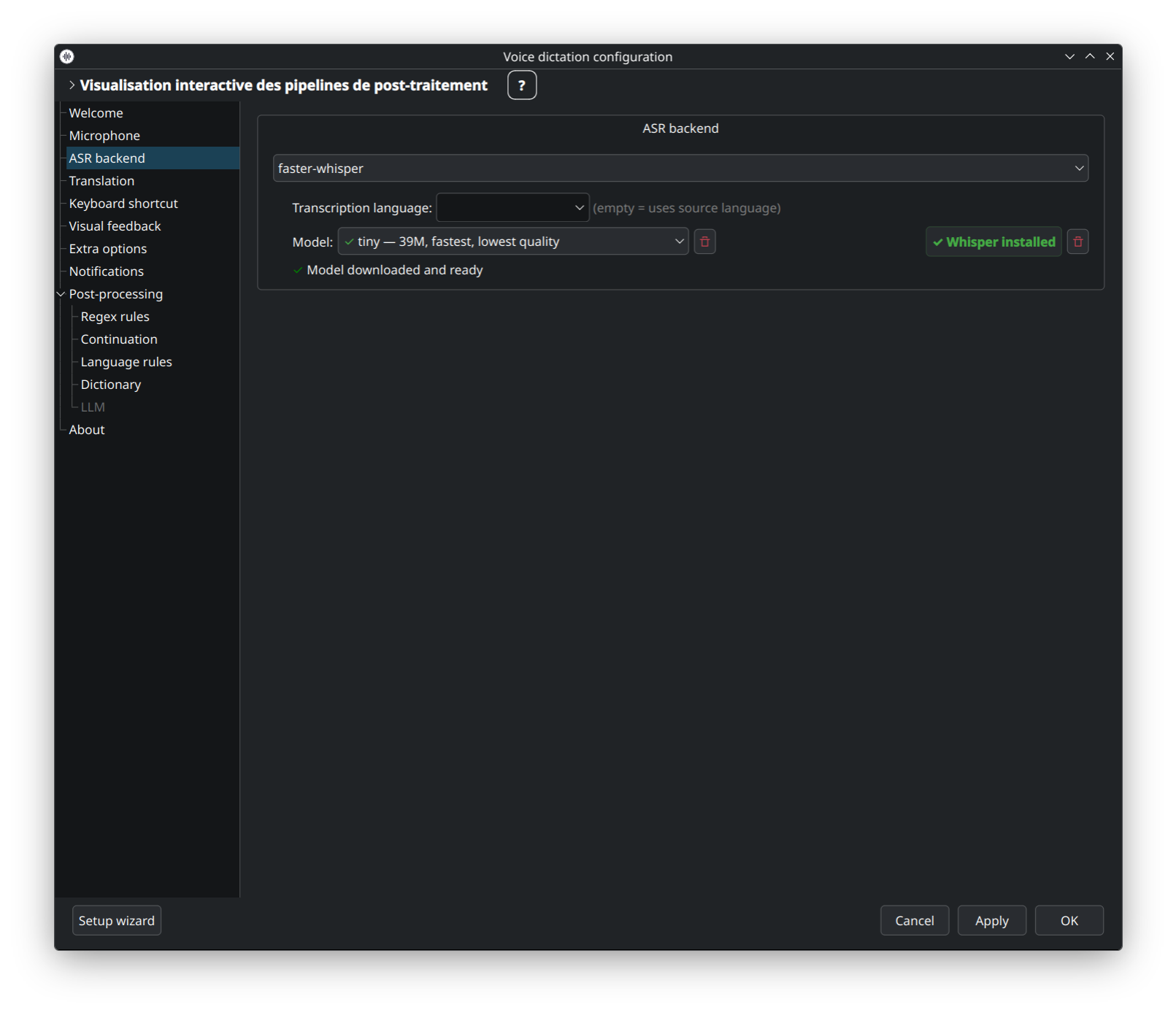
Runs OpenAI Whisper models (tiny → large-v3) locally via ctranslate2. Exposes VAD, beam size, hotwords, initial prompt, and compute type (int8 / float16). Great for languages outside Parakeet's coverage.
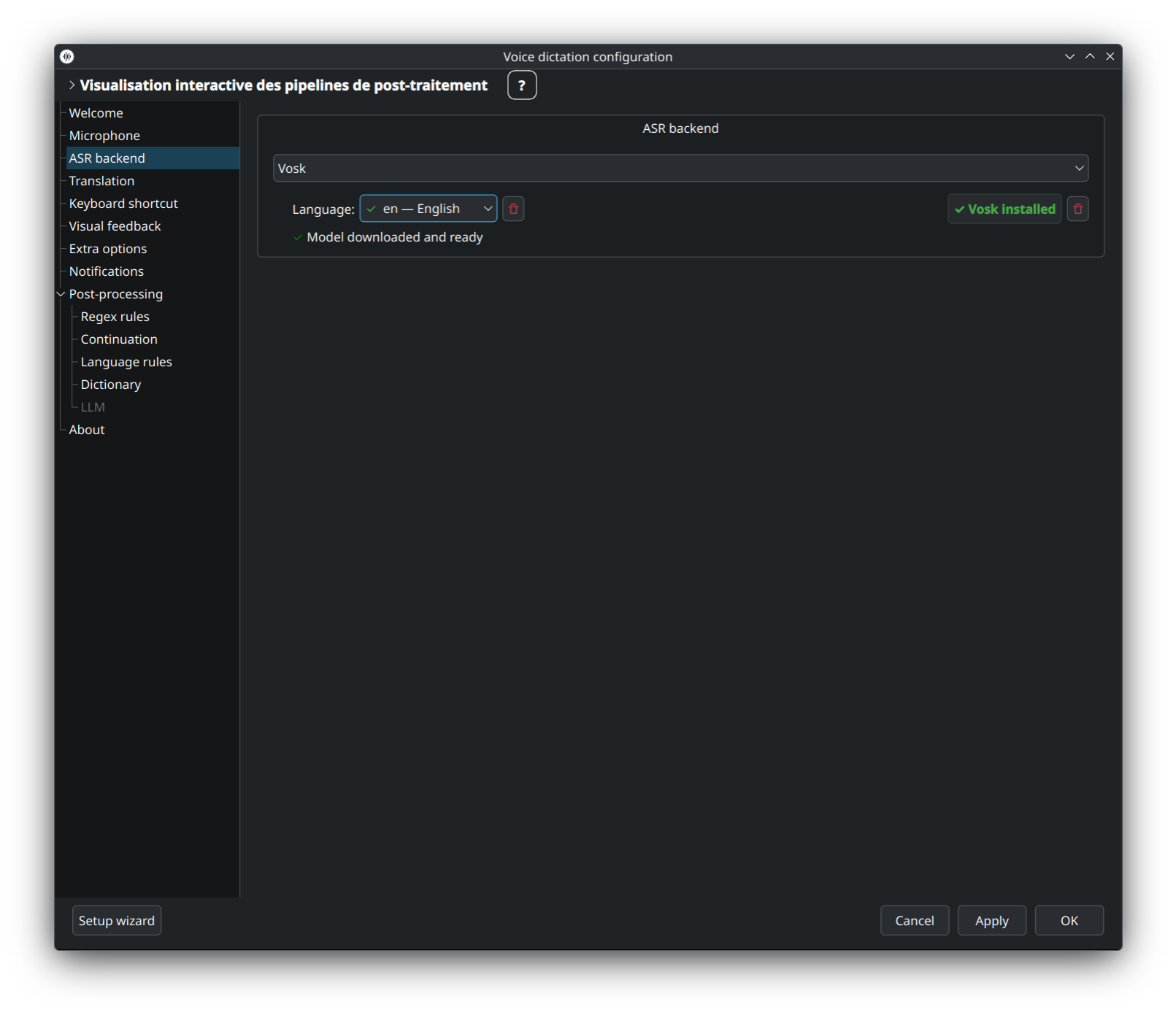
Lightweight CPU-friendly backend with per-language models. Lower accuracy than Parakeet / Whisper but runs on low-power devices (Raspberry Pi, ARM SBCs, older laptops).
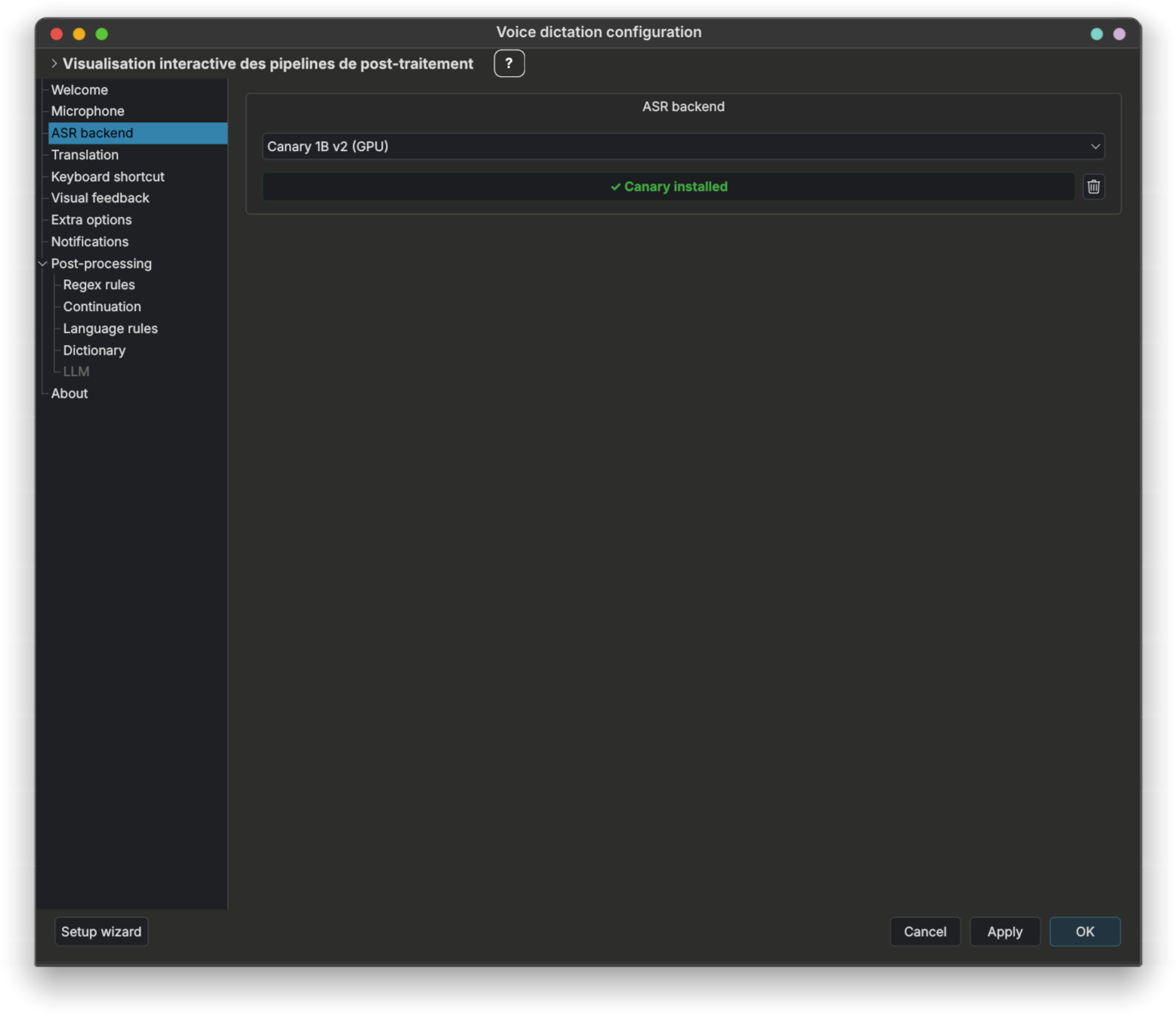
Same Rust engine as Parakeet, with one extra feature: built-in translation (48 language pairs directly from ASR, no extra translation backend). Select your target language in the translation tab — the Canary model does both ASR and translation passes in one go.
Streaming-capable, English-only backend. Best choice for real-time captions when you need low latency over multilingual coverage. Uses a separate daemon binary.
👉 Full backend comparison + when-to-choose-which: ASR-Backends · GPU tuning: GPU-Setup.
Translation is optional and off by default. When enabled, dictee first transcribes with your ASR backend, then translates the result before pasting. Five backends: two cloud-based, three self-hosted.
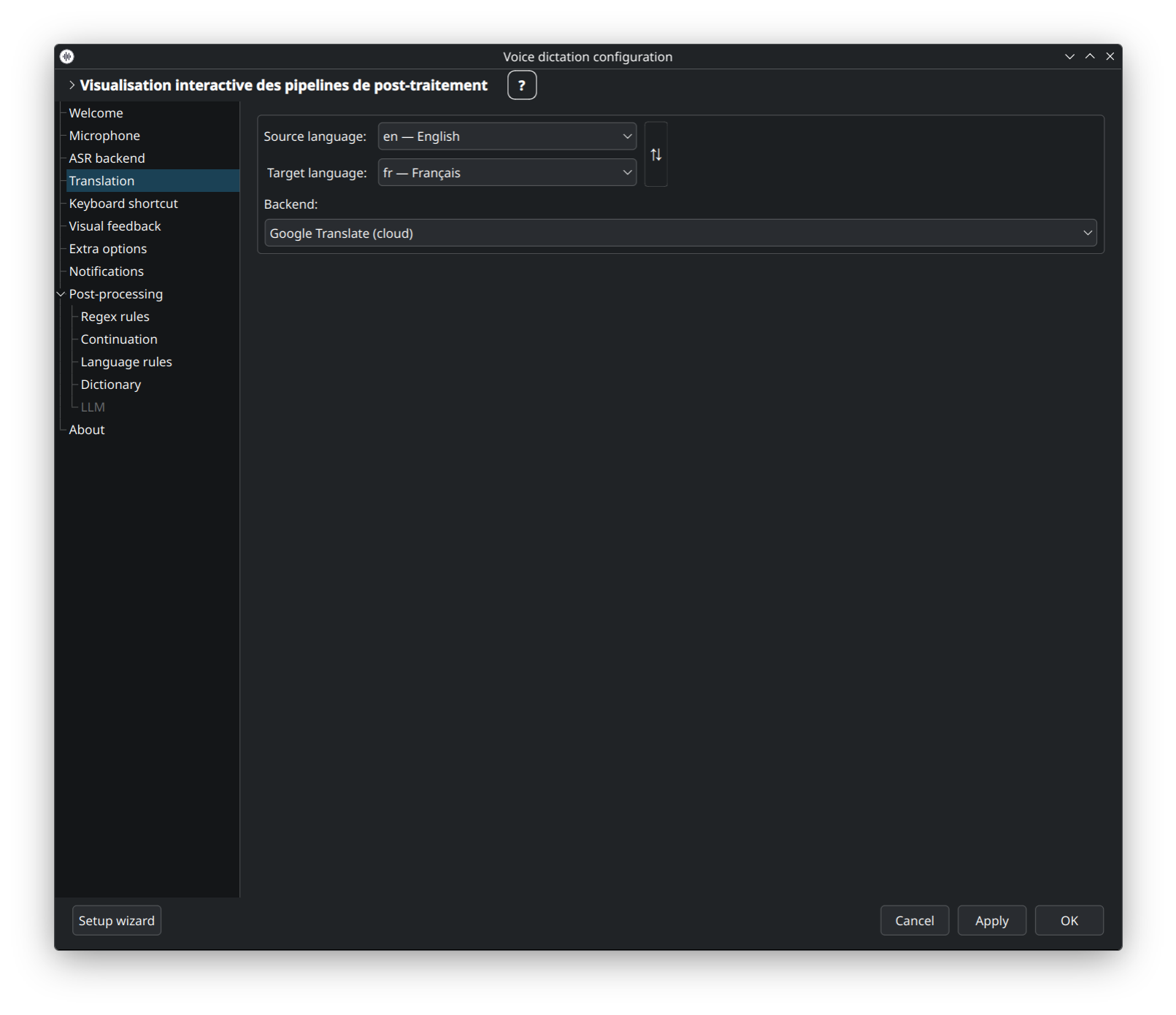
Default choice. Uses translate-shell under the hood, 100+ languages, no API key needed. Requires an internet connection and sends each utterance to Google.
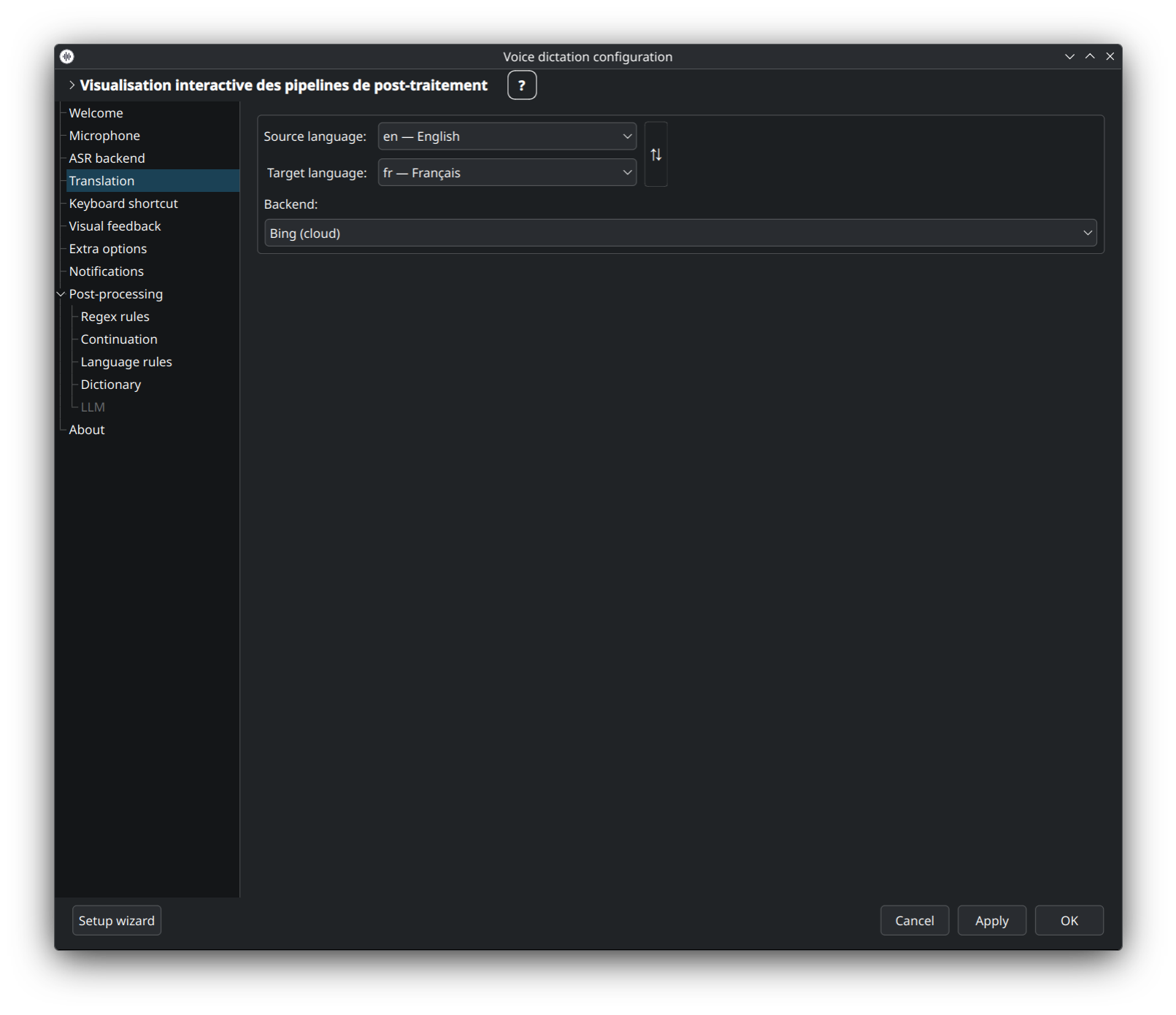
Also via translate-shell, similar language coverage to Google. Use as a fallback, or if you prefer Bing's phrasing over Google's.
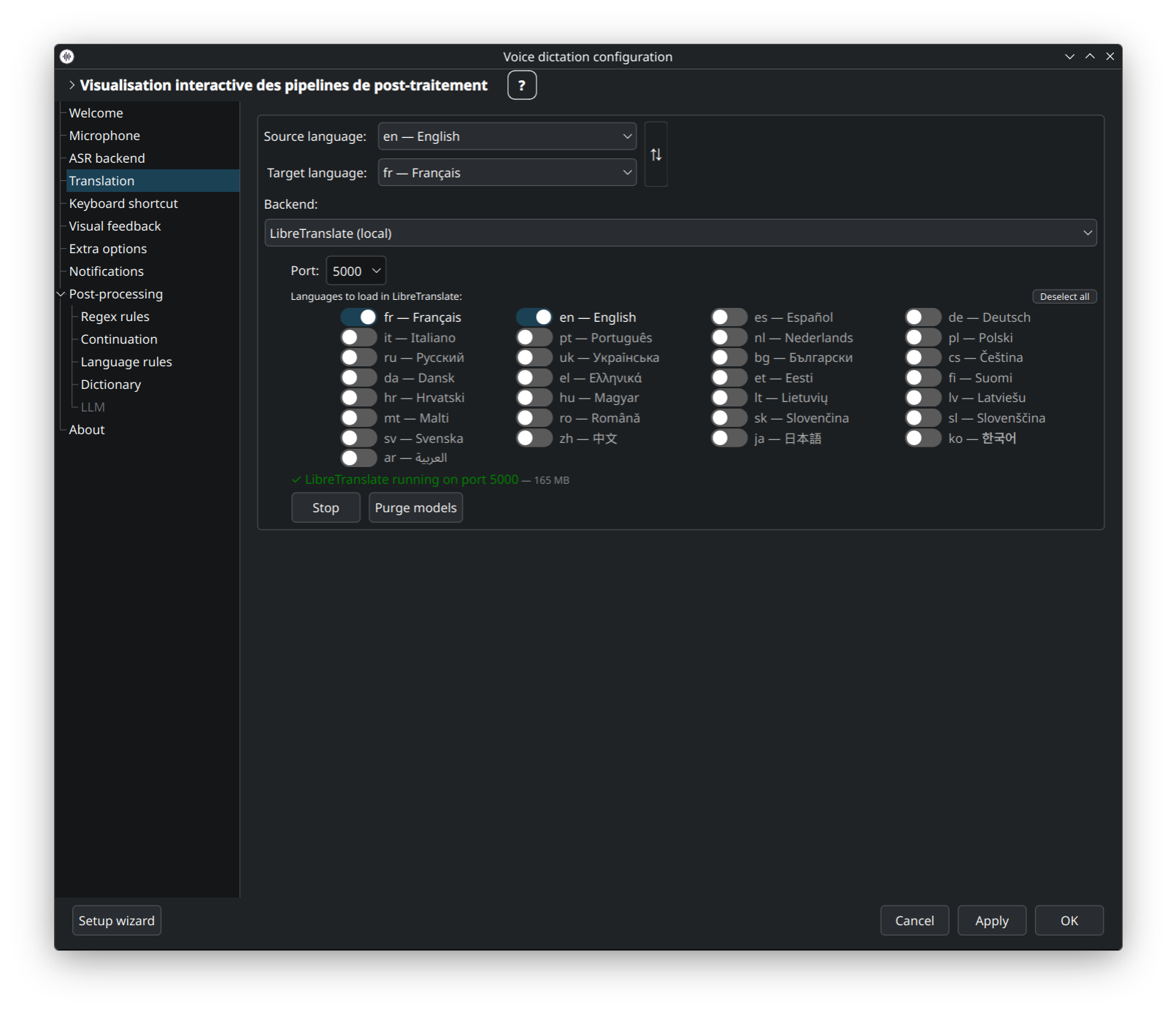
Self-hosted, Docker-based, fully offline. Pick the language packs you need — dictee runs the matching docker run for you and the UI exposes purge / stop / start buttons for lifecycle management.
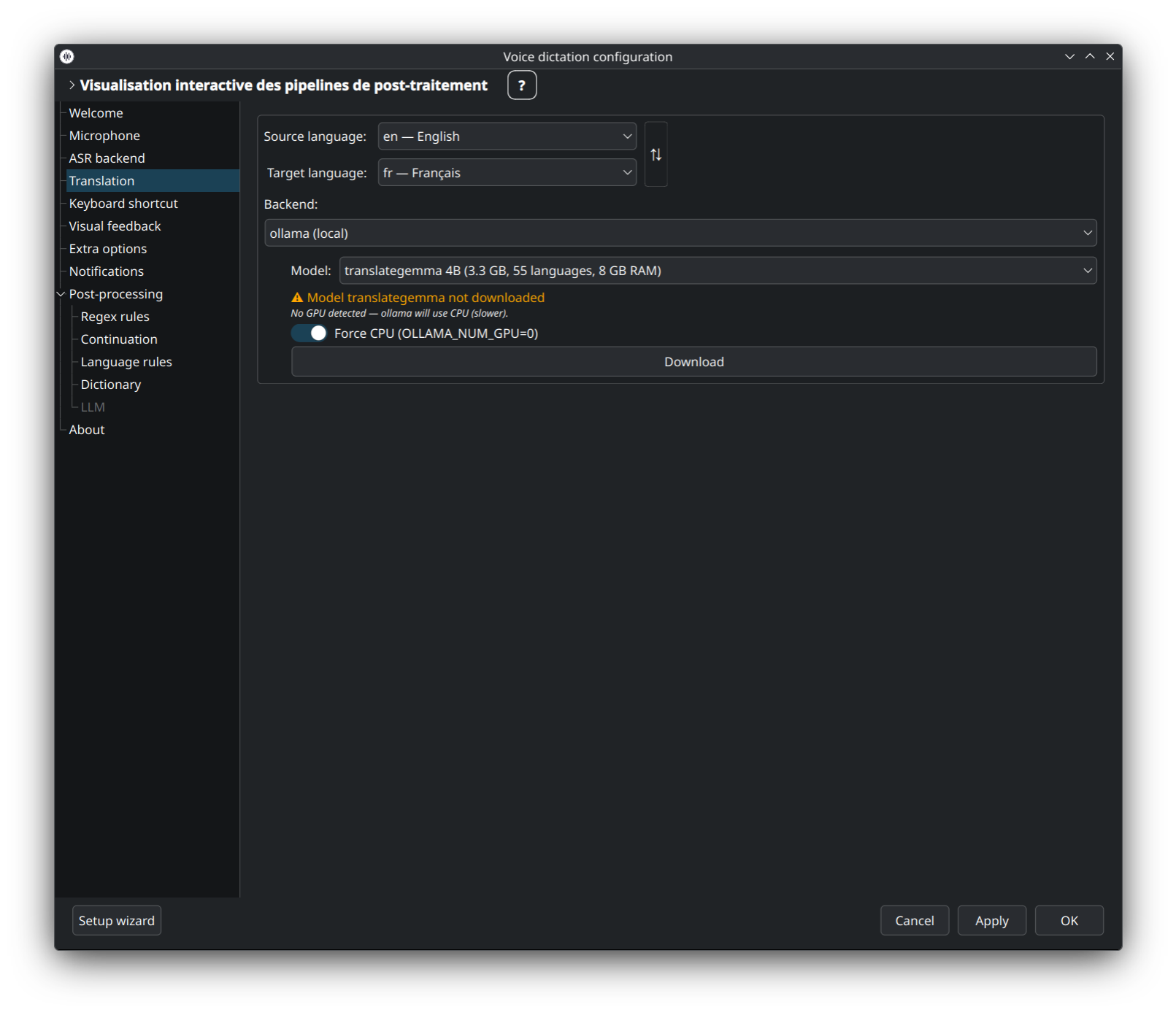
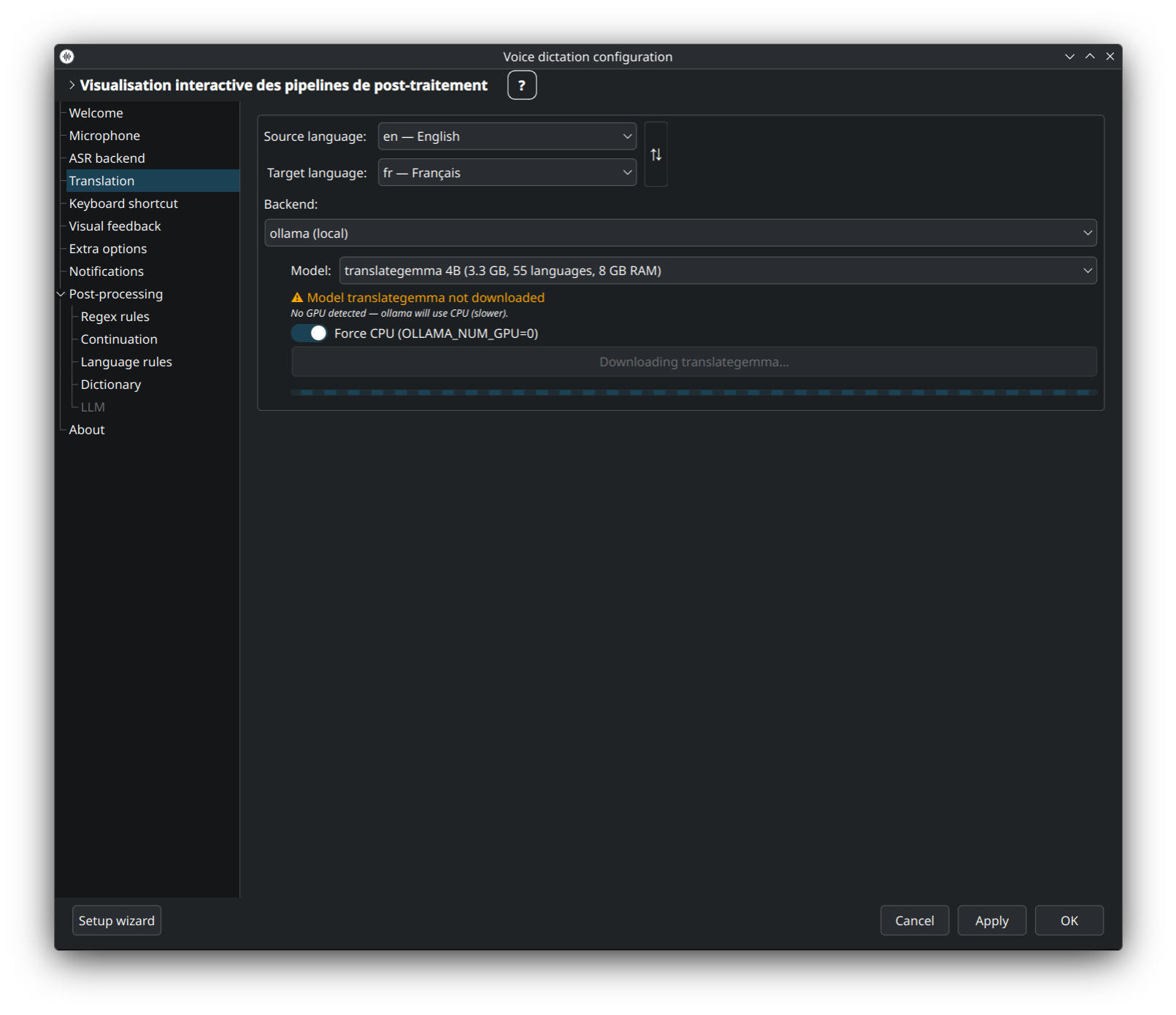
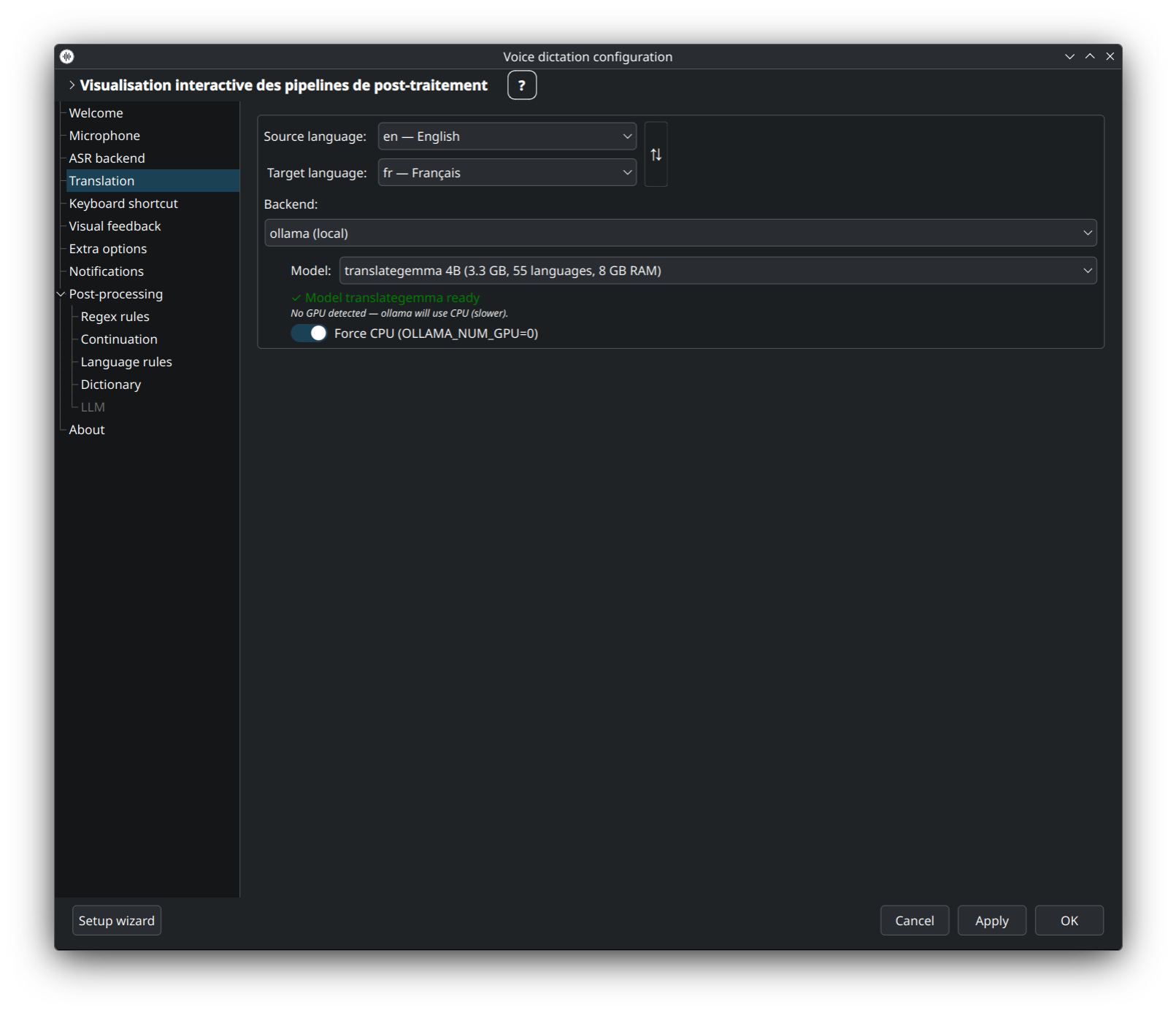
Self-hosted LLM (translategemma, aya, etc.) via Ollama. The three states above — no model yet, downloading, ready — are all handled inline: the Download button pulls the selected model without leaving the window.
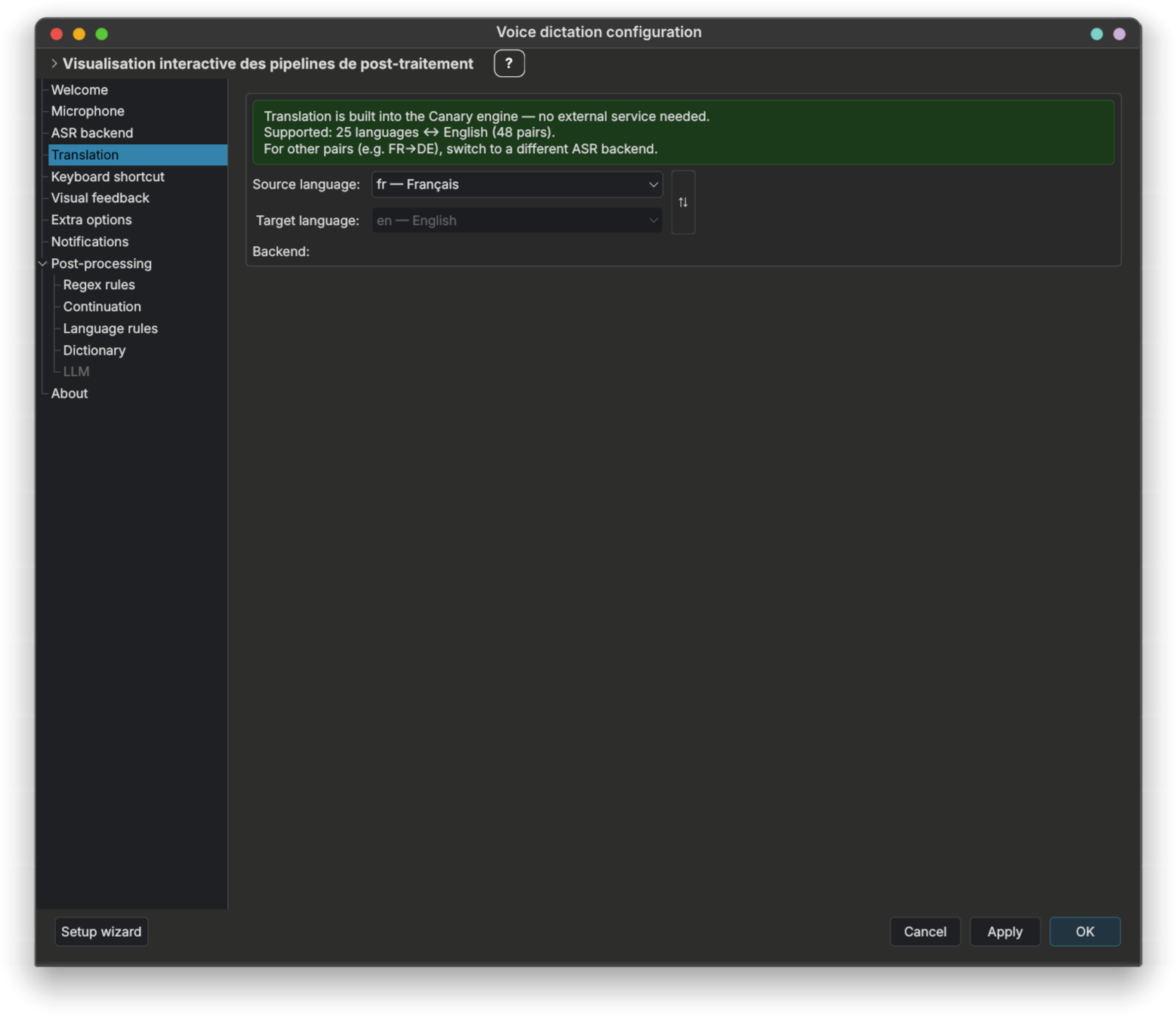
No extra backend needed: Canary's ASR model does the translation itself (48 language pairs, 25 languages ↔ English) in the same pass. Pick your source and target languages in the translation tab — the panel shows a green notice reminding you that Canary handles this natively, and hides the backend picker (not applicable). For pairs outside the 48 supported ones, switch to a different ASR backend + cloud/self-hosted translation. See Canary in the ASR section above.
👉 Full backend comparison + privacy matrix: Translation · detailed Ollama install: Ollama-Setup.
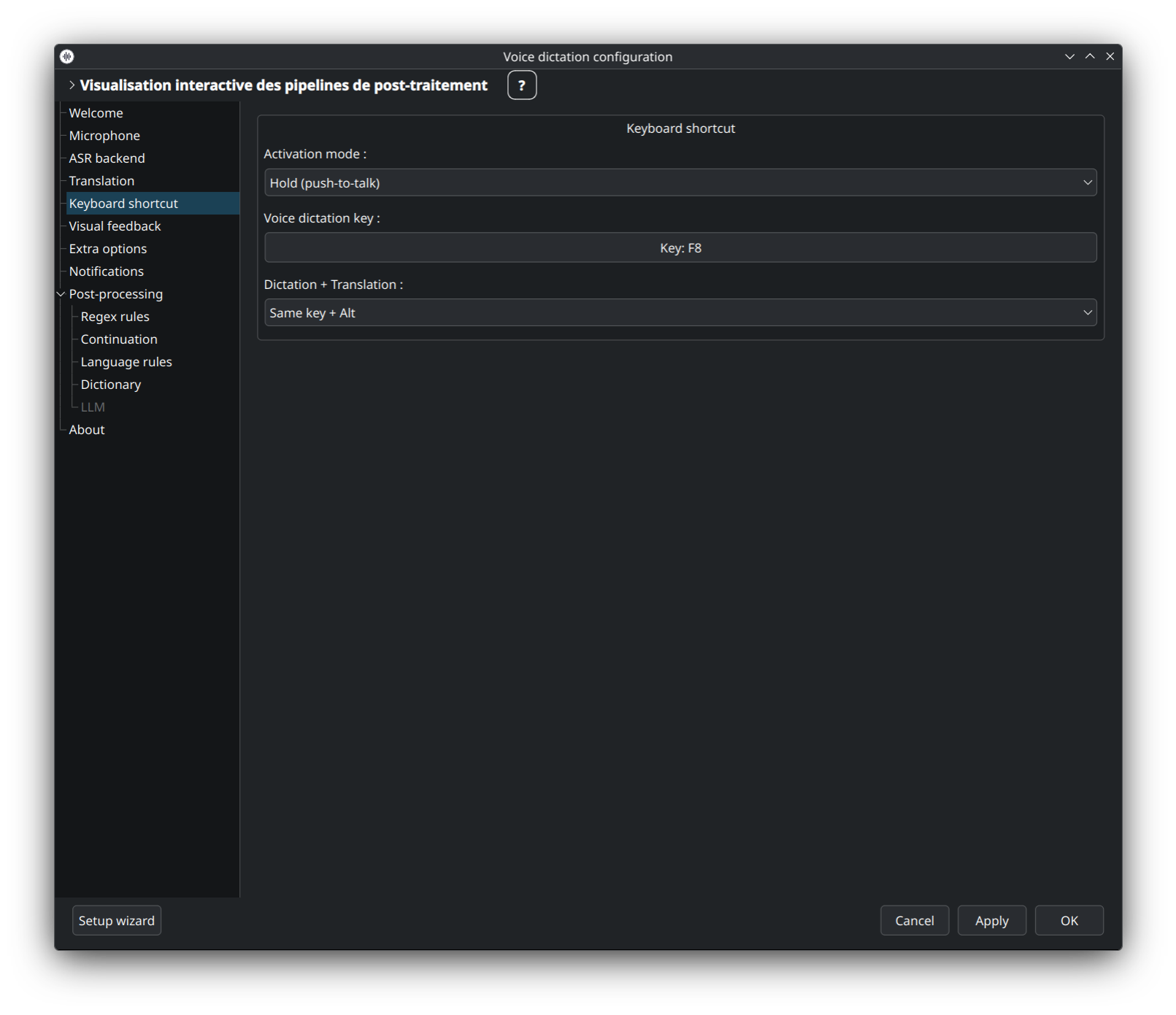
Assign the global hotkeys that start / stop dictation, toggle meeting mode, open the post-processing test panel, cancel, and more. Click a row to capture a new combination; defaults are F9 / Alt+F9 / Ctrl+F9.
👉 Full catalogue + KDE/GNOME specifics: Keyboard-Shortcuts.
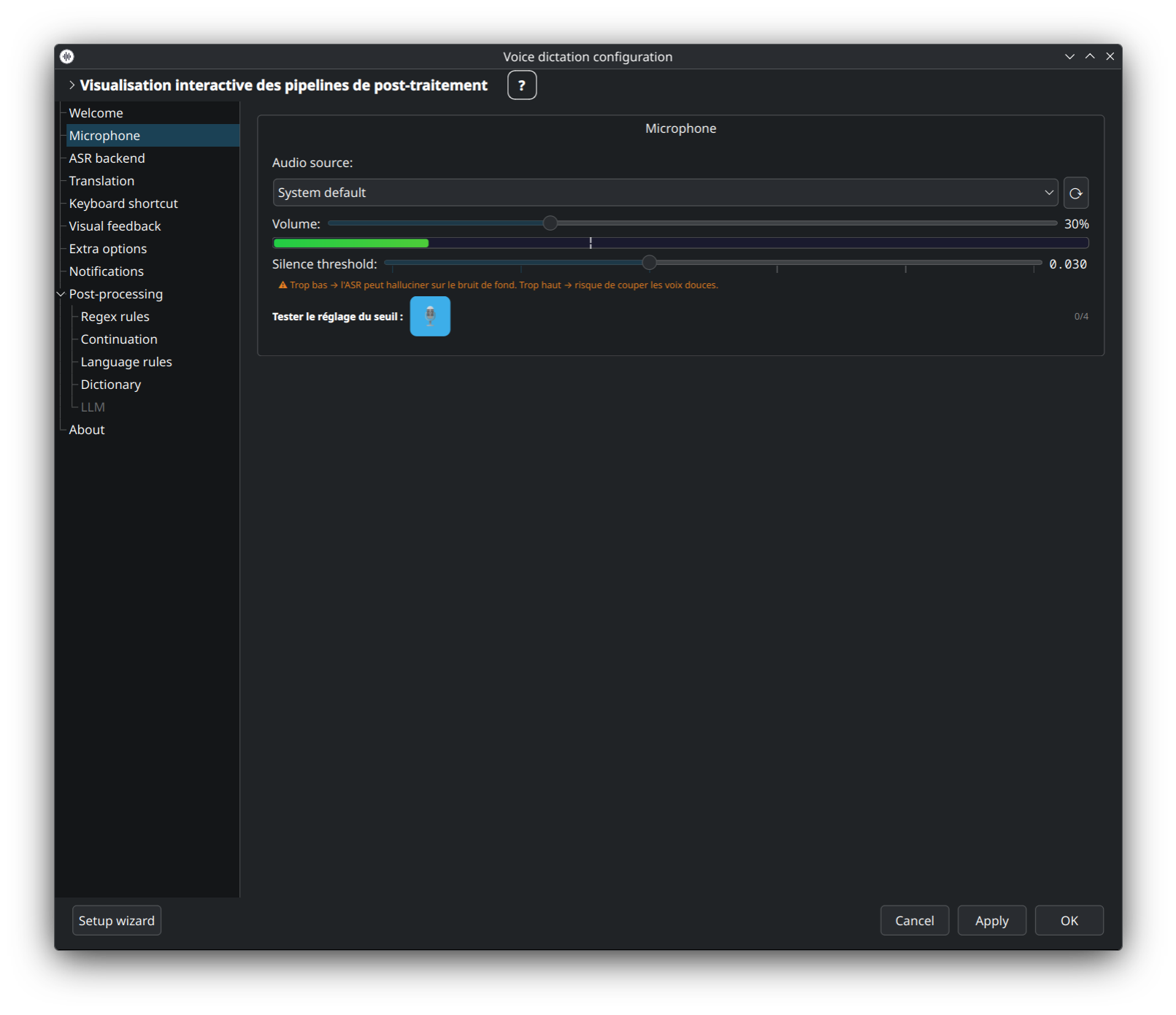
Pick the input device, tune the silence-detection threshold, enable auto-unmute (lets dictee unmute the mic for the duration of a dictation then remute it), and configure pre-emphasis.
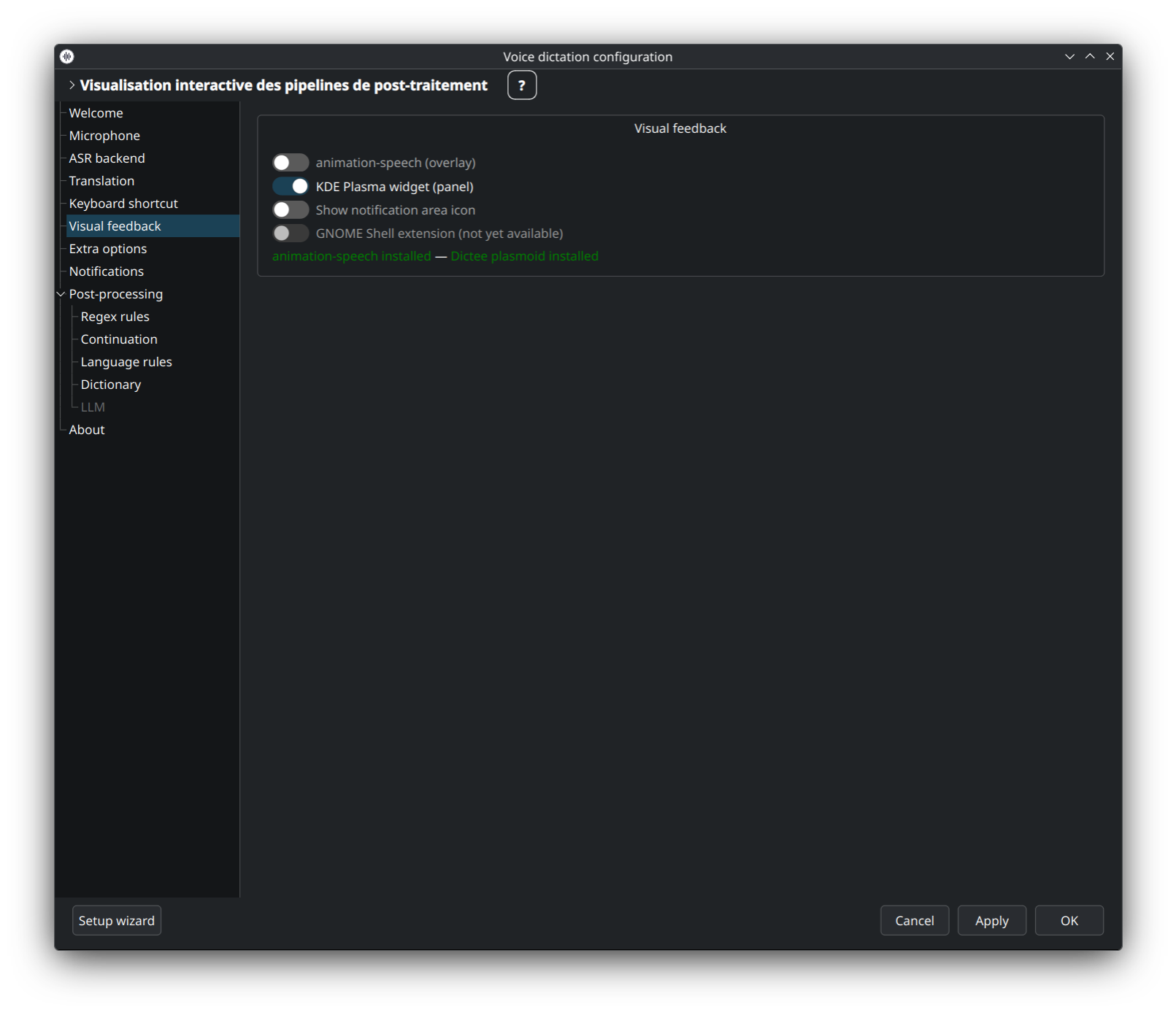
Choose how dictee signals recording / transcribing / offline states — tray icon, Plasmoid widget, both, or none. Different icon themes are available (active, recording, transcribing…).
👉 Details: Tray-Icon · Plasmoid-Widget.
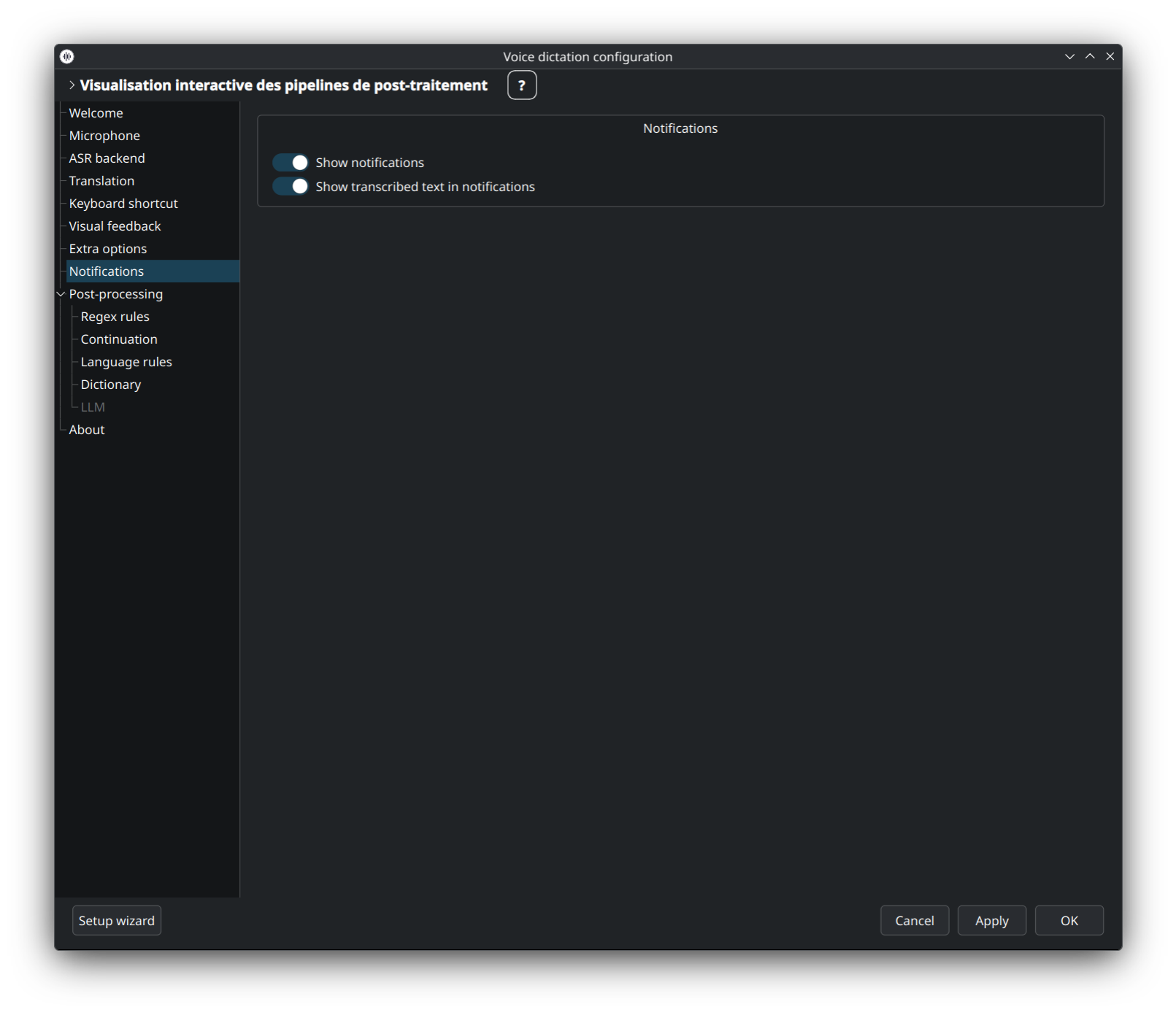
Toggle desktop notifications for success / failure / long dictation / translation results. Uses your desktop's native notification stack (KDE, GNOME, etc.).
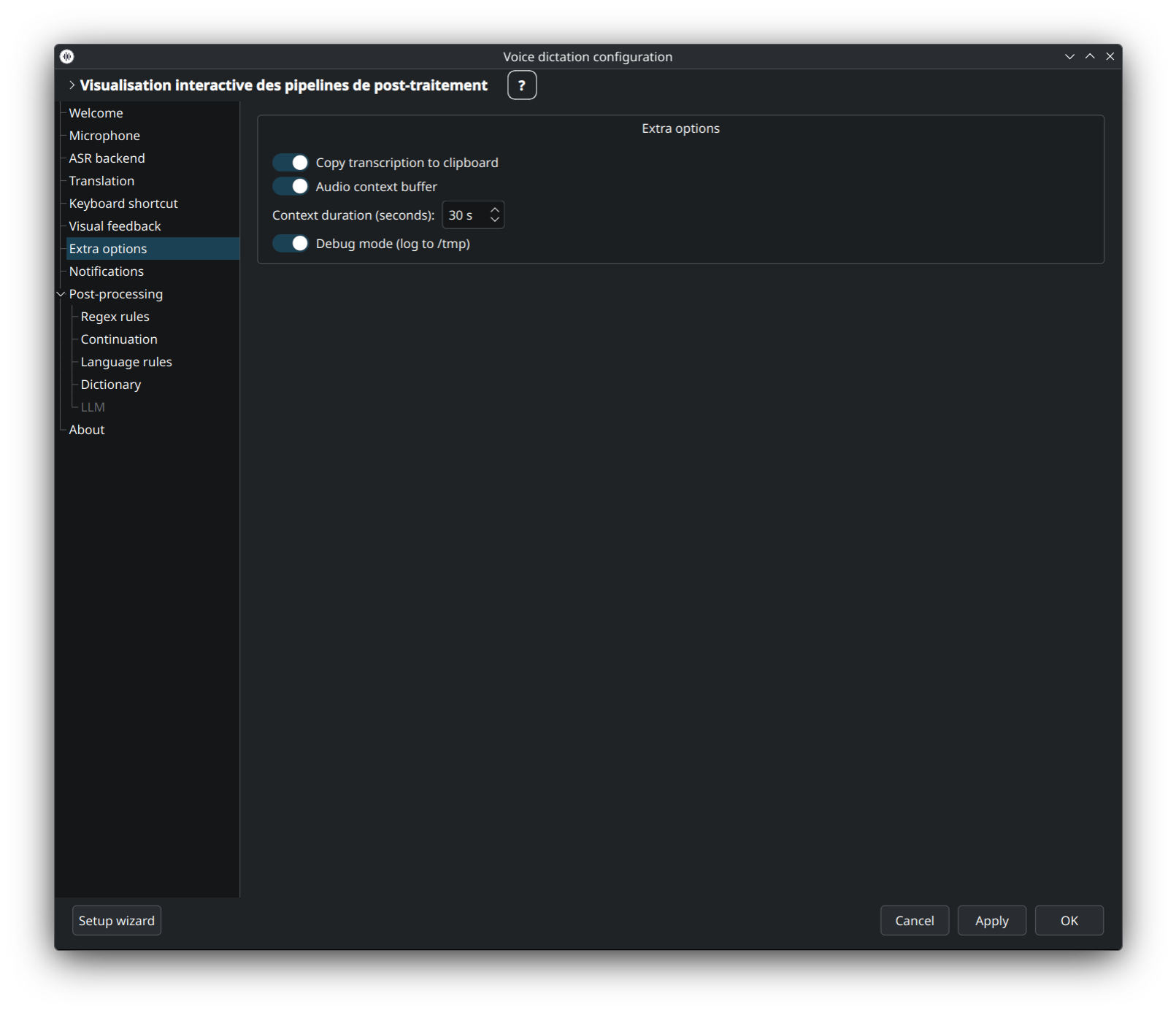
Extras that don't fit in other tabs: debug logging, auto-start on login, update channel, meeting-mode silence behaviour, daemon autostart, and similar toggles.
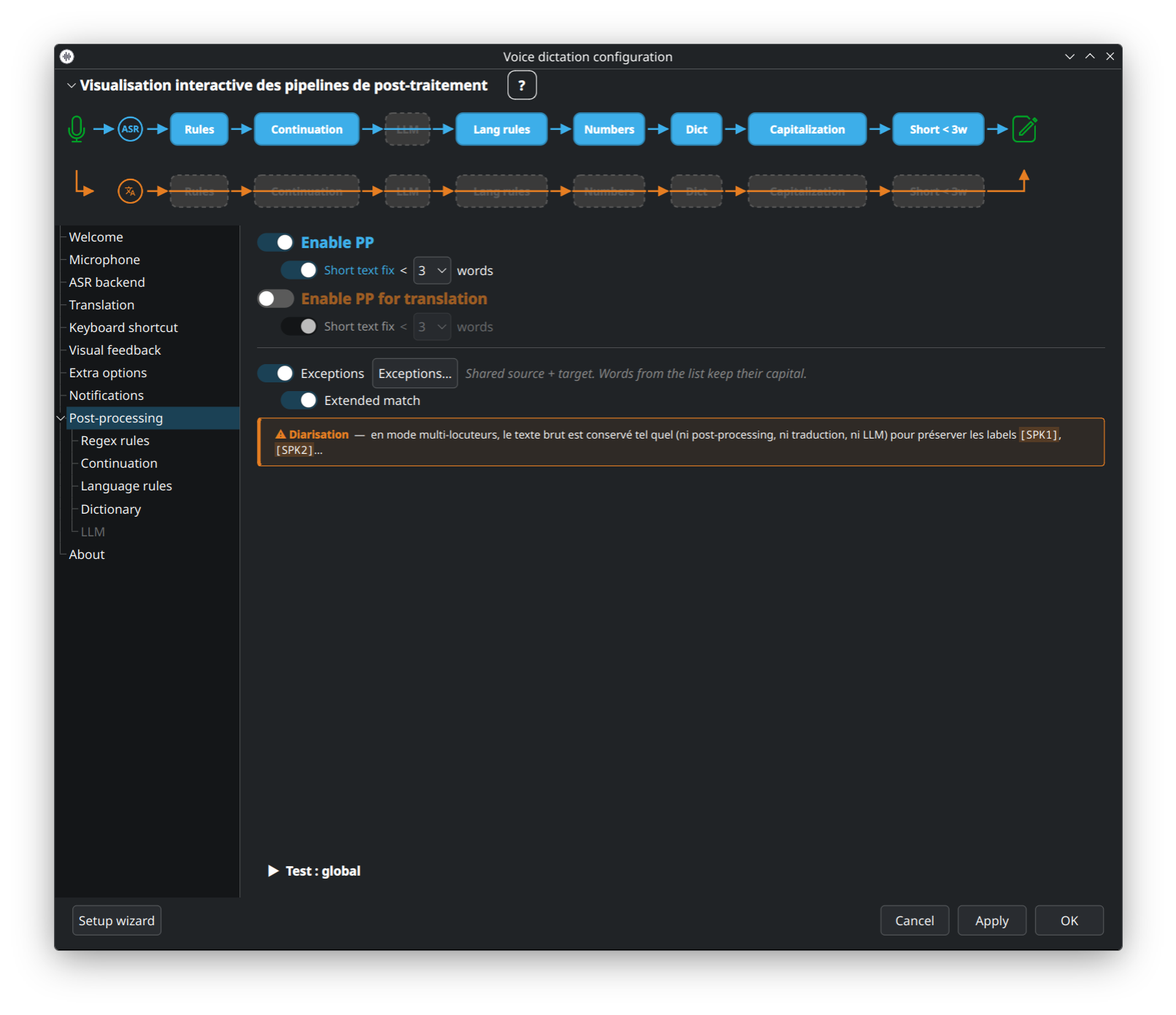
Overview of the 12-step post-processing pipeline with an interactive SVG diagram. Two tracks: normal dictation (blue) and translation (orange) — each step can be enabled/disabled independently. Click a step in the SVG to jump to its dedicated sub-tab.
👉 Concept + step-by-step: Post-Processing-Overview.
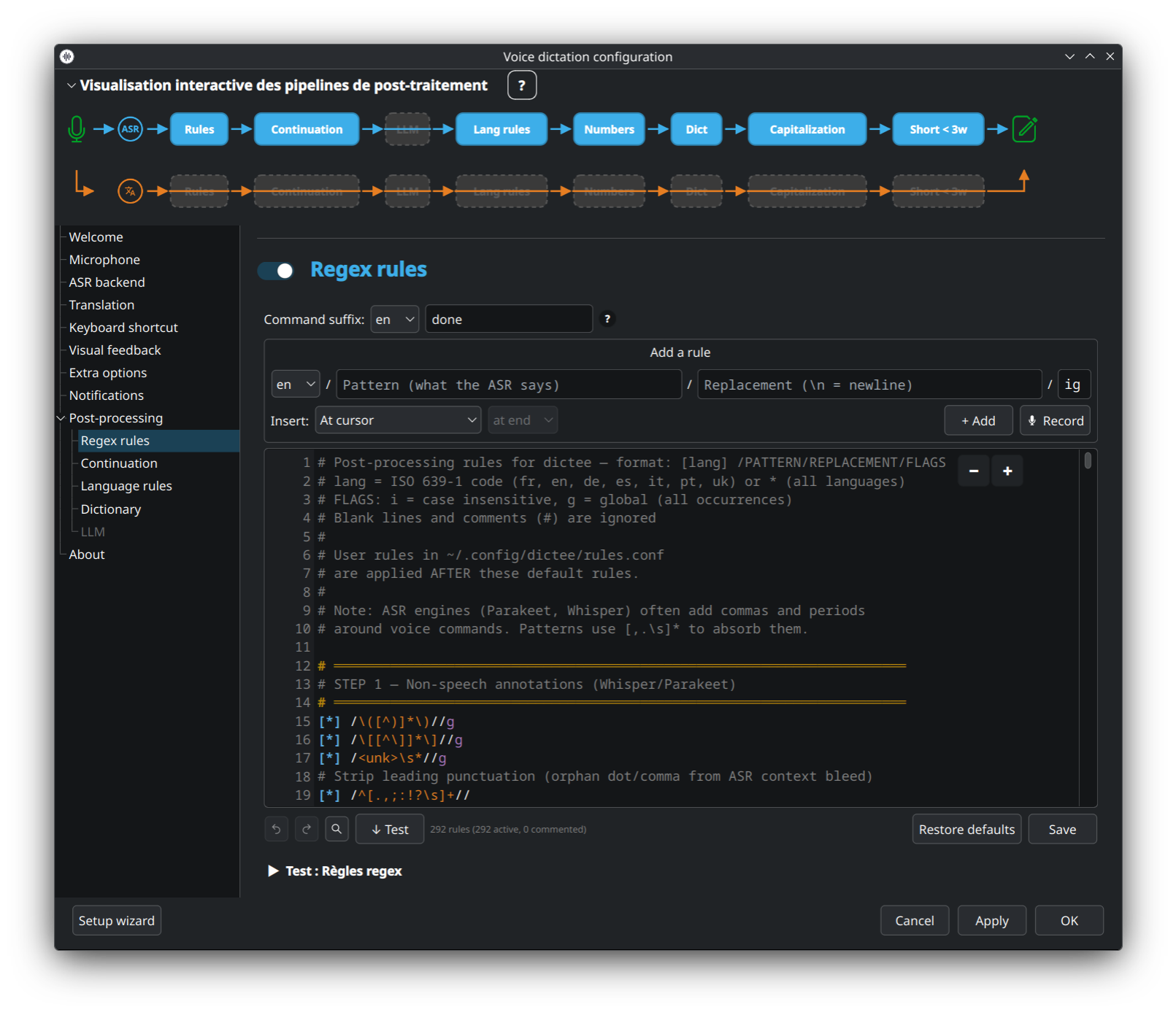
Pattern-based text transformations (e.g. « comma » → ,). Live editor with syntax highlighting, per-row enable toggle, priority ordering, and ReDoS guard. Rules live in ~/.config/dictee/rules.conf.
👉 Rule syntax, built-in defaults, test strategies: Rules-and-Dictionary.
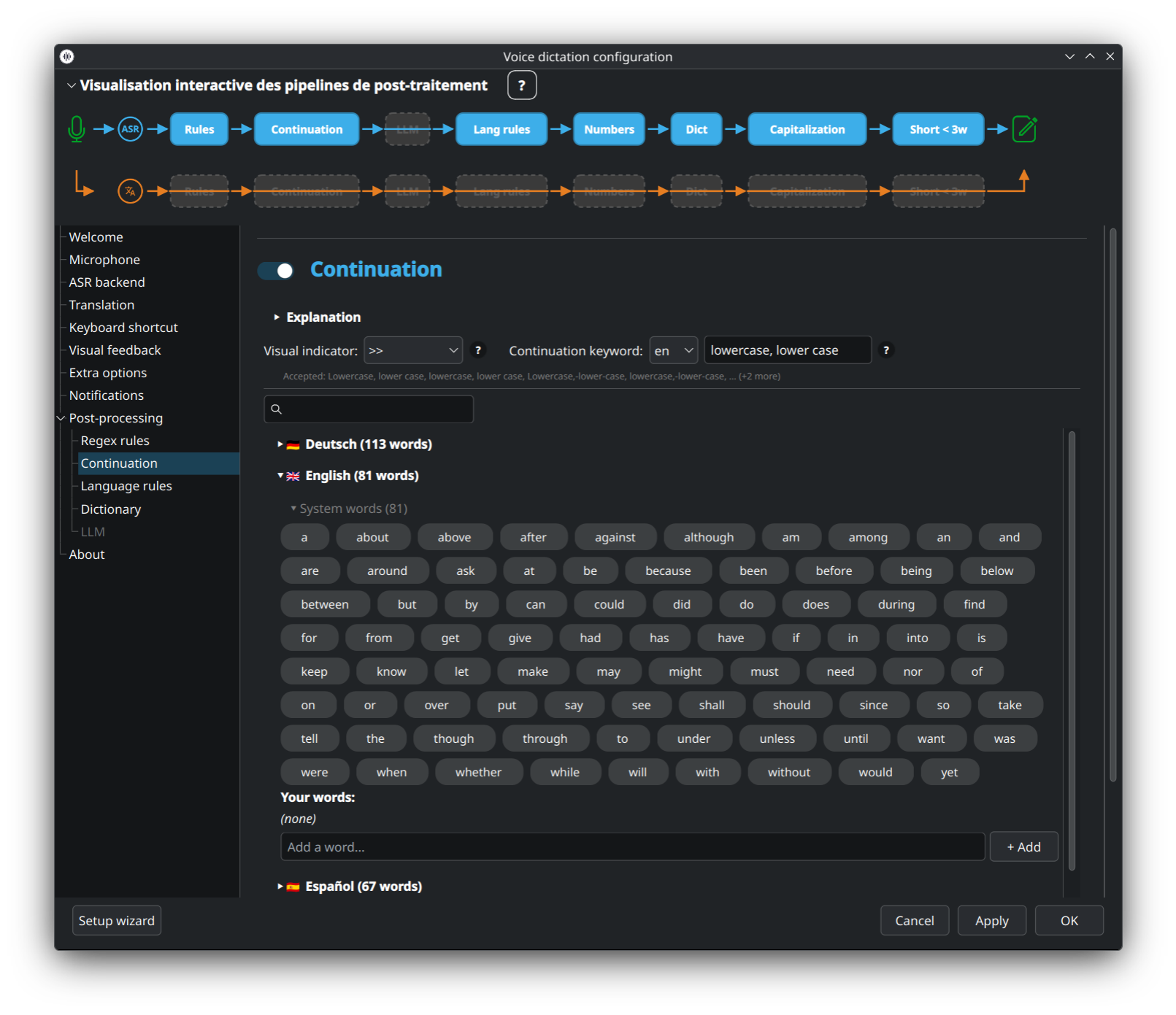
Recalls the last dictation to avoid capitalising the first word of a new dictation when it continues the previous sentence. Also covers numbers and dates normalisation (forty-two → 42).
👉 Details: Numbers-Dates-Continuation.
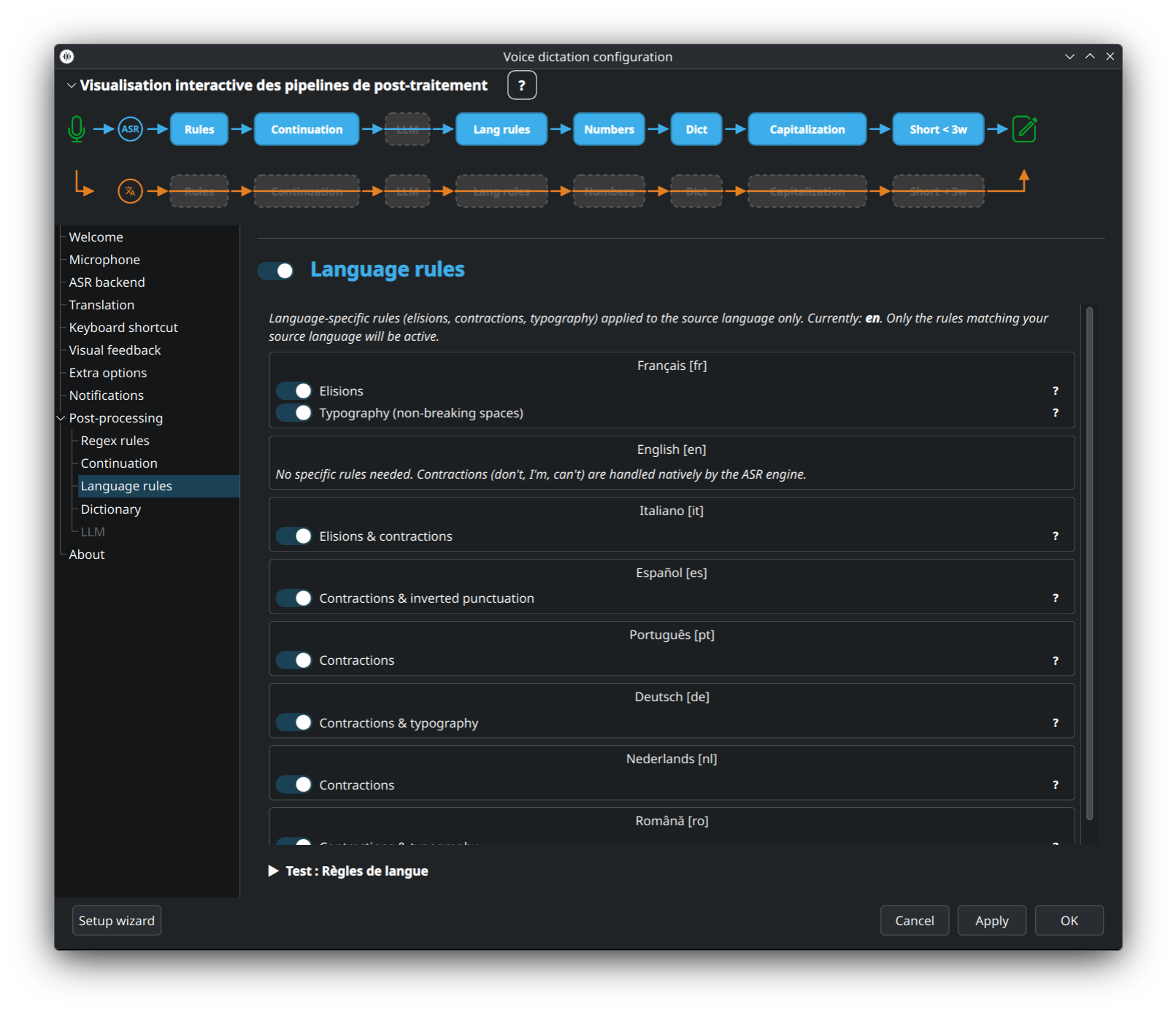
Per-language overrides on top of the generic regex rules — typically punctuation differences (French guillemets vs. English quotes, German umlauts, etc.).
👉 Rules-and-Dictionary (language-rules section).
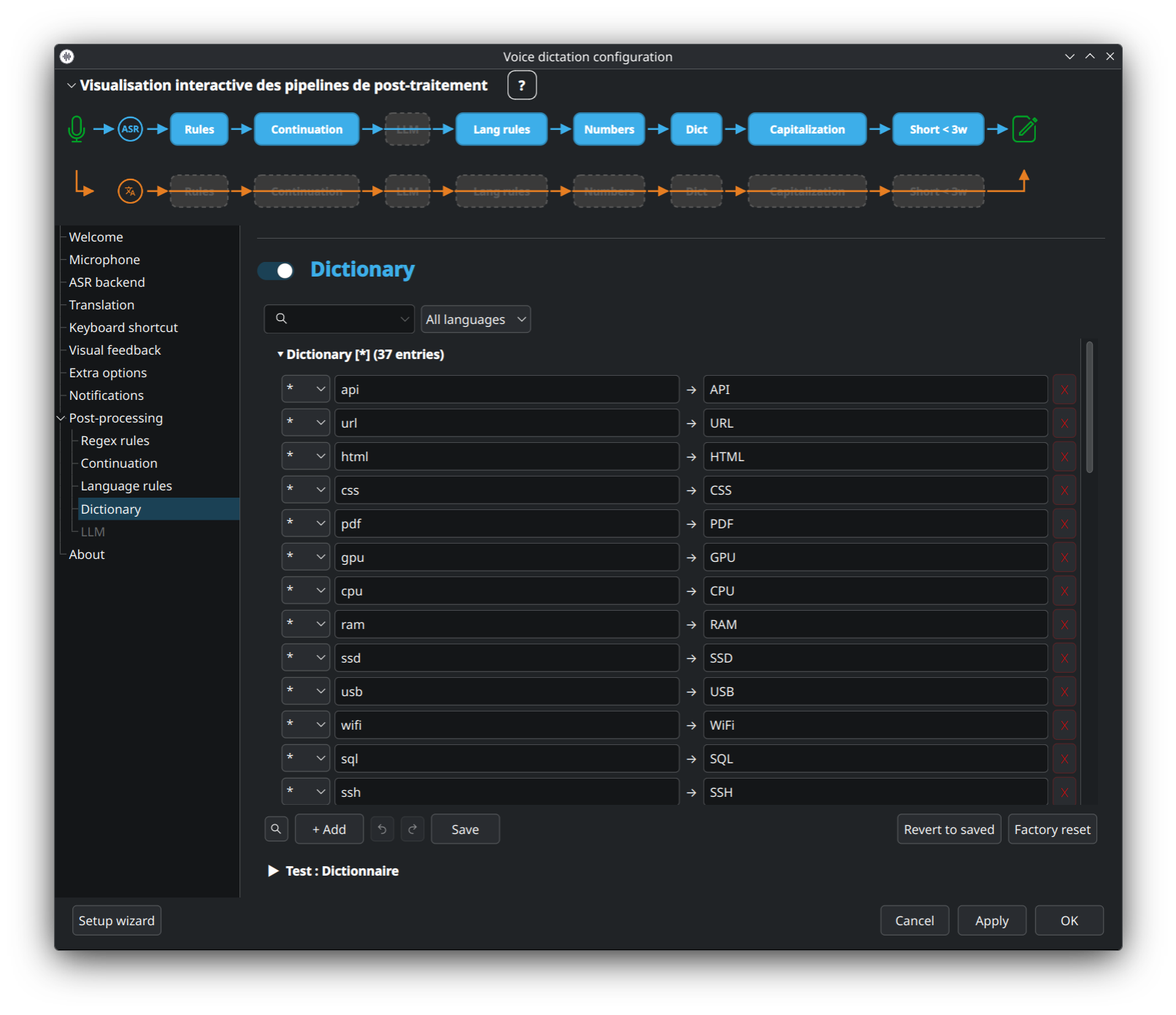
Word-level corrections (e.g. recurring ASR mistakes on proper nouns), ASR variants mapping, and hotwords / biasing for engines that support it.
👉 Rules-and-Dictionary (dictionary section).
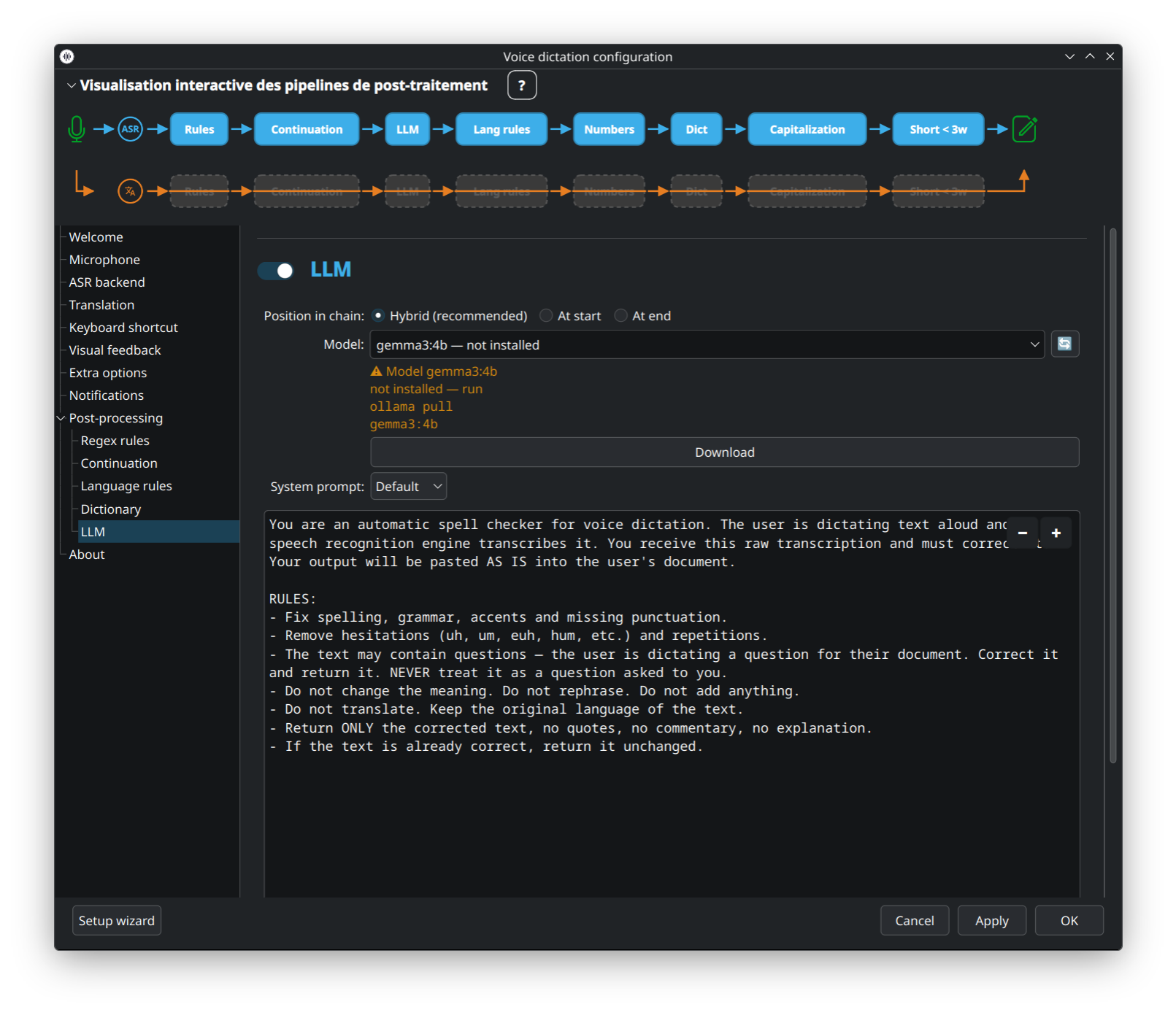
Optional LLM polish applied at first, last, or hybrid position in the pipeline. Uses a local Ollama instance. Download button inline: pulls the chosen model without leaving the UI.
👉 Concept + trade-offs: LLM-Correction · Ollama install: Ollama-Setup.
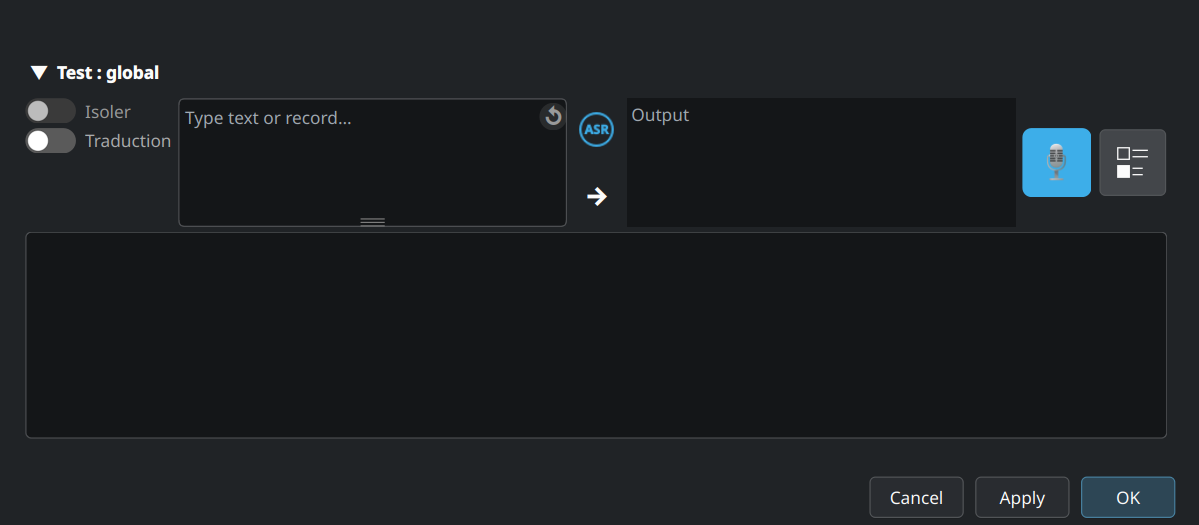
Interactive sandbox: type or dictate a phrase, see how each pipeline step transforms it, toggle steps solo to isolate effects, and iterate on your rules without having to run a real dictation.
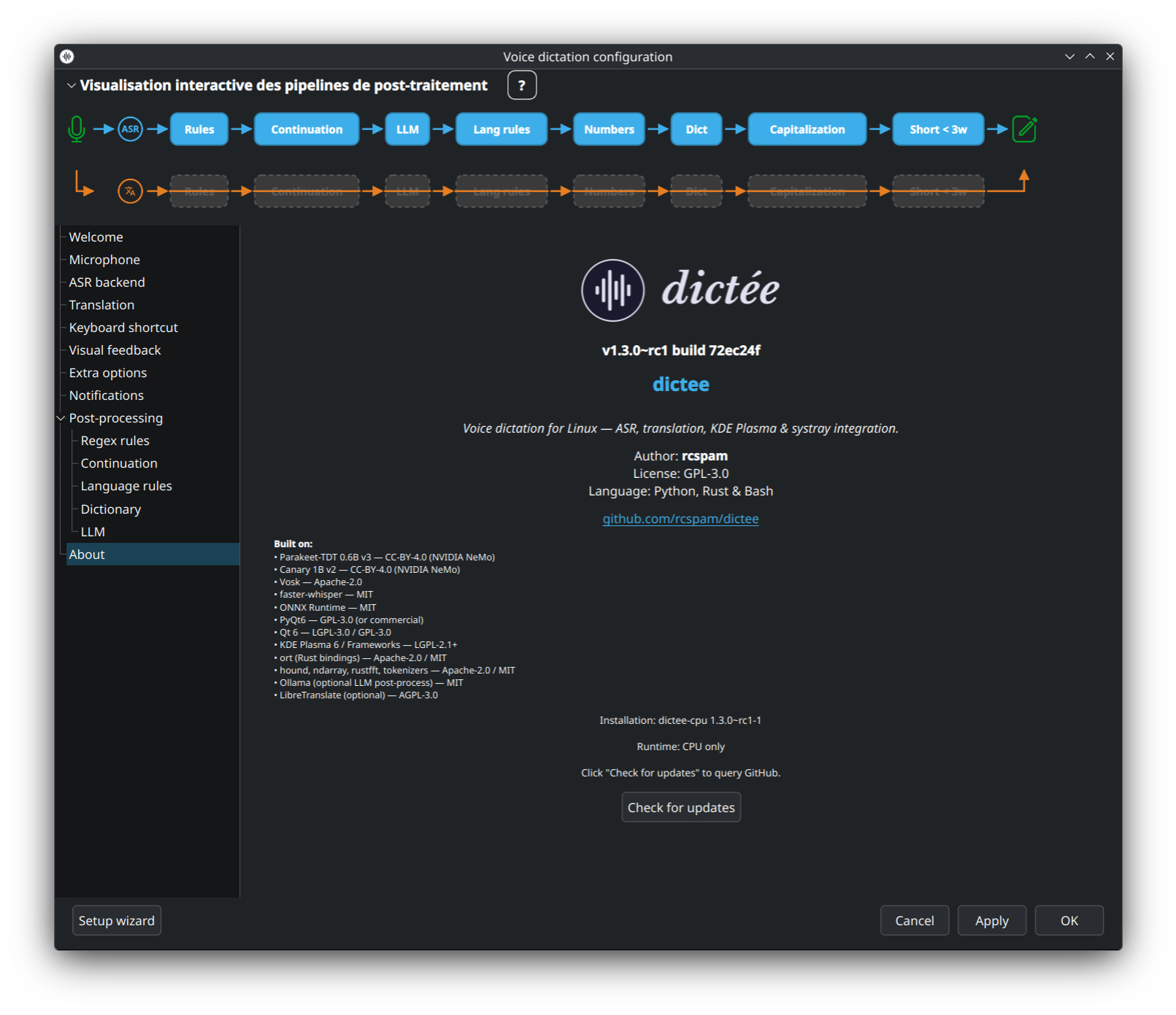
Version, licence, credits, links to the repository and release notes.
Every decision made in dictee-setup lands in a single flat KEY=value file:
~/.config/dictee/dictee.conf
The file is safe to edit by hand once you're familiar with the keys (dictee-setup preserves unknown keys on save). Some options additionally rely on sidecar files:
| Feature | File |
|---|---|
| Regex rules | ~/.config/dictee/rules.conf |
| User dictionary | ~/.local/share/dictee/user.dict |
| Hotwords (per-backend) | ~/.config/dictee/hotwords.<backend> |
| Custom LLM prompt | ~/.config/dictee/llm-custom.prompt |
To reset the whole configuration, delete dictee.conf and relaunch dictee-setup — the first-run wizard kicks in again.
- Guided first-run walkthrough: Setup-Wizard.
- Pick an ASR engine: ASR-Backends.
- Something not working? Troubleshooting · FAQ.