Machine learning for tinkerhub build from home
- Project name
- Team members
- Team id
- Link to product walkthrough
- How it works
- Libraries used
- How to configure
- How to run
- References
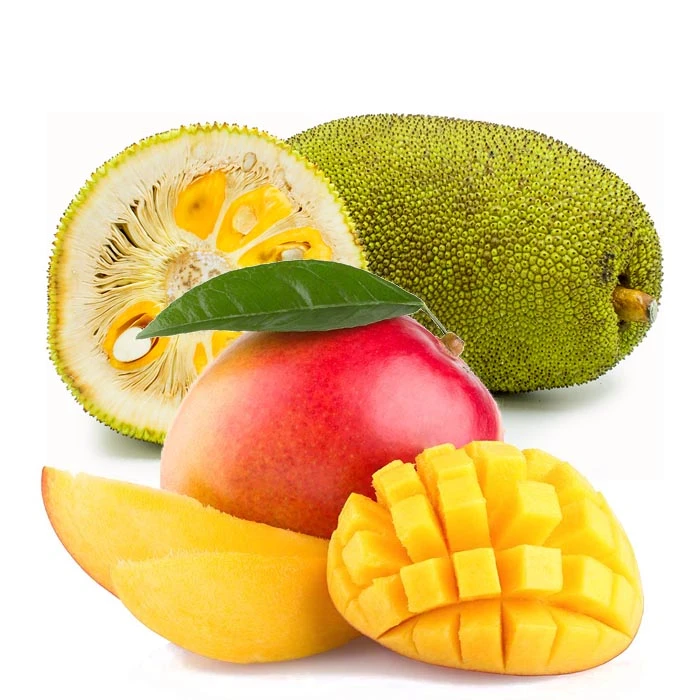
ChakGo_Scan is a Machine learning model developed as part of Build From Home organized by Tinkerhub. This project is trained to distinguish between photo of Chakka or Manga ( Jackfruit or Mango). we came up with the name Chak(CHAKka)Go(manGO)_ Scan.We, a bunch of students have used tensorflow and keras for this ML code.
ChakGo_Scan is an easy to use platform for anyone who wants to check whether an image is Chakka or Manga. Simply open the Final_project.ipynb file and upload your picture
- Vaishakh v vaishakh-v
- Sudarsan R Mohan SUDARSAN-RM
- Darshan S darshanchaithram
- BFH/recaLYum338MTMIJQ/2021
The project is divided into 3 colab files. The first one, namely 'Image dataset using selenium' is used to generate dateset from the internet and to scrape the images as per our criteria.
- We have used selenium framework to generate images.
- Parameters are passed as a CSV file.
- The downloaded images are scrapped as 224 x 224 and ensured to be RGB colourspace.
- We have also included a feature to add and scrape images from Google drive.
- All these images can be downloaded as a zip file.
The second file, namely 'Model training' is used to train our model with our dataset.
- Import dataset from Google drive.
- Grouped the images as training dataset and validation dataset.
- Data Augmentation technique is used to enlarge our dataset size.
- We imported the CNN model 'VGG16' from Tensorflow using keras library.
- Since this is a Binary classification, we need not train all the layers of 'VGG16'.
- Parameters are added to the model as per the criteria.
- Model is trained using our Augmented dataset with 10 Epochs.
- Trained model is saved into the Google drive.
The final file, namely 'Final Project' is where the user tests an image
- The model is imported from Google drive.
- The user can upload an image and predict if the image contain "Chakka" or "Manga".
- The results shows the uploaded image and the fruit type.
- Tensorflow - 2.4.1
- Matplotlib - 3.2.2
- tensorflow.keras
- Pandas
- PIL
- Selenium
- Requests
- Sys
- tensorflow.keras.preprocessing.image
- Open the 'Final project.ipynb' in a jupyter notebook.
- Mount the google drive.
- Open the 'Final project.ipynb'
- Load the model from Google drive.
- Add a test image.
- Pass the image as a parameter to the model.
- Chakka/Manga/Sorry I cannot identify this image, as well as the upoaded picture will be displayed.