- Overview
- Installation
- Usage
- Step-wise install
- Updating plugins
- Uninstall
- Troubleshooting
- Platform notes
- Source credits
A terminal-based development environment for R, Python and Bash built on Neovim, R.nvim, hlterm and Tmux. Designed for working efficiently on HPC clusters over SSH, and equally useful on personal Linux, macOS and Windows (MobaXterm/WSL) systems.
Note: This is a major update of the original Nvim-R-Tmux setup. The old instructions are preserved on the
legacybranch. Key changes:Nvim-R→R.nvim,vimcmdline→hlterm,vim-plug→lazy.nvim,init.vim→init.lua.
| Component | Purpose | Replaces |
|---|---|---|
| Neovim >= 0.10 | Editor | Vim |
| lazy.nvim | Plugin manager | vim-plug |
| R.nvim | R integration | Nvim-R |
| hlterm | Python/Bash REPL | vimcmdline |
| nvim-treesitter | Syntax parsing | — |
| neo-tree | File browser | NERDTree |
| Tmux >= 3.4 | Terminal multiplexer | screen |
Animated screenshot of R.nvim (from R-nvim/R.nvim):
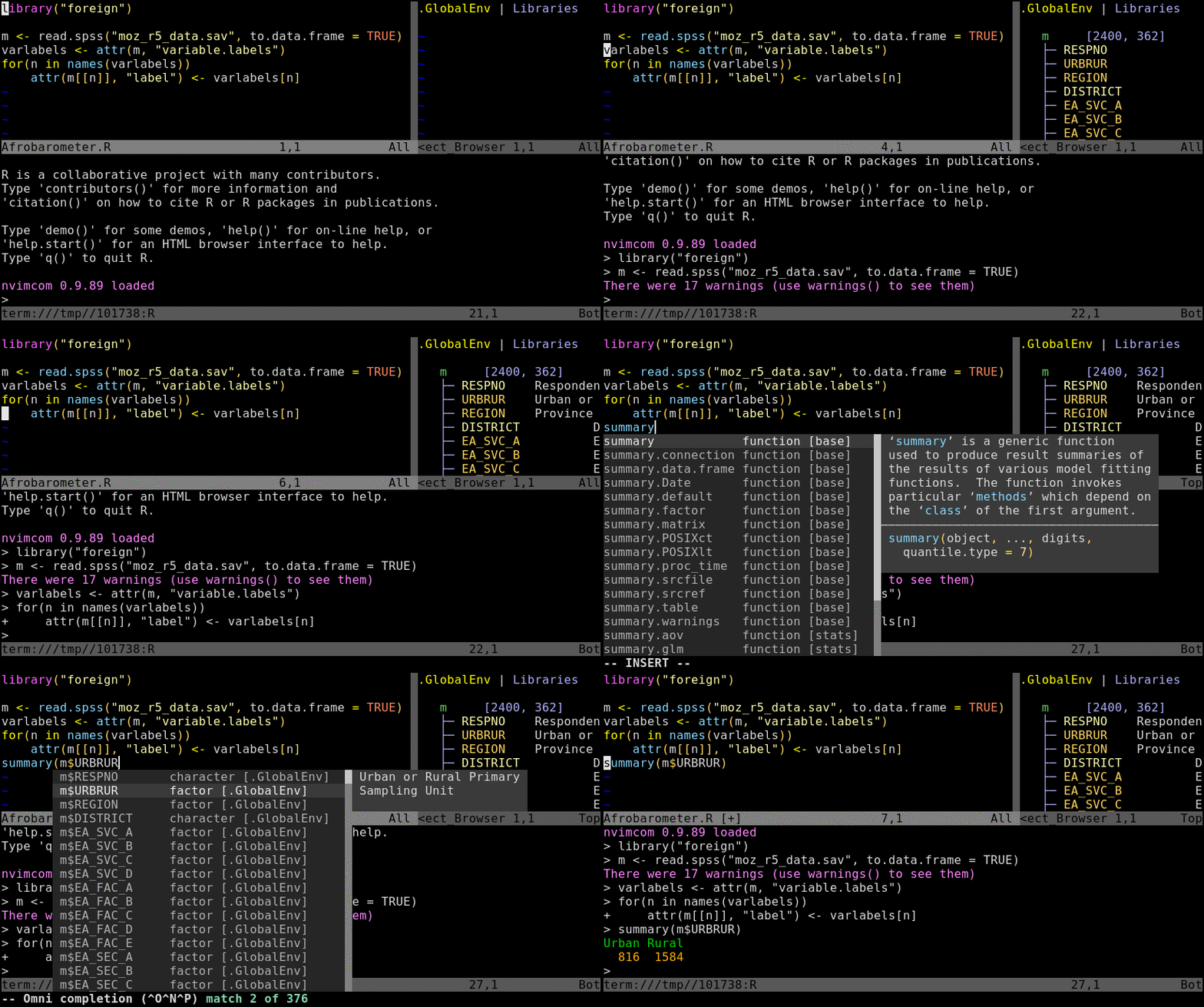
The install script configures everything in one step. It assumes Neovim
= 0.10, Tmux >= 3.4, R, and git are already available on your system (via
module loadon HPC or system install on personal systems). The below install instructions are very similar for personal computer (e.g. macOS, Linux and ChromeOS) and user accounts on a HPC systems similar to UCR's HPCC cluster. Differences are indicated accordingly and additional OS-specific details are given in the step-wise install.
# Clone this repository
git clone https://github.com/tgirke/nvim-R-Tmux.git
cd nvim-R-Tmux

# On HPCC cluster run the install script with this command
module load neovim/0.11.4 tmux R && bash install_nvim_r_tmux.sh
# On a local computer, omit the previous module load line and run this command instead
bash install_nvim_r_tmux.sh
The installer will take 2–5 minutes on first run. It handles everything automatically:
- Installs all Neovim plugins via headless :Lazy sync
- Installs treesitter parsers for R, Python, Bash and others
- Reinstalls nvimcom from patched source to prevent excessive background processes on compute nodes
- Prunes the R.nvim completion cache to base packages only
- Configures ~/.bashrc, ~/.bash_profile, and ~/.Rprofile
If needed the system can be uninstalled with the provided uninstall script
bash reset_nvim_r_tmux.shThen follow the Usage section below.
| Tool | Minimum version | Check |
|---|---|---|
| Neovim | 0.10 | nvim --version |
| Tmux | 3.4 | tmux -V |
| R | any | R --version |
| git | any | git --version |
See Step-wise install below for platform-specific installation instructions for each of these.
A note on copy/paste in terminal editors
Copy/paste works differently in a terminal-based editor than in a GUI application like RStudio or a web browser. Mouse-based text selection does not work reliably inside Neovim or tmux because the terminal, tmux, and Neovim all compete to handle mouse events.
The recommended workflow is simple and consistent across all platforms:
What you want to do How to do it Copy a line in nvim yy(yank current line)Copy a selection in nvim vto select, thenyto yankPaste in nvim pCopy text in terminal Ctrl-Shift-CPaste in terminal Ctrl-Shift-VSelect text with mouse in terminal Shift+dragthenCtrl-Shift-C
Shift+dragbypasses both tmux and Neovim mouse capture and works whether mouse mode is on or off. Note however that it selects raw screen characters including line numbers and split borders, so it is best used only in a plain terminal pane, not inside the nvim editor.
yyandycopy to the system clipboard, so you can paste withCtrl-Vin any other application (browser, text editor etc.).The mouse (
Space-mto toggle) is useful for clicking between panes but not for selecting and copying text. Keep it on for navigation, use the keyboard for copy/paste.
1. Start tmux session
Running Nvim from within a tmux session is strongly recommended for remote
work on HPCC — it allows re-attaching to sessions after disconnects. When
using tmux it is important to remember on which head node it was started (on
HPCC: skylark or bluejay), since it can only be restarted from the same
head node.
tmux a # starts a new tmux session with default layout or re-attaches to existing sessionThe default session opens five named windows that can be changed in a user's ~/.tmux.conf file.
Switch between windows with Ctrl-a 1 through Ctrl-a 5.
2. Log in to a compute node with srun
This step applies only to HPCC's cluster (possibly other clusters too). Skip this step on other systems.
This is done from one of the tmux windows. It does't matter which one.
srun --partition=short --mem=2gb --cpus-per-task 4 --ntasks 1 --time 1:00:00 --pty bash -l3. Open nvim-connected R session
Open an *.R, *.Rmd or *.qmd file with nvim and initialize a connected R session
with \rf. The resulting split window between Nvim and R behaves like a split
viewport in nvim, meaning Ctrl-w w followed by i and Esc is important
for navigation between panes. The same can be achieved with mouse clicks if
mouse support is enabled.
nvim myscript.R # open an R script (or *.Rmd / *.qmd file)Then inside nvim press \rf to start the connected R session. The first time
an R script is opened it is best to do this on a compute node (log in with srun)
since it will create the omni completion database which can take some time on a compute
system with hundreds of installed packages (over 1,500 on HPCC cluster). Also, if there any messages
appearing during the first session, just confirm them with Enter.
3. Send R code from nvim to the R pane
Single lines of code can be sent from nvim to the R console by pressing
Enter in normal mode. Entire code chunks from Rmd and qmd can be sent with
\cc. To send a custom selection of several lines at once, select them in nvim's
visual mode (press v to start selection) and then press Enter. The default
keybinding for sending code in R.nvim is \l — this has been remapped in the
provided init.lua to Enter for consistency with other editors.
This opens R in a split pane to the right. The editor and R console are now connected — code sent from the editor runs in the R pane.
Sending code to R:
| Action | Key |
|---|---|
| Send current line | Enter (normal mode) |
| Send selection | Enter (visual mode — select with v first) |
| Send entire file | \aa |
| Send current function | \ff |
| Send current chunk (Rmd/Quarto) | \cd |
| Send all chunks above cursor | \ch |
R.nvim commands:
| Action | Key / Command |
|---|---|
| Start R session | \rf |
| R help for word under cursor | \rh |
| Toggle object browser | \ro |
| View data frame in vizidata | \rv |
Insert <- |
Alt - |
Insert |> |
Alt , |
| List all keybindings | :RMapsDesc |
| Show current config | :RConfigShow |
Data frame viewer (
\rv): Opens the data frame under the cursor in VisiData — a terminal-based viewer with paging, sorting, filtering and search. VisiData is installed automatically by the install script viapip install --user visidata. On macOS you can also usebrew install visidata. It works over SSH with no browser or GUI required and handles large data frames efficiently. Pressqto quit VisiData and return to your R script. If VisiData is not installed,\rvfalls back to displaying the data frame in a nvim buffer (limited to ~1200 rows).
Shortcuts to navigate between editor and R pane:
Ctrl-w w        cycle between panes
Ctrl-h / Ctrl-l jump left / right
i               enter insert mode (in R pane)
Esc return to normal modeOpen a Python or Bash script:
nvim myscript.py
nvim myscript.sh
Start a connected interpreter:
\s
This opens Python (for .py) or Bash (for .sh) in a split pane.
Sending code:
| Action | Key |
|---|---|
| Send current line | Enter (normal mode) |
| Send selection | Enter (visual mode) |
The same Enter keybinding works for R, Python and Bash — it is
buffer-local so R files use R.nvim and Python/Bash files use hlterm
without conflict.
Prefix key: Ctrl-a (hold Ctrl, press a, release both, then next key)
Sessions:
| Action | Key |
|---|---|
| Detach from session | Ctrl-a d |
| Reattach to session | tmux a (from shell) |
| List sessions | tmux ls |
| Switch sessions | Ctrl-a s |
| Kill current session | Ctrl-a : kill-session |
Windows:
| Action | Key |
|---|---|
| New window | Ctrl-a c |
| Next / previous window | Ctrl-a n / Ctrl-a p |
| Jump to window by number | Ctrl-a 1 … Ctrl-a 5 |
| Rename window | Ctrl-a , |
Panes:
| Action | Key |
|---|---|
| Split vertically | Ctrl-a | |
| Split horizontally | Ctrl-a - |
| Move between panes | Ctrl-a + arrow |
| Resize pane | Alt + arrow (no prefix) |
| Zoom pane (maximize/restore) | Ctrl-a z |
| Close pane | Ctrl-a x |
Other:
| Action | Key |
|---|---|
| Reload tmux config | Ctrl-a r |
| Toggle mouse on/off | Ctrl-a m |
| Scroll / copy mode | Ctrl-a [ (q to exit) |
| List all keybindings | Ctrl-a ? |
Modes:
| Key | Action |
|---|---|
i |
enter insert mode (type text) |
Esc |
return to normal mode |
: |
enter command mode |
Essential commands:
| Action | Key / Command |
|---|---|
| Save | :w |
| Quit | :q |
| Save and quit | :wq |
| Quit without saving | :q! |
| Search forward | /pattern |
| Search backward | ?pattern |
| Find and replace | :%s/old/new/gc |
| Open terminal | :terminal |
| Exit terminal mode | Esc |
| Vertical split | :vsplit |
| Horizontal split | :split |
| Maximize current split | gz |
| Equalize splits | Ctrl-w = |
| Jump between splits | Ctrl-h/j/k/l |
| Toggle mouse on/off | Space-m |
| Toggle indent lines on/off | Space-i |
| Toggle markdown view | Space-md or :RenderMarkdown disable, details here |
Toggle the file browser with zz.
| Key | Action |
|---|---|
zz |
toggle open / close |
Enter |
open file |
a |
create file or directory |
s |
open file with vertical split |
S |
open file with horizontal split |
H |
toggle hidden files |
? |
help |
q |
close |
Hidden files (dotfiles) are not shown by default. Press H to toggle
them on or off.
Code snippets expand common R, Quarto and Rmd skeletons directly in the
editor. Type a trigger word, press Ctrl-Space to open the completion menu,
select the snippet entry (labeled ~ Snippet), and press Enter to expand.
After expanding, press Tab to jump forward through placeholders and
Shift-Tab to jump back.
R file snippets (.R files):
| Trigger | Expands to |
|---|---|
for |
for loop with variable, iterable and body placeholders |
fun |
function definition with name, arguments and body |
if |
if/else block |
ife |
if / else if / else block |
whl |
while loop |
aply |
sapply with anonymous function |
laply |
lapply with anonymous function |
tc |
tryCatch with error handler |
pipe |
base R pipe chain (|>) |
Quarto and R Markdown snippets (.qmd and .Rmd files):
| Trigger | Expands to |
|---|---|
rch |
basic R code chunk (```{r label}) |
rcho |
R chunk with eval, echo and warning options |
rchf |
R chunk with figure caption, width and height options |
pch |
Python code chunk |
bch |
Bash code chunk |
call |
Quarto callout block (note / warning / tip / important) |
tabs |
Quarto tabset with two tabs |
Adding or modifying snippets:
Snippet files live in ~/.config/nvim/snippets/ and are plain Lua files
named after the filetype (r.lua, quarto.lua, rmd.lua). Edit them
directly to add new snippets or change existing ones. Changes take effect
immediately without restarting Neovim — LuaSnip reloads snippet files
automatically when they change on disk.
Claude Code (AI Coding Assistant) can be used alongside this setup for AI-assisted development. See CLAUDE_CODE.md for setup and workflow instructions.
Clipboard behavior depends on platform:
| Platform | Method | Mouse default |
|---|---|---|
| HPC via MobaXterm (Windows) | X11 automatic | ON |
| macOS iTerm2 → HPC SSH | OSC 52 via clip script |
ON |
| Linux desktop → HPC SSH | OSC 52 via clip script |
ON |
| Local Linux desktop | unnamedplus + xclip |
ON |
| ChromeOS Crostini | terminal Ctrl-Shift-C/V |
ON (toggle off with Space-m) |
On ChromeOS the X11 clipboard bridge is unreliable — use
Ctrl-Shift-C/V in the terminal and Space-m to toggle mouse
off when you need terminal text selection.
In Neovim, yy copies a line and p pastes — both use the system
clipboard on supported platforms. Use Space-m to toggle mouse off
when you need to select text with the mouse for terminal copy.
Follow these steps if you prefer to install each component manually, or if the quick install script does not work on your system.
Reference: https://github.com/neovim/neovim/blob/master/INSTALL.md
nvim --version # check existing versionHPC cluster:
module avail neovim
module load neovim
echo 'module load neovim' >> ~/.bashrc
Linux / ChromeOS (Crostini) / WSL:
Use neovim-releases — compiled against older glibc, works on Debian
Bullseye and ChromeOS Crostini. The main neovim releases require
glibc 2.32+ and will fail on older systems with GLIBC_2.32 not found.
- neovim-releases (recommended): https://github.com/neovim/neovim-releases/releases/latest
- neovim (newer glibc only): https://github.com/neovim/neovim/releases/latest
curl -LO https://github.com/neovim/neovim-releases/releases/latest/download/nvim-linux-x86_64.tar.gz
tar -C ~/.local -xzf nvim-linux-x86_64.tar.gz
echo 'export PATH="$HOME/.local/nvim-linux-x86_64/bin:$PATH"' >> ~/.bashrc
source ~/.bashrc
nvim --version
If you see GLIBC_2.32 not found, you used the wrong URL —
make sure it says neovim-releases not neovim.
macOS:
brew install neovimWindows (MobaXterm): MobaXterm includes a built-in X server and SSH client. Neovim runs on the remote HPC server, not locally on Windows — follow the HPC Cluster instructions above after connecting via MobaXterm.
For local use on Windows, install WSL (Ubuntu) from the Microsoft Store and follow the Linux instructions inside WSL: https://learn.microsoft.com/en-us/windows/wsl/install
Tmux 3.4 is required for OSC 52 clipboard passthrough
(allow-passthrough option). Check your version:
tmux -VHPC cluster:
module load tmux
echo 'module load tmux' >> ~/.bashrc
Linux / ChromeOS / WSL (build from source if system version < 3.4):
sudo apt install libevent-dev libncurses-dev build-essential bison
curl -LO https://github.com/tmux/tmux/releases/download/3.4/tmux-3.4.tar.gz
tar xzf tmux-3.4.tar.gz && cd tmux-3.4
./configure --prefix=$HOME/.local && make && make install
echo 'export PATH="$HOME/.local/bin:$PATH"' >> ~/.bashrc
source ~/.bashrc
tmux -V
macOS:
brew install tmuxReference: https://cran.r-project.org
HPC cluster:
module load R
echo 'module load R' >> ~/.bashrc
Linux / ChromeOS:
sudo apt install r-basemacOS:
brew install rmkdir -p ~/.config/nvim
cp init.lua ~/.config/nvim/init.luaAlso install the hlterm bash fix — this makes \s in .sh files
open a proper login shell with your normal prompt instead of a bare $:
mkdir -p ~/.config/nvim/after/ftplugin
cp sh_hlterm.lua ~/.config/nvim/after/ftplugin/sh_hlterm.lua
The init.lua template bootstraps lazy.nvim
on first launch and installs all plugins automatically. No separate
plugin manager install step is needed.
cp .tmux.conf ~/.tmux.confStart the default session:
tmuxReattach after disconnecting:
tmux aThe clip script copies text to the local system clipboard via
OSC 52
— works over SSH without X11 forwarding. Required for macOS and
Linux users connecting to HPC. Not needed for MobaXterm (uses X11
automatically).
mkdir -p ~/.local/bin
cp clip ~/.local/bin/clip
chmod +x ~/.local/bin/clip
echo 'export PATH="$HOME/.local/bin:$PATH"' >> ~/.bashrc
source ~/.bashrc
Test outside tmux:
echo "hello" | clip # then Ctrl-V in your local terminalRun on the login node on HPC (requires internet access):
nvimLazy.nvim installs all plugins on first launch. Wait for it to finish, then run:
:Lazy sync
:qa
Reopen and verify:
:checkhealth r
:checkhealth provider
:checkhealth lazy
Expected results:
checkhealth r: Neovim OK, treesitter OK, gcc OKcheckhealth provider: clipboard tool found (xclip on Linux)checkhealth lazy: lazy.nvim OK (luarocks warnings are safe to ignore)
nvim test.R:RMapsDesc # should list R.nvim keybindings
\rf # start R session
Press Enter in normal mode to send the current line to R.
nvim test.pyPress \s to start Python. Press Enter to send the current line.
nvim test.shPress \s to start Bash. Press Enter to send the current line.
colorout by Jakson Alves de Aquino colorizes R's console output (numbers, warnings, errors) in the R terminal pane. This is separate from nvim-treesitter which colorizes the R script file in the editor.
install.packages("remotes")
remotes::install_github("jalvesaq/colorout"):Lazy update # update all plugins
:Lazy update R.nvim # update a single plugin
Note, this can be done with a single command using the reset script here. ).
# Neovim config, plugins, cache
rm -rf ~/.config/nvim
rm -rf ~/.local/share/nvim
rm -rf ~/.cache/nvim
rm -rf ~/.local/state/nvim

# Tmux config
rm -f ~/.tmux.conf

# clip script
rm -f ~/.local/bin/clip

# colorout R package (if installed)
Rscript -e 'remove.packages("colorout")'
Remove the ~/.bashrc block added by the install script
(lines between # --- nvim_r_tmux_env --- markers) and
the colorout block from ~/.Rprofile manually.
:RMapsDesc says "not an editor command"
R.nvim did not load. Check :Lazy and :checkhealth r.
Most common cause: nvim-treesitter not loaded before R.nvim.
Use the provided init.lua unmodified for first install.
\rf types the letter f
localleader not set. Check :echo maplocalleader — should return \.
\s does not start interpreter
Check :set filetype? (should return python or sh) and
:Lazy (hlterm should be listed).
Parser could not be created for language "r"
Run :TSInstall r and :TSInstall rnoweb, then restart Neovim.
nvim-treesitter configs module not found
Wrong branch. Fix:
rm -rf ~/.local/share/nvim/lazy/nvim-treesitterThen :Lazy install. The init.lua pins branch = "master".
allow-passthrough invalid option in tmux
Tmux version is below 3.3. Install tmux 3.4 from source (see Step 2).
GLIBC_2.32 not found when running nvim
Using the wrong release. Use neovim-releases not neovim (see Step 1).
Colors look wrong
Add export TERM=xterm-256color to ~/.bashrc.
HPC clusters: run first plugin install on the login node. Load
neovim, tmux and R modules before launching nvim. Add module load
commands to ~/.bashrc.
macOS: install Xcode command line tools first (xcode-select --install). Use iTerm2 for best OSC 52
clipboard support.
Windows (MobaXterm): MobaXterm has a built-in X server — clipboard
works automatically via X11, no clip script needed. Enable clipboard
in MobaXterm: Settings → X11 → Clipboard → enabled.
Linux desktop: install xclip (sudo apt install xclip).
clipboard=unnamedplus in init.lua handles the rest locally.
Use clip script for SSH sessions to HPC.
ChromeOS (Crostini): use neovim-releases tarball. Install tmux
3.4 from source (system tmux is too old). Use Ctrl-Shift-C/V for
terminal copy/paste. Toggle mouse with Space-m.
This setup is built on and derived from the following projects. Please consult these upstream sources when things change:
| Component | Author(s) | Source |
|---|---|---|
| Neovim | Neovim contributors | https://github.com/neovim/neovim |
| Neovim install guide | Neovim contributors | https://github.com/neovim/neovim/blob/master/INSTALL.md |
| Neovim releases (current glibc) | Neovim contributors | https://github.com/neovim/neovim/releases |
| Neovim releases (older glibc) | Neovim contributors | https://github.com/neovim/neovim-releases/releases |
| R.nvim | Jakson Alves de Aquino & contributors | https://github.com/R-nvim/R.nvim |
| R.nvim documentation | Jakson Alves de Aquino & contributors | https://github.com/R-nvim/R.nvim/blob/main/doc/R.nvim.txt |
| R.nvim wiki | R-nvim contributors | https://github.com/R-nvim/R.nvim/wiki |
| hlterm (replaces vimcmdline) | Jakson Alves de Aquino | https://github.com/jalvesaq/hlterm |
| lazy.nvim | Folke Viegas | https://github.com/folke/lazy.nvim |
| nvim-treesitter | nvim-treesitter contributors | https://github.com/nvim-treesitter/nvim-treesitter |
| neo-tree.nvim | Michael Sloan & contributors | https://github.com/nvim-neo-tree/neo-tree.nvim |
| indent-blankline.nvim | Lukas Reineke | https://github.com/lukas-reineke/indent-blankline.nvim |
| kanagawa.nvim | rebelot | https://github.com/rebelot/kanagawa.nvim |
| colorout | Jakson Alves de Aquino | https://github.com/jalvesaq/colorout |
| Tmux | Nicholas Marriott & contributors | https://github.com/tmux/tmux |
| Tmux manual | Tmux contributors | https://man.openbsd.org/tmux |
Prior art this setup builds on:
- Original Nvim-R-Tmux tutorial by Thomas Girke (legacy branch): https://github.com/tgirke/nvim-R-Tmux/tree/legacy
- GEN242 course Linux/HPC tutorial (UCR): https://girke.bioinformatics.ucr.edu/GEN242/tutorials/linux/linux/
- UCR HPCC terminal IDE manual: https://hpcc.ucr.edu/manuals/hpc_cluster/terminalide/