This is a comprehensive boilerplate for building cross-platform applications using Flutter. It provides a structured architecture, streamlined configuration, and best practices for scalability and maintainability.
- Getting Started
- Environment Variables
- Codemagic Integration
- Architecture
Follow these steps to set up your project:
- Create a new repository using this template.
- Clone the new repository to your local machine.
- Update
pubspec.yaml: Change the app name, description, and version.
This guide explains how to rename the app, change the bundle ID, update launcher icons, and configure project settings efficiently.
Ensure you have Flutter installed, then install rps globally:
flutter pub global activate rps Run the following command to apply all necessary configurations:
flutter pub global run rps setup This command updates the package name, project name, icons, and keystore settings.
Modify the package_rename_config section in pubspec.yaml:
package_rename_config:
  android:
    app_name: Sourcya
    package_name: io.sourcya.app

  ios:
    app_name: Sourcya
    bundle_name: Sourcya
    package_name: io.sourcya.app

  web:
    app_name: Sourcya
description: Sourcya App - Replace
logo.pnginassets/images/. - Update
pubspec.yamlunderflutter_launcher_icons:
flutter_launcher_icons:
  image_path_android: "assets/images/logo.png"
  image_path_ios: "assets/images/logo.png"
  android: "ic_launcher"
  ios: true
  web:
    generate: true
    image_path: "assets/images/logo.png"
    background_color: "#FFFFFF"
    theme_color: "#FFFFFF"
Run:
flutter pub run flutter_launcher_icons:main Update the project name using:
flutter pub run flutter_project_name_changer:main souryca_example Run the following command to generate a keystore:
dart run scripts/generate_keystore.dart Then create keystore.properties in the android directory:
storePassword=myStorePassword
keyPassword=myKeyPassword
keyAlias=myKeyAlias
storeFile=../key.jks keystore.properties to the repository.
Environment variables help store sensitive information securely without pushing them to a repository.
- Create a
.envfile in the root directory:
API_KEY=your_api_key
SECRET_KEY=your_secret_key - Add
.envto.gitignore:
*.env Modify main.dart:
import 'package:flutter_dotenv/flutter_dotenv.dart';

Future main() async {
  await dotenv.load(fileName: "assets/env/.env");
  runApp(MyApp());
}
Access variables anywhere:
String apiKey = dotenv.env['API_KEY'] ?? ''; Codemagic automates Flutter builds, tests, and deployments.
- Upload the keystore file in Codemagic UI.
- Reference it in
android_signinginsidecodemagic.yaml.
- Define variables under
environment_vars. - Store API keys securely.
- Configure Google Play & App Store credentials.
- Build automation for Android & iOS.
- Testing integration.
- Deployments to stores or distribution services.
An app architecture defines the boundaries between parts of the app and the responsibilities each part should have. In order to meet the needs mentioned above, you should design your app architecture to follow a few specific principles.
The most important principle to follow is separation of concerns. It's a common mistake to write all your code in Widgets . These UI-based classes should only contain logic that handles UI and operating system interactions. By keeping these classes as lean as possible, you can avoid many problems related to the component lifecycle, and improve the testability of these classes.
Another important principle is that you should drive your UI from data models, preferably persistent models. Data models represent the data of an app. They're independent from the UI elements and other components in your app. This makes the app more testable and robust.
When a new data type is defined in your app, you should assign a Single Source of Truth (SSOT) to it. The SSOT is the owner of that data, and only the SSOT can modify or mutate it. To achieve this, the SSOT exposes the data using an immutable type, and to modify the data, the SSOT exposes functions or receive events that other types can call.
This pattern brings multiple benefits:
- It centralizes all the changes to a particular type of data in one place.
- It protects the data so that other types cannot tamper with it.
- It makes changes to the data more traceable. Thus, bugs are easier to spot.
The single source of truth principle is often used with the Unidirectional Data Flow (UDF) pattern. In UDF, state flows in only one direction. The events that modify the data flow in the opposite direction.
In Android, state or data usually flow from the higher-scoped types of the hierarchy to the lower-scoped ones. Events are usually triggered from the lower-scoped types until they reach the SSOT for the corresponding data type. For example, application data usually flows from data sources to the UI. User events such as button presses flow from the UI to the SSOT where the application data is modified and exposed in an immutable type.
This pattern better guarantees data consistency, is less prone to errors, is easier to debug and brings all the benefits of the SSOT pattern.
The app is built using MVVM architecture Pattern.
MVVM stands for Model, View, View Model.
Model represents the data and business logic of the app. One of the recommended implementation strategies of this layer, is to expose its data through observables to be decoupled completely from View Model or any other observer/consumer.
It acts as a link between the Model and the View. It provides the data for a specific UI component which are the widgets , and contains data handling business logic to communicate with the model. For example, the View Model can call other components to load the data, and it can forward user requests to modify the data. The View Model doesn't know about UI components, so it isn't affected by configuration changes, such as recreating an activity when rotating the device. One of the important implementation strategies of this layer is to decouple it from the View, i.e. View Model should not be aware about the view who is interacting with.
the view role in this pattern is to observe a View Model observable to get data in order to update UI elements accordingly.
The following flow illustrates the core MVVM Pattern.

Considering the common architectural principles mentioned in the previous section, each application should have at least two layers:
- The UI layer that displays application data on the screen.
- The data layer that contains the business logic of your app and exposes application data.
You can add an additional layer called the domain layer to simplify and reuse the interactions between the UI and data layers.
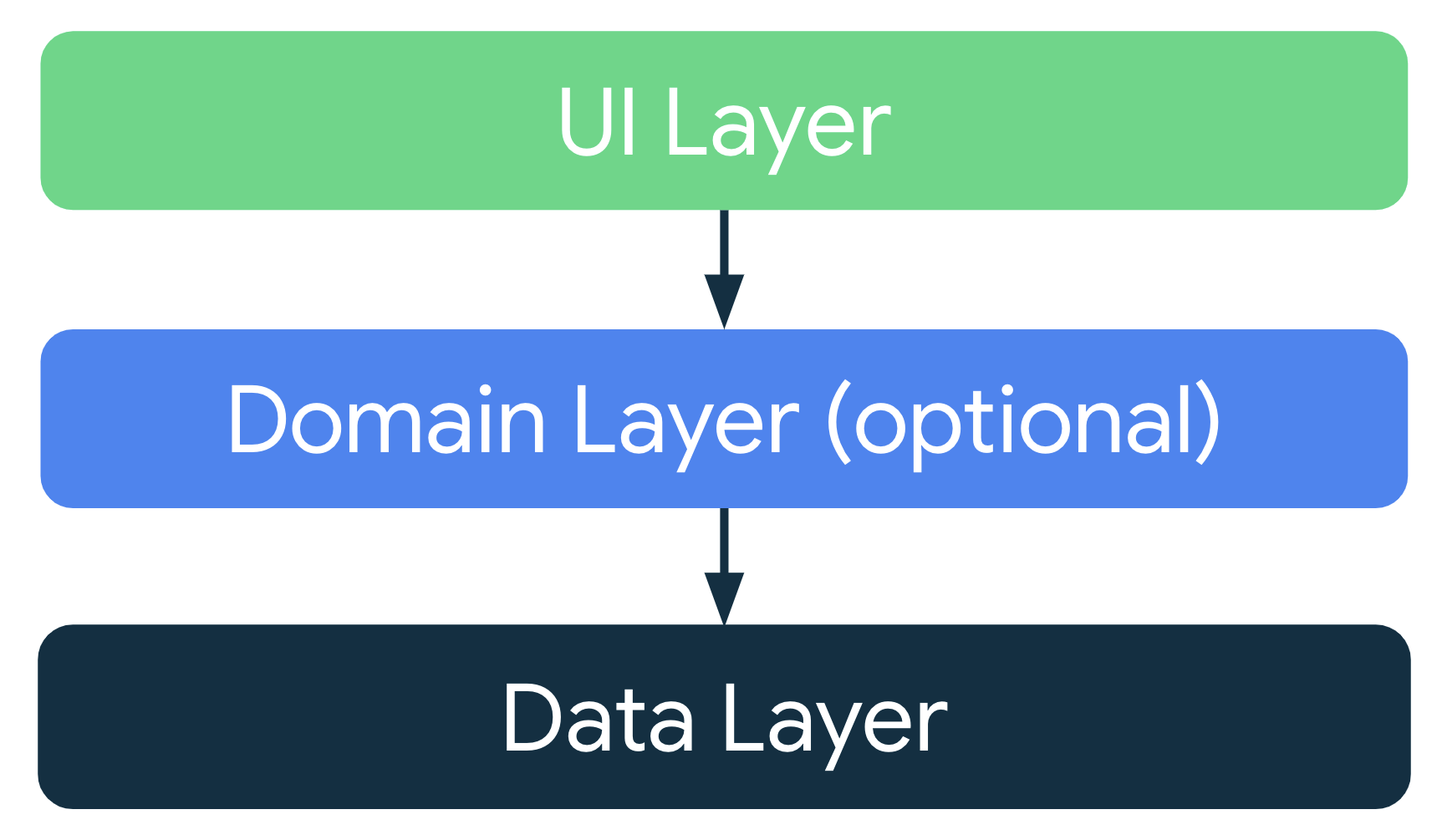
The role of the UI layer (or presentation layer) is to display the application data on the screen. Whenever the data changes, either due to user interaction (such as pressing a button) or external input (such as a network response), the UI should update to reflect the changes.
The UI layer is made up of two things:
- UI elements that render the data on the screen. You build these elements using Widgets.
- State holders that hold data, expose it to the UI, and handle logic. We are currently using Getx State Mangement.
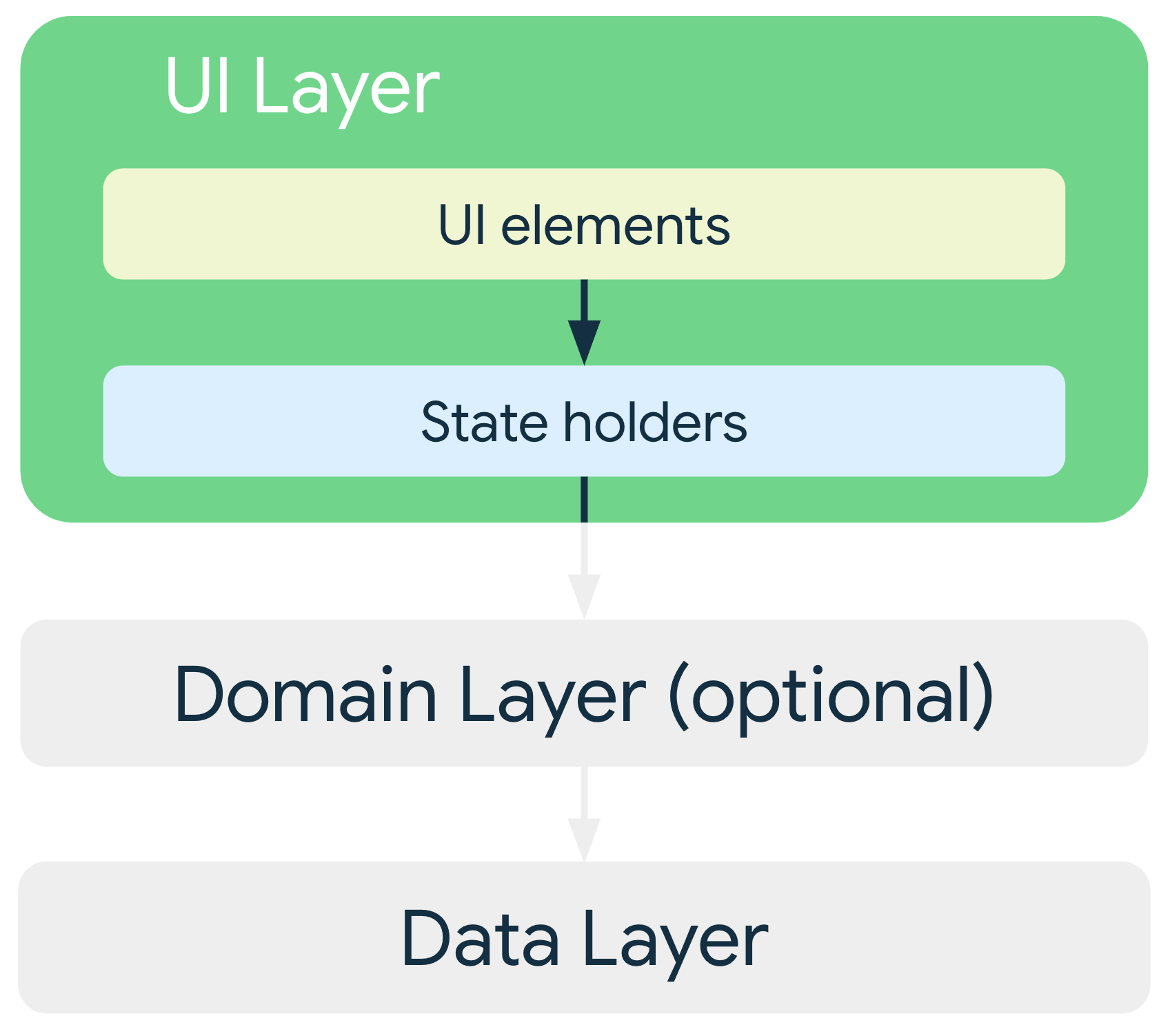
For our app our ui layer consits of :
- view : contains our screen widget. if our view is big consider separating the widget into smaller widgets.
- controller: which contains getx controller which controls the data that is coming from our data layer and handling ui events. It's main responsiblity is to update our view.
- binding : Bindings are classes where we can declare our dependencies and then bind them to the routes. it should be used to initialize view controller.

The data layer of an app contains the business logic. The business logic is what gives value to your app—it's made of rules that determine how your app creates, stores, and changes data.
The data layer is made of repositories that each can contain zero to many data sources. You should create a repository class for each different type of data you handle in your app. For example, you might create a MoviesRepository class for data related to movies, or a PaymentsRepository class for data related to payments.
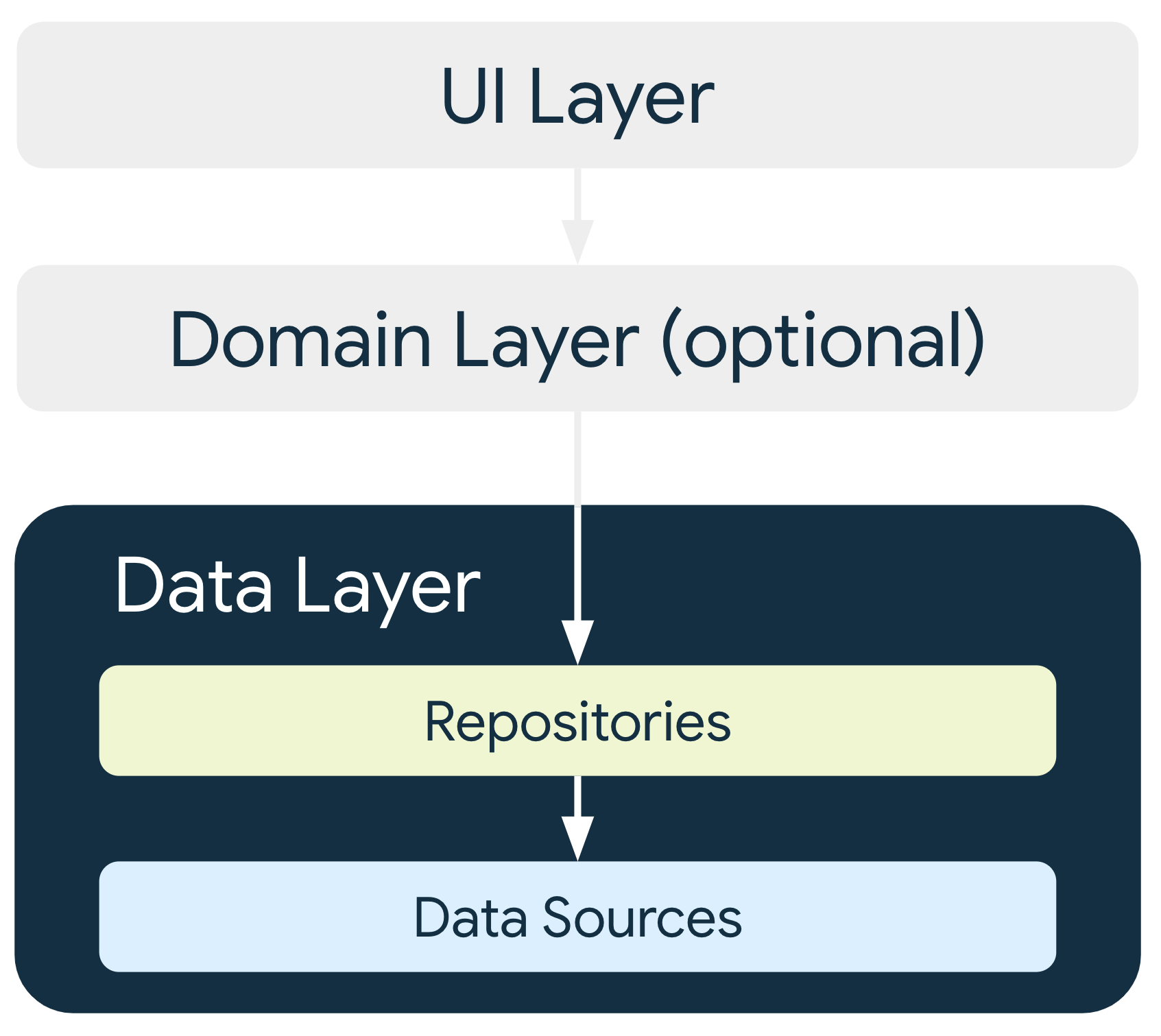
Repository classes are responsible for the following tasks:
- Exposing data to the rest of the app.
- Centralizing changes to the data.
- Resolving conflicts between multiple data sources.
- Abstracting sources of data from the rest of the app.
- Containing business logic.
Each data source class should have the responsibility of working with only one source of data, which can be a file, a network source, or a local database. Data source classes are the bridge between the application and the system for data operations.
The repository should decide where the data should come from which data source to the ui layer.
For example we might only need data from api then later we need to add caching using database so we create data source for the database. In this case the repo should handle how we get data from the api and database and only return the right data for the ui.
For our data layer on the app :
We should create a data layer for each feature.
each future can consists of one data layer and one or more ui layer.
As we described earlier our data layer consists of :
- Model : data model for the feature.
Based on the app use case we may consider creating different models for each data like creating model for data that are coming from api and different model for data coming from database and model for the ui. - Data Source: getting data from a single source like api, database , etc.
- Repo: Get data from data sources and make it ready for the ui layer.

In this project structure, packages contain all classes that are required for a feature. The independence of the package is ensured by placing closely related classes in the same package. An example of this structure is given below:
    └── auth
        ├── data
            ├── model
            ├── datasources
            └── repo
        └── ui
            ├── bindings
            ├── controller
            └── view
    └── product
        ├── data
            ├── model
            ├── datasources
            └── repo
        └── ui
            ├── bindings
            ├── controller
            └── view
— Package by Feature has packages with high cohesion, low coupling and high modularity.
— Package by Feature allows some classes to set their access modifier package-private instead of public, so it increases encapsulation. On the other hand, Package by Layer forces you to set nearly all classes public.
— Package by Feature reduces the need to navigate between packages since all classes needed for a feature are in the same package.
— Package by Feature is like microservice architecture. Each package is limited to classes related to a particular feature. On the other hand, Package By Layer is monolithic. As an application grows in size, the number of classes in each package will increase without bound.
Our app consists of 2 components:
This component is responsible for all app features as it contains each feature that are packaged together by Feature as described in previous example.
Each Feature can have one or more screen as each screen has it's own ui layer and screens have one data layer or can share it with another screen.

This component contains different pieces of code that are shared between the whole app.

It contains different components:
This component contains app configuration like playx configuration, keys and constants .
Handles saving value/pair keys in shared preferences in one place.
Provides different utilities for whole app like alerts, pickers, app utils and more.
Provides different Widgets that are shared between the app.
Handles app navigation in one place.
First create your app routes.
Then every navigation between routes should be done in app navigation class.
To make it easier to maintain same behavior for navigation and make it easy if we want to use another solution for navigation in the future.
For Example :
if you want to navigate from splash to home screen navigate using this.
    void navigateFormSplashToHome() {
         Get.offAllNamed(Routes.HOME);
     }
This provides us with an api client that can do different REST calls and perform GET, POST, PUT, DELETE requests for the api with better error handling.
We are using our playx_network package which is a wrapper around Dio that can perform API requests with better error handling and easily get the result of any API request.
To use it we need to :
-
Setup
PlayxNetworkClientan configure it based on your needs. You should create only one instance of this network client to be used for the app depending on your use case.final PlayxNetworkClient _client = PlayxNetworkClient( //you can customize your dio options like base URL, connection time out. dio: Dio( BaseOptions( baseUrl: _baseUrl, connectTimeout: const Duration(seconds: 20), senTimeout: const Duration(seconds: 20), ), ), //If you want to attach a token to the client or add any custom headers to all requests. customHeaders: () async => { 'authorization': 'Bearer token' }, //Function that converts json error response from api to error message. // You should specify how to extract error message from the response. // defaults to as below: errorMapper: (json) { if (json.containsKey('message')) { return json['message'] as String? ; } return null; }, );
-
Now we can use the client to perform any GET, POST, PUT, and DELETE HTTP method.
  Future<NetworkResult<Movie>> getMovieDetails(
         String id,
     ) async {
         return client.get<Movie>(
             Endpoints.movieDetails,
              query: {
              'id': id,
                 },
          fromJson: Movie.fromMap,
      );
   }
We use the suitable methods of our api client like get and pass the model that will be returned.
It takes request endpoint and query and It needs from json function that converts the response to the right model.
The previous example returns NetworkResult<Movie> where movie is the model returned from reponse.
and NetworkResult is wrapper for the data which return the result of the request if it's successful it returns the data and if it's error it return NetworkException .
NetworkException is a base class for handling most api errors and provides suitable error messages for each exception.
You can customize these error messages and what errors should appear by creating a class that extends ExceptionMessage and overrides all messages with your own messages and pass it to the api client.
Here we are handling app resources like themes, color, translations and assets.
Initialize and boot the themes before running your app.
void main() async {
  WidgetsFlutterBinding.ensureInitialized();

  // Boot the AppTheme
  await PlayxTheme.boot(
    config: PlayxThemeConfig(
      themes: [
        XTheme(
          id: 'light',
          name: 'Light',
          themeData: ThemeData.light(),
        ),
        XTheme(
          id: 'dark',
          name: 'Dark',
          themeData: ThemeData.dark(),
        ),
      ],
    ),
  );

  // Run the app
  runApp(const MyApp());
} Use PlayXThemeBuilder to wrap your app and apply the themes.
class MyApp extends StatelessWidget {
  const MyApp({Key? key}) : super(key: key);

  @override
  Widget build(BuildContext context) {
    return PlayXThemeBuilder(
      builder: (context, theme) {
        return MaterialApp(
          title: 'Flutter Demo',
          theme: theme.themeData,
          home: const MyHomePage(),
        );
      },
    );
  }
} Switch between themes using PlayxTheme.
FloatingActionButton(
  onPressed: () {
    PlayxTheme.updateById('dark');
  },
  child: Icon(
    Icons.next,
    color: PlayxTheme.colorScheme.onBackground,
  ),
) Retrieve the current theme information using context extensions.
final themeId = context.xTheme.id;

// Legacy Access
final currentThemeId = PlayxTheme.currentTheme.id;
final currentThemeData = PlayxTheme.currentThemeData; Create a PlayxThemeConfig object and pass it to PlayxTheme.boot() to customize themes.
final config = PlayxThemeConfig(
  themes: [
    XTheme(
      id: 'light',
      name: 'Light',
      themeData: ThemeData(
        brightness: Brightness.light,
        colorScheme: lightColors.colorScheme,
        useMaterial3: true,
      ),
      cupertinoThemeData: const CupertinoThemeData(
        brightness: Brightness.light,
      ),
      colors: lightColors,
    ),
    XTheme.builder(
      id: 'dark',
      name: 'Dark',
      initialTheme: ThemeData(
        brightness: Brightness.dark,
        colorScheme: darkColors.colorScheme,
        useMaterial3: true,
      ),
      themeBuilder: (locale) => ThemeData(
        brightness: Brightness.dark,
        colorScheme: darkColors.colorScheme,
        useMaterial3: true,
      ),
      cupertinoThemeBuilder: (locale) => const CupertinoThemeData(
        brightness: Brightness.dark,
      ),
      isDark: true,
      colors: darkColors,
    ),
  ],
  initialThemeIndex: PlayxTheme.isDeviceInDarkMode() ? 1 : 0,
); Create custom colors for each theme by extending PlayxColors.
class LightColors extends PlayxColors{
  @override
  Color get background => XColors.white;

  @override
  Color get error => XColors.red;

  @override
  Color get onBackground => XColors.black;
}
Use custom colors in your widget tree.
ColoredBox(color: context.playxColors.primary); Extend PlayxColors to add more colors.
abstract class AppColors extends PlayxColors{
  Color get containerBackgroundColor;
  static const Color blue = Colors.blue;
}

class LightColorScheme extends AppColors {
  @override
  Color get containerBackgroundColor => XColors.white;

  @override
  Color get background => XColors.white;

  @override
  Color get error => XColors.red;

  @override
  Color get onBackground => XColors.black;
}
Access the extended colors.
static AppColors of(BuildContext context) => context.playxColors as AppColors;

final primary = AppColors.of(context).primary;

extension AppColorsExtension on BuildContext {
  AppColors get colors => AppColors.of(this);
}
and use it in widget like this :
@override
Widget build(BuildContext context) {
  return ColoredBox(color: context.colors.primary);
} This class is responsible for providing asset's items paths.
You can use it or use class that is auto generated from assets plugin in Android studio.
We are using our playx_localization package to handle translation for our apps.
- Translations files are added like this, If you want to add another locale, Add it to translations folder .
   assets
   └── translations
       ├── en.json
└── ar.json If you need to add another locale on iOS you need to add supported locales to ios/Runner/Info.plist as described here.
Example:
<key>CFBundleLocalizations</key>
<array>
<string>en</string>
<string>ar</string>
</array>
This class contains all keys for each word that need to be translated in the app.
  static const String appName = "app_name";
  static const String requestCancelled = "requestCancelled";
  static const String unauthorizedRequest = "UnauthorizedRequest";
}you can customize locale configuration with settings like supported locales, start locale, path to translations and more by editing AppLocaleConfig file.
void main() async {
	WidgetsFlutterBinding.ensureInitialized();

  // Define your supported locales and other configurations
	const locales = [
	  XLocale(id: 'en', name: 'English', languageCode: 'en'),
	  XLocale(id: 'ar', name: 'العربية', languageCode: 'ar'),
	];

	final config = PlayxLocaleConfig(
	  supportedLocales: locales,
	  startLocale: locales.first,
	  fallbackLocale: locales.first,
	  useFallbackTranslations: true,
	);
	 // Boot Playx Localization with the defined configuration
	 await PlayxLocalization.boot(config: config);

	 runApp(const MyApp());
}With PlayxLocalization you will have access to current app locale, it's index, name and id. You can change current app locale to the next Locale, by id, by index, by device locale and more.
   FloatingActionButton.extended(
		onPressed: () {
			//updates locale by index
		PlayxLocalization.updateByIndex(
			PlayxLocalization.isCurrentLocaleArabic() ? 0 : 1);
		},
		//label text changes after updating locale.
		label: Text(AppTrans.changeLanguage.tr),
		icon: const Icon(Icons.update),
	)
The package uses Easy Localization under the hood to manage translations and Plurals as below.
Main function for translate your language keys
You can use extension methods of [String] or [Text] widget, you can also use tr() as a static function.
Text('title').tr() //Text widget

print('title'.tr)); //String

var title = tr('title') //Static function

Text(context.tr('title')) //Extension on BuildContext
- Guide to app architecture By android
- Ui Layer By android
- Data Layer By android
- How To Use MVVM in Flutter
- Package by Layer vs Package by Feature
- Dio
- Getx