Quick password-store browser with preview using fzf in tmux.
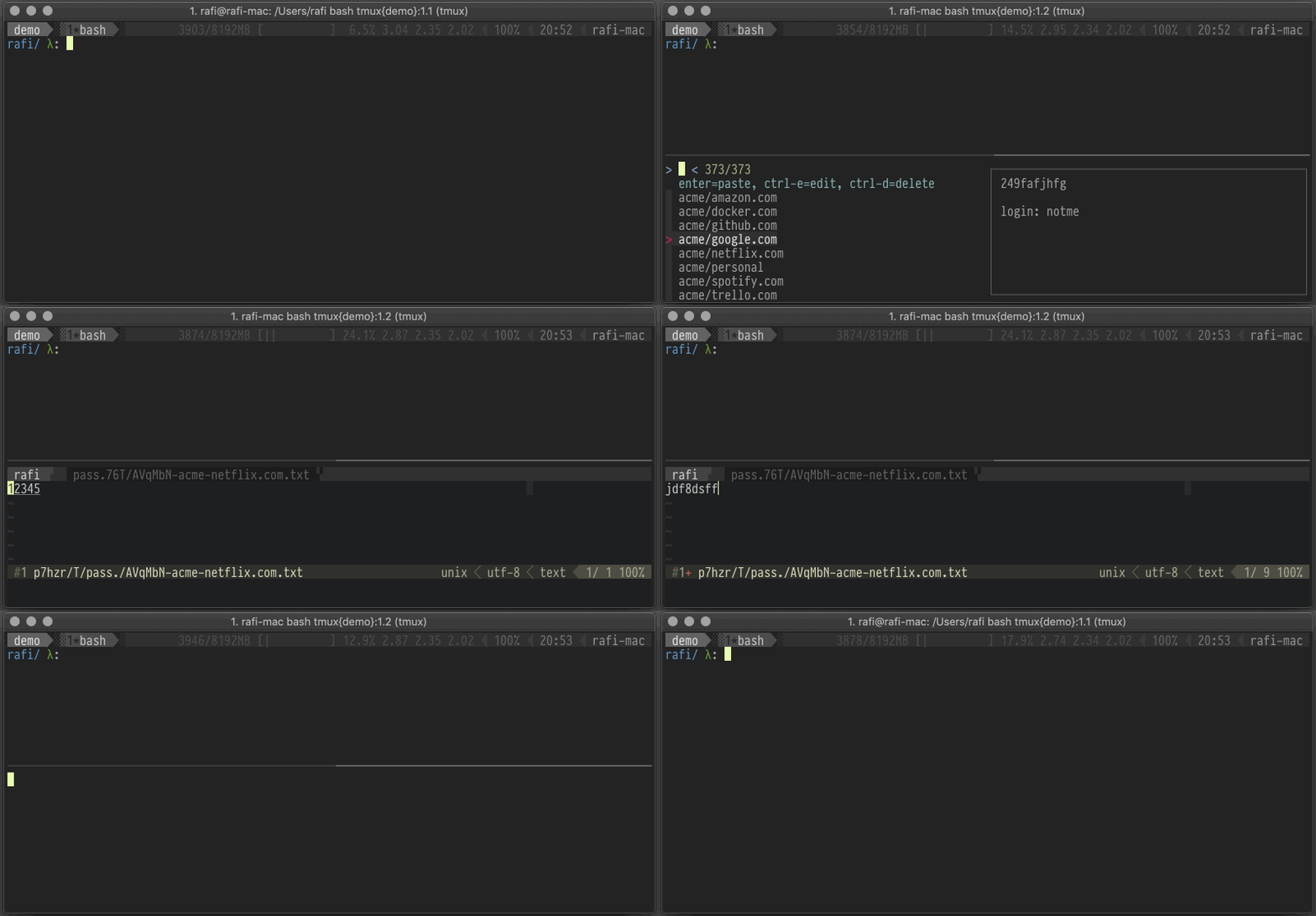
- Browse your password-store using fzf
- Preview password in a tmux split (optional)
- Detects pbcopy (macOS), xclip or xsel (Linux)
- Copy password (Enter)
- Copy username (Alt-Enter)
- OTP support (Alt-Space)
- Edit (Ctrl-e) and Delete (Ctrl-d)
- Toggle password preview (Tab)
- password-store
- tmux 3.x+
- bash 4+
- fzf
Using Tmux Plugin Manager
Add the following to your list of TPM plugins in ~/.tmux.conf:
set -g @plugin 'rafi/tmux-pass'Hit prefix + I to fetch and source the plugin. You should now be able to use the plugin!
Clone the repo:
git clone https://github.com/rafi/tmux-pass ~/.tmux/plugins/tmux-passSource it in your ~/.tmux.conf:
run-shell ~/.tmux/plugins/tmux-pass/plugin.tmuxReload tmux config by running:
tmux source-file ~/.tmux.confNOTE: for changes to take effect,
you'll need to source again your ~/.tmux.conf file.
- @pass-key
- @pass-copy-to-clipboard
- @pass-window-size
- @pass-hide-pw-from-preview
- @pass-hide-preview
- @pass-enable-spinner
default: b
Customize how to display the pass browser. Always preceded by prefix: prefix + @pass-key
For example:
set -g @pass-key bdefault: off
Copies selected password into clipboard.
For example:
set -g @pass-copy-to-clipboard ondefault: 10
The size of the tmux split that will be opened.
For example:
set -g @pass-window-size 15default: off
Show only additional information in the preview pane (e.g. login, url, etc.), but hide the password itself. This can be desirable in situations when you don't want bystanders to get a glimpse at your passwords.
For example:
set -g @pass-hide-pw-from-preview ondefault: off
Start with the preview pane hidden.
For example:
set -g @pass-hide-preview ondefault: on
Show a spinner when fetching items and reading entry.
To disable spinner:
set -g @pass-enable-spinner offThis plugin is inspired by tmux-1password.
GNU General Public License v3.0