Those are the correct commands to install the FlutterFire CLI and configure your Flutter app with your existing Firebase project dart pub global activate flutterfire_cli flutterfire configure --project=winged-pen-388002/lib/firebase_options.dart/import 'package:firebase_core/firebase_core.dart'; import 'firebase_options.dart';
Future main() async { WidgetsFlutterBinding.ensureInitialized();
await Firebase.initializeApp( options: DefaultFirebaseOptions.currentPlatform, );
runApp(const MyApp()); } flutter pub add firebase_core flutter pub add firebase_auth flutter pub add cloud_firestore flutter pub add google_sign_in
import 'package:firebase_core/firebase_core.dart'; import 'firebase_options.dart';
// ...
await Firebase.initializeApp( options: DefaultFirebaseOptions.currentPlatform, ); import 'package:flutter/material.dart'; import 'package:firebase_core/firebase_core.dart'; import 'firebase_options.dart';
Future main() async { WidgetsFlutterBinding.ensureInitialized();
await Firebase.initializeApp( options: DefaultFirebaseOptions.currentPlatform, );
runApp(const MyApp()); }
class MyApp extends StatelessWidget { const MyApp({super.key});
@override Widget build(BuildContext context) { return MaterialApp( title: 'NooriZone AI', home: const HomePage(), ); } }
class HomePage extends StatelessWidget { const HomePage({super.key});
@override Widget build(BuildContext context) { return const Scaffold( body: Center( child: Text('Firebase initialized successfully!'), ), ); } } dependencies: flutter: sdk: flutter
firebase_core: ^latest firebase_auth: ^latest cloud_firestore: ^latest google_sign_in: ^latest flutter pub get lib/firebase_options.dart This page offers brief overviews of several important concepts about Firebase projects. When available, follow the links to find more detailed information about features, services, tooling, and best practices.
A Firebase project is the top-level entity for Firebase. In a project, you can register your Apple, Android, or web apps. After you register your apps with Firebase, you can add the Firebase SDKs for any number of Firebase products, like Analytics, Cloud Firestore, Performance Monitoring, or Remote Config.
Learn more detailed information about this process in the Getting Started guide for your platform:
iOS+ | Android | web | Unity | C++ | Flutter.
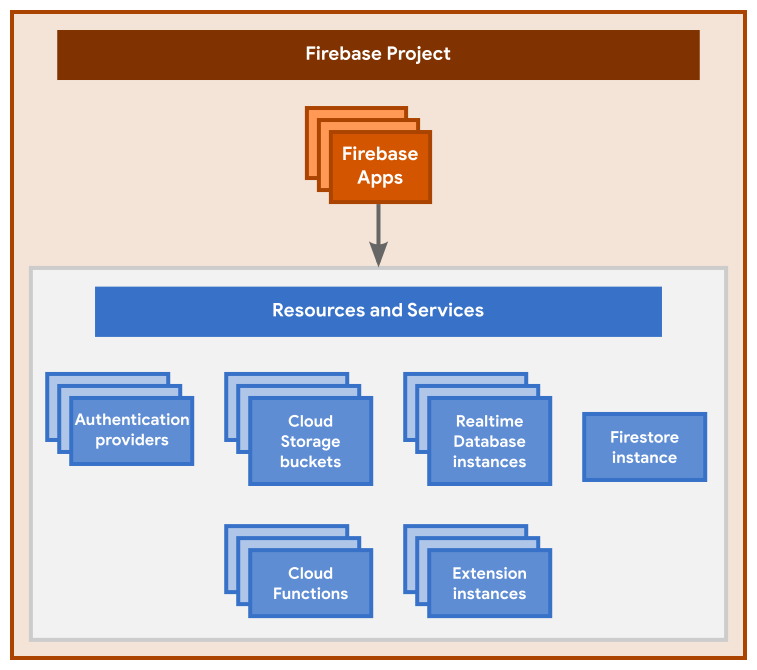
-
A Firebase project is like a container for all your apps and any resources and services provisioned for the project.
-
A Firebase project can have one or more Firebase Apps registered to it (for example, both the iOS and Android versions of an app, or both the free and paid versions of an app).
-
All Firebase Apps registered to the same Firebase project share and have access to all the same resources and services provisioned for the project. Here are some examples:
-
All the Firebase Apps registered to the same Firebase project share the same backends, like Firebase Hosting, Authentication, Realtime Database, Cloud Firestore, Cloud Storage, and Cloud Functions.
-
All Firebase Apps registered to the same Firebase project are associated with the same Google Analytics property, where each Firebase App is a separate data stream in that property.
-
When you create a new Firebase project, you're actually creating a Google Cloud project behind the scenes. You can even create a Google Cloud project first, then add Firebase to the project later. You can think of a Google Cloud project as a virtual container for data, code, configuration, and services.
Important
Key Point: A Firebase project is actually just a Google Cloud project that has additional Firebase-specific configurations and services enabled for it.
Note that for all Firebase projects, Firebase automatically adds to your project
a label of firebase:enabled within the IAM & Admin >
Labels page
of the Google Cloud console. Learn more about this label in our
FAQ.
Since a Firebase project is a Google Cloud project:
-
You can access and interact with the project in the Firebase console as well as in the Google Cloud console and Google APIs console.
-
You can interact with the project using the Firebase CLI, the gcloud CLI, and any Terraform resource from Google.
-
You can use products and APIs from both Firebase and Google Cloud in the project.
-
IAM permissions and roles for the project are shared across Firebase and Google Cloud. Any access a project member (that is, a principal) has to your Google Cloud project will also apply to your Firebase project (and vice-versa).
-
Billing for the project is shared across Firebase and Google Cloud. If billing is enabled on your Google Cloud project, then your Firebase project will be on Firebase's pay-as-you-go Blaze pricing plan.
-
Unique identifiers for the project (like project number and project ID) are shared across Firebase and Google Cloud.
-
Any resource hierarchy applied to your Google Cloud project (for example, organization, folders, etc.) will also apply to your Firebase project.
-
Deleting the project deletes it across Firebase and Google Cloud.
-
Deleting or modifying a resource or data within the project applies across Firebase and Google Cloud.
You can set up a Firebase project and register apps in the Firebase console (or, for advanced use cases, using the Firebase Management REST API or the Firebase CLI). When you set up a project and register apps, you need to make some organizational decisions and add Firebase-specific configuration information to your local projects.
For production apps, you need to set up a clear development workflow, which usually involves using multiple environments. Review our documentation on developer workflows, including general best practices and general security guidelines for setting up Firebase projects and registering apps to create your development workflow.
Besides the product SDKs, you can directly interact with a Firebase project using several different tools and interfaces.
The Firebase console offers the richest environment for managing Firebase products, apps, and project-level settings.
The left-side panel of the console lists the Firebase products, organized by top-level categories. At the top of the left-side panel, click Settings to access a project's settings, which include integrations, access permissions, and billing.
The middle of the console displays buttons that launch setup workflows to register various types of apps. After you start using Firebase, the main area of the console changes into a dashboard that displays stats on the products you use.
Note that since a Firebase project is also a Google Cloud project, you might find that various tasks or products require you to use the Google Cloud console instead of the Firebase console.
Firebase also offers the Firebase CLI for configuring and managing specific Firebase products, like Firebase Hosting, Cloud Functions for Firebase, and Firebase Extensions.
After installing the Firebase CLI, you have access to the
global firebase command. Use the
Firebase CLI to
link your local app directory to a Firebase project,
then deploy new versions of Firebase-hosted content or
updates to functions.
Using the Firebase Management REST API, you can programmatically manage a Firebase project. For example, you can programmatically register an app with a project or list the apps that are already registered (iOS+ | Android | web).
A Firebase project can be identified in the Firebase backend and in various developer interfaces using different identifiers, including the project name , the project number , and the project ID.
Important
Key Point: The project number and the project ID are the truly unique identifiers for a project across all of Firebase and Google Cloud.
When you create a project, you provide a project name . This identifier is the internal-only name for a project in the Firebase console, the Google Cloud console, and the Firebase CLI. The project name is not exposed in any publicly visible Firebase or Google Cloud product, service, or resource; it simply serves to help you more easily distinguish among multiple projects.
You can edit a project name at any time in the top pane of the Settings > General tab of the Firebase console.
A Firebase project (and its associated Google Cloud project) has a project number. This is the Google-assigned globally unique canonical identifier for the project. Use this identifier when configuring integrations and/or making API calls to Firebase, Google, or third-party services.
You cannot edit a project number. If you delete a project, the project number is also deleted and can never be used again by any other project.
Find the project number
Find your Firebase project's project number using one of these options:
-
Using the Firebase console : Go to the Settings > General tab. The project number is displayed in the top pane.
-
Using the Firebase CLI : Run
firebase projects:list. The project number is displayed along with all the Firebase projects associated with your account. -
Using the Firebase Management REST API : Call
projects.list. The response body contains the project number in theFirebaseProjectobject.
API calls and the project number
For many API calls, you need to include a unique identifier for a project. Although many APIs accept the project ID, it's recommended that you use the project number for making API calls to Firebase, Google, or third-party services.
Learn more about using project identifiers, especially the project number, in Google's AIP 2510 standard.
A Firebase project (and its associated Google Cloud project) has a project ID . This is a user-defined unique identifier for the project across all of Firebase and Google Cloud. When you create a Firebase project, Firebase automatically assigns a unique ID to the project, but you can edit it during project setup. This identifier should generally be treated as a convenience alias to reference the project.
Caution
After Firebase provisions resources for a Firebase project, you cannot change its project ID. If you delete a project, the project ID is also deleted and can never be used again by any other project.
Find the project ID
Find your Firebase project's project ID using one of these options:
-
Using the Firebase console : Go to the Settings > General tab. The project ID is displayed in the top pane.
-
Using the Firebase CLI : Run
firebase projects:list. The project ID is displayed along with all the Firebase projects associated with your account. -
Using the Firebase Management REST API : Call
projects.list. The response body contains the project ID in theFirebaseProjectobject.
Firebase resources and the project ID
The project ID displays in publicly visible Firebase resources, for example:
- Default Hosting subdomain ---
PROJECT_ID.web.appandPROJECT_ID.firebaseapp.com - Default Realtime Database URL ---
PROJECT_ID-default-rtdb.firebaseio.comorPROJECT_ID-default-rtdb.REGION_CODE.firebasedatabase.app - Default Cloud Storage bucket name ---
PROJECT_ID.appspot.com
For all of the aforementioned resources, you can create non-default instances. The publicly visible names of non-defaults are fully-customizable. You can connect custom domains to a Firebase-hosted site, shard the Realtime Database, and create multiple Cloud Storage buckets (visit the platform-specific Get Started page).
Caution
After Firebase provisions resources for a Firebase project, you cannot change its project ID. To use a specific identifier for Firebase resources, you must edit the project ID during the initial creation of the project.
The Firebase CLI and the project ID
For some use cases, you might have multiple Firebase projects associated with
the same local app directory. In these situations, when you use the
Firebase CLI, you need to pass the --project flag with the
firebase commands to communicate which Firebase project you want to interact
with.
You can also set up a project alias for each Firebase project so that you don't have to remember project IDs.
API calls and the project ID
For many API calls, you need to include a unique identifier for a project. Although many APIs accept the project ID, it's recommended that you use the project number for making API calls to Firebase, Google, or third-party services.
Learn more about using project identifiers, especially the project number, in Google's AIP 2510 standard.
When you register an app with a Firebase project, the Firebase console provides a Firebase configuration file (Apple/Android apps) or a configuration object (web apps) that you add directly to your local app directory.
- For Apple apps, you add a
GoogleService-Info.plistconfiguration file. - For Android apps, you add a
google-services.jsonconfiguration file. - For web apps, you add a Firebase configuration object.
At any time, you can obtain an app's Firebase config file or object.
Note
Note: For Flutter apps, you have the option of using a cross-platform Firebase config file called firebase_options.dart.
If your Flutter apps use this file, you can keep it up-to-date by running flutterfire configure from your Flutter project directory.
You can obtain the current config values that Firebase has for your Firebase-registered Flutter apps by running flutterfire configure --out=my_options.dart.
A Firebase config file or object associates an app with a specific Firebase project and its resources (databases, storage buckets, etc.). The configuration includes "Firebase options", which are parameters required by Firebase and Google services to communicate with Firebase server APIs and to associate client data with the Firebase project and Firebase app. Here are the required, minimum "Firebase options":
-
API key : a simple encrypted string used when calling certain APIs that don't need to access private user data (example value:
AIzaSyDOCAbC123dEf456GhI789jKl012-MnO) -
Project ID : a user-defined unique identifier for the project across all of Firebase and Google Cloud. This identifier may appear in URLs or names for some Firebase resources, but it should generally be treated as a convenience alias to reference the project. (example value:
myapp-project-123) -
Application ID ("AppID"): the unique identifier for the Firebase app across all of Firebase with a platform-specific format:
- Firebase Apple apps:
GOOGLE_APP_ID(example value:1:1234567890:ios:321abc456def7890)
This is not an Apple bundle ID. - Firebase Android apps:
mobilesdk_app_id(example value:1:1234567890:android:321abc456def7890)
This is not an Android package name or Android application ID. - Firebase Web apps:
appId(example value:1:65211879909:web:3ae38ef1cdcb2e01fe5f0c)
- Firebase Apple apps:
Caution
Caution: We do not recommend manually modifying an app's Firebase config file or object. If you initialize an app with invalid or missing values for any of these required "Firebase options", then your end users may experience serious issues.
The content of the Firebase config file or object is considered public, including the app's platform-specific ID (Apple bundle ID or Android package name) and the Firebase project-specific values, like the API Key, project ID, Realtime Database URL, and Cloud Storage bucket name. Given this, use Firebase Security Rules to protect your data and files in Realtime Database, Cloud Firestore, and Cloud Storage.
For open source projects, we generally do not recommend including the app's Firebase config file or object in source control because, in most cases, your users should create their own Firebase projects and point their apps to their own Firebase resources (via their own Firebase config file or object).
Important
Important: Make sure to read our general best practices for setting up Firebase projects. This guide answers questions about Firebase project hierarchy, how to register your app variants, and multi-tenancy.
Here are some general limits for Firebase projects, apps, and sites:
-
Number of projects per Google Account (email address)
- Spark pricing plan: Project-creation quota is limited to a small number of projects (usually around 5-10).
- Blaze pricing plan : Project-creation quota is still limited, but it may increase with the linking of a Cloud Billing account in good standing.
Note the following about the limit on project-creation quota:
- This limit is not specific to Firebase. Firebase's limits on project quota are the same as those for Google Cloud.
- In the rare case that's it's needed, you can request an increase in project quota.
- The complete deletion of a project requires 30 days and counts toward project quota until the project is fully deleted.
Learn about Firebase's recommended general best practices for setting up Firebase projects.
-
Number of apps per project
Firebase restricts the total number of Firebase Apps within a Firebase project to 30.
You should ensure that all Firebase Apps within a single Firebase project are platform variants of the same application from an end-user perspective. Read more about multi-tenancy in our best practices docs.
Learn more about the limit on apps per project in the FAQ.
-
Number of Hosting sites per project
The Firebase Hosting multisite feature supports a maximum of 36 sites per project.
- Set up budget alerts for your project in the Google Cloud console.