Integration
In your application's solution, right-click on the Solution and use Add \ Existing Project... to add the appropriate .vcxproj file to your solution.
| DirectXTK_Desktop_2026 | Windows desktop applications for Windows 10/Windows 11 building with VS 2026 Community, Professional or higher with the latest installed Windows SDK. |
| DirectXTK_Desktop_2022_Win10 | Windows desktop applications for Windows 10/Windows 11 building with VS 2022 Community, Professional or higher with the latest installed Windows SDK. |
| DirectXTK_Windows10_2022 | Universal Windows Platform (UWP) apps building with VS 2022 with the latest installed Windows SDK. |
| DirectXTK_GDK_2022 | Windows 10, Windows 11, and Xbox games building with VS 2022 using the Microsoft GDK. |
| DirectXTK_GDKX_2022 | Xbox games building with VS 2022 using the Microsoft GDK. |
| DirectXTK_GDKW_2022 | Windows 10, Windows 11 building with VS 2022 using the Microsoft GDK for x64 and ARM64. |
For VS 2022, use of the 17.12 is required as all previous versions are no longer supported.
In your application's project, right-click on the Project and use "References...", then "Add New Reference...", and then check the DirectXTK12 project name and click OK.
In your application's project settings, on the "C++ / General" page set Configuration to "All Configurations", set Platform to "All Platforms", and then add the relative path to DirectXTK12\inc;--assuming you have the DirectXTK12 folder in the same directory as your sln file, it should be $(SolutionDir)\DirectXTK12\inc;--to the Additional Include Directories properties. Click Apply.

All DirectXTK12 projects are built to require Windows 10, so DirectX Tool Kit for Audio is included which makes use of XAudio 2.9, built into Windows 10, Windows 11, and Windows SDK.
See also the Visual C+ Team Blog
Alternatively you can use NuGet to install one of the DirectX Tool Kit packages. Use Project / Manage NuGet Packages... then select "Browse", make sure the Package source is set to "nuget.org", and search for "DirectXTK12".
| directxtk12_desktop_win10 | This NuGet is configured for Windows desktop C++ applications building for Windows 10/Windows 11 with VS 2022 or VS 2026 Community/Professional or higher. This packages includes ARM64 binaries. |
| directxtk12_uwp | This NuGet is configured for Universal Windows Platform apps for Windows 10/Windows 11 building with VS 2022 Community/Professional or higher. This packages includes ARM64 binaries. |
You should use the NuGet interface to check for updates if you have an older version installed.
This package is no longer supported:
- Windows desktop app using VS 2019
- Windows desktop app using VS 2017
- Windows desktop app using VS 2015
The DirectX Tool Kit is also available through the vcpkg C++ Library Manager.
Using 'manifest-mode' is the recommended way to integrate VCPKG into your project. See d3d12game_vcpkg for an example.
For 'system-wide' access, use:
vcpkg install directxtk12
For the 64-bit version of the library, use:
vcpkg install directxtk12:x64-windows
For the Universal Windows Platform (UWP) versions, use:
vcpkg install directxtk12:x64-uwp
arm,arm64,arm64ec,x86,x64,windows,windows-static,windows-static-md, anduwptriplets are supported.
Windows Subsystem for Linux (i.e.
arm64-linuxandx64-linux) is not supported.
The vcpkg port supports five optional features. The default is to build with DirectX Tool Kit for Audio support.
-
tools: Installs MakeSpriteFont and xwbtool command-line tools -
spectre: Builds the library with Spectre-mitigation enabled -
xaudio2-8Use XAudio 2.8 for Windows 8.1 or later support -
xaudio2-9Use XAudio 2.9 for Windows 10/Windows 11 -
xaudio2redistUse the XAudio2Redist for Windows 8.1 or later support
For XAudio2Redist rather than the default xaudio2-9, use:
vcpkg install directxtk12[core,xaudio2redist]:x64-windows
For Xbox Series X|S with the Microsoft GDK with Xbox Extensions installed:
./vcpkg install directxtk12:x64-xbox-scarlett
For Xbox One with the Microsoft GDK with Xbox Extensions installed:
./vcpkg install directxtk12:x64-xbox-xboxone
If using vcpkg+MSBuild integration and the DLL versions of the libraries (i.e. not the -static triplets), you will need to manually define the preprocessor symbol
DIRECTX_TOOLKIT_IMPORTor you will get link errors. This is automatically set for CMake integration when using CMake targets.
You can reference the DirectX Tool Kit CMake package using:
find_package(directxtk12 CONFIG REQUIRED)

target_link_libraries(foo Microsoft::DirectXTK12)
If using vcpkg C++ Package Manager, then you add the CMAKE_TOOLCHAIN_FILE path to vcpkg\scripts\buildsystems\vcpkg.cmake. If not using vcpkg, you need to provide a per-configuration path to the installed location in the directxtk12_DIR variable. Otherwise the find_package will fail.
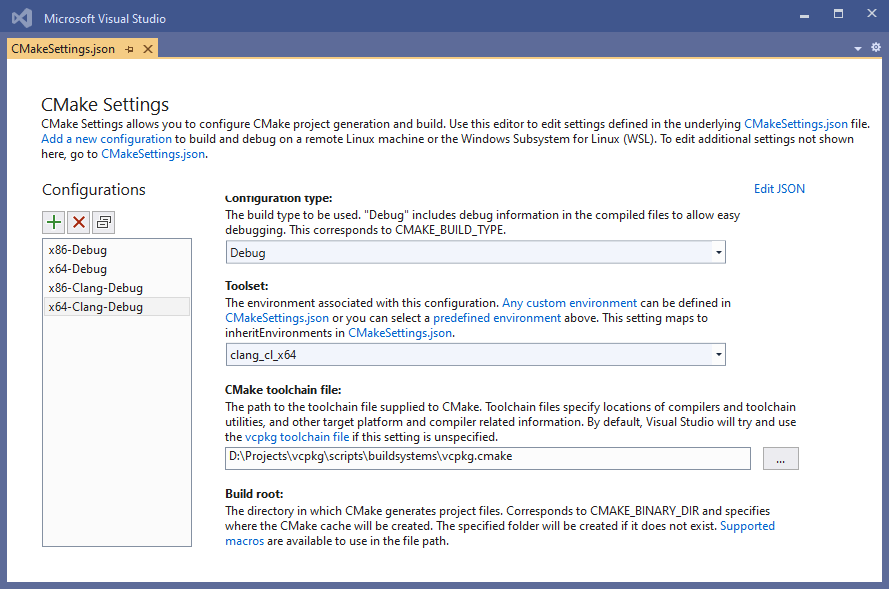
With Visual Studio 2022 Update 6 or later, VCPKG is available via Microsoft.VisualStudio.Component.Vcpkg. Use of 'manifest-mode' is recommended. See d3d12game_vcpkg for an example.
There are
CMakePresets.jsonfiles available for the CMake projects on directx-vs-templates that use theVCPKG_ROOTenvironment variable to locate the VCPKG install directory. See the commented out code inCMakeLists.txt,Game.cpp,Game.h, andpch.has well.