


Tag your whole photo library with a local AI model — your images never leave your machine. pyimgtag runs a vision model (Gemma via Ollama) over a folder or your Apple Photos library and writes 1–5 searchable tags, a scene category, location (from EXIF GPS, never guessed), and cleanup hints for every photo — on-device by default.
Then query, filter, score, and prune your library straight from the CLI. Optional cloud backends (Claude, OpenAI, Gemini) when you want them. Runs on macOS, Linux, and Windows.
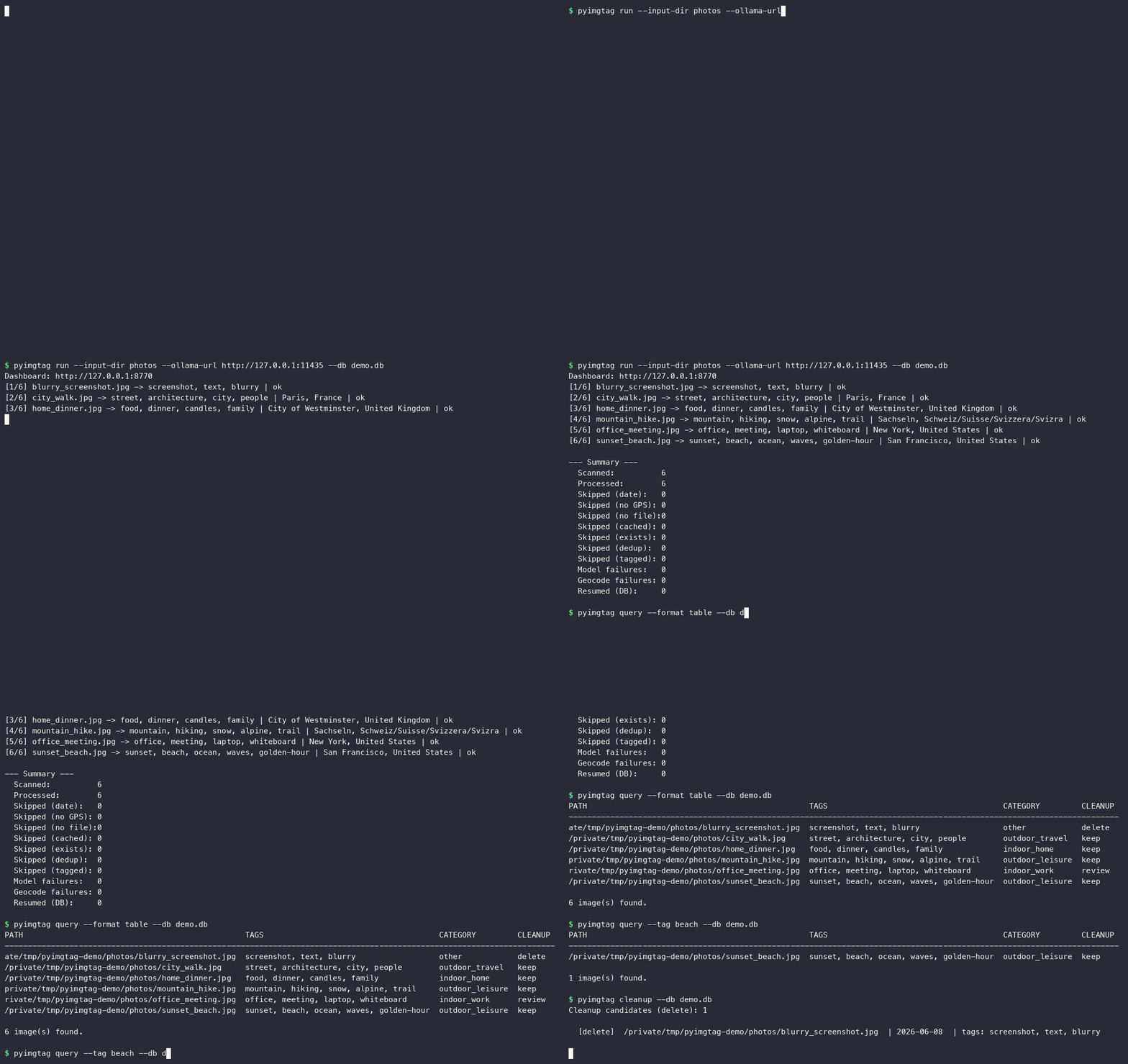
Recorded against the bundled mock backend with asciinema + agg — regenerate with docs/record-demo.sh.
pip install pyimgtagpip install pyimgtag
ollama pull gemma4:e4b # one-time: pull the local vision model
pyimgtag run --input-dir ~/Photos # tag a folder, fully on-deviceAdd --dry-run to preview without writing, --limit N to sample, or --output-json results.json to export — see Quick Start below.
See also: Awesome-Ollama — a curated list of apps and tools built on local Ollama models, where pyimgtag fits in.
pyimgtag uses a vision model to analyse images and generate 1-5 descriptive
tags per photo. By default it calls a locally-running Gemma model via
Ollama, so image analysis and tagging stay on-device.
You can also point pyimgtag at a remote Ollama server or one of three
hosted vision APIs — Anthropic Claude,
OpenAI,
or Google Gemini — by passing
--backend. When a cloud backend is selected, the JPEG bytes leave the
machine; otherwise they don't.
If EXIF GPS is present, only the latitude/longitude is sent to OpenStreetMap Nominatim for reverse geocoding to a city/place; results are cached locally so repeat lookups stay offline.
Works on macOS, Linux, and Windows. Apple Photos integration (write-back) is macOS-only.
Key features:
- One model call per image, compact prompt, low token usage
- Pluggable vision backends: local Ollama (default), remote Ollama via
--ollama-url, Anthropic Claude, OpenAI, or Google Gemini via--backend - Rich AI metadata: scene category, emotional tone, cleanup classification, text detection, event hints
- EXIF GPS as source of truth for location (never guessed from image content)
- Open reverse geocoding via Nominatim (sends GPS coords to OpenStreetMap; cached locally)
- Supports exported folders and Apple Photos library originals (macOS only)
- Apple Photos write-back: push AI tags and descriptions back as keywords/captions (macOS only)
- Subcommands:
run,watch,judge,status,reprocess,cleanup,cleanup-drift,preflight,query,tags,dedup,faces,review,insights,mcp,prompt - Continuous tagging:
watchpolls the source and tags new/changed photos as they land, with a one-command launchd/systemd service install - Controlled vocabulary, custom prompt templates, and output language: constrain tags to your taxonomy with synonyms and a hierarchy, deterministic across backends (
--vocabulary,--prompt-template,--tag-language) - Library insights report: one command summarises the whole tagged library as a terminal table, a self-contained HTML page, or JSON (
insightssubcommand) - Duplicate and burst resolution: group the library by perceptual hash, pick the copy worth keeping, and quarantine or trash the rest — report-only by default and reversible (
dedupsubcommand,/deduppage) - Photo quality scoring: a single 1–10 score plus a model-written reason (
judgesubcommand) - Dry-run mode, date/limit filters, JSON/CSV export
- SQLite progress DB with schema versioning for incremental re-runs
- Python 3.12+
- Ollama installed and running
- Gemma 4 model pulled:
ollama pull gemma4:e4b
macOS-specific:
- Apple Silicon or Intel Mac
- Optional:
exiftoolfor reliable HEIC EXIF (falls back to Pillow) - Optional:
pillow-heiffor HEIC image loading
All platforms:
- Works on macOS, Linux, and Windows
- EXIF writing via
exiftool(if installed) works across platforms - Apple Photos write-back requires macOS
pip install -e ".[dev]"

# Pull the model
ollama pull gemma4:e4b

# Dry-run on an exported folder, first 20 images
pyimgtag run --input-dir ~/Pictures/exported --limit 20 --dry-run

# Single date
pyimgtag run --input-dir ~/Pictures/exported --date 2026-04-01 --dry-run

# Date range with JSON output
pyimgtag run --input-dir ~/Pictures/exported \
  --date-from 2026-03-01 --date-to 2026-03-31 \
  --output-json results.json

# Photos library
pyimgtag run --photos-library ~/Pictures/Photos\ Library.photoslibrary \
  --limit 50 --dry-run

# Check processing progress
pyimgtag status

# Re-tag all photos (e.g. after prompt improvements)
pyimgtag reprocess --yes

# List photos flagged for deletion
pyimgtag cleanup

# Score photos by quality (judge)
pyimgtag judge --input-dir ~/Pictures/exported --limit 20 --verbose

# Filter to only strong photos, save ranking to JSON
pyimgtag judge --input-dir ~/Pictures/exported \
--min-score 7 --output-json ranking.json# From source
git clone https://github.com/kurok/pyimgtag.git
cd pyimgtag
pip install -e ".[dev]"
# Optional HEIC support
pip install pillow-heif
# Optional exiftool (better EXIF for HEIC)
brew install exiftool| Feature | macOS | Linux | Windows |
|---|---|---|---|
| Image tagging via Ollama | ✅ | ✅ | ✅ |
| EXIF reading (GPS, dates) | ✅ | ✅ | ✅ |
| Reverse geocoding (Nominatim) | ✅ | ✅ | ✅ |
EXIF writing via exiftool |
✅ | ✅ | ✅ |
| HEIC conversion (sips / pillow-heif) | ✅ sips + pillow-heif | ✅ pillow-heif | ✅ pillow-heif |
| RAW image support (rawpy) | ✅ | ✅ | ✅ |
| Apple Photos library scanning | ✅ | ❌ | ❌ |
| Apple Photos write-back | ✅ | ❌ | ❌ |
| Face management (Apple Photos) | ✅ | ❌ | ❌ |
Face naming via screen OCR (capture-names) |
✅ Vision OCR | ❌ | ❌ |
Semantic search (index / search) |
✅ | ✅ | ✅ |
Events & trips (events detect / apply --export-dir) |
✅ | ✅ | ✅ |
Events → Apple Photos albums (apply --photos-albums) |
✅ | ❌ | ❌ |
Video tagging (run --include-video, needs ffmpeg) |
✅ | ✅ | ✅ |
Note: Most features work cross-platform. Apple Photos integration and face management are macOS-only — they require AppleScript via osascript. faces capture-names additionally uses Apple's Vision framework for OCR (the [ocr] extra).
# Prerequisites
brew install ollama exiftool
ollama pull gemma4:e4b

# Install
pip install "pyimgtag[all]"   # pillow-heif, photoscript, osxphotos, rawpy, face-recognition, fastapi, uvicorn, Vision OCR, MCP server
# face naming add-ons: [photos-db] (osxphotos), [ocr] (Vision screen OCR, macOS)
# or from source
git clone https://github.com/kurok/pyimgtag.git
cd pyimgtag
pip install -e ".[all,dev]"
Features available: everything including Apple Photos integration, HEIC, face management, and photo review workflows.
Typical macOS workflow:
# Tag your Photos library directly
pyimgtag run --photos-library ~/Pictures/Photos\ Library.photoslibrary --write-back --limit 50

# Score photo quality
pyimgtag judge --photos-library ~/Pictures/Photos\ Library.photoslibrary --min-score 8

# Import named faces from Apple Photos
pyimgtag faces import-photos  # reads system default Photos library
Note: Apple Photos library access requires Full Disk Access permission for your terminal app — grant it in System Settings > Privacy & Security > Full Disk Access.
pip install 'pyimgtag[face]' is sufficient. The face_recognition
library depends on face_recognition_models (dlib .dat files) which
was never published to PyPI. pyimgtag downloads those files automatically
on first use to ~/.cache/pyimgtag/face_models/ (~130 MB, one-time).
pip install 'pyimgtag[face]' # models download on first faces commandTo use pre-downloaded files (air-gapped installs, shared CI caches):
export PYIMGTAG_FACE_MODEL_DIR=/path/to/models
pyimgtag faces scan ...
The four required files are the standard dlib model files from
ageitgey/face_recognition_models. If the automatic download fails,
download them manually and point PYIMGTAG_FACE_MODEL_DIR at the
directory containing the .dat files.
# Ubuntu/Debian
sudo apt-get install exiftool python3.12 python3-pip
# or install exiftool from https://exiftool.org

# Fedora/RHEL
sudo dnf install perl-Image-ExifTool python3.12

# Arch
sudo pacman -S perl-image-exiftool python

# Install Ollama
curl -fsSL https://ollama.com/install.sh | sh
ollama pull gemma4:e4b

# Install pyimgtag
pip install "pyimgtag[heic]"   # includes pillow-heif for HEIC
# or from source
git clone https://github.com/kurok/pyimgtag.git
cd pyimgtag
pip install -e ".[heic,dev]"
Features available: image tagging, EXIF reading/writing, geocoding, judge, dedup, JSON/CSV export. No Apple Photos integration.
Typical Linux workflow:
# Tag an exported photo directory
pyimgtag run --input-dir ~/Pictures/exported --output-json results.json

# With EXIF write-back (requires exiftool)
pyimgtag run --input-dir ~/Pictures/exported --write-exif

# Score photo quality
pyimgtag judge --input-dir ~/Pictures/exported --min-score 7 --output-json ranking.json
Note: --write-back (Apple Photos) is skipped on Linux with a warning. Use --write-exif instead.
# Install Python 3.12+ from https://python.org
# Install Ollama from https://ollama.com

# Install exiftool — download from https://exiftool.org/
# Or via Chocolatey:
choco install exiftool

# Or via winget:
winget install OliverBetz.ExifTool

ollama pull gemma4:e4b

# Install pyimgtag
pip install "pyimgtag[heic]"
# or from source
git clone https://github.com/kurok/pyimgtag.git
cd pyimgtag
pip install -e ".[heic,dev]"
Features available: same as Linux — tagging, EXIF, geocoding, judge, dedup, export. No Apple Photos integration.
Typical Windows workflow (PowerShell):
# Tag photos in a folder
pyimgtag run --input-dir C:\Users\Me\Pictures\exported --output-json results.json

# Score photo quality
pyimgtag judge --input-dir C:\Users\Me\Pictures\exported --min-score 7

# Check what was processed
pyimgtag status
Note: On Windows, use \ path separators or quote paths with spaces: "C:\My Photos".
macOS:
- "Operation not permitted" on Photos library → grant Full Disk Access to Terminal in System Settings > Privacy & Security > Full Disk Access
exiftoolnot found →brew install exiftool- HEIC files not loading →
pip install pillow-heif - Ollama not running →
brew services start ollamaor runollama serve
Linux:
exiftoolnot found → install via package manager (see setup above)- HEIC files not loading →
pip install pillow-heif - Ollama not running →
ollama servein a separate terminal - Permission denied on image folder → check directory permissions with
ls -la
Windows:
exiftoolnot found → add exiftool directory to PATH, or install via Chocolatey/winget- Python not found → ensure Python 3.12+ is installed and added to PATH during install
- HEIC files not loading →
pip install pillow-heif - Ollama not running → start Ollama from system tray or run
ollama serve - Long paths issue → enable long path support:
Set-ItemProperty -Path "HKLM:\SYSTEM\CurrentControlSet\Control\FileSystem" -Name "LongPathsEnabled" -Value 1
pyimgtag uses subcommands. Run pyimgtag --help for the full list.
# Exported image folder
pyimgtag run --input-dir /path/to/photos

# Apple Photos library
pyimgtag run --photos-library ~/Pictures/Photos\ Library.photoslibrary

# With filters
pyimgtag run --input-dir /path/to/photos \
  --limit 100 --date-from 2026-03-01 --date-to 2026-03-31

# Write tags back to Apple Photos as keywords
pyimgtag run --photos-library ~/Pictures/Photos\ Library.photoslibrary \
  --write-back --limit 10

# Deduplicate by perceptual hash
pyimgtag run --input-dir /path/to/photos --dedup

# Export to JSON
pyimgtag run --input-dir /path/to/photos --output-json results.jsonBy default pyimgtag calls a local Ollama server. Use --backend to pick a
different provider; the same prompt and result schema apply across backends.
# Default: local Ollama
pyimgtag run --input-dir /path/to/photos

# Remote Ollama server (e.g. on another machine in your LAN)
pyimgtag run --input-dir /path/to/photos --ollama-url http://gpu-host:11434

# Anthropic Claude
ANTHROPIC_API_KEY=sk-ant-... pyimgtag run --input-dir /path/to/photos \
  --backend anthropic

# OpenAI (override the default model if needed)
OPENAI_API_KEY=sk-... pyimgtag run --input-dir /path/to/photos \
  --backend openai --model gpt-4o

# Google Gemini
GOOGLE_API_KEY=... pyimgtag run --input-dir /path/to/photos \
  --backend gemini
Per-backend defaults:
| Backend | Default model | Auth env var |
|---|---|---|
ollama |
gemma4:e4b |
none (uses --ollama-url) |
anthropic |
claude-sonnet-4-6 |
ANTHROPIC_API_KEY |
openai |
gpt-4o-mini |
OPENAI_API_KEY |
gemini |
gemini-1.5-flash |
GOOGLE_API_KEY (or GEMINI_API_KEY) |
Cloud backends send the JPEG bytes for each image to the provider. Use
--api-base to override the base URL (for self-hosted gateways or
proxies) and --api-key if you want to pass the secret on the command
line instead of via an environment variable. The --backend flag works
identically for pyimgtag judge.
Run flags:
| Flag | Description |
|---|---|
--input-dir PATH |
Exported image folder |
--photos-library PATH |
Apple Photos library package (macOS only) |
--limit N |
Max images to process |
--date YYYY-MM-DD |
Single date filter |
--date-from / --date-to |
Date range filter |
--extensions jpg,png |
File types (default: jpg,jpeg,heic,png) |
--skip-no-gps |
Skip images without GPS data |
--vocabulary FILE |
Controlled tag vocabulary (.json, or .yaml with [vocab]): embedded in the prompt and used to canonicalize tags via synonyms; strict: true drops off-vocabulary tags. Env PYIMGTAG_VOCABULARY. |
--prompt-template FILE |
Custom tagging prompt (start from pyimgtag prompt show); the JSON-schema block is validated or injected. Env PYIMGTAG_PROMPT_TEMPLATE. |
--tag-language LANG |
Ask the model for tags/summaries in another language (with --vocabulary, only summaries are localized). Model-dependent. |
--dry-run |
Verbose output, no DB writes |
--verbose / -v |
Detailed per-file output |
--output-json FILE |
Write results to JSON |
--output-csv FILE |
Write results to CSV |
--jsonl-stdout |
JSONL output to stdout |
--no-recursive |
Only scan the top-level directory (no subdirectories) |
--newest-first |
Process newest files first (by modification time) |
--write-back |
Write tags/description back to Apple Photos (macOS only; uses osascript by default — set PYIMGTAG_USE_PHOTOSCRIPT=1 to opt into the faster in-process photoscript path on stable hosts) |
--write-back-mode overwrite|append |
Write-back strategy: replace all keywords (overwrite, default) or merge with existing (append) |
--skip-if-tagged |
Skip the model for photos that already have keywords in Apple Photos (--photos-library only) |
--write-exif |
Write description and keywords to image EXIF via exiftool |
--sidecar-only |
Write metadata to an XMP sidecar (.xmp) instead of modifying the original |
--metadata-format auto|xmp|iptc|exif |
Which metadata fields to write with --write-exif (default: auto, all fields) |
--dedup |
Skip duplicates via perceptual hash |
--dedup-threshold N |
Hamming distance threshold (default: 5) |
--backend ollama|anthropic|openai|gemini |
Vision-model backend (default: ollama) |
--model NAME |
Model name (backend-specific default; ollama: gemma4:e4b) |
--ollama-url URL |
Ollama API URL (used when --backend=ollama; supports remote Ollama) |
--api-base URL / --api-key KEY |
Cloud-API base URL / key (anthropic / openai / gemini) |
--max-dim N |
Max image dimension (default: 1280) |
--timeout N |
Model request timeout in seconds |
--db PATH |
Progress database path |
--no-cache |
Skip progress DB, reprocess all |
--skip-existing |
Fully skip unchanged photos already complete in the DB (fastest resume; takes precedence over --resume-from-db) |
--resume-from-db |
Reuse cached model results for unchanged files; only re-run local enrichment (EXIF, geocoding) |
--resume-threaded |
With --resume-from-db: enrich cached items in a background thread |
--jobs N / -j N |
Concurrent model requests (default 1 = serial; 0 = auto). See Parallel tagging |
--max-rps RPS |
Cap model requests per second across all workers (default: unlimited) |
# Show processing stats
pyimgtag status

# Output:
# Progress: 140 / 200 (70%)
#   ok:      140
#   error:   2
# pending: 58# Reset everything (e.g. after prompt improvements) — requires --yes
pyimgtag reprocess --yes
# Reset only failed entries
pyimgtag reprocess --status errorA full reset (no --status) wipes all tagging progress, so it refuses to run
and exits 1 unless you confirm with --yes.
# List photos the AI flagged as "delete"
pyimgtag cleanup

# Also include "review" (uncertain) candidates
pyimgtag cleanup --include-review

# Output:
# Cleanup candidates (delete): 12
#
#   [delete]  /path/to/blurry_photo.jpg  | 2026-03-15  | tags: blurry, dark
# [delete] /path/to/screenshot.png | 2026-04-01 | tags: screenshot, textFinds progress-DB rows whose backing file is gone (and, on macOS, photos that
Apple Photos no longer indexes). Lists the dead rows by default; pass --prune
to delete them from the database.
# Dry run: list the dead rows (default behaviour)
pyimgtag cleanup-drift

# Actually delete the dead rows from the DB
pyimgtag cleanup-drift --prune# Search by tag
pyimgtag query --tag sunset
# Search by city / country
pyimgtag query --city "San Francisco"
pyimgtag query --country Italy
# Filter by scene / cleanup / status
pyimgtag query --scene-category outdoor_travel --status ok
pyimgtag query --cleanup delete
# Filter by text-detection state
pyimgtag query --has-text
pyimgtag query --no-text
# Filter by a geographic box — the same slice the /map page shows
pyimgtag query --bbox 39.30,-9.30,39.42,-9.10
# A box crossing the antimeridian: pass lon1 > lon2. Use the --bbox=...
# form whenever the first value is negative, or argparse reads it as a flag.
pyimgtag query --bbox=-20,170,-10,-170
# Filter by capture year or month (mutually exclusive)
pyimgtag query --year 2024
pyimgtag query --month 2024-03
# Every filter composes
pyimgtag query --month 2024-03 --bbox 39.30,-9.30,39.42,-9.10 --tag beach
# Output as JSON or just paths (e.g. for shell pipelines)
pyimgtag query --tag beach --format json
pyimgtag query --tag beach --format paths --limit 50| Filter | Value | Notes |
|---|---|---|
--bbox |
lat1,lon1,lat2,lon2 |
Inclusive box over the stored EXIF coordinates. Latitudes may be given in either order; longitude order is meaningful — lon1 > lon2 means the box crosses the antimeridian. Photos with no coordinates never match. |
--year |
YYYY |
Prefix match on the EXIF capture date. |
--month |
YYYY-MM |
Prefix match on the EXIF capture date. |
--bbox only sees photos whose coordinates are in the database. If your
library was tagged before migration v14, backfill it first — see
Populating GPS for an existing library.
Tags are lossy: if the model wrote sunset and you search for golden hour,
the photo is unfindable. A local CLIP index makes every photo findable by
description instead — "the foggy morning on the red bridge", "kids jumping
into a pool".
pip install 'pyimgtag[search]'

# Build the index (incremental — a re-run embeds only new or changed files)
pyimgtag index --input-dir ~/Pictures/exported
pyimgtag index --photos-library ~/Pictures/Photos.photoslibrary
pyimgtag index --input-dir ~/Pictures --rebuild       # re-embed everything

# Search it
pyimgtag search "foggy morning on a red bridge"
pyimgtag search "kids jumping into a pool" --top 25 --format paths
pyimgtag search "beach sunset" --person Alice --year 2024 --min-score 7
Query by example. The same index answers "more like this one" — which
perceptual hashing cannot: dedup finds near-identical copies, embeddings find
other photos of the same waterfall.
pyimgtag search --similar-to ~/Pictures/exported/IMG_4211.jpg --top 20
pyimgtag search --similar-to IMG_4211.jpg --person Alice --format paths

# Tighten it to the same scene rather than broad resemblance
pyimgtag search --similar-to IMG_4211.jpg --min-similarity 0.95
A photo that is already indexed is answered from its stored vector — no model
is loaded at all, so this costs one row read. Any other image file is embedded
on the fly, which does need the [search] extra. The example photo is excluded
from its own results, where it would otherwise always rank first at 1.0.
In the webapp, More like this is in the /search and /review lightboxes
and on every /query row; all three navigate to /search?similar_to=<path>.
A text query and --similar-to are alternatives, not a pair: v1 does no vector
arithmetic, so "like this but at night" has no defined meaning and is refused
rather than half-honoured.
Structured filters select the candidates; similarity orders them — for both
modes, through one code path. Anything query can filter on, search can rank
inside: --tag, --scene-category, --cleanup, --city, --country,
--person, --min-score, --year, --month.
| Flag | Applies to | Notes |
|---|---|---|
--similar-to IMAGE |
search |
Rank by resemblance to this photo instead of to a description. Indexed photos skip the model entirely. |
--top N |
search |
Number of results (default 20). |
--min-similarity |
search |
Drop results below this cosine score (0–1). Useful with --similar-to to separate "same scene" from broad resemblance. |
--format |
search |
table (default), json, paths. |
--rebuild |
index |
Discard the index and re-embed everything. Needed after a model change. |
--limit N |
index |
Embed at most N new images — useful for a first look at a huge library. |
--model-dir |
both | Where the ONNX files live (env: PYIMGTAG_SEARCH_MODEL_DIR). |
Privacy. The index is local and so is the query: text is embedded on your machine by a model on your disk, and no part of a search leaves the host. The only network access this feature ever makes is the one-time model download.
Model. CLIP ViT-B/32, int8-quantized ONNX, pinned to one immutable
revision of
Xenova/clip-vit-base-patch32.
The two towers total 153 MB (89 MB vision + 64 MB text) and download once
to ~/.cache/pyimgtag/search_models/, checksum-verified on arrival. For an
air-gapped install, put the files there yourself — a failed download prints the
exact curl command. No torch.
Cost. Embeddings are 512 float32 per photo — 2 KB each, so a 50,000-photo library adds 198 MB to the SQLite file. Retrieval is a brute-force numpy scan, measured at 90 ms median over 50,000 photos on CPU (best 79 ms, worst 114 ms), which is why there is no vector-database dependency.
Embeddings are stored with the model that produced them. Vectors from different
models are not comparable, so changing the model invalidates the index rather
than silently mixing two spaces — search warns and tells you to --rebuild.
A modern photo library is 20–40% video, and until now every clip was invisible
to query, judge, cleanup, events and search. --include-video brings
them in:
pyimgtag run --input-dir ~/Pictures/exported --include-video
pyimgtag run --photos-library ... --include-video --video-frames 5
pyimgtag query --type video --format paths
Requires ffmpeg and ffprobe on PATH — an external tool, exactly like
exiftool, never a Python dependency. pyimgtag preflight reports whether they
are present. A run without them skips clips with a counted warning and still
tags every still image beside them; it never crashes.
How a clip is tagged. Three frames are sampled by default (at 10%, 50% and 90% of the duration — never the very first or last frame, which on a phone video are usually a blur), each goes through the normal vision path, and the per-frame answers are folded into one row:
| Field | Rule |
|---|---|
| Tags | Union, ordered by how many frames agreed, capped at 5. A tag repeated within one frame does not outvote one present in every frame. |
| Scene, tone, event hint | Majority across frames; ties break alphabetically so two runs agree. |
cleanup_class |
Most conservative wins, not the majority. A clip is only delete when every frame said so — one good frame is reason enough to keep somebody's memory. |
has_text |
True if any frame had text; a title card is text in the clip. |
| Summary | From the middle frame, the one most likely to show what the clip is about. |
--video-frames N tunes the sample count; --video-extensions overrides the
default mp4,mov,m4v.
Live Photos. Apple writes IMG_1234.HEIC and IMG_1234.MOV for one
capture. The .MOV is skipped when its still is in the same scan, so one
moment does not land in the library twice — as a photo and as a three-second
clip of it — and the model calls are not doubled for nothing.
Capture date and GPS come from the QuickTime/MP4 metadata, so a clip sits
correctly in --year/--month filters, the timeline and events.
Videos are first-class everywhere downstream: events groups them with the
photos around them, query --type separates them when you want that, and
dedup/insights count them like any other row.
In the webapp, a clip carries its length as a badge in the grids and plays
in the lightbox. The player is served by /review/video, which follows the
same rule as the thumbnail and original endpoints: the request path is only a
database lookup key, and the bytes come from the path pyimgtag itself
stored — a path not in the DB is a 404, so it cannot read an arbitrary file.
Range requests are answered, which is both what lets a long clip start playing
before it has downloaded and what Safari requires of a <video> source at all.
Judging takes the middle frame as the clip's representative:
pyimgtag judge --input-dir ~/Pictures/exported --include-videoThat is a documented v1 heuristic. A photo judge scores composition and exposure, which one representative frame carries better than an average over three would — averaging three compositions describes none of them.
Flat keywords arrive in Lightroom Classic or digiKam as an unstructured pile. Those tools organize by keyword trees, and pyimgtag already knows the structure — who is in the photo, where it was taken, which event it belongs to — so it can write the tree instead of flattening it away.
pyimgtag run --input-dir ~/Pictures --write-exif --hierarchical-keywords
pyimgtag faces apply --write-exif --hierarchical-keywords
pyimgtag events apply --write-keywords --hierarchical-keywords
Writes XMP-lr:HierarchicalSubject (Lightroom) and XMP-digiKam:TagsList
(digiKam) — alongside the flat XMP-dc:Subject, never instead of it.
Dropping the flat list to gain a tree would trade every other tool for two.
Both namespaces go out in the same exiftool pass.
People|Alice
Places|Portugal|Lisboa|Óbidos
Tags|sunset
Events|Italy 2025
Places nest country → region → city. A photo geocoded to a country but no city
becomes Places|Spain — never Places|Spain||Madrid, which would import as a
nameless tag. With a controlled vocabulary loaded, a tag's own hierarchy is
used: beach under Nature|Coast writes Tags|Nature|Coast|beach.
Sidecars get the same treatment (--sidecar-only), which matters because RAW
workflows live in sidecars — a tree that only reached embedded metadata would
miss exactly the people who most want one. Re-running is idempotent: paths are
sorted and de-duplicated, and merge mode uses exiftool's remove-then-add idiom.
Star ratings. --write-rating maps the 1–10 judge score onto the XMP
standard's 1–5 stars, two points per star:
| Judge | 1–2 | 3–4 | 5–6 | 7–8 | 9–10 |
|---|---|---|---|---|---|
| Stars | ★ | ★★ | ★★★ | ★★★★ | ★★★★★ |
A photo the judge never scored gets no rating, rather than one star.
Verified against exiftool, not yet against the applications. The tags are written and read back with exiftool in CI, which proves they land in the right namespaces with the right values. Nobody has yet imported a pyimgtag-tagged file into a real Lightroom Classic or digiKam and confirmed the tree appears as expected. That round-trip is the one open item on the interop work, and it is ten minutes' work for anyone who has either application:
python -m pyimgtag.interop_fixturewrites the files to import, and docs/interop-verification.md is the checklist of what to look for and where to record it.
Everything the database knows, in a format another tool reads. Metadata portability is the point of a local-first tagger: enrichment locked in one SQLite file is enrichment you cannot take with you.
pyimgtag export --format csv  --output library.csv
pyimgtag export --format json --output library.json
pyimgtag export --format digikam --output tags.xml
csv / json dump every stored field — including the ones query does
not surface (has_text, text_summary, phash, pixel dimensions) — plus the
judge score and the event each photo belongs to, joined in from their own
tables. Rows come out ordered by path, so two exports of the same library
diff cleanly. Tags are ;-joined in CSV and stay a list in JSON.
digikam emits a <digikam-tags> tag-tree XML for digiKam's tag importer:
Places|Portugal|Lisboa|Óbidos
Tags|sunset
Events|Italy 2025
People|Alice
Places nest country → region → city, which is the only order in which the branches merge usefully — a hundred photos from one country share one node rather than becoming a hundred siblings. A photo geocoded to a country but no city is a leaf, not a parent of a blank node. Output is byte-identical between runs, so a diff means something changed.
Unverified against digiKam itself. The XML is well-formed and structured as documented, and the shape is pinned by tests — but nobody has yet imported a generated file into a real digiKam and confirmed the tree appears as expected. That round-trip is tracked with the same verification work as the hierarchical-keyword writing — see docs/interop-verification.md — and this format stays provisional until it is done.
immich is a self-hosted photo server. This pushes what pyimgtag worked out — tags, and optionally a favourite flag — onto the matching assets there, so a library you tagged locally arrives searchable in immich.
export IMMICH_API_KEY=...                                    # not --api-key
pyimgtag immich-sync --url https://immich.example.com        # dry run
pyimgtag immich-sync --url https://immich.example.com --apply
pyimgtag immich-sync --url ... --apply --favorite-min-score 8 --tag-prefix pyimgtag/
Dry run by default. Nothing is written until you pass --apply; --dry-run
says so explicitly, and passing both is an error rather than a silent write.
The dry run prints what would be pushed and names every photo it could not
match, with the reason.
One-way. pyimgtag writes to immich and never reads edits back. Two-way sync needs a conflict model, and a tagger that silently overwrites your own edits is worse than one that does nothing.
Matching is conservative. A photo is matched only when its filename and
its capture date (within one minute) resolve to exactly one immich asset. A
filename alone is not evidence — every phone in the world produces
IMG_0001.JPG — so a photo with no capture date is never matched, and a
filename matching several assets is reported as ambiguous rather than resolved
by picking one. Unmatched photos are listed, never guessed at.
Prefer IMMICH_API_KEY in the environment over --api-key: an argument is
visible in ps aux to every other user on the machine, and an immich key is a
credential for the whole photo library.
--tag-prefix pyimgtag/ nests everything under one immich parent tag, which
makes the whole import reviewable — and removable — as a unit.
Experimental: written against the immich API, not yet run against a server. Every request this command builds is validated in the test suite against a pinned slice of immich's own published OpenAPI specification for 3.2.0 (
tests/fixtures/immich_openapi_subset.json), so the payload shapes, required fields and timestamp formats are the ones immich documents. What that does not prove is that a running server behaves the way its specification says. Use--applyon a library you can afford to re-tag first.Two consequences of targeting 3.2.0 specifically: the command uses the nested
filtersearch object rather than the flatoriginalFileName/takenAfterfields, which 3.2.0 deprecates — so servers older than 3.2.0 will not understand the search request. And tags are resolved throughPUT /tags(upsert) rather thanPOST /tags, because the create endpoint'snameis constrained to^[^/]*$and so cannot express a nested tag at all.
The DB already knows when and where every photo was taken. events composes
that into the unit people actually think in — an afternoon, a dinner, a week
away — so albums stop being something you build by hand, photo by photo.
pyimgtag events detect                          # cluster everything in the DB
pyimgtag events detect --gap-hours 8 --distance-km 50
pyimgtag events list                            # id, name, dates, trip, count
pyimgtag events show 12
No model call and no new dependency. Clustering is arithmetic over rows the
tagger already wrote: photos are sorted by capture time and split wherever the
clock or the map says the occasion ended — a gap longer than --gap-hours
(default 6), or a jump further than --distance-km (default 50). Consecutive
same-place events spanning more than one day are linked into a trip, so a
week in Lisbon is one trip of seven days rather than seven unrelated events.
| Case | Behaviour |
|---|---|
| No GPS | Clusters on time alone. Half of any archive predates GPS-tagged phones; refusing to group it would make the feature useless on exactly the photos people most want organised. |
| One photo missing GPS | Not treated as travel. A single missing reading must not split an afternoon in half. |
| No capture date | Left unassigned rather than guessed at — pyimgtag events list --unassigned. |
Names. Every event gets a deterministic name immediately (Lisbon — June 2024), so naming is optional rather than a prerequisite:
pyimgtag events name                            # better names from a local text model
pyimgtag events name --fallback-only            # keep the generated ones
pyimgtag events rename 12 "Anniversary dinner"
The prompt carries metadata only — dates, places, common tags, event hints,
named people — never image bytes. That is what makes naming cheap enough to run
over a whole library, and it means no photo reaches a backend that never saw
one. A name you set by hand is never overwritten by a later events name.
Backend support: naming currently runs against
--backend ollamaonly. The cloud clients are vision clients — their payloads are built around an image part — so a text-only call needs work that is not done yet. A cloud backend says so and leaves the generated names in place.
Albums.
pyimgtag events apply --export-dir ~/Albums     # a folder per event (symlinks)
pyimgtag events apply --export-dir ~/Albums --copy
pyimgtag events apply --photos-albums           # Apple Photos albums (macOS)
pyimgtag events apply --write-keywords          # Event/<name> into the file's metadata
--export-dir symlinks by default: an album of 4,000 photos should not double
the library's size to exist. Two events that share a generated name — the
consecutive days of one trip do — get distinct folders rather than silently
merging.
--photos-albums adds album membership only. Nothing is moved, renamed or
deleted in your Photos library, so it is safe to run against a curated one.
Events compose with the rest of the query surface:
pyimgtag query --event 12 --format pathsRe-running detect is safe and incremental: an event still holding most of its
photos keeps its id, so a rename — or an album built from it — survives new
photos arriving.
run is a batch; watch is the loop around it. Every --interval seconds
(default 300) it re-scans the source and pushes files that are new or
changed through the exact same incremental pipeline as
run --skip-existing — same Nominatim rate limit, same write-back gating,
same dedup, same dashboard. Nothing is re-implemented.
pyimgtag watch --input-dir ~/Pictures/exported                 # foreground, every 5 min
pyimgtag watch --input-dir ~/Pictures --interval 60 --no-web   # terminal-only, every minute
pyimgtag watch --photos-library ~/Pictures/Photos\ Library.photoslibrary --interval 900
pyimgtag watch --input-dir ~/Pictures --write-exif --backend openai # any run flag works- Stability gate — a file is processed only after its size and mtime are unchanged across two consecutive polls, so half-copied imports are never tagged. Changed files (new size/mtime) are re-processed; unchanged ones never hit the model again. A file that errored is not retried until it changes.
- One watch per DB — a PID lockfile next to the progress DB
(
progress.db.watch.lock). A secondwatchon the same DB exits non-zero naming the holder's PID; locks left by a dead process are reclaimed. - Graceful stop — Ctrl-C, SIGTERM, or the dashboard Stop button let
the in-flight image finish, commit the DB, and release the lock. The
dashboard shows a
watchingstate with per-cycle counters. - Each cycle logs one line:
[watch] cycle 12: checked 4,213 · pending 2 · new 12 · tagged 12 · errors 0(pending= files seen once but not yet stable). --max-cycles Nexits after N polls (handy for cron or smoke tests).--dry-run/--no-cacheare rejected — watch needs the progress DB.
# macOS — writes ~/Library/LaunchAgents/com.pyimgtag.watch.plist and `launchctl load`s it
pyimgtag watch --input-dir ~/Pictures/exported --interval 600 --install-service

# Linux — writes ~/.config/systemd/user/pyimgtag-watch.service and `systemctl --user enable --now`s it
pyimgtag watch --input-dir ~/Pictures/exported --interval 600 --install-service

# Windows — prints a Task Scheduler (schtasks) recipe; no automation in this version
pyimgtag watch --input-dir C:\Photos --install-service

# Remove exactly what install created (unit file + unload/disable), nothing else
pyimgtag watch --uninstall-service
The unit embeds the exact flags you passed (minus --install-service),
runs <current python> -m pyimgtag watch … so it does not depend on PATH,
sets PYIMGTAG_NO_WEB=1, and restarts on failure. Logs go to
~/Library/Logs/pyimgtag-watch.log (macOS) or journalctl --user -u pyimgtag-watch
(Linux). An existing unit is never overwritten without --force.
Tag quality is otherwise at the mercy of whatever word the model picks that
day (beach / seaside / shore). A vocabulary file pins tags to your
taxonomy, with two enforcement layers that make the result deterministic
across all backends:
- Prompt — the flattened tag list is embedded as the allowed set.
- Post-mapping — model output is canonicalized: synonym table first, then case/whitespace/plural normalization, then (strict mode only) drop-with-count.
# my-tags.yaml  (YAML needs `pip install 'pyimgtag[vocab]'`; JSON works without it)
tags:
  - beach:
      synonyms: [seaside, shore, coast]
  - hiking
  - family
  - food:
      children: [restaurant, home-cooking, baking]
strict: false        # false: unknown tags kept (and counted); true: dropped (and counted)
pyimgtag run --input-dir ~/Pictures --vocabulary my-tags.yaml
# ... --- Vocabulary --- Exact matches / Mapped / Kept off-vocab, with raw -> canonical counts
# With --output-json the raw -> canonical counts are also written next to it:
pyimgtag run --input-dir ~/Pictures --vocabulary my-tags.yaml --output-json out.json
# -> out.json (results) + out.vocabulary.json (vocabulary + mapping counts)
# Hierarchy roll-up: match "food" and every child (restaurant, home-cooking, baking)
pyimgtag query --tag food --include-children --vocabulary my-tags.yaml
# Custom prompt template — copy the default, edit the domain wording, pass it back.
# Placeholders: {context} {vocabulary} {language} {max_tags} {fields}; the JSON-schema
# block ({fields}) is validated or injected so a custom domain can never break parsing.
pyimgtag prompt show > birding-prompt.txt
pyimgtag run --input-dir ~/Pictures/birds --prompt-template birding-prompt.txt
# Output language (model-dependent). With --vocabulary only the summary is localized.
pyimgtag run --input-dir ~/Pictures --tag-language ruVocabulary spec: a top-level tags list where each entry is a tag name or a
one-key mapping {name: {synonyms: [...], children: [...]}} (children nest
recursively), plus an optional strict boolean. Names, synonyms and model
tags are all compared lower-cased with collapsed whitespace. Validation errors
name the file and line (parse errors) or the entry path (structural errors).
PYIMGTAG_VOCABULARY / PYIMGTAG_PROMPT_TEMPLATE provide defaults for
daemon-style use; flags win over env. A worked birding example lives in
examples/vocabularies/ with
examples/12_controlled_vocabulary.sh.
Answers "so… what's in my library?" after a run. Pure SQL aggregation over the progress DB — no model calls, runs in well under a second even on a 100k-photo database.
# Compact terminal summary (fits in 100 columns)
pyimgtag insights

# Self-contained HTML report: inline CSS, base64 thumbnails of the top
# judged photos, zero external requests — one file you can archive or share
pyimgtag insights --output report.html

# Machine-readable (schema_version is bumped on incompatible changes)
pyimgtag insights --format json

# Longer top-N lists, no thumbnails (no image files are read at all)
pyimgtag insights --top 25 --output report.html --no-thumbnails
Sections appear only when the DB has data for them:
| Section | What it shows |
|---|---|
| Overview | totals by status, size on disk, oldest/newest capture date |
| Time | photos per year / month, busiest month and day |
| Places | top countries / regions / cities, location coverage % |
| Content | top tags, scene categories, emotional tones, event hints, has-text share |
| People | named people by photo count with a per-year breakdown (needs named faces) |
| Quality | judge score histogram, average, coverage %, top photos (needs judge scores) |
| Housekeeping | delete/review candidates with reclaimable bytes, duplicate groups and their reclaimable bytes, untagged remainder, errors |
The same report lives in the webapp at /insights, with an Export HTML
button that downloads the identical standalone file.
Answers "which of these 60k photos are the same shot, and which copy should I
keep?". It reuses data pyimgtag already has: the perceptual hash (visual
identity), judge scores (which copy is best), and resolution/size/format
(tie-breakers). Requires nothing new except send2trash for the optional
delete path (pip install 'pyimgtag[dedup]').
# 1. Hash every DB row that still needs it and build the group plan
pyimgtag dedup scan                    # threshold 5 = near-identical copies
pyimgtag dedup scan --threshold 8      # 6-10 also groups bursts
pyimgtag dedup scan --rehash           # recompute hashes that already exist

# 2. Look at the plan
pyimgtag dedup list                    # id, kind, count, best pick, reclaimable
pyimgtag dedup list --format json

# 3. Act, in increasing order of commitment
pyimgtag dedup resolve                             # print the plan, change nothing
pyimgtag dedup resolve --move-to ~/pyimgtag-duplicates   # reversible quarantine
pyimgtag dedup resolve --delete --yes              # OS trash, needs both flags
pyimgtag dedup undo                                # move quarantined copies back
Safety model — graduated, and never destructive by default:
- Report-only is the default.
dedup resolvewith no action flag prints the full plan and touches neither disk nor the plan itself.--dry-runforces the same behaviour when an action flag is present. - Move is the recommended action.
--move-to DIRrelocates each losing copy toDIR+ its original path (/a/b/c.jpg→DIR/a/b/c.jpg), records where it went, and marks the group resolved.pyimgtag dedup undoputs every file back and un-resolves the group. - Trash is opt-in twice.
--deleteneeds--yesand usessend2trash(the OS trash) — pyimgtag never callsos.removeon your photos. Undo can clear the DB record but cannot un-trash files; restore those from the trash. - Apple Photos originals are never touched on disk. Any path inside a
.photoslibrarybundle is recorded with thetagaction instead; with--write-backon macOS the keywordpyimgtag:duplicateis added to the photo so you can collect them in a smart album and delete them from Photos.
Best-pick ranking is deterministic and documented, applied in this order:
| # | Criterion | Rule |
|---|---|---|
| 1 | score |
judge score, highest first (a missing score ranks as -1) |
| 2 | resolution |
width × height, largest first |
| 3 | size |
file size in bytes, largest first |
| 4 | format |
RAW (cr2 nef arw dng raf orf rw2) > HEIC/HEIF > JPEG > TIFF > PNG |
| 5 | mtime |
oldest modification time first |
| 6 | path | final tie-break, so the choice never depends on row order |
--prefer reorders it: --prefer resolution,score puts resolution first and
keeps the remaining criteria in their default relative order. An unknown name
is a parser error. Run pyimgtag judge before dedup — without scores the
ranking falls back to pixels and bytes, which is a materially worse signal.
Groups are stored in the DB, so rescans are incremental: a group you already
resolved is frozen (never rewritten, and its photos never reappear in a new
plan), while unresolved groups are rebuilt on every scan and keep their id, so
a newly imported photo joins the group it matches. Groups whose members are all
within distance 5 are labelled duplicate; looser ones are burst.
The same workflow lives in the webapp at /dedup.
The face workflow chains a handful of sub-actions. Detection, clustering,
review, apply, and the UI work cross-platform on --input-dir folders; the
Apple Photos sources (--photos-library, import-photos, and
capture-names --live) require macOS.
# 1. Detect faces and compute embeddings (also accepts --input-dir on any platform)
pyimgtag faces scan --photos-library ~/Pictures/Photos\ Library.photoslibrary

#    Faster on multi-core machines — fan detection+embedding across processes:
pyimgtag faces scan --photos-library ~/Pictures/Photos\ Library.photoslibrary \
  --quality accurate -j 8        # -j 0 = one worker per CPU core

# 2. Cluster embeddings into person groups (DBSCAN)
pyimgtag faces cluster --eps 0.5 --min-samples 2

# 3. Inspect the clusters from the CLI
pyimgtag faces review

# 4. Name the auto clusters — pick whichever fits your library (see table below):
pyimgtag faces import-photos                  # read names from the Photos DB (osxphotos)
pyimgtag faces match-references ~/faces/refs  # match clusters to labeled images
pyimgtag faces capture-names --live --apply   # OCR names off the People-view screenshot

# 5. Write person keywords to image metadata (EXIF or XMP sidecar)
pyimgtag faces apply --write-exif
pyimgtag faces apply --sidecar-only --dry-run

# 6. Manage clusters via the web UI (rename, merge, delete)
pyimgtag faces ui  # serves the unified webapp on http://127.0.0.1:8766
The faces ui person grid can sort by face count (most / fewest faces)
or name, and supports multi-select to confirm or delete several people
at once. Selecting unassigned faces lets you create a new person or assign
them to an existing one.
Scan quality & speed. scan takes a --quality {fast,balanced,accurate}
preset (default balanced) plus granular overrides --detection-model {hog,cnn},
--max-dim, --upsample, --num-jitters, --min-face-size, --extensions,
and --limit. accurate re-samples each face 10× when encoding — the slow
part — so on a large library combine it with --jobs/-j N to run detection
- embedding across CPU cores (workers do the CPU work; the main process does all
DB writes).
-j 0auto-picks the core count; the default-j 1is serial and unchanged. Already-scanned images are skipped, so re-runs resume. Same dashboard flags asrun/judge(--web/--no-web/--web-host/--web-port/--no-browser).
Naming the clusters. Three ways to turn "Person 7" into real names; all are conservative (they leave trusted/named people untouched) and reuse the same embedding matcher:
| Command | Gets names from | Needs | Best when |
|---|---|---|---|
import-photos |
the Apple Photos library DB via osxphotos (AppleScript/photoscript fallback) | [photos-db], macOS |
Photos already has your people named |
match-references <dir> |
a folder of labeled images (Alice.jpg or Alice/01.jpg) |
[face] |
you have a few clean reference shots per person |
capture-names |
OCR of a People-grid screenshot (--screenshot FILE, or --live to grab it now) |
[ocr] + [face], macOS |
AppleScript enumeration fails (the -2741 error) and you'd rather screenshot than curate files |
match-references and capture-names are dry-run by default — add --apply
to write the names, --threshold to tune match strictness. capture-names also
accepts --languages ru-RU,en-US to steer Vision OCR for non-Latin names, and
--save-screenshot PATH to keep a --live capture.
--liveneeds Screen Recording permission. Programmatic window capture requires it — grant it to your terminal under System Settings → Privacy & Security → Screen Recording, then retry. (--livecaptures the Photos window by its window id, so it works even on secondary displays.) If you'd rather not grant it, take the screenshot yourself (Cmd-Shift-4, then Space, click the Photos window) and pass--screenshot PATH— that path needs no permission.
The [face] extra is required for all detection/embedding; model files
are downloaded automatically on first use (see
Face features: model files are downloaded automatically). import-photos additionally needs [photos-db] (pip install 'pyimgtag[photos-db]'); capture-names additionally needs [ocr] (pip install 'pyimgtag[ocr]', macOS only).
# Browse the progress DB, edit tags, change cleanup class
pyimgtag review                      # serves on http://127.0.0.1:8765
pyimgtag review --port 9000 --no-browser
This serves the same unified webapp as run --web, just bound to a
different default port. See Local webapp below for the
full page list. Requires the [review] extra (pip install 'pyimgtag[review]').
# Read-only stdio MCP server over the default DB
pyimgtag mcp

# A specific database, with the gated write tools and an export folder
pyimgtag mcp --db ~/photos.db --enable-writes --export-root ~/photo-exports
Requires the [mcp] extra (pip install 'pyimgtag[mcp]'). See
MCP server below for client config and the tool reference.
# List all tags with image counts
pyimgtag tags list

# Rename a tag across all images
pyimgtag tags rename old-name new-name

# Delete a tag from all images
pyimgtag tags delete unwanted-tag --dry-run

# Merge one tag into another
pyimgtag tags merge source-tag target-tag# Verify Ollama, model, and source path
pyimgtag preflight --input-dir ~/Pictures/exportedScore each image with a single overall quality score — an integer on a 1–10 scale — plus a short natural-language reason written by the model. The prompt asks the model to weigh impact/creativity/storytelling, technical quality, and composition, but only the one score and the reason are returned. Outputs a ranked list. Uses the same pluggable vision backends as run — local Ollama by default, or --backend anthropic / openai / gemini.
# Score all images in a folder
pyimgtag judge --input-dir ~/Pictures/exported

# Only show photos scoring 7 or above
pyimgtag judge --input-dir ~/Pictures/exported --min-score 7

# Verbose output (score plus the model's reason)
pyimgtag judge --input-dir ~/Pictures/exported --limit 20 --verbose

# Sort by filename instead of score
pyimgtag judge --input-dir ~/Pictures/exported --sort-by name

# Score Photos library
pyimgtag judge --photos-library ~/Pictures/Photos\ Library.photoslibrary \
  --limit 50 --min-score 8

# Save full ranking to JSON
pyimgtag judge --input-dir ~/Pictures/exported \
  --output-json ranking.json
Sample output (brief mode):
[1/5] golden_hour.jpg → 9/10 outstanding
[2/5] portrait.jpg → 7/10 solid
Sample output (--verbose):
[1/5] golden_hour.jpg
  Score:   9/10
  Reason:  Golden light over the cityscape; strong composition but slight haloing on edges.
Judge flags:
| Flag | Default | Description |
|---|---|---|
--input-dir PATH |
— | Exported image folder |
--photos-library PATH |
— | Apple Photos library (macOS only) |
--limit N |
unlimited | Max images to score |
--extensions EXT,... |
jpg,jpeg,heic,png,tiff,webp |
File types |
--min-score SCORE |
— | Only show images scoring ≥ SCORE |
--sort-by score|name |
score |
Final sort order |
--output-json FILE |
— | Write ranked results to JSON |
--verbose |
false | Show the model's reason for each score |
--no-recursive |
false | Do not scan subdirectories |
--backend ollama|anthropic|openai|gemini |
ollama |
Vision-model backend (same as pyimgtag run) |
--model NAME |
backend-specific | Model name; defaults gemma4:e4b / claude-sonnet-4-6 / gpt-4o-mini / gemini-1.5-flash |
--ollama-url URL |
http://localhost:11434 |
Ollama API URL (used when --backend=ollama) |
--api-base URL |
provider default | Override the cloud-API base URL (anthropic / openai / gemini) |
--api-key KEY |
env var | Cloud-API key; defaults to the provider's conventional env var |
--max-dim N |
1280 |
Max image dimension before resize |
--timeout N |
120 |
Request timeout (seconds) |
--db PATH |
~/.cache/pyimgtag/progress.db |
Progress DB path; judge scores share the same DB as run |
--skip-judged |
false | Skip images that already have a row in judge_scores |
--jobs N / -j N |
1 |
Concurrent model requests; 0 = auto. See Parallel tagging |
--max-rps RPS |
unlimited | Cap model requests per second across all workers |
--write-back |
false | Write the score keyword back to Apple Photos (macOS + --photos-library only) |
--write-back-mode overwrite|append |
overwrite |
Whether write-back replaces or merges keywords |
--web / --no-web / --web-host / --web-port / --no-browser |
— | Same dashboard flags as pyimgtag run (default port 8770) |
[1/50] sunset_beach.jpg
  Path:     /Users/me/Pictures/exported/sunset_beach.jpg
  Date:     2026-04-01 14:30:00
  Tags:     sunset, beach, ocean, waves, sand
  Summary:  golden hour sunset over the Pacific
  Scene:    outdoor_leisure
  Tone:     positive
  Cleanup:  keep
  Event:    outing
  Signif.:  high
  GPS:      37.7749, -122.4194
  Location: San Francisco, California, United States
  Status:   ok

--- Summary ---
  Scanned:          200
  Processed:        50
  Skipped (date):   0
  Skipped (no GPS): 0
  Skipped (no file):0
  Model failures:   2
  Geocode failures: 0
Each result (JSON/CSV) includes:
| Field | Description |
|---|---|
file_path |
Full path to image |
file_name |
Filename |
source_type |
directory or photos_library |
image_date |
EXIF or file date |
tags |
1-5 vision model tags |
scene_summary |
Short scene description |
scene_category |
indoor_home, indoor_work, outdoor_leisure, outdoor_travel, transport, other |
emotional_tone |
positive, neutral, negative, mixed |
cleanup_class |
keep, review, delete |
has_text |
Whether image contains readable text |
text_summary |
Extracted text summary (if has_text) |
event_hint |
outing, gathering, work, travel, daily, other |
significance |
high, medium, low |
gps_lat / gps_lon |
EXIF GPS coordinates |
nearest_place |
Village/town/suburb |
nearest_city |
City |
nearest_region |
State/region |
nearest_country |
Country |
processing_status |
ok or error |
error_message |
Error details if any |
phash |
Perceptual hash (when --dedup used) |
Results from pyimgtag judge --output-json use a different structure:
| Field | Description |
|---|---|
file_path |
Full path to image |
file_name |
Filename |
weighted_score |
Overall score (integer 1–10) |
reason |
The model's natural-language justification for the score (2–4 sentences) |
verdict |
Legacy field — empty string for new runs; populated only for rows produced by the old 13-criterion prompt |
core_score / visible_score |
Legacy compatibility values — for new runs both equal weighted_score |
scores.* |
Legacy 13-criterion fields (impact, story_subject, composition_center, lighting, creativity_style, color_mood, presentation_crop, technical_excellence, focus_sharpness, exposure_tonal, noise_cleanliness, subject_separation, edit_integrity) — for new runs each one mirrors weighted_score; they carry distinct per-criterion values only for legacy DB rows |
src/pyimgtag/
  main.py              CLI entry point and subcommand dispatch (thin)
  models.py            Data classes (ExifData, TagResult, GeoResult, ImageResult)
  scanner.py           Directory and Photos library scanning
  exif_reader.py       EXIF GPS + date extraction (exiftool + Pillow)
  ollama_client.py     Ollama vision API client (rich structured response)
  cloud_clients.py     Anthropic / OpenAI / Gemini vision-API adapters
  geocoder.py          Nominatim reverse geocoder with disk cache
  filters.py           Date filter logic
  output_writer.py     JSON/CSV/JSONL output
  progress_db.py       SQLite progress DB with versioned migrations
  mcp_server.py        MCP tool surface over the DB (read-only by default, gated writes)
  applescript_writer.py  Apple Photos keyword/description write-back
  _face_dep_check.py   Preflight for face_recognition; auto-downloads model files via _face_model_cache
  face_ocr.py          Screen-OCR naming: Vision OCR of a People-view screenshot → cluster names
  dedup.py             Perceptual hash duplicate detection
  heic_converter.py    HEIC to JPEG conversion (macOS sips)
  cache.py             Simple JSON disk cache
  judge_scorer.py      Score aggregation (legacy 13-criterion weighting; a no-op for new single-score runs)
  preflight.py         Shared preflight helpers
  commands/
    run.py             `pyimgtag run` handler
    judge.py           `pyimgtag judge` handler
    db.py              `pyimgtag status/reprocess/cleanup` handlers
    query.py           `pyimgtag query` handler
    tags.py            `pyimgtag tags` handler
    faces.py           `pyimgtag faces` (scan [--jobs] / cluster / review / apply / import-photos / match-references / capture-names / ui)
    preflight_cmd.py   `pyimgtag preflight` handler
    review_cmd.py      `pyimgtag review` handler
    mcp_cmd.py         `pyimgtag mcp` handler (stdio MCP server)
  webapp/
    __main__.py        `python -m pyimgtag.webapp` standalone uvicorn launcher
    unified_app.py     FastAPI app composition + `/health` endpoint
    nav.py             Shared nav shell + design system
    routes_review.py   `/review` router (browse / edit / lightbox)
    routes_faces.py    `/faces` router (cluster management UI)
    routes_tags.py     `/tags` router
    routes_query.py    `/query` router
    routes_judge.py    `/judge` router (rating grid + filter/sort)
    routes_edit.py     `/edit` router (bulk-delete from Photos)
    routes_about.py    `/about` router (version / update check / wiki)
    dashboard_server.py / server_thread.py / bootstrap.py
                       In-process dashboard for `run` / `judge` / `faces scan`
pip install -e ".[dev,lint,security]"

pytest tests/ -v
ruff format src/ tests/ && ruff check src/ tests/ --fix
python -m mypy src/pyimgtag/
python -m bandit -r src/pyimgtag/ -c pyproject.toml
pre-commit install && pre-commit run --all-filesThe pr-tests GitHub Actions workflow runs unit tests and a
Playwright Chromium smoke that boots the dashboard on every PR. To run
the same checks locally before pushing:
# Installs deps + Chromium, starts the app on :8000, waits for /health,
# runs unit tests, runs the Playwright smoke, then stops the app cleanly.
scripts/test-smoke-local.sh

# Custom port / visible browser:
PORT=8765 scripts/test-smoke-local.sh
PYIMGTAG_E2E_HEADLESS=0 scripts/test-smoke-local.sh
The smoke test auto-discovers every link in the top nav, clicks each
one, and fails the run on any of: HTTP 5xx, an uncaught JS error,
a console.error, a blank page, or a heading-less page.
Inspecting failures. When a smoke test fails — locally or in CI —
artefacts land under tests/e2e/artifacts/<test-id>/:
| File | What it shows |
|---|---|
screenshot.png |
full-page PNG of the page when the assertion fired |
trace.zip |
Playwright trace — open with playwright show-trace trace.zip for DOM, network log, and per-step screenshots |
app.log (parent dir) |
uvicorn access log + tracebacks from the dashboard process |
CI uploads the same tests/e2e/artifacts/ directory as a workflow
artifact named pr-tests-artifacts. Download it from the failed
run's "Artifacts" panel on GitHub.
Required checks. A PR can merge once the Unit + E2E smoke job in
the pr-tests workflow passes (alongside the existing Python package matrix and CodeQL).
Rerunning pyimgtag run on an already-processed library normally skips unchanged files.
With --resume-from-db, those files are re-hydrated from the database instead of being
silently skipped, so their results still appear in output files and the --write-back path
runs again.
Only local enrichment is repeated (EXIF, reverse geocoding). The AI model is not called again.
# Normal run — first pass, all files sent to Ollama
pyimgtag run --photos-library ~/Pictures/Photos\ Library.photoslibrary \
             --db ~/my-progress.db --write-back

# Resume after interruption — unchanged files load from DB, only new files hit Ollama
pyimgtag run --photos-library ~/Pictures/Photos\ Library.photoslibrary \
             --db ~/my-progress.db --write-back --resume-from-db

# Threaded resume — cached-item enrichment runs in a background thread
# while the main thread continues sending new files to Ollama
pyimgtag run --photos-library ~/Pictures/Photos\ Library.photoslibrary \
             --db ~/my-progress.db --write-back --resume-from-db --resume-threaded
A file is eligible for DB resume if:
- Its size and modification time have not changed since the last run.
- The cached entry has at least one tag.
For the fastest possible resume over a large, mostly-tagged library, use
--skip-existing instead. It fully skips any unchanged photo that already has
a usable result in the DB (status ok + non-empty tags) — no EXIF re-read,
geocoding, write-back, or DB rewrite. Skipped photos are not re-written
even with --write-back / --write-exif. --skip-existing takes precedence
over --resume-from-db and is ignored when --no-cache is set.
# Fastest resume — fully skip photos already complete in the DB
pyimgtag run --photos-library ~/Pictures/Photos\ Library.photoslibrary \
             --db ~/my-progress.db --skip-existing
Use pyimgtag reprocess --db ~/my-progress.db --yes to force a full re-run for all files,
or pyimgtag reprocess --db ~/my-progress.db --status error to retry only failed files.
run and judge send one model request at a time by default. -j/--jobs N
raises that to N in-flight requests — the single biggest wall-clock win on a
large library, because the model call dominates every other cost.
# 4 concurrent model calls against a local Ollama
pyimgtag run --input-dir ~/Pictures/exported -j 4

# Cloud backends parallelise further; --max-rps is the safety valve
pyimgtag run --photos-library ~/Pictures/Photos\ Library.photoslibrary \
             --backend anthropic -j 8 --max-rps 4

# Same flag on judge (and on watch, which inherits every run flag)
pyimgtag judge --input-dir ~/Pictures/exported -j 4| Setup | Suggested -j |
Also set | Notes |
|---|---|---|---|
| Local Ollama (laptop / Mac mini) | 2–4 |
OLLAMA_NUM_PARALLEL=<-j> |
One model instance shares the GPU; beyond OLLAMA_NUM_PARALLEL extra requests just queue on the server. Watch VRAM — Ollama may unload/reload the model if it cannot fit the parallel KV cache. |
| Remote Ollama on a GPU host | 4–8 |
OLLAMA_NUM_PARALLEL=<-j>, OLLAMA_MAX_LOADED_MODELS=1 |
Network latency overlaps well; raise until images/sec stops improving. Add --max-rps if the host is shared. |
| Cloud API (Anthropic / OpenAI / Gemini) | 4–8 (-j 0 = min(8, CPUs)) |
--max-rps at ~80% of your account's limit |
429/503 responses are retried automatically with Retry-After or capped exponential backoff (5 attempts, then the image is failed with a clear error — never a hang). |
| Anything, unsure | -j 0 |
— | Auto: 2 for Ollama, min(8, CPUs) for cloud backends. |
--max-rps is a process-wide token bucket shared by every worker, so it holds
regardless of -j. It applies to both cloud and Ollama requests.
- Single writer. Worker threads only compute (EXIF, HEIC/resize, geocode, model call). Every SQLite write, output row, progress line, and write-back happens on the main thread.
- Scan order. JSON, CSV,
--jsonl-stdout, and EXIF write-back stay in scan order via a reorder buffer, so runs are deterministic and diffable. - Ctrl-C is safe. Queued work is cancelled, in-flight requests are drained
and committed, then the run exits. Resume with
--skip-existing(or--resume-from-db) picks up exactly the remainder. - Nominatim stays at 1 req/s. Reverse geocoding is serialised process-wide by a shared gate no matter how many workers ask for a lookup; the disk cache absorbs repeats and cache hits never wait.
- Pause still works. Pausing from the dashboard stops new submissions; in-flight calls finish.
Two caveats: --limit is honoured to within the in-flight batch (already
submitted images still complete), and --resume-threaded has no extra effect
at -j > 1 — cached rows are hydrated inline, in order, by the main thread.
pyimgtag run, pyimgtag judge, and pyimgtag faces scan auto-start a
local webapp at http://127.0.0.1:8770 by default. The same unified app
hosts a single top-nav with these pages:
/— Dashboard (live progress, status, quick links)./review— browse DB entries, edit tags, change cleanup class./faces— manage person clusters, rename, merge, delete./tags— list, rename, merge, delete tags across the DB./query— full-text/tag/scene/judge filters (plusbbox/year/month/day) with hover thumbnails./judge— judge-score grid with rating filter / sort / pager./insights— library report (totals, time, places, content, people, quality, housekeeping) with an Export HTML button for the standalone file./map— pan/zoom map of photos with EXIF coordinates, server-side clustering, a "N photos not on map" badge, thumbnail popovers into a lightbox at leaf zoom, and a "Show as grid" hand-off to/query?bbox=…. See Map tiles and privacy./timeline— month histogram of capture dates; click a month for its day strip, a day for that day's grid. Bars can be coloured by average judge score or cleanup-class share./dedup— duplicate/burst groups with side-by-side thumbnails, the best pick highlighted with reason badges, per-photo keep toggles, and a gated "apply plan" that moves the losers into a quarantine folder (never deletes)./edit— bulk-delete files markedcleanup_class='delete'from Apple Photos (macOS only; gated behind an explicit confirm)./about— installed version, latest PyPI release, update check, wiki links./health— plain JSON liveness probe ({ok, version, db}); used by the pre-PR + CI smoke runners.
The standalone commands continue to work and serve the same unified app:
pyimgtag reviewon http://127.0.0.1:8765 (review at/review).pyimgtag faces uion http://127.0.0.1:8766 (faces at/faces).python -m pyimgtag.webappfor a bare uvicorn launch — readsHOST/PORT/PYIMGTAG_DB/PYIMGTAG_LOG_LEVELfrom the environment. This is the same launch surface used byscripts/test-smoke-local.shand thepr-testsGitHub Actions workflow.
Flags (apply to run, judge, faces scan):
--no-web— terminal-only mode, no server started.--web— force-enable (overridesPYIMGTAG_NO_WEB=1).--web-host HOST— bind host (default127.0.0.1).--web-port PORT— bind port (default8770).--no-browser— do not auto-open the browser.
Pause semantics are cooperative: the gate is checked before each file so in-flight Ollama / face-detection requests are never interrupted mid-call.
Leaflet is vendored into the package (pyimgtag/webapp/static/leaflet/,
BSD-2-Clause, served from /static/leaflet/…) — the webapp never loads
anything from a CDN, and clustering is a SQL aggregate over your local
database.
The one external request the /map page makes is for raster map tiles.
Tile fetches reveal the regions you look at to the tile host (by default
tile.openstreetmap.org, which sees your IP and the tile coordinates — not
your photos). Two environment variables control this:
| Variable | Default | Purpose |
|---|---|---|
PYIMGTAG_MAP_TILES |
https://tile.openstreetmap.org/{z}/{x}/{y}.png |
Tile URL template. Point it at a LAN or offline tile server to make /map fully local. |
PYIMGTAG_MAP_TILES_ATTRIBUTION |
© OpenStreetMap contributors |
Credit line drawn on the map. Most tile providers require one. |
Without internet (or with an unreachable tile server) the page still renders: you get the clusters, the counts, the popovers, and the lightbox over a blank background. Only the basemap imagery is missing.
Coordinates are stored on the image row (migration v14). Libraries tagged
before that upgrade have place names but no gps_lat / gps_lon, so they
show up in the "not on map" badge. Backfill them with:
pyimgtag run --photos-library ~/Pictures/Photos.photoslibrary --resume-from-dbThat path re-reads EXIF and fills in only the columns that are still NULL — no model calls, no re-tagging, so it is cheap even on a large library. Photos genuinely without EXIF GPS stay off the map; that is what the badge counts.
Migration note: the pyimgtag review and pyimgtag faces ui commands
now serve the unified app, so the URL paths have shifted. Bookmarks that
used http://localhost:8765/api/stats should be updated to
http://localhost:8765/review/api/stats.
Security note: The review server has no authentication. It is designed for single-user, localhost use only. The default --host 127.0.0.1 / --web-host 127.0.0.1 binding is safe. Do not change the host to 0.0.0.0 on a shared or networked machine — anyone who can reach the port can delete your photos. There is no CSRF protection. The /edit page performs irreversible operations on your Photos library.
pyimgtag mcp speaks the Model Context Protocol
over stdio, so Claude Desktop, Claude Code, and any other MCP client can query
the tagged library in natural language. Everything runs locally: the assistant
sees metadata and small thumbnails, never your full-resolution originals.
pip install 'pyimgtag[mcp]'
pyimgtag mcp                      # read-only, default DB
pyimgtag mcp --db ~/photos.db # a specific libraryClaude Desktop (claude_desktop_config.json):
{
  "mcpServers": {
    "pyimgtag": {
      "command": "pyimgtag",
      "args": ["mcp"]
    }
  }
}
Claude Code (.mcp.json in the project, or claude mcp add):
{
  "mcpServers": {
    "pyimgtag": {
      "command": "pyimgtag",
      "args": ["mcp", "--db", "/Users/me/.cache/pyimgtag/progress.db"]
    }
  }
}- "Which photos from Portugal are tagged
sunset? Show me thumbnails of the best three." - "Summarise my library: how many photos, which places, which tags dominate?"
- "List every photo the judge scored 9 or 10 and copy them into an
albumfolder." (the last step needs write mode — see below)
| Tool | Returns |
|---|---|
query_photos |
Metadata search with pyimgtag query semantics: tag, tags_any, city, country, scene_category, cleanup_class, status, has_text, min_score, max_score, judged, sort, limit (max 500), offset |
get_photo |
Full metadata row for one path |
get_thumbnail |
MCP image content — a JPEG thumbnail, size capped at 512 px |
list_tags |
Tag vocabulary with per-tag photo counts |
list_people |
Named face clusters with face counts |
list_events |
Roadmap placeholder — always empty, with a note |
judge_ranking |
Best-of ranking over judged photos (min_score, max_score, sort, limit, offset) |
library_stats |
The pyimgtag insights aggregates as JSON |
search_photos |
Semantic search — not implemented yet; returns an actionable error pointing at query_photos |
Write tools are not registered unless you start the server with
--enable-writes or set PYIMGTAG_MCP_ENABLE_WRITES=1. An assistant talking to
a default server cannot see them at all. No tool deletes anything.
| Tool | Effect |
|---|---|
set_tags |
Replace one photo's tag list (normalised: lowercase, de-duplicated) |
set_cleanup_class |
Set keep / review / delete, or null to clear |
rename_person |
Rename (and confirm) a face cluster |
export_photos |
Copy database-known photos into --export-root |
{
  "mcpServers": {
    "pyimgtag": {
      "command": "pyimgtag",
      "args": ["mcp", "--enable-writes", "--export-root", "/Users/me/photo-exports"],
      "env": {"PYIMGTAG_MCP_ENABLE_WRITES": "1"}
    }
  }
}- A client-supplied path is only ever a lookup key.
get_thumbnailreads the path the database stored for it, so a path the library does not know is rejected without ever touching the filesystem. export_photosrefuses to run at all without--export-root, resolves the destination, and copies only when it stays inside that root —../escapes and absolute destinations are rejected.- Originals are never moved, modified, or deleted; exports are copies.
| Variable | Used by | Effect |
|---|---|---|
PYIMGTAG_BACKEND |
pyimgtag run / pyimgtag judge |
Default vision backend (ollama / anthropic / openai / gemini). Overridden by --backend. |
PYIMGTAG_VOCABULARY |
pyimgtag run / pyimgtag query --include-children |
Default controlled-vocabulary file. Overridden by --vocabulary. |
PYIMGTAG_PROMPT_TEMPLATE |
pyimgtag run |
Default custom prompt template file. Overridden by --prompt-template. |
OLLAMA_URL |
pyimgtag run / judge / preflight |
Default Ollama base URL (default http://localhost:11434). Overridden by --ollama-url. |
ANTHROPIC_API_KEY |
--backend anthropic |
Auth for Claude. Overridden by --api-key. |
OPENAI_API_KEY |
--backend openai |
Auth for OpenAI. Overridden by --api-key. |
GOOGLE_API_KEY / GEMINI_API_KEY |
--backend gemini |
Auth for Gemini (either name accepted). Overridden by --api-key. |
IMMICH_API_KEY |
pyimgtag immich-sync |
Auth for the immich server. Overridden by --api-key. |
API key security: Prefer env vars over
--api-key. The--api-keyargument is visible to other users inps auxprocess listings on shared machines. |PYIMGTAG_MCP_ENABLE_WRITES|pyimgtag mcp|1/true/yes/onregisters the write tools (same as--enable-writes). Unset = read-only. | |PYIMGTAG_NO_WEB| All commands that start the dashboard |1/true/yesdisables the dashboard by default (same as--no-web). | |PYIMGTAG_MAP_TILES|/mappage | Raster tile URL template (defaulthttps://tile.openstreetmap.org/{z}/{x}/{y}.png). Point at a LAN/offline tile server to keep browsing private — see Map tiles and privacy. | |PYIMGTAG_MAP_TILES_ATTRIBUTION|/mappage | Attribution line drawn on the map (default© OpenStreetMap contributors). | |PYIMGTAG_SEARCH_MODEL_DIR|pyimgtag index/search//search| Directory holding the CLIP ONNX files. Point it at pre-downloaded models for an air-gapped install (default~/.cache/pyimgtag/search_models/). Overridden by--model-dir. | |PYIMGTAG_NO_UPDATE_CHECK| Allpyimgtaginvocations | Skip the PyPI update check on startup. | |PYIMGTAG_USE_PHOTOSCRIPT|--write-back/ faces import |1/true/yesopts into the in-process photoscript path instead of the defaultosascriptsubprocess. | |PYIMGTAG_PARSE_ERROR_LOG|pyimgtag run| Path to write JSON-parse error log (opt-in; disabled by default). May contain photo descriptions — do not store in a synced or shared directory. | |PYIMGTAG_DB|python -m pyimgtag.webapp| Override the progress-DB path the standalone webapp opens. | |PYIMGTAG_LOG_LEVEL|python -m pyimgtag.webapp| uvicorn log level (defaultinfo). | |HOST/PORT|python -m pyimgtag.webapp| Bind host / port for the standalone launcher (default127.0.0.1:8000). | |PYIMGTAG_SCREENSHOT_DB|tests/local/test_webapp_screenshots.py| Walk the screenshot suite against an existing DB instead of a sandboxed one. | |BASE_URL/PYIMGTAG_E2E_HEADLESS|tests/e2e/Playwright suite | Override smoke-test target URL / run with a visible browser. |
See CONTRIBUTING.md.
Found a vulnerability? Please follow the disclosure flow in SECURITY.md -- do not file a public issue.
MIT -- see LICENSE.