4. Getting Started
ECT has built in script templates to ease the creation of new entities or components.
-
Right-click in the Project View and navigate to
ECT > C# Script > Entity.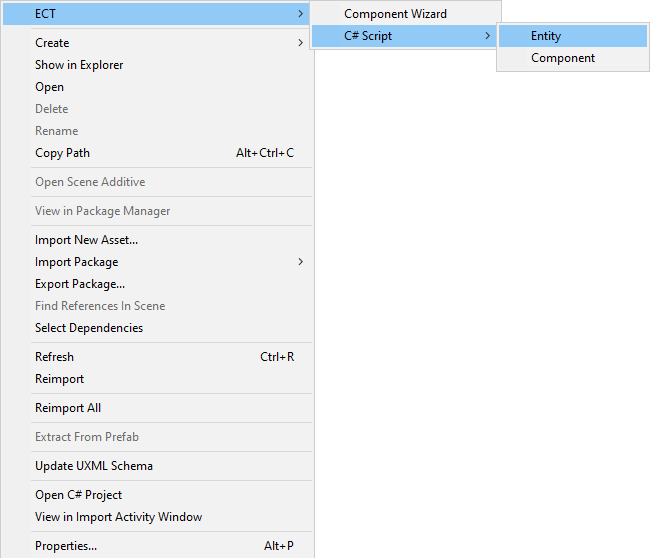
Note: It is recommended to suffix the name of your entity script with
Entity, for examplePlayerEntity.
using ECT;

public class PlayerEntity : ECTEntity<PlayerEntity>
{
    void Update() => UpdateSystems();
}
Note: Generated entity scripts execute in every frame, but this can be changed by calling
UpdateSystems()from somewhere else.
-
Right-click in the Project View and navigate to
ECT > C# Script > Component.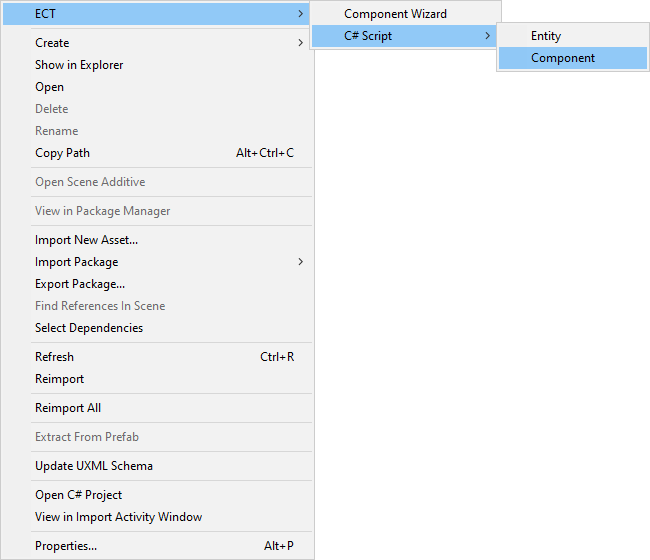
Note: It is recommended to prefix the name of your component script with parent's name, for example a movement component for the
PlayerEntitywould bePlayerMovement. -
Open the component script and replace
PARENTwith your parent's type.Ex. If the parent's type is
PlayerEntitythen you would replacePARENTwithPlayerEntity.
using ECT;

public class PlayerMovement : PlayerEntity.Component
{
    [ComponentSystem]
    public class System : System<PlayerMovement>
    {
        protected override void OnUpdate()
        {

        }
    }
}
Note: The
[ComponentSystem]attribute assigns a default system but if you want to have multiple systems you can override theGetSystem()method instead.
There are a few ways to interact with ECT from the editor itself.
-
Right-click in the Project View and navigate to
ECT > Component Wizard.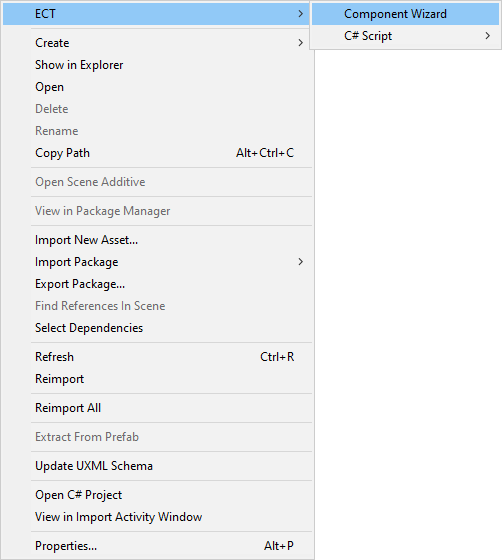
-
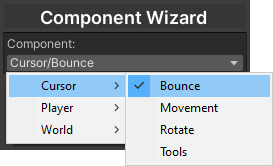
Select your component via the Component Dropdown.
-
Type the name of your component instance into the text box and press the
Createbutton.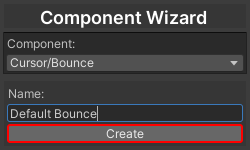
-
Create or choose an object you would like to use as an entity.
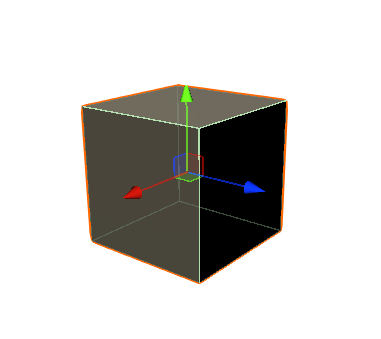
-
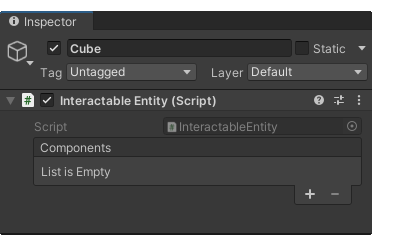
Drag and drop your Entity Script into the inspector and you will see the editor show up.
-
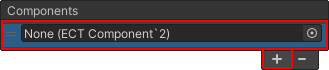
Press the "+" button at the bottom of the component list to add a component instance slot.
-
Drag and drop a component instance into this slot to add it to the entity and you will see its data show in the editor.
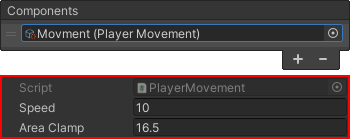
Note: You can only add components made specifically for this entity, for example you can't add an
EnemyEntitycomponent to aPlayerEntity.
-
If your component has a SceneReference they will show up at the bottom of the Entity Editor and you will need to populate them.
