The most efficient, reliable, and developer-friendly way to use the Bing Copilot API.
Actor page: apify.com/johnvc/bing-copilot-api Input schema: apify.com/johnvc/bing-copilot-api/input-schema
This API resolves any query to Bing Copilot's AI answer: the headline summary, the full structured answer (headings, lists, tables, code), every cited reference, and an optional brand-mention check. It is built for answer engine optimization (AEO) and generative engine optimization (GEO): tracking what Microsoft's answer engine says, which sources it trusts, and whether your brand shows up. It is the Bing engine in a four-part AEO suite alongside Google AI Overview, Naver AI Overview, and Brave AI Mode.
- Python 3.11 or higher
- An Apify account and API key (get a free key here)
-
Clone the repository
git clone https://github.com/johnisanerd/Apify-BingCopilot-API.git cd Apify-BingCopilot-API -
Install dependencies with UV
# Install UV if you do not have it:
curl -LsSf https://astral.sh/uv/install.sh | sh

# Install project dependencies:
uv sync
-
Configure your API key
cp .env.example .env
# Edit .env and add your Apify API key
# Get your free API key at: https://apify.com?fpr=9n7kx3
-
Run the example
uv run python bing-copilot-api-example.py
export APIFY_API_TOKEN="your_api_key_here"
uv run python bing-copilot-api-example.pyAEO and GEO brand monitoring: is your brand cited when Copilot answers your category questions? Track it weekly across your whole keyword set.
Citation-source analysis: which domains does Microsoft's answer engine trust? Target those for PR and content placement.
Competitor share-of-voice: run the same query list with each competitor as brandToTrack and compare mention rates.
Answer-drift tracking: store the markdown over time and diff how the AI answer changes after your content updates.
- Microsoft's AI answer for any query, as structured JSON
- The full answer as text blocks (paragraphs, headings, lists, tables, code) and a single markdown document
- Every cited reference with title, link, snippet, and source name
- An optional brandMentioned boolean when you set brandToTrack
- A one-line summary and featured media links when present
- The answer, its citations, and the brand check in one structured row
- Batch a whole keyword set in one run, one charge per query
- Markdown output ready for diffing and LLM pipelines
- The fourth engine in an AEO suite: same input and output shape as the Google, Naver, and Brave answer engines
{
  "queries": ["best crm for startups"]
}{
"queries": ["best crm for startups", "top crm software 2026"],
"brandToTrack": "Acme"
}| Parameter | Type | Required | Default | Description |
|---|---|---|---|---|
queries |
list[str] |
YES* | - | The question(s) to resolve. Batch several into one run. |
query |
str |
YES* | - | A single question, as an alternative to queries. At least one of query or queries is required. |
brandToTrack |
str |
no | - | Optional brand name. Adds a brandMentioned boolean to every answer row. |
*At least one of query or queries is required.
{
  "result_type": "copilot_answer",
  "query": "best crm for startups",
  "answerPresent": true,
  "answerHeader": "The best CRM for startups depends on budget and team size, with HubSpot, Pipedrive, and others among the most recommended.",
  "markdown": "## Top CRM picks\n\n- HubSpot: generous free tier\n- Pipedrive: pipeline-first UX",
  "references": [
    { "index": 0, "title": "Best CRMs for Startups (2026)", "link": "https://example.com/best-crms", "source": "Example" }
  ],
  "brandToTrack": "Acme",
  "brandMentioned": false,
  "summary": "The best CRM for startups depends on budget and team size...",
  "fetched_at": "2026-07-10T22:10:00+00:00"
}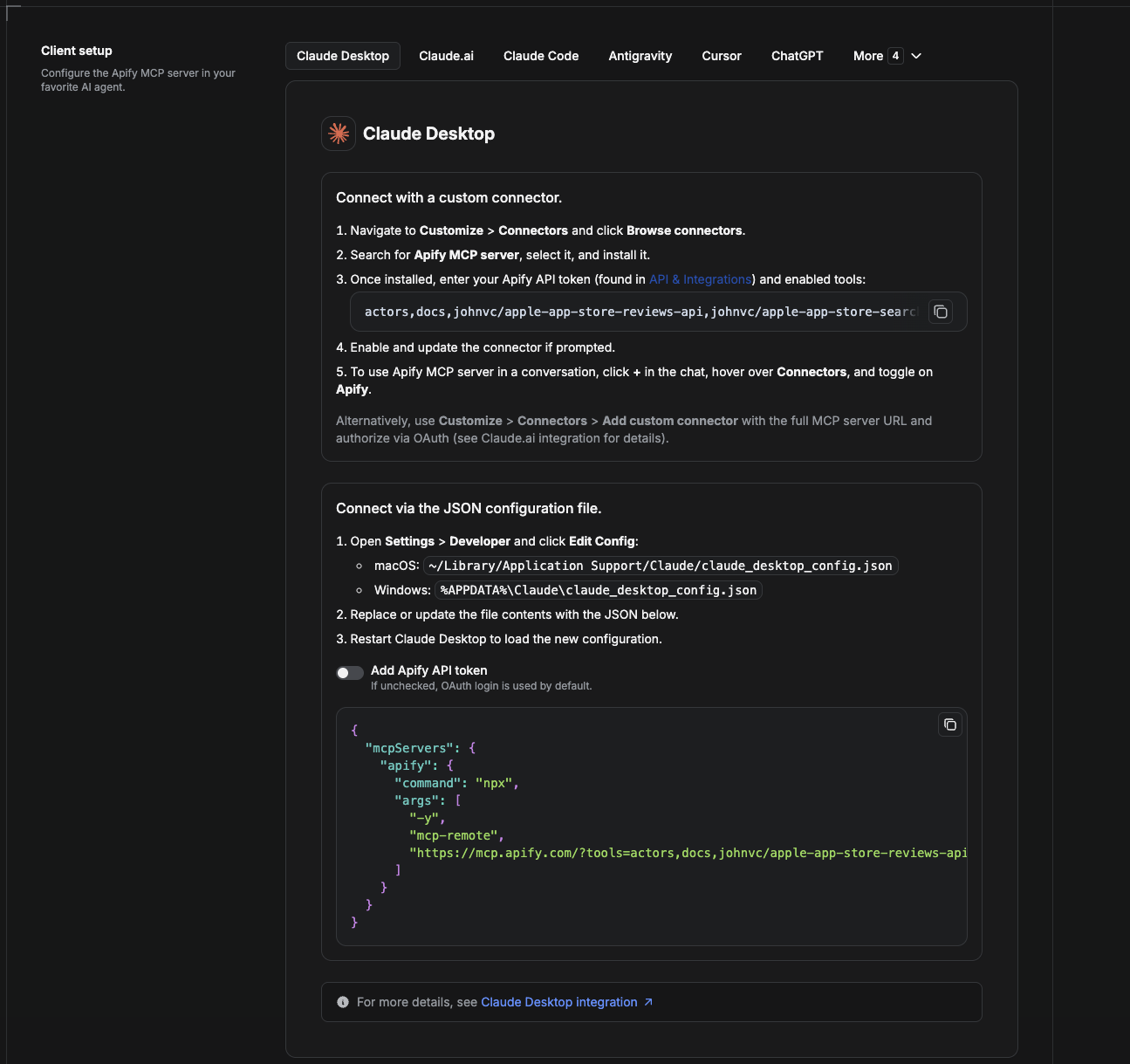
Cowork is the desktop app's automation mode. To give it the Bing Copilot API as a tool, add the Apify MCP server as a connector.
- Open the Claude desktop app and go to Settings > Connectors (or Settings > Developer > Edit Config to edit
claude_desktop_config.jsondirectly).- macOS:
~/Library/Application Support/Claude/claude_desktop_config.json - Windows:
%APPDATA%\Claude\claude_desktop_config.json
- macOS:
- Add the Apify MCP server, preloaded with only this Actor:
{
  "mcpServers": {
    "apify": {
      "command": "npx",
      "args": [
        "-y",
        "mcp-remote",
        "https://mcp.apify.com/?tools=actors,docs,johnvc/bing-copilot-api"
      ]
    }
  }
}- Restart the app. When Cowork first calls the tool, complete the OAuth prompt in your browser, or add your Apify API token in the connector settings to skip OAuth.
- In a Cowork chat, confirm the tool is available and ask it to run the Bing Copilot API.
Download the desktop app and start a free trial: https://claude.ai/referral/uIlpa7nPLg More help: https://docs.apify.com/platform/integrations/claude-desktop
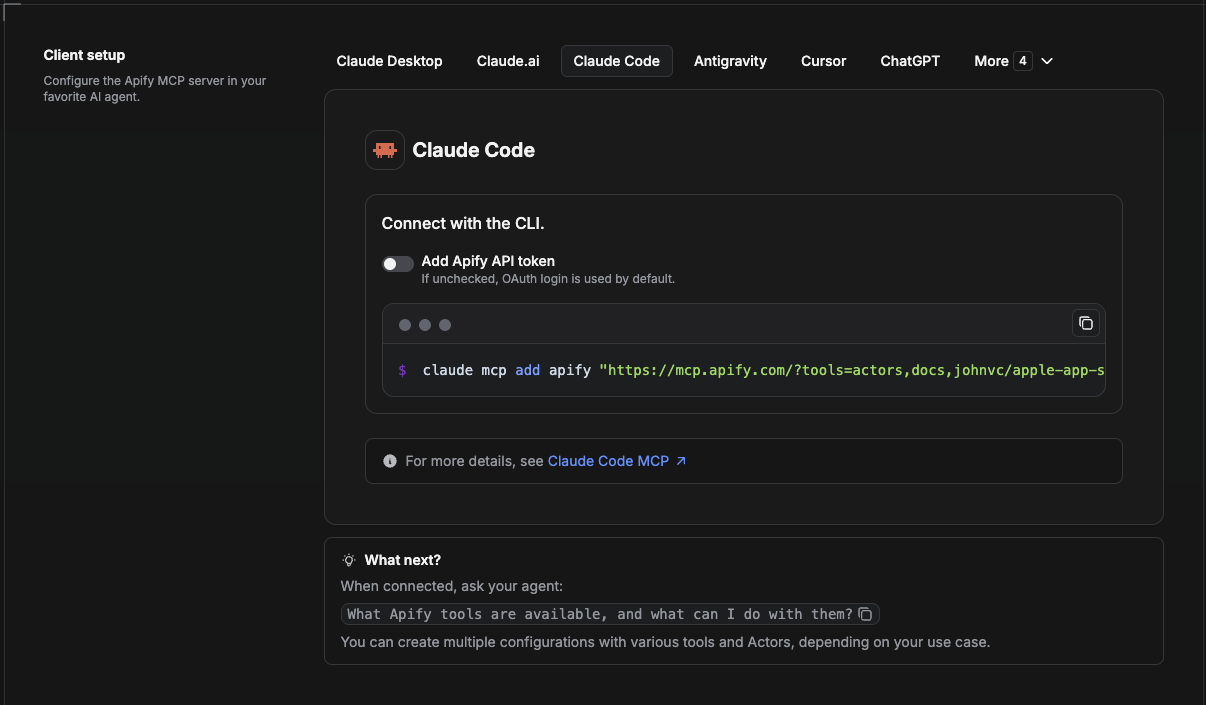
Claude Code is the command-line tool. Add the Actor's MCP server with one command:
claude mcp add --transport http apify \
  "https://mcp.apify.com/?tools=actors,docs,johnvc/bing-copilot-api"
To use a token instead of browser OAuth:
claude mcp add --transport http apify \
  "https://mcp.apify.com/?tools=actors,docs,johnvc/bing-copilot-api" \
  --header "Authorization: Bearer YOUR_APIFY_TOKEN"
Then verify with claude mcp list, or run /mcp inside a session. Ask Claude Code to call the Bing Copilot API.
Try Claude Code free: https://claude.ai/referral/uIlpa7nPLg Claude Code MCP docs: https://code.claude.com/docs/en/mcp
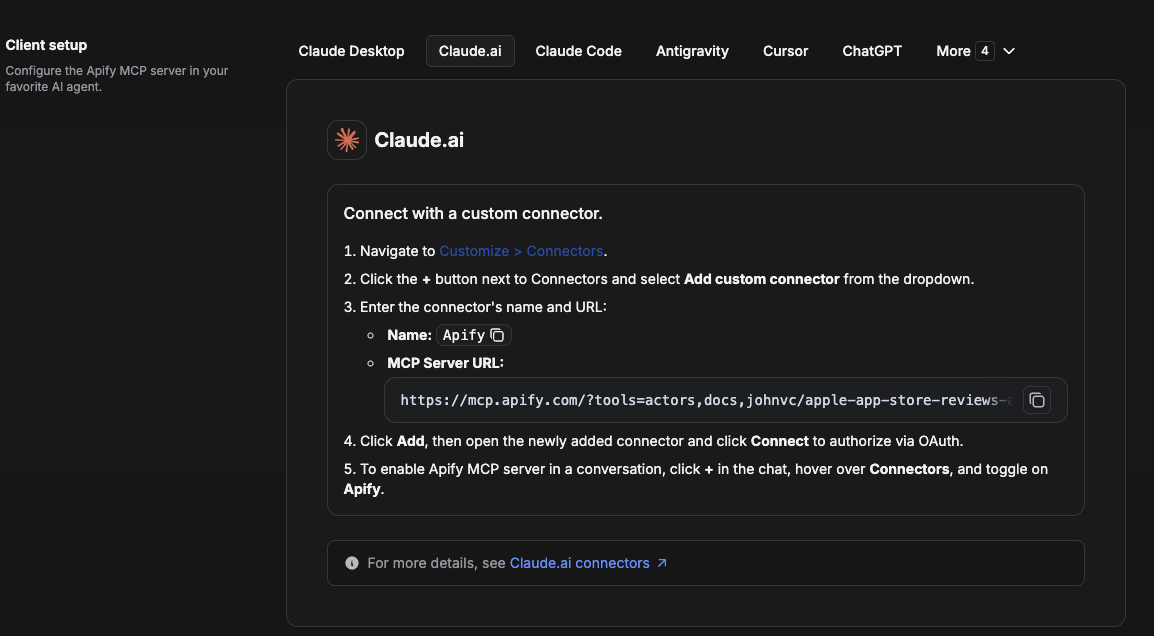
On claude.ai you add Apify as a connector, then enable just this Actor's tool.
- Go to Settings > Connectors > Browse connectors and search for Apify MCP server. Install it (enable or update if prompted).
- When connecting, authenticate with your Apify API token, and enable the tool
johnvc/bing-copilot-api. - In any chat, open + > Connectors and turn on Apify.
- Alternatively, choose Add custom connector and paste the full MCP URL
https://mcp.apify.com/?tools=actors,docs,johnvc/bing-copilot-api, using OAuth when prompted. - Ask Claude to run the Bing Copilot API.
Open Claude on the web: https://claude.ai/referral/uIlpa7nPLg
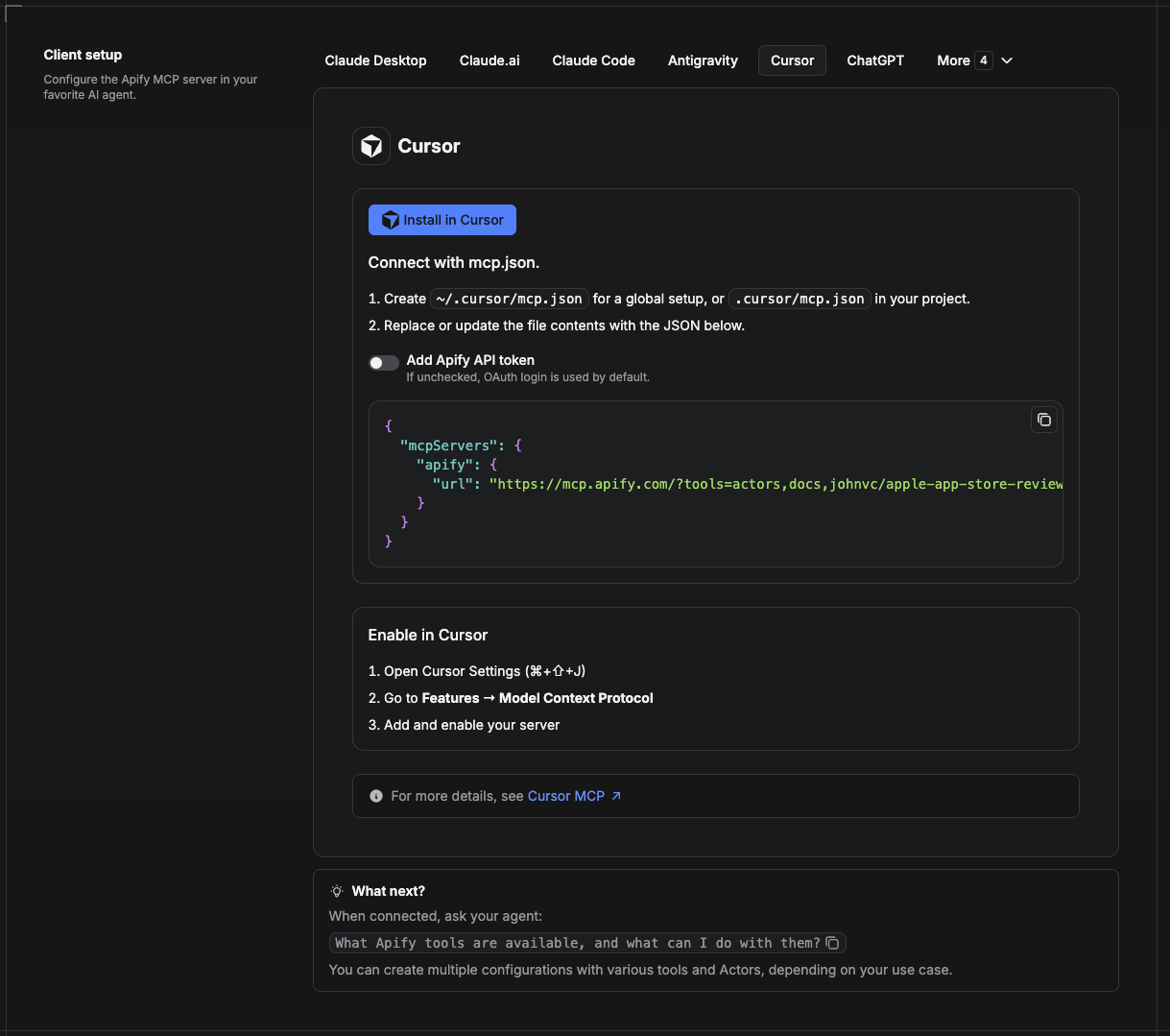
Cursor reads MCP servers from a project file at .cursor/mcp.json.
- In your project, create
.cursor/mcp.json:
{
  "mcpServers": {
    "apify": {
      "url": "https://mcp.apify.com/?tools=actors,docs,johnvc/bing-copilot-api"
    }
  }
}- If you prefer token auth over browser OAuth, add a header:
{
  "mcpServers": {
    "apify": {
      "url": "https://mcp.apify.com/?tools=actors,docs,johnvc/bing-copilot-api",
      "headers": { "Authorization": "Bearer YOUR_APIFY_TOKEN" }
    }
  }
}- Open Cursor > Settings > MCP and confirm the apify server is connected (green dot).
- In Composer or Chat, ask Cursor to call the Bing Copilot API.
New to Cursor? Get it here: https://cursor.com/referral?code=XQP4VBLI3NNX
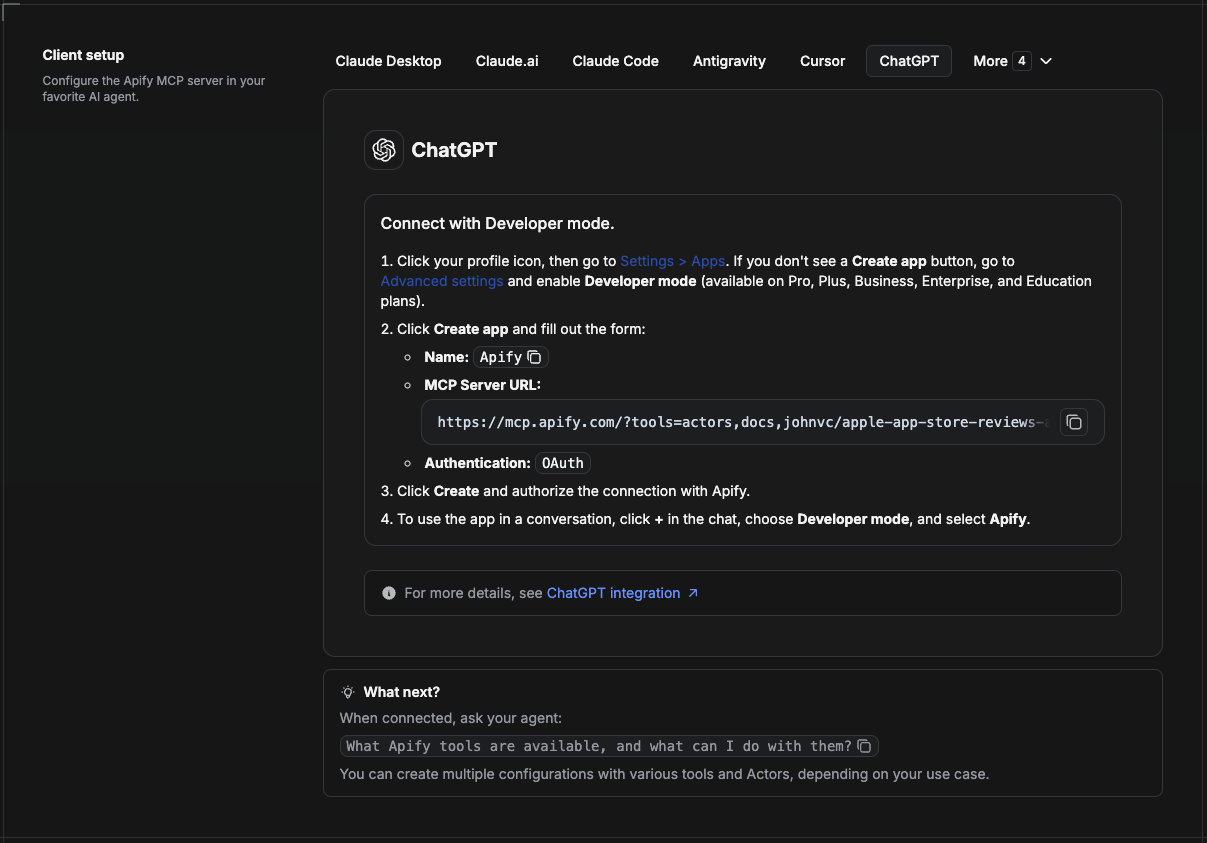
ChatGPT connects to the Apify MCP server through Developer mode (available on ChatGPT Pro, Plus, Business, Enterprise, and Education plans).
- Click your profile icon, then go to Settings > Apps. If you do not see a Create app button, open Advanced settings and enable Developer mode.
- Click Create app and fill out the form:
- Name: Apify
- MCP Server URL:
https://mcp.apify.com/?tools=actors,docs,johnvc/bing-copilot-api - Authentication: OAuth
- Click Create and authorize the connection with Apify.
- To use the app in a conversation, click + in the chat, choose Developer mode, and select Apify.
More help: https://docs.apify.com/platform/integrations/mcp
Prefer n8n? This API is also available as a community node, n8n-nodes-bing-copilot-api. In n8n, go to Settings > Community Nodes, install n8n-nodes-bing-copilot-api, then use it in any workflow. It also works as an AI Agent tool.
Use the Bing Copilot API to power your data workflows with reliable, structured results.
Last Updated: 2026.08.02