




HyperX LED controller for Linux. Controls LED effects on HyperX devices via low-level HID communication, with a native GTK4 desktop interface and a full CLI for scripting and automation.
- HyperX QuadCast II (tested)
- HyperX DuoCast (
03f0:098ccontroller; experimental)
Other HyperX devices may work but are not officially supported.

Linuity ships with a native GTK4 interface that lets you switch modes, adjust parameters, and apply changes with a single click. A real-time log viewer is built in, streaming the daemon output directly in the app.
To open the interface, search for Linuity in GNOME Activities, or run:
linuity --mode guiThe installer registers a desktop launcher and icon automatically — no extra setup required. Daemon control (restart / disable) works without a password prompt thanks to a sudoers rule scoped exclusively to systemctl restart/disable linuity.service.
git clone https://github.com/gabrielvictorweb/linuity.git
cd linuity
chmod +x install.sh
./install.sh
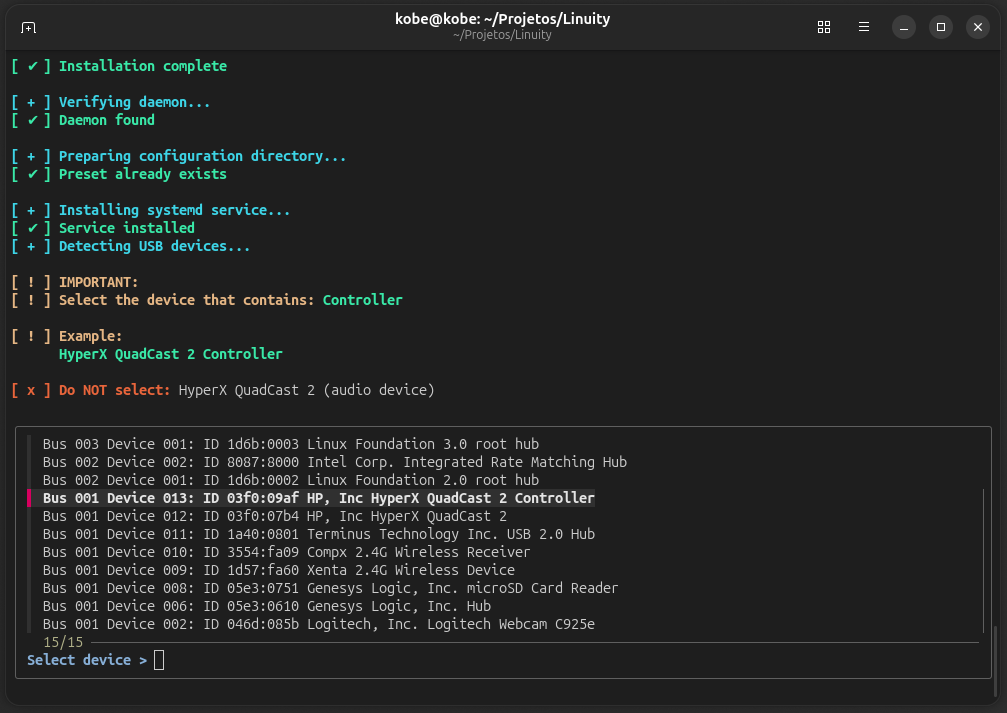
During installation you will be prompted to select your controller device from an interactive list. Choose the entry labeled Controller (not the audio device):
HyperX QuadCast 2 Controller
If linuity is not found immediately after installation, open a new terminal to reload your PATH.
- LED modes:
default,led-off,static,blinking,gradual,wave,flicker,scanner - Native GTK4 desktop interface with real-time log viewer
- Background daemon with automatic recovery on USB reconnect
- DuoCast display control through its dedicated USB controller
- Persistent configuration via preset file
- Update notifications on startup (CLI and GUI)
- Full CLI for scripting and automation
- Linux (systemd-based)
- Python 3.11+
- pipx, fzf, Python HID and USB bindings
- PyGObject and GTK4
- Ubuntu 26.04
- Debian 13
- Arch (CachyOS)

Common commands:
# Apply and save a mode
linuity --mode blinking --save

# Gradual breathing
linuity --mode gradual --min 10 --max 90 --interval 0.02 --save

# Wave with contrast curve
linuity --mode wave --contrast --step 1 --interval 0.05 --save

# Scanner
linuity --mode scanner --speed 0.15 --min 5 --max 100 --interval 0.05 --save

# Turn off LED
linuity --mode led-off --save

# Release software control (DuoCast restores its built-in gradient)
linuity --mode default --save

# Disable daemon
linuity --mode off

# Show current preset
linuity --status

# Cycle through all effects (test sequence)
linuity --mode test| Parameter | Applicable modes | Description | Default |
|---|---|---|---|
--mode |
all | Lighting mode | — |
--opacity |
static, blinking |
Brightness 0–100 (shorthand for --max) |
100 |
--min |
gradual, flicker, scanner |
Minimum brightness (0–100) | 0 |
--max |
gradual, flicker, scanner |
Maximum brightness (0–100) | 100 |
--interval |
all animated | Seconds between each effect tick | 0.5 |
--step |
wave |
Brightness step per tick | 10 |
--contrast |
wave |
Apply quadratic contrast curve | off |
--speed |
scanner |
Oscillation speed (radians per tick) | 0.2 |
--variation |
flicker |
Max random variation per tick | 10 |
--save |
all | Persist configuration and apply immediately | — |
--status |
— | Show current preset | — |
--vid / --pid |
— | Override USB device IDs | auto |
View daemon logs:
journalctl -u linuity.service -fdefault makes the daemon release the device so it runs its own lighting
instead of Linuity's effect:
linuity --mode default --save- DuoCast: closing the controller connection lets it resume its built-in
gradient, without writing firmware or saving a lighting profile. If it does
not resume immediately, unplug and reconnect the microphone after selecting
default. - QuadCast II: the HID connection is released, but the ring keeps whatever
it was last showing — the QuadCast has no "restore factory lighting" command.
Use
led-offto force it dark.
install.sh performs system-level configuration. Below is a complete list of changes it makes.
- Installs the required packages with
apt-geton Debian/Ubuntu orpacmanon Arch Linux - Registers a systemd service:
/etc/systemd/system/linuity.service - Creates HID and USB udev rules:
/etc/udev/rules.d/99-linuity.rules - Adds a scoped sudoers rule:
/etc/sudoers.d/linuity(NOPASSWD only forsystemctl restart/disable linuity.service)
- Installs Linuity via
pipx(isolated environment) - Creates
~/.config/linuity/preset.conf(stores VID/PID and LED configuration) - Installs a GNOME desktop launcher and icon:
~/.local/share/applications/linuity.desktop~/.local/share/icons/hicolor/<size>/apps/linuity.png
Linuity uses systemd for reliability and auto-restart, udev for hardware permissions, and pipx for an isolated Python environment. Together they ensure no manual setup is needed after install, no permission issues, and consistent behavior across reboots.
pipx uninstall linuity
sudo systemctl disable linuity.service
sudo rm /etc/systemd/system/linuity.service
sudo rm /etc/udev/rules.d/99-linuity.rules
sudo rm /etc/sudoers.d/linuity
rm ~/.local/share/applications/linuity.desktop
rm -f ~/.local/share/icons/hicolor/*/apps/linuity.pngSee DEVELOPMENT.md for setup and workflow.
 Gabriel Victor Creator & maintainer |
 Utkarsh Kumar HyperX DuoCast & Arch Linux support |
Gabriel Victor — https://github.com/gabrielvictorweb
MIT