


Transform a humble Christmas mailbox prop into a magical, fully interactive Santa experience — complete with sensor-triggered videos, radar car counting, donation tracking, Home Assistant integration, and a live analytics dashboard. When a child drops a letter in the slot, the magic begins. ✨
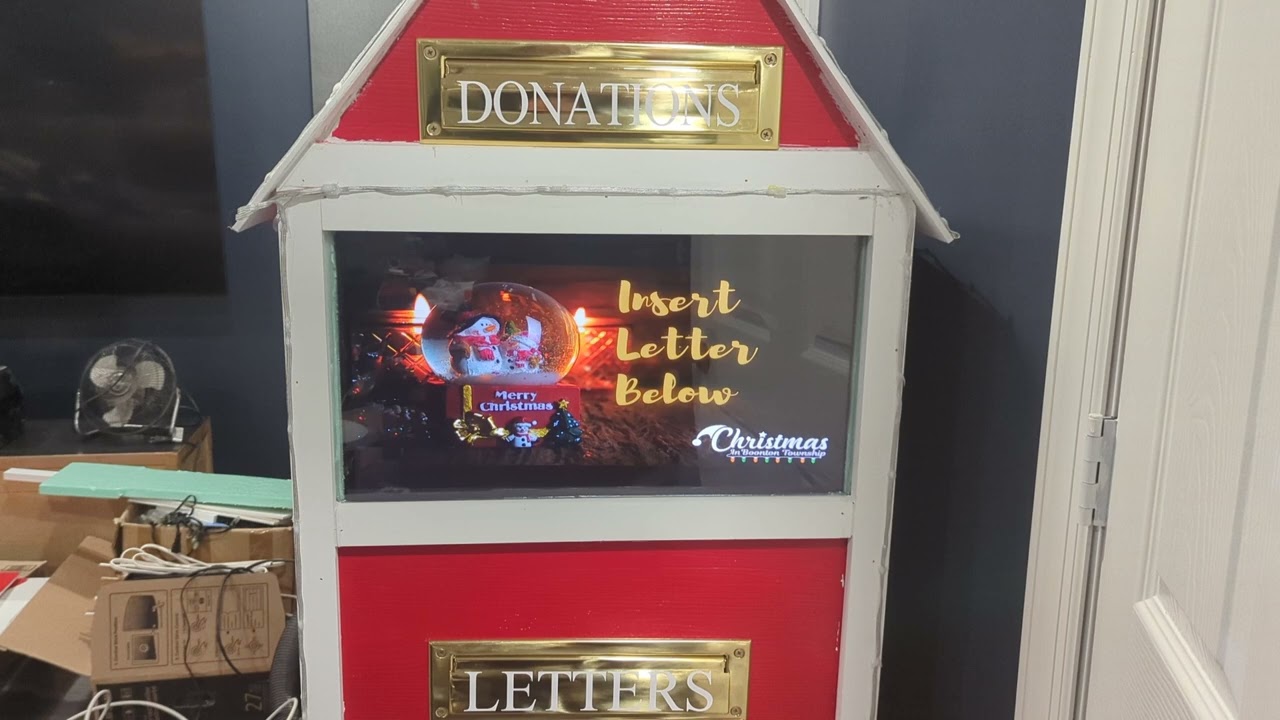
▶ Watch the Build & Demo Video on YouTube
- What Is SLED?
- Feature Overview
- How It Works (Architecture)
- Hardware You'll Need
- Building the Enclosure
- Wiring Guide
- Installation
- Configuration
- FPP Video Setup
- Radar Car Detection
- Home Assistant Integration
- Analytics Dashboard
- FPP Commands
- Schedule / Active Hours
- Daemon Controls
- Optional: Temperature Sensor
- Troubleshooting
- File Reference
- Credits
Free for personal, hobbyist, and noncommercial use under the PolyForm Noncommercial License 1.0.0.
Using this in a commercial or paid-event display? A separate commercial license is required — contact license.request@christmasinboontontwp.com to arrange one.
SLED (Smart Letters Express Delivery) is a Falcon Player plugin that turns a Santa Mailbox Christmas prop into a fully interactive, sensor-driven audience experience. It's not just a box — it's an event.
When a child walks up and drops their letter to Santa into the slot, a sensor immediately triggers an exciting video to play on a connected display. The crowd cheers, the child's eyes light up, and Santa's magic feels real.
But SLED doesn't stop there. A second slot for donations triggers its own video sequence. Dual HLK-LD2410B microwave radar sensors silently count every car that drives past your display — tracking direction, flagging parked cars watching the show, and feeding live data into Home Assistant via MQTT. An onboard SQLite analytics database tracks everything over time, and a polished Chart.js dashboard built right into FPP's UI lets you review your season stats at a glance.
SLED is a production-grade prop controller built by a Christmas lighting enthusiast for Christmas lighting enthusiasts. It's designed to just work — install via the FPP Plugin Manager, fill in your settings, click Start, and go impress some kids.
| Feature | Description |
|---|---|
| 📬 Letter Sensor | GPIO trigger → round-robin video playback |
| 💰 Donation Sensor | Optional second GPIO → separate video list |
| 📺 FPP Video Integration | REST API video/playlist control, idle loop, play timeout |
| 📡 Dual Radar | HLK-LD2410B car counting, direction detection, parked detection |
| 🕐 Schedule | Active-hours controlled via FPP's native Scheduler |
| 📶 MQTT + HA | Auto-discovery, LWT, all counters published live |
| 🗄️ SQLite Analytics | Every event logged with timestamp, today/total counters |
| 📊 Dashboard | Live chart (7/30/90/365 day views) in FPP UI |
| 🎮 Daemon Controls | Start/Stop/Restart right from the settings page |
| ⚡ FPP Commands | Trigger Letter, Trigger Donation, Stop Daemon |
| 🔧 Systemd Service | Auto-starts after fppd, restarts on failure |
| 🌡️ DHT11 (optional) | Temperature & humidity to MQTT |
| 📌 GPIO Reservation | Auto-saves pins to FPP's gpio.json |
┌─────────────────────────────────────────────────────────────────┐
│                        Raspberry Pi                             │
│                                                                 │
│  ┌──────────────┐     GPIO BCM 17      ┌──────────────────┐    │
│  │ Letter Slot  │ ──────────────────── │                  │    │
│  │  (Sensor)    │                      │   sled-mailbox   │    │
│  └──────────────┘     GPIO (cfg)       │     Daemon       │    │
│  ┌──────────────┐ ──────────────────── │   (Python 3)     │    │
│  │ Donation Slot│                      │                  │    │
│  │  (Sensor)    │                      └────────┬─────────┘    │
│  └──────────────┘                               │              │
│                                                 │              │
│  ┌──────────────┐    /dev/ttyUSB0               │              │
│  │ LD2410B #1   │ ──────────────────────────────┤              │
│  │  (Radar A)   │                               │              │
│  └──────────────┘    /dev/ttyUSB1               │              │
│  ┌──────────────┐ ──────────────────────────────┘              │
│  │ LD2410B #2   │                    │                         │
│  │  (Radar B)   │                    │                         │
│  └──────────────┘                    │                         │
│                                      │                         │
│              ┌───────────────────────▼────────────────────┐    │
│              │               sled.json                     │    │
│              │         (config, counters, state)           │    │
│              └───────────────────────┬────────────────────┘    │
│                                      │                         │
│         ┌────────────────────────────▼───────────────────────┐ │
│         │                    Outputs                          │ │
│         │  ┌──────────────┐  ┌───────────┐  ┌────────────┐  │ │
│         │  │  FPP REST API│  │   MQTT    │  │  SQLite DB │  │ │
│         │  │  (video/     │  │  Broker   │  │ (analytics)│  │ │
│         │  │  playlists)  │  │           │  │            │  │ │
│         │  └──────┬───────┘  └─────┬─────┘  └────────────┘  │ │
│         └─────────┼────────────────┼───────────────────────── ┘ │
│                   │                │                            │
│          ┌────────▼───────┐  ┌─────▼──────────┐               │
│          │   HDMI Display │  │  Home Assistant│               │
│          │  (Letter/       │  │  (Sensors,     │               │
│          │   Donation vid)│  │   Dashboard)   │               │
│          └────────────────┘  └────────────────┘               │
└─────────────────────────────────────────────────────────────────┘
- Child drops letter into mailbox slot
- IR beam breaks (or switch opens) → GPIO BCM 17 goes LOW
- gpiozero detects the falling edge, checks cooldown
- Daemon picks the next video from the round-robin list
- Daemon writes a minimal playlist JSON (
sled_event) to FPP's playlist directory - Daemon calls FPP's REST API:
POST /api/playlists/sled_event/startNow - Video plays on the connected display
- MQTT publishes
letter_countincrement +last_eventmessage - SQLite logs the event with timestamp
- After playback (or timeout), idle playlist resumes
- LD2410B #1 (/dev/ttyUSB0) and LD2410B #2 (/dev/ttyUSB1) continuously stream presence data via serial
- When sensor A detects presence → timestamp recorded
- When sensor B detects presence within
sequence_window_safter A → direction A→B logged - If car stays present beyond
parked_timeout_s→ flagged as parked (watching the show!) - Parked cars suppress the car-event trigger until the car leaves
- All counts publish to MQTT and log to SQLite
| Component | Notes |
|---|---|
| Raspberry Pi | Pi 3B, 4, or Zero 2W recommended. Any model with GPIO pins works. |
| Letter slot sensor | IR break-beam sensor (best!), reed switch, or microswitch |
| HDMI display or TV | Connected to the Pi's HDMI output for video playback |
| Power supply | Official RPi PSU recommended (Pi 4: 5V/3A USB-C, Pi 3: 5V/2.5A microUSB) |
| Santa Mailbox prop | The star of the show 🎅 |
| Component | Notes |
|---|---|
| Donation slot sensor | Same type as letter sensor, wired to a separate GPIO pin |
| 2x HLK-LD2410B radar modules | Microwave radar for car detection — no camera, no privacy issues |
| 2x USB-serial adapters | CH340, CP2102, or FTDI — to connect LD2410B to the Pi via USB |
| DHT11 sensor | Temperature & humidity, publishes to MQTT |
| Weatherproof enclosure | For outdoor deployments — protect that Pi! |
- HLK-LD2410B: AliExpress, Amazon (search "HLK-LD2410B radar module")
- IR break-beam: Adafruit #2168 (3mm) or #2167 (5mm), or Amazon
- USB-serial adapters: Amazon — CH340G is cheap and reliable
- DHT11: Any electronics supplier, ~$2
The SLED prop is built around a birdhouse-style PVC enclosure sized to house a 24″ monitor. The design is weather-resistant, easy to paint in a Santa red/white theme, and built to last multiple seasons.

📐 Full build dimensions, cut list, and materials are below. Electronics (Raspberry Pi, display, sensors, power supplies) are covered in the Hardware section.
Birdhouse-style enclosure sized to hold a 24″ monitor and internal frame:
| Panel | Dimensions |
|---|---|
| Front / Back panels | 22″ wide × 62″ tall (to peak) |
| Side panels | 8″ deep × 31″ lower wall + 23″ upper peak section |
| Bottom panel | 22″ × 8″ |
| Roof panels | 24″ × 10″ (two pieces) |
The internal frame is built from pressure-treated 2×4 lumber:
| Member | Size | Notes |
|---|---|---|
| Corner posts | ~31″ lower + ~23″ upper per corner | Full-height structural support |
| Ridge cleat | 22″ | Ties the two roof peaks together at the top |
| Monitor brace | 22″ | Horizontal brace behind the monitor |
| Bottom cleats | 2 × 8″ | Support the bottom PVC panel |
| Material | Size / Qty | Notes |
|---|---|---|
| Pressure treated 2×4 | 8 ft studs × 3–4 pcs | Internal frame and cleats |
| ¼″ Veranda PVC sheet | 4 ft × 8 ft × 1 sheet | Main body panels (front / back / sides / bottom) |
| Additional PVC sheet | Offcuts or second sheet | Roof panels and trim pieces |
| ¾″ × 1½″ PVC trim | 8 ft × 2–4 pcs | Optional internal cleats / trim |
| Plexiglass / acrylic | ~22″ × 14″ | Monitor window |
| Screws | #8 × 1¼″ stainless or coated | PVC-to-wood fasteners |
| Exterior sealant | — | Silicone or polyurethane caulk |
| Exterior paint | — | Santa red / white theme |
| Hinges | 2 pcs | For rear or side access door |
| Latch / magnetic catch | 1 pc | Keeps the service door closed |
| Cable glands | 2 or more | For power and sensor cabling |
| Zip ties / anchors | — | Internal cable management |
💡 Electronics are listed separately — see Hardware You'll Need for the Raspberry Pi, display, sensors, and power supplies.
SLED uses active-low with internal pull-up (gpiozero gpio_pu mode). When the sensor triggers, it pulls the GPIO pin to GND.
Raspberry Pi GPIO                    Sensor (IR Break-Beam / Reed Switch / Microswitch)
─────────────────                    ──────────────────────────────────────────────────

  Pin 11 (BCM 17) ──────────────────── Sensor Output (Normally Closed to GND)
                                                │
  Pin 6  (GND)    ──────────────────────────────┘

Internal pull-up keeps BCM 17 HIGH (3.3V) when idle.
When the letter drops, the sensor opens/breaks → BCM 17 stays HIGH through pull-up...
Wait — for break-beam, use the OUTPUT pin of the receiver board (goes LOW on break).
| Signal | BCM Pin | Physical Pin | Direction |
|---|---|---|---|
| Letter Sensor | BCM 17 (default) | P1-11 | Input (pull-up) |
| Donation Sensor | Configurable | Configurable | Input (pull-up) |
| DHT11 Data | Configurable | Any free GPIO | Input |
| GND | — | P1-6, P1-9, P1-14... | — |
| 3.3V | — | P1-1, P1-17 | — |
| 5V | — | P1-2, P1-4 | — |
Emitter board:
  VCC  → Pi 5V  (Pin 2 or 4)
  GND  → Pi GND (Pin 6)

Receiver board:
  VCC  → Pi 5V
  GND  → Pi GND
  OUT  → Pi BCM 17 (Pin 11)   ← Goes LOW when beam is broken
One terminal → Pi BCM 17 (Pin 11)
Other terminal → Pi GND (Pin 6)

When letter drops and closes/opens the switch:
  Normally Open switch: pin goes LOW when letter lands
  Normally Closed switch: pin goes LOW when letter clears
Tip: Add a 100Ω resistor in series with the GPIO pin for protection. Optional but good practice for outdoor/long-wire runs.
The LD2410B is a 5V device that communicates via UART. Use a USB-serial adapter:
LD2410B Module          USB-Serial Adapter (CH340/CP2102/FTDI)
──────────────          ──────────────────────────────────────
  VCC (5V)    ─────────── 5V
  GND         ─────────── GND
  TX          ─────────── RX
  RX          ─────────── TX

USB-Serial Adapter → USB port on Raspberry Pi
  Sensor A: /dev/ttyUSB0
  Sensor B: /dev/ttyUSB1
Note: LD2410B operates at 256000 baud by default. SLED handles this automatically. Do not use a 3.3V-only serial adapter — the LD2410B needs 5V power.
┌─────────────────────────────────────────────────────┐
│              Raspberry Pi GPIO Header                │
│                                                     │
│  [1] 3.3V    [2] 5V ──────────────────── LD2410B VCC│
│  [3] GPIO2   [4] 5V ──────────────────── IR Emitter │
│  [5] GPIO3   [6] GND ─────────────────── Common GND │
│  [7] GPIO4   [8] TX                                 │
│  [9] GND    [10] RX                                 │
│ [11] GPIO17 ───────── Letter Sensor OUT             │
│ [12] GPIO18  [13] GPIO27                            │
│ [14] GND    [15] GPIO22                             │
│ [16] GPIO23  [17] 3.3V                              │
│ [18] GPIO24  [19] MOSI                              │
│ [20] GND    [21] MISO                               │
│ [22] GPIO25  [23] SCLK                              │
│ [24] CE0    [25] GND                                │
│ [26] CE1    [27] ID_SD [28] ID_SC                   │
│             [29] GPIO5  [30] GND                    │
│             [31] GPIO6  [32] GPIO12                 │
│             [33] GPIO13 [34] GND                    │
│             [35] GPIO19 [36] GPIO16 ─── Donation    │
│             [37] GPIO26 [38] GPIO20     Sensor OUT  │
│             [39] GND   [40] GPIO21                  │
└─────────────────────────────────────────────────────┘

LD2410B Sensors connect via USB-Serial Adapters:
  Sensor A → /dev/ttyUSB0 (USB port 1)
  Sensor B → /dev/ttyUSB1 (USB port 2)
SLED installs just like any other FPP plugin — through the built-in Plugin Manager.
- Open your FPP web UI (e.g.,
http://192.168.1.x) - Navigate to Content → Plugin Manager
- Click the Available Plugins tab
- Find "SLED Smart Letters to Santa" in the list
- Click Install
- Wait for the installation to complete (dependencies install automatically)
- Navigate to Content → Plugin Manager → Installed Plugins
- Click the SLED plugin settings link
- You'll land on the SLED configuration page
Fill in your settings (see Configuration below):
- Add your video file paths
- Set your GPIO pins
- Configure schedule times
- Set up MQTT if desired
- Configure radar sensors if you have them
- Click Save Settings
- In the Daemon Controls section, click Start Daemon
- Watch the log output for startup messages
- Drop a test letter — the video should play! 🎉
SLED automatically installs required Python packages during plugin installation:
python3-serial— Serial communication for LD2410B radarpython3-paho-mqtt— MQTT publishing to Home Assistantpython3-gpiozero— Clean GPIO input handling
No manual pip install needed.
All settings are stored in /home/fpp/media/config/sled.json. You can edit this file directly or use the FPP settings UI.
{
  "letter_videos": [
    "/home/fpp/media/videos/letter1.mp4",
    "/home/fpp/media/videos/letter2.mp4",
    "/home/fpp/media/videos/letter3.mp4"
  ],
  "donation_videos": [
    "/home/fpp/media/videos/donation1.mp4"
  ],
  "idle_playlist": "idle_loop",
  "letter_gpio_pin": 17,
  "donation_gpio_pin": 16,
  "cooldown_s": 5,
  "play_timeout_s": 60,
  "autostart": true,
  "mqtt_host": "",
  "mqtt_port": 1883,
  "mqtt_base_topic": "sled/mailbox",
  "mqtt_username": "",
  "mqtt_password": "",
  "radar_enabled": true,
  "radar_port_a": "/dev/ttyUSB0",
  "radar_port_b": "/dev/ttyUSB1",
  "radar_sequence_window_s": 10,
  "radar_parked_timeout_s": 120,
  "radar_direction_a_to_b": "Inbound",
  "radar_direction_b_to_a": "Outbound",
  "radar_min_energy_a": 10,
  "radar_min_energy_b": 10,
  "dht_enabled": false,
  "dht_gpio_pin": 4,
  "dht_read_interval_s": 60
}| Setting | Default | Description |
|---|---|---|
letter_videos |
[] |
List of video file paths OR FPP playlist names, played round-robin |
donation_videos |
[] |
Videos for donation events. Falls back to letter_videos if empty |
idle_playlist |
"idle_loop" |
FPP playlist that runs continuously between events |
letter_gpio_pin |
17 |
BCM GPIO pin for letter sensor (active-low, pull-up) |
donation_gpio_pin |
16 |
BCM GPIO pin for donation sensor |
cooldown_s |
5 |
Seconds before sensor can trigger again |
play_timeout_s |
60 |
Max seconds a triggered video plays before returning to idle |
autostart |
true |
Start daemon automatically when FPP starts |
mqtt_base_topic |
"sled/mailbox" |
MQTT topic prefix for all publishes |
radar_enabled |
false |
Enable dual radar car detection |
radar_sequence_window_s |
10 |
Max seconds between A→B radar triggers to count as one car |
radar_parked_timeout_s |
120 |
Seconds of continuous presence before flagging as parked |
radar_direction_a_to_b |
"Inbound" |
Label for A→B direction (toward display) |
radar_direction_b_to_a |
"Outbound" |
Label for B→A direction (leaving display) |
SLED integrates directly with FPP's video and playlist system.
Put your video files in /home/fpp/media/videos/ and reference them directly in letter_videos:
"letter_videos": [
  "/home/fpp/media/videos/santa_letter_1.mp4",
  "/home/fpp/media/videos/santa_letter_2.mp4"
]
SLED creates a temporary playlist called sled_event, inserts your video, and calls FPP's REST API to play it immediately.
You can also reference FPP playlist names directly. SLED detects that it's a playlist name (not a file path) and calls FPP to start it by name:
"letter_videos": [
  "santa_response_1",
  "santa_response_2"
]
This lets you use FPP playlists that include lighting effects, audio, and video together for a fully synchronized response!
Between events, SLED starts the idle_playlist (default: idle_loop). Create a looping playlist in FPP with your idle content (e.g., a "Drop your letter to Santa!" animation). SLED will restart it after each triggered event completes.
- Format: H.264 MP4, 1080p or 720p
- Duration: 10–45 seconds per video is ideal
- Content ideas:
- Santa saying "Ho ho ho! I got your letter!"
- Animated elves processing the letter
- North Pole "receiving department" footage
- Donation: "Thank you! The elves thank you too!"
The LD2410B is a 24 GHz microwave radar module — it detects presence using radio waves, not cameras. Perfect for driveway use (privacy-friendly!).
SLED uses two sensors positioned along the driving path:
   Street direction of travel →

   ┌─────────┐    gap    ┌─────────┐
   │ Radar A │           │ Radar B │
   │ ttyUSB0 │           │ ttyUSB1 │
   └─────────┘           └─────────┘

   Car going left→right:  A triggers first, then B → "Inbound"
   Car going right→left:  B triggers first, then A → "Outbound"
Place the two sensors facing the road, spaced about 10–20 feet apart. The sequence window (radar_sequence_window_s) is how long SLED waits for the second sensor to trigger after the first. Set it based on your sensor spacing and typical car speed.
If a car's radar presence exceeds radar_parked_timeout_s without leaving, SLED flags it as parked — they're watching the show! 🎉
While a car is parked:
- The car-count trigger is suppressed (we already counted them)
- MQTT publishes
parked: true - When they leave, the flag clears automatically
Set radar_min_energy_a and radar_min_energy_b to filter out noise. The LD2410B reports a motion/stationary energy value (0–100). Values below the threshold are ignored. Start with 10 and adjust based on your environment.
- Mount sensors at bumper height (18–24 inches) for best car detection
- Angle them slightly toward the expected approach angle
- Avoid mounting near metal objects or walls that can reflect the signal
- Keep sensors dry — they work outdoors but prefer a weatherproof housing
SLED publishes all data to MQTT and includes Home Assistant MQTT Auto-Discovery — no manual sensor configuration required!
When the daemon starts, SLED announces these entities to Home Assistant:
| Entity | Type | Topic |
|---|---|---|
| Letters Today | Sensor | sled/mailbox/letters_today |
| Letters Total | Sensor | sled/mailbox/letters_total |
| Donations Today | Sensor | sled/mailbox/donations_today |
| Donations Total | Sensor | sled/mailbox/donations_total |
| Cars Today | Sensor | sled/mailbox/cars_today |
| Cars Total | Sensor | sled/mailbox/cars_total |
| Inbound Today | Sensor | sled/mailbox/inbound_today |
| Outbound Today | Sensor | sled/mailbox/outbound_today |
| Last Event | Sensor | sled/mailbox/last_event |
| Daemon Status | Binary Sensor | sled/mailbox/status |
SLED sets an MQTT LWT on sled/mailbox/status. If the daemon crashes or the Pi loses power, Home Assistant will see the status flip to offline automatically. When the daemon restarts, it publishes online.
By default, SLED reads MQTT connection settings from FPP's own MQTT configuration — no duplicate config needed! You can override any setting in sled.json:
"mqtt_host": "192.168.1.100",
"mqtt_port": 1883,
"mqtt_username": "fpp",
"mqtt_password": "supersecret",
"mqtt_base_topic": "christmas/sled/mailbox"automation:
- alias: "SLED Letter Dropped Notification"
trigger:
platform: mqtt
topic: "sled/mailbox/last_event"
payload: "letter"
action:
service: notify.mobile_app_my_phone
data:
message: "🎅 A child just dropped a letter to Santa!"SLED includes a live analytics dashboard built directly into FPP's web UI.
Live Counters:
- 📬 Letters — Total season / Today
- 💰 Donations — Total season / Today
- 🚗 Cars — Total season / Today
- ➡️ Inbound / Outbound today
Event Chart:
- Chart.js bar chart of events over time
- Select time range: 7 days / 30 days / 90 days / 365 days
- Group by: Day / Week / Month
- Shows letters, donations, and car events stacked by day
Daemon Status:
- Live pill badge: 🟢 Running / 🔴 Stopped
- Auto-refreshes every 30 seconds
Navigate to Content → Plugins → SLED in the FPP web UI. The dashboard is embedded right in the settings page — no separate URL needed.
All events are stored in a local SQLite database at /home/fpp/media/config/sled.db. The schema is simple and human-readable — you can query it directly:
sqlite3 /home/fpp/media/config/sled.db \
  "SELECT event_type, COUNT(*) FROM events GROUP BY event_type;"
Today counters automatically reset at midnight. Total counters persist all season.
SLED registers three commands in FPP's command system. You can trigger them from:
- FPP's Commands page (manual testing)
- FPP sequences (trigger letter drop as part of a show!)
- Home Assistant via FPP's MQTT command bridge
| Command | Description |
|---|---|
SLED - Trigger Letter |
Simulate a letter being dropped — great for testing! |
SLED - Trigger Donation |
Simulate a donation drop |
SLED - Stop Daemon |
Gracefully stop the SLED daemon |
You can embed SLED - Trigger Letter as an event in a FPP sequence. Imagine: at a specific moment in your Christmas show, Santa's voice says "Someone just mailed me a letter!" and the SLED video plays. 🎄
SLED defers scheduling entirely to FPP's native Scheduler — no start/end times in the plugin config. This lets you manage all your show timings in one place alongside your other FPP schedules.
- In FPP, go to Content Setup → Scheduler
- Create a Daily entry:
- Action: Start Playlist →
sled_idle— set to Repeat - Time: Your opening time (e.g.,
16:00)
- Action: Start Playlist →
- Create a second Daily entry:
- Action: Stop Playing
- Time: Your closing time (e.g.,
22:00)
- During show hours: FPP's Scheduler starts
sled_idleat opening time. The daemon monitors sensors and interrupts idle for letter/donation events, then automatically resumes idle afterward. - Outside show hours: FPP's Scheduler stops playback at closing time. If an event triggers after hours, the daemon plays the event video but does not restart idle — it respects whatever state the FPP Scheduler left things in.
- The daemon runs 24/7 via systemd regardless of schedule — it's always ready to respond instantly when show hours begin.
Tip: If you want the idle playlist to run all evening without a hard stop, just don't add a "Stop Playing" schedule entry — or add one at
23:59.
The SLED settings page in FPP includes a Daemon Controls section with:
| Button | Action |
|---|---|
Starts the sled-mailbox.service systemd service |
|
| ⏹️ Stop Daemon | Gracefully stops the daemon |
| 🔄 Restart Daemon | Stop + Start in one click |
A status badge shows 🟢 Running or 🔴 Stopped in real time.
Set autostart: true in sled.json to have the daemon start automatically whenever FPP boots. The systemd service is configured to start after fppd (the FPP main daemon) is running.
The service is installed as sled-mailbox.service. You can also control it from the command line:
# Check status
sudo systemctl status sled-mailbox

# Start
sudo systemctl start sled-mailbox

# Stop
sudo systemctl stop sled-mailbox

# View live logs
sudo journalctl -u sled-mailbox -f
The service is configured with Restart=on-failure — if the daemon crashes, systemd brings it back automatically.
If you want to monitor the temperature and humidity near your mailbox (great for knowing when to pack it in for the night!), SLED supports the DHT11 sensor.
- Wire the DHT11 data pin to any free GPIO pin (e.g., BCM 4)
- Enable in
sled.json:
"dht_enabled": true,
"dht_gpio_pin": 4,
"dht_read_interval_s": 60- Install the Adafruit DHT library:
pip3 install adafruit-circuitpython-dhtSLED will publish temperature and humidity to MQTT every dht_read_interval_s seconds:
sled/mailbox/temperature— Temperature in °Fsled/mailbox/humidity— Relative humidity %
Home Assistant will auto-discover these as sensors.
Check the log:
tail -f /home/fpp/media/logs/plugin-fpp-sled-mailbox.logCheck systemd status:
sudo systemctl status sled-mailbox
sudo journalctl -u sled-mailbox --no-pager -n 50
Common causes:
- Bad GPIO pin number in config
- Video file path doesn't exist
- Python dependency not installed
- Make sure the video file exists at the path you specified
- Check that the file is readable:
ls -la /home/fpp/media/videos/ - Verify FPP's REST API is running:
curl http://localhost/api/fppd/status - Check
plugin-fpp-sled-mailbox.logfor FPP API error messages - Make sure FPP's Scheduler has started the idle playlist for your show hours
- Test the GPIO pin with a multimeter — confirm it reads 3.3V at rest and goes to 0V when triggered
- Check that BCM pin 17 (or your configured pin) is not claimed by another FPP service
- Try
SLED - Trigger Letterfrom FPP Commands to verify video playback works independently of the sensor - Make sure
cooldown_sisn't set too high — you may be triggering during cooldown - Check log:
tail -f /home/fpp/media/logs/plugin-fpp-sled-mailbox.log
- Verify serial ports:
ls -la /dev/ttyUSB*— both should appear - Check that your USB-serial adapters are detected:
dmesg | grep ttyUSB - Make sure the LD2410B modules are powered (5V, not 3.3V)
- Try lowering
radar_min_energy_aandradar_min_energy_bto5 - Check log for radar thread errors
- Reposition sensors — ensure they have a clear line-of-sight to the road
- Verify your MQTT broker is running and reachable:
ping 192.168.1.100 - Check MQTT credentials in
sled.json - Try connecting manually:
mosquitto_sub -h YOUR_BROKER -t "sled/#" -v - Look for MQTT connection errors in the log
- Make sure FPP's own MQTT settings are configured if you're using the default (no override in sled.json)
- Make sure MQTT Integration is configured in Home Assistant
- Enable MQTT Discovery in HA (it's on by default, discovery prefix:
homeassistant) - Restart the SLED daemon — it publishes discovery payloads on startup
- Check HA's MQTT panel for incoming messages
- Check browser console for JavaScript errors
- Make sure Chart.js is loading (requires internet access for CDN, or place it locally)
- Verify the SQLite database exists:
ls -la /home/fpp/media/config/sled.db - Try refreshing the FPP page
# Follow the SLED log in real time
tail -f /home/fpp/media/logs/plugin-fpp-sled-mailbox.log

# Search for errors
grep -i error /home/fpp/media/logs/plugin-fpp-sled-mailbox.log

# View the last 100 lines
tail -n 100 /home/fpp/media/logs/plugin-fpp-sled-mailbox.log| File | Purpose |
|---|---|
/home/fpp/media/config/sled.json |
Main configuration file |
/home/fpp/media/config/sled.db |
SQLite analytics database |
/home/fpp/media/logs/plugin-fpp-sled-mailbox.log |
Daemon log file |
/home/fpp/media/playlists/sled_event.json |
Auto-generated event playlist (managed by SLED) |
/etc/systemd/system/sled-mailbox.service |
Systemd service unit |
/home/fpp/media/config/gpio.json |
FPP GPIO reservation (SLED auto-updates this) |
/home/fpp/plugins/fpp-sled-mailbox/ |
Plugin install directory |
/home/fpp/plugins/fpp-sled-mailbox/sled_daemon.py |
Main daemon script |
/home/fpp/plugins/fpp-sled-mailbox/pages/sled.php |
FPP settings/dashboard UI |
- Use a large decorative mailbox from a craft store or home improvement store
- Paint it red and white with "NORTH POLE EXPRESS" lettering
- Add LED strip lighting around the letter slot (triggered by an FPP sequence when a letter drops!)
- Mount the display inside a weatherproof shadow box above the mailbox
- Add a motion-activated voice line ("Go ahead, drop your letter — Santa's watching! 🎅")
- Mount the IR break-beam emitter/receiver across the letter slot opening
- Use a 3D printed bracket to hold the sensors in alignment
- Silicone seal the sensor housing if used outdoors
- Small TV (24–32") mounted above or beside the mailbox
- Tablet in a weatherproof case
- LED matrix display controlled via FPP for a retro feel
- Run HDMI extension cables if the Pi isn't mounted near the display
Q: Can I use a single radar sensor instead of two?
A: Yes! With one sensor you can detect car presence and count stops/passes, but you won't get directional data. Set radar_enabled: true and only configure radar_port_a. Direction stats will show as unknown.
Q: What if I don't have a display — can I use SLED for just audio?
A: Sure! Configure an FPP playlist that plays an audio file instead of video. SLED just calls FPP to start a playlist — it doesn't care if that playlist is video, audio, or a full synchronized show.
Q: Can I run SLED on a Pi Zero 2W?
A: Yes! The Pi Zero 2W has GPIO, USB (via OTG adapter), and HDMI. It's enough for a basic setup (letter sensor + video). For dual radar + dashboard, a Pi 3B or 4 is more comfortable.
Q: How many videos can I have in the round-robin list?
A: As many as you want! SLED cycles through them in order, so the more variety you have, the better the experience for repeat visitors.
Q: Does this work with FPP's Pi Pixel Overlay features?
A: Yes! Your idle and event playlists can include any FPP content — pixel overlays, effects, audio, video. SLED just starts and stops playlists via the REST API.
Q: Is the radar legal to use?
A: The HLK-LD2410B operates at 24 GHz in the ISM band and is FCC/CE certified. It's legal for unlicensed use. It detects motion via reflected radio waves — it cannot record video or identify individuals.
Found a bug? Have a feature idea? Want to share your build?
- Open an issue: github.com/focusedonsound/fpp-sled-mailbox/issues
- Submit a PR: Fork, branch, PR against
main - Share your build photos in the FPP community forums!
Created by: Nick Scilingo (FocusedOnSound)
Built with love for the Christmas lighting community. Special thanks to the Falcon Player development team for building such a capable and extensible platform, and to everyone in the community who shares their builds and inspires new ideas every season.
May your letters make it to Santa, your donations be generous, your show draw a crowd, and your radar sensors stay dry. Happy Holidays! 🎄🎅✨
SLED — Smart Letters Express Delivery
Because Santa deserves a proper mail system.
⭐ Star on GitHub ·
🐛 Report a Bug ·
💡 Request a Feature