CLI that helps you store and reuse your history and one liner scripts from anywhere, better than gists.
If you ever found yourself using a bunch of complex scripts or useful bash oneliners and you find it hard to manually add them to a file, send them to a server and then fetch this scripts to that new machine you have recently acquired or ssh-ed into, this tool is for you. Store and fetch your scripts, your terminal history and your notes from anywhere.
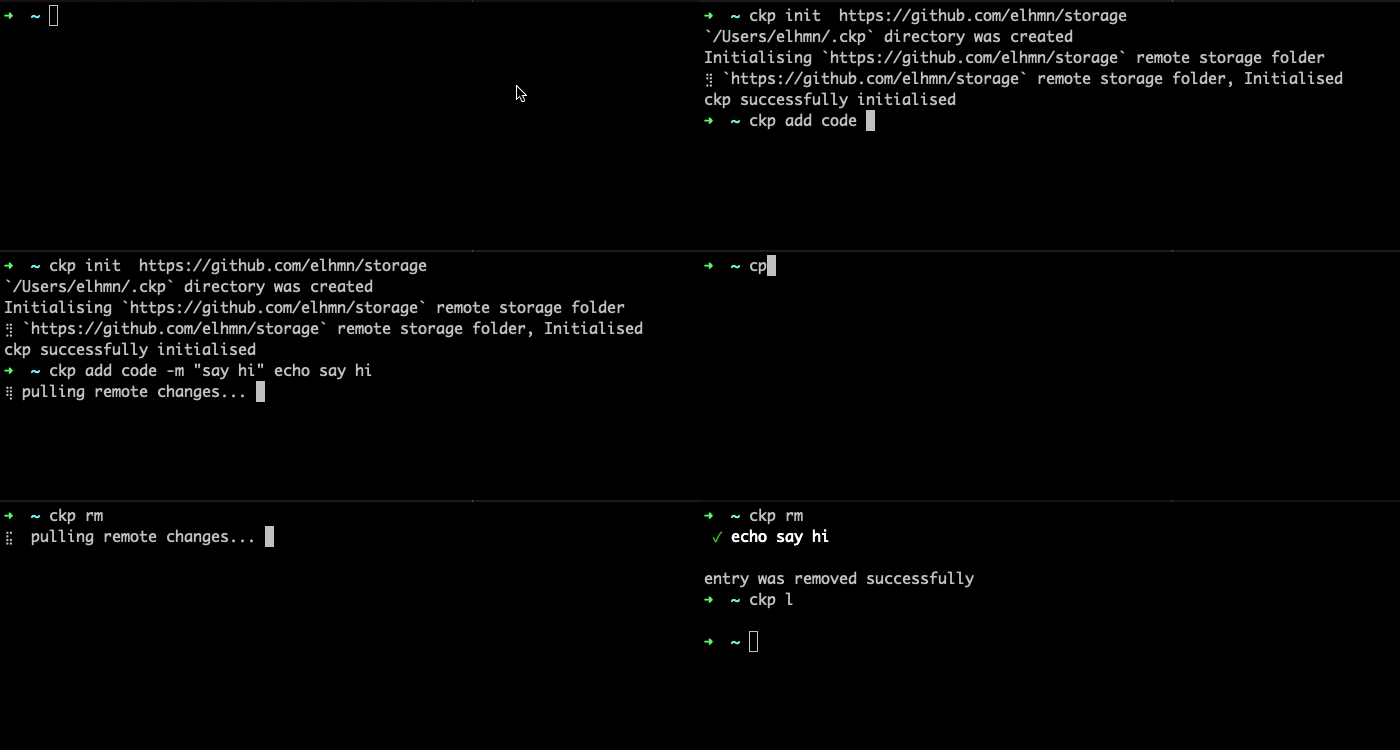
ckp uses several dependencies such as:
gitversion >= 2.24.3 you can follow this steps to install git- only
bashcompatible commands can be run usingckp, you can use the tool withoutbashbut you won't be able to run your commands using the CLI
Run
$> curl https://raw.githubusercontent.com/elhmn/ckp/master/install.sh | bashIt will create a ./bin/ckp binary on your machine
In order to run the command add it to your /usr/local/bin
$> cp ./bin/ckp /usr/local/binRun
 $> brew tap elhmn/ckp https://github.com/elhmn/ckp
 $> brew install ckp
Download the lastest version here
Then copy the binary to your system binary /usr/local/bin folder
-
You first need to create an empty git repository that
ckpwill use as a storage. we higly recommend to keep this repository private -
Once the repository is created you can initialise
ckpusing the init command. Copy the ssh or https url and pass it as an argument to theckp initcommand
$> ckp init git@github.com:elhmn/store.gitThis will create a ~/.ckp folder, and clone the storage repository
Vim is the default text editor to use a different code editor you might need to create a ~/.ckp/config.yaml file,
then open the file and set the editor field as follows.
editor: nanoThe add code command will store your script as a code entry in ckp.
$> ckp add code 'echo say hi!' --alias="sayHi" --comment="a script that says hi"The add solution command will store your script as a solution entry in ckp.
$> ckp add solution 'https://career-ladders.dev/engineering/' --comment="carreer ladders"The add history command will read scripts from your history files and store them in ckp.
the --skip-secrets flag will force ckp to skip scripts that potentially contains secrets.
$> ckp add history --skip-secretsThe push command will be commited and pushed to your remote repoitory.
$> ckp pushThe pull command will pull changes from your remote storage repository.
$> ckp pullThe find command will prompt a search and selection UI, that can be used to find.
$> ckp findTo find a script in your history.
$> ckp find --from-historyThe run command will prompt a search and selection UI, that can be used to find and run a specific script.
$> ckp runTo run a script from your history.
$> ckp run --from-historyThe rm command will prompt a search and selection UI, that can be used to find and run a specific script.
$> ckp rmTo remove a script from your history.
$> ckp rm --from-historyMIT.