

Convert, compress and edit files mid-drag in File Explorer.



Website · Every window · Help · Report a problem · Press kit

Watch the trailer with sound (35 seconds, MP4)
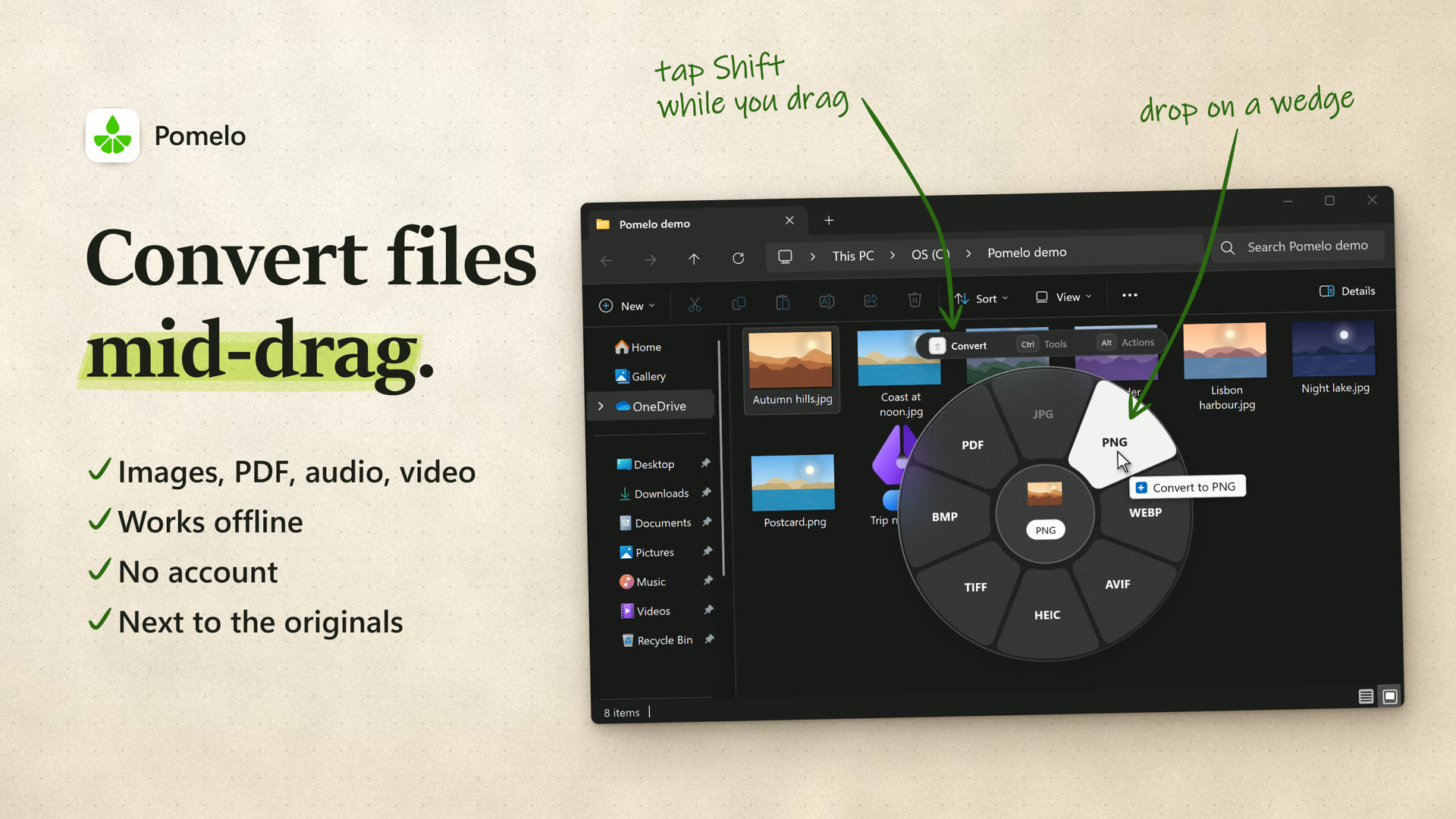
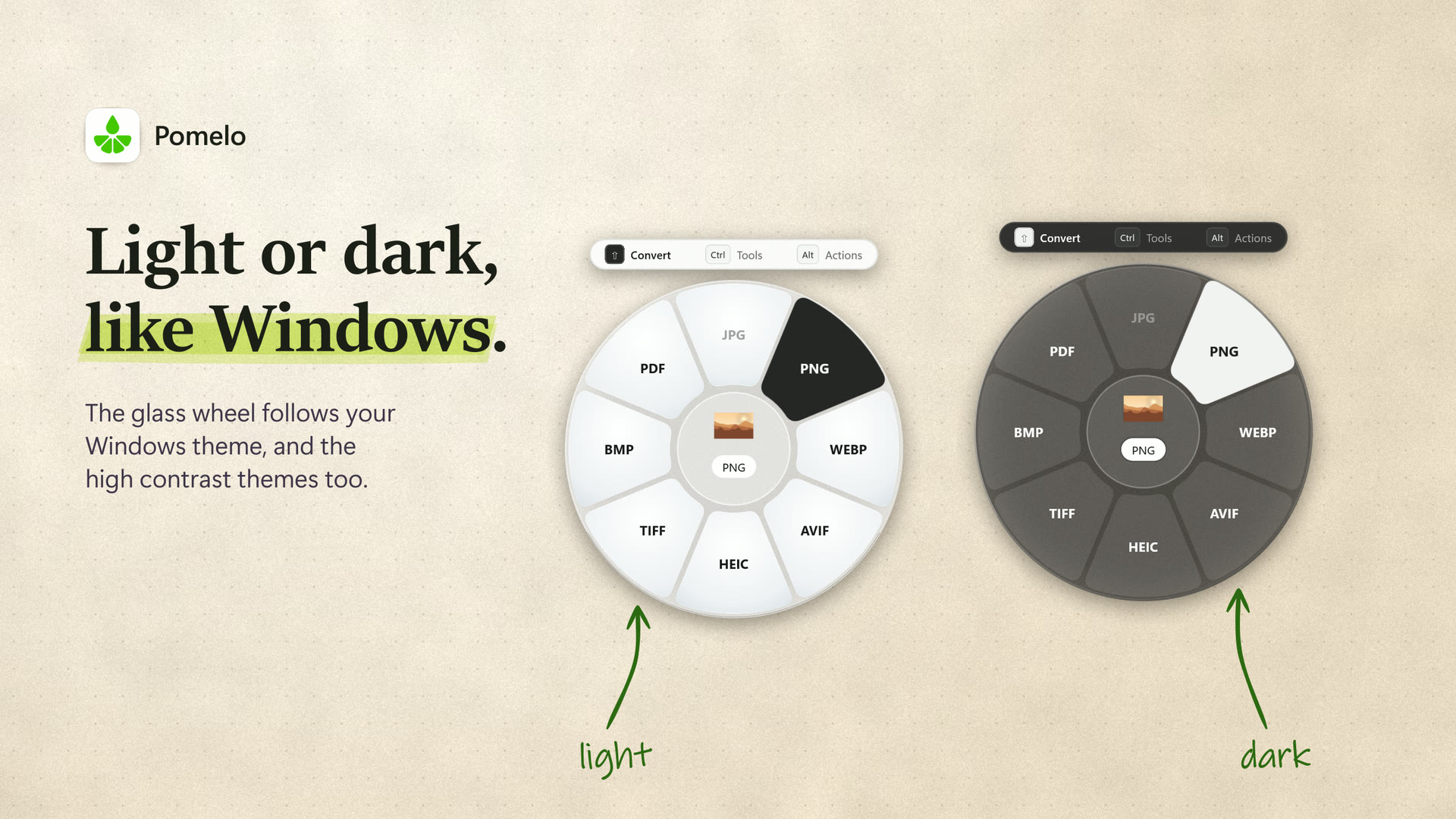
Pomelo adds a wheel of file operations to the drag you already make in File Explorer. Hold the mouse button on some files, tap Shift, Ctrl or Alt, and the wheel opens under the pointer. Drop the files on a wedge. The results are saved as new files next to the originals, and nothing leaves your PC.
The wheel knows 739 conversions between 89 formats, 90 tools and 19 file actions, for images, PDFs, audio, video, documents, slides, spreadsheets, subtitles, fonts, contacts, calendars, GPS tracks and 3D models. Recipes chain up to five steps on one wedge, and watch folders run a wedge on every file that lands in a folder.
Pomelo is made with the same parts as the apps that come with Windows 11, so it looks and behaves like one of them.
- The interface is WinUI 3, the framework of the Windows 11 apps: Mica windows, Segoe Fluent Icons, the system font, and your light, dark or high contrast theme.
- Audio and video go through Media Foundation, the media engine of Windows, with the codecs of Windows and, where your PC has one, the hardware encoder of its graphics chip.
- HEIC photos are read and written by the Windows Imaging Component, with Microsoft's HEIF and HEVC extensions, camera RAW files are read by it with the Raw Image Extension, and JPEG XL files with the JPEG XL Image Extension.
- PDF pages become pictures through the PDF renderer built into Windows, Copy text reads images with the text recognition built into Windows, and Stabilize uses the video stabilization effect of Media Foundation.
- Share opens the Windows share sheet, and Pomelo shows up in it too, for files from apps that can't drag. Copy to and Move to hand the files to Windows, which copies them with its own progress and undo.
Where Windows has no engine of its own, Pomelo ships open-source ones: libvips for the other image formats, qpdf and PDFsharp for PDFs, the Xiph libraries and libvpx for OGG, Opus and WebM, RNNoise to clean up a voice, opencore-amr for phone recordings, TagLib# for audio tags, DirectXTex and tinyexr for textures, and SharpCompress for RAR and 7z. Word, PowerPoint and Excel files, XPS files, and EMF and WMF drawings, are read with Syncfusion's libraries, so Office is not needed. Saved emails and web pages are read with MimeKit, Lottie animations and Telegram stickers are drawn with Skottie, and web fonts are unpacked by DirectWrite.
Pomelo is an independent app by Andrea Loroni. It is not made, sponsored or endorsed by Microsoft.
- Start dragging files in File Explorer or on the desktop, up to 200 at a time.
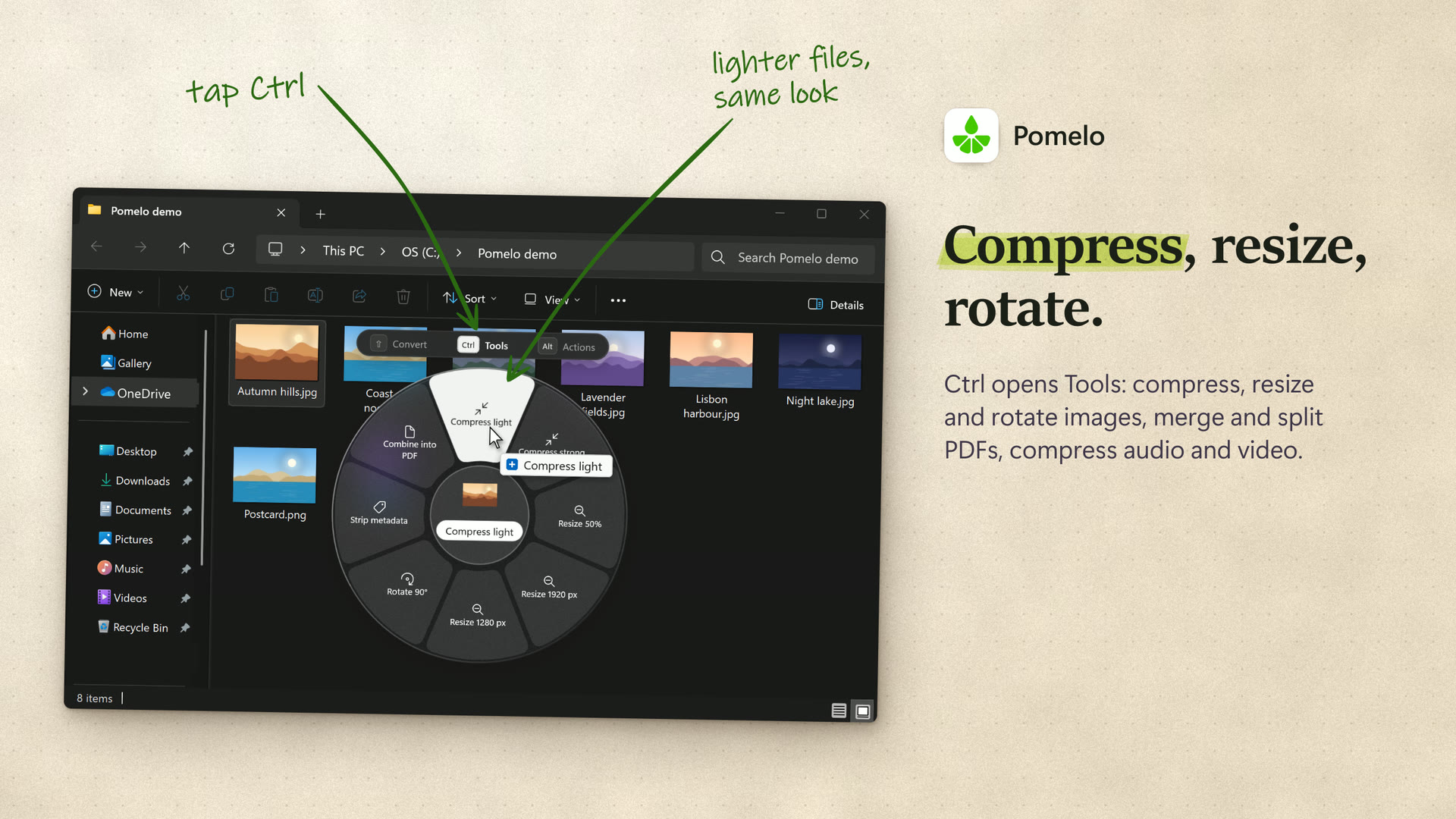
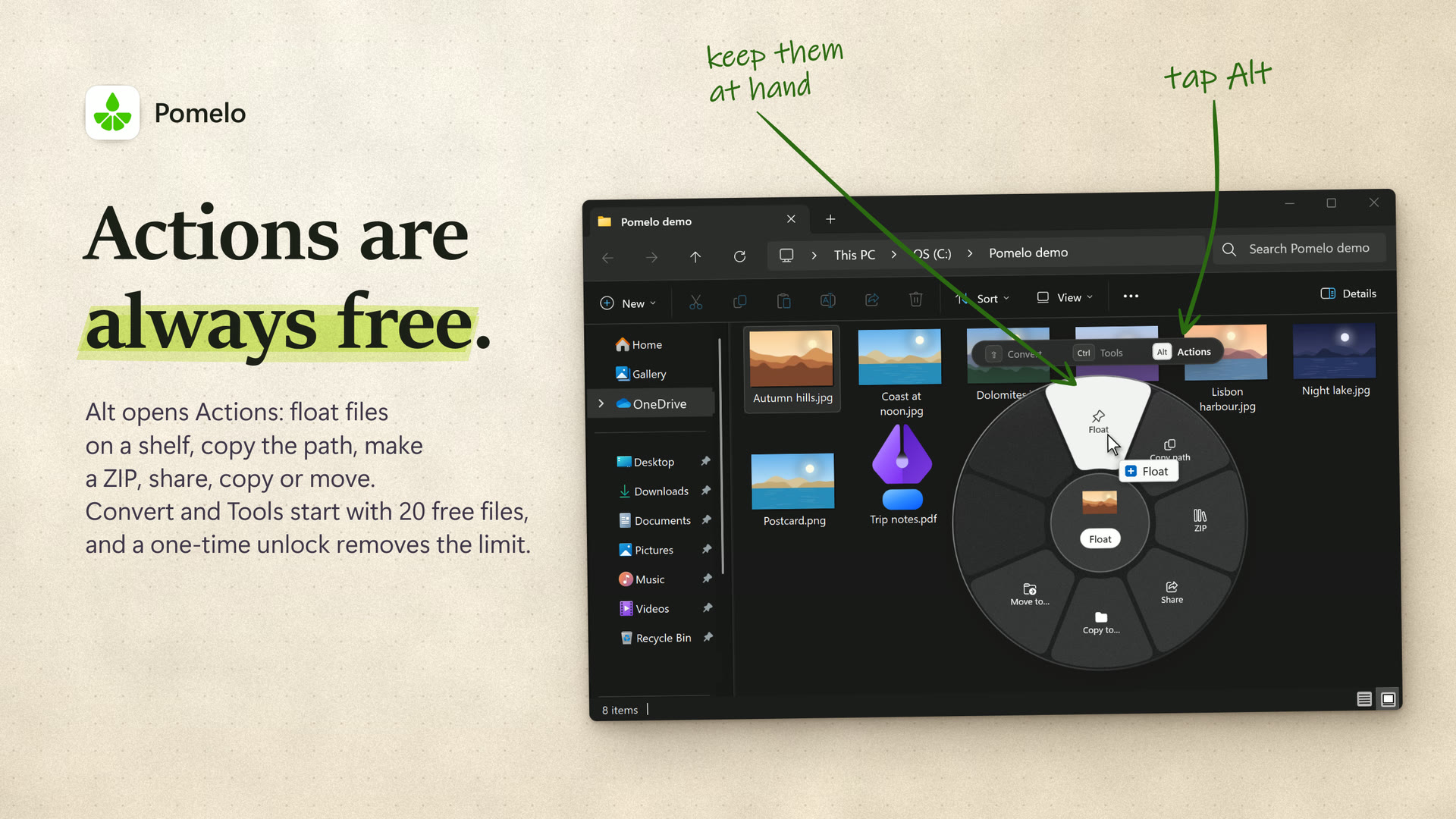
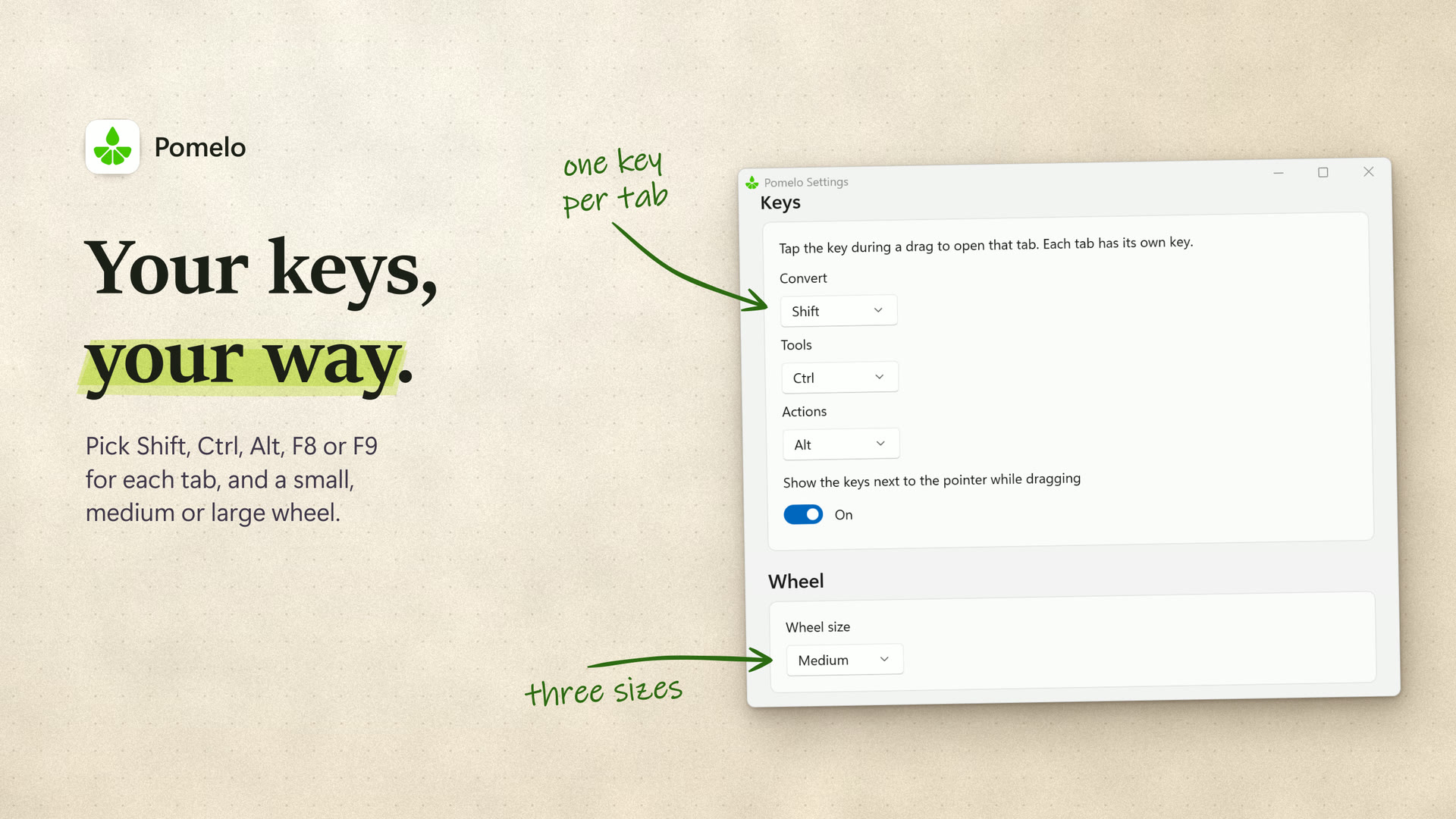
- While you hold the button, tap a key. Shift opens Convert, Ctrl opens Tools and Alt opens Actions.
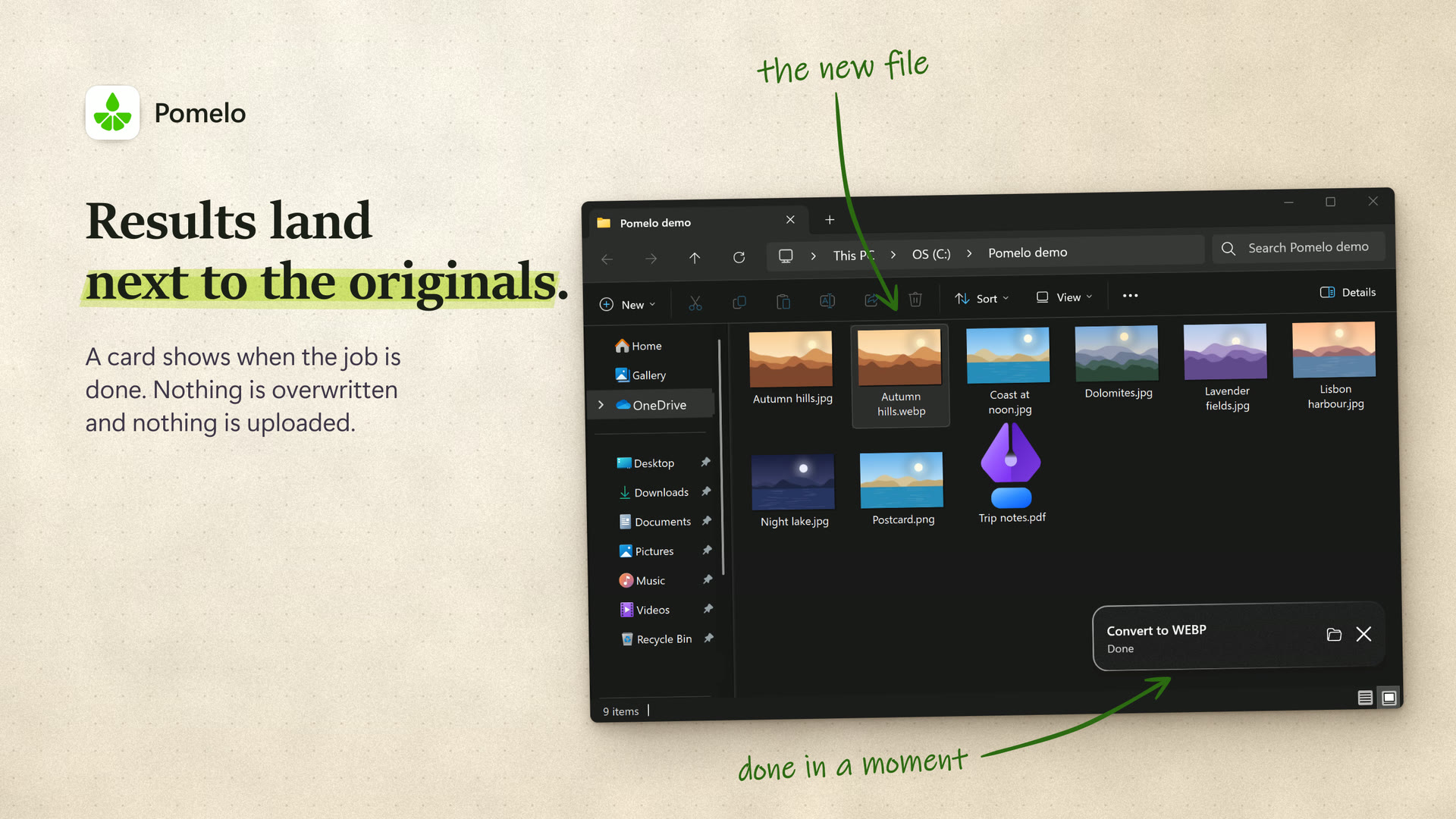
- Drop the files on a wedge. A small card says when the job is done.
A wedge whose name ends in an ellipsis, like Crop…, opens a small window first, so you choose before anything is saved. Pomelo never overwrites a file: when the original folder can't be written to, the results go to a fallback folder.
Some wedges open a window before they save. Each one keeps the original and saves a copy next to it. See all of them on the website.
 Crop… a photo to a ratio or to the pixel. |
 Edit… light and colour with eight sliders and a live preview. |
 Annotate… with arrows, boxes, circles, pen and text. |
 Edit… a video with cuts, music, fades and a crop, saved as one copy. |
 Normalize… the loudness of a recording to a target in LUFS. |
 Organize… the pages of a PDF: reorder, rotate, duplicate or delete. |
| Files | Reads | Converts to | Tools |
|---|---|---|---|
| Images | JPG, PNG, WEBP, HEIC, AVIF, TIFF, BMP, GIF, SVG, ICO, CUR, EMF, WMF, JXL, PSD, JXR, TGS, DDS, TGA, EXR, HDR, DNG, CR2, CR3, NEF, ARW, RAF, ORF, RW2, PEF, SRW | JPG, PNG, WEBP, AVIF, HEIC, TIFF, BMP, PDF, ICO, GIF, XLSX, CSV | 24 |
| PNG, JPG, TXT, TIFF, PDF, XLSX, CSV | 20 | ||
| Audio | MP3, M4A, AAC, WAV, FLAC, WMA, OGG, OPUS, AIFF, MKA, WEBA, M4B, AMR, 3GA | MP3, M4A, WAV, FLAC, OGG, OPUS, AIFF, WMA | 16 |
| Video | MP4, M4V, MOV, WMV, AVI, MKV, WEBM, 3GP, 3G2, TS, MTS, M2TS | MP4, WEBM, GIF, WEBP, MP3, M4A | 19 |
| Documents | DOCX, DOC, RTF, TXT, MD, HTML, EML, MHTML, EPUB | PDF, DOCX, TXT, MD, HTML, EPUB, PNG, JPG, ODT, RTF, DOC | 3 |
| Slides | PPTX | PDF, PNG, JPG, DOCX, TXT, MD | none |
| Spreadsheets | XLSX, XLS, CSV, TSV, JSON, NDJSON | PDF, XLSX, CSV, TSV, ODS, JSON, HTML, VCF, GPX | 3 |
| Subtitles | SRT, VTT, ASS, LRC | SRT, VTT, ASS, LRC, TXT | 2 |
| Fonts | WOFF, WOFF2 | TTF | none |
| Contacts | VCF | CSV, XLSX | 2 |
| Calendars | ICS | CSV, XLSX, PDF | 1 |
| GPS tracks | GPX, KML, KMZ, GEOJSON | GPX, KML, KMZ, GeoJSON, CSV | none |
| 3D models | STL, 3MF, OBJ | STL, 3MF, OBJ, PNG | none |
| Tab | Wedge | What it does |
|---|---|---|
| Convert | JPG | For photos you send or post. Transparent areas turn white. |
| Convert | PNG | Lossless, keeps transparency. |
| Convert | WEBP | Smaller than JPG at the same look. An animated GIF stays animated. |
| Convert | AVIF | Smaller still, for the web. |
| Convert | HEIC | The iPhone photo format. Needs the HEIF and HEVC extensions from the Microsoft Store. |
| Convert | TIFF | Lossless, for print and archives. |
| Convert | BMP | Uncompressed, for software that asks for it. |
| Convert | One PDF per image, at the image's own size, or on A4 or Letter pages from Settings. | |
| Convert | ICO | A Windows icon holding every size from 16 to 256 px up to the image's longest side. A wide or tall image is centred on a transparent square. |
| Convert | GIF | At most 256 colours. An animated WEBP stays animated. |
| Convert | XLSX | A photo or a scan of a table becomes a sheet: the text recognition built into Windows reads the words, and their places on the page give the rows and columns. Numbers come in as numbers. Best on a clean table with one line per cell. |
| Convert | CSV | The table in a photo or a scan as a CSV file, read the same way as XLSX, in UTF-8 as Excel opens it. |
| Tools | Compress… | Opens a window to pick a target size or a percentage. Saves smaller JPG or WEBP copies, or PNG with fewer colours for graphics that must stay PNG. |
| Tools | Resize… | Opens a window to resize by a percentage, to a width and height (cropped to fill them if you like), or to a longest side, never larger than the original if you ask. Saves a resized copy in the same format. |
| Tools | Crop… | Opens a window to drag a frame over the photo or pick a ratio, turn or flip it, and straighten it. Saves a cropped copy in the same format. |
| Tools | Edit… | Opens a window with eight sliders for exposure, brightness, contrast, highlights, shadows, temperature, tint and saturation, and a live preview. Saves an edited copy. |
| Tools | Annotate… | Opens a window to draw arrows, boxes, circles, pen and highlighter strokes and text on a photo. Saves an annotated copy. |
| Tools | Rotate 90° | A quarter turn clockwise. |
| Tools | Metadata… | Opens a window to change the date, description and copyright, remove the location, or remove all metadata. The image is not encoded again. |
| Tools | Copy text | Reads the text in each image with the text recognition built into Windows and puts it on the clipboard, a line for each line. What a QR code or a barcode holds comes after it, as text. |
| Tools | Combine into PDF | All the dropped images in one PDF, a page each, in name order, on A4 or Letter pages if Settings says so. Every page of a scanned TIFF comes along, and Settings can make the PDF searchable. |
| Tools | Collage… | Opens a window to lay 2 to 20 images out in a grid, row, column or featured layout. Saves Collage.jpg, or Collage.png with a transparent background, next to the first one. |
| Tools | Strip metadata | Removes EXIF, XMP and IPTC, GPS location included. Keeps the colour profile. The image is encoded again, so JPEG photos use Metadata… instead. |
| Tools | Watermark… | Opens a window to stamp your text across a photo, in its corner or repeated all over it, with the size, opacity and colour you choose. Saves a watermarked copy in the same format. |
| Tools | Combine into TIFF | All the dropped images in one multipage TIFF, a page each, in name order, the way scanners keep documents. |
| Tools | Convert to sRGB | Photos in Display P3, Adobe RGB, ProPhoto or CMYK, converted to sRGB with the sRGB profile inside, so their colours stay right in browsers and at online print shops. Images already in sRGB, or with no profile, are left alone. |
| Tools | Auto enhance | Fixes dark, flat or tinted photos in one go: exposure, contrast and colour balance, held back so a sunset stays warm. A photo that needs nothing is left alone. |
| Tools | Social sizes | One photo in four shapes for posting: square 1080 × 1080, portrait 1080 × 1350, story 1080 × 1920 and a 1200 × 630 link picture, each cut around the subject. A smaller photo is never enlarged. |
| Tools | Split into tiles | A panorama at least twice as wide as tall becomes square tiles for a carousel, numbered left to right, up to ten. Any other image becomes a 3 × 3 grid. The tiles keep the format. |
| Tools | Fit for email | Compresses each image so it attaches under the size for email chosen in Settings, 10 MB at first, without opening a window. Saves smaller JPG or WEBP copies. |
| Tools | Copy image | Puts one image on the clipboard as a picture, ready to paste into a chat, an email or a document. HEIC, AVIF, RAW and the other formats Pomelo reads are converted on the way; transparent parts come out white. |
| Tools | Add background | Sets a screenshot on a blue to purple gradient, with a margin, rounded corners and a soft shadow, ready to post. Saves a copy in the same format. |
| Tools | Animation… | Opens a window to make 2 to 100 images into one animated GIF or WebP, in name order, with how long each frame shows and whether it loops. Every frame fits the size of the first image, at most 1080 px on the long side. |
| Tools | Contact sheet | Lays the photos out in a PDF, 20 to an A4 or Letter page, each with its number and file name under it, in name order. For sending a selection to a client. |
| Tools | Turn upright | Turns scans and photos of pages that lie on their side or upside down so their text reads the right way, using the text recognition built into Windows. An image already upright, or with no text to go by, stays as it is. |
| Tools | Scan… | Opens a window to put four corners on a sheet in a photo, such as a form, a receipt or a page of notes. The copy is the sheet flattened as if scanned, with white paper and no shadow, as a JPG (a PNG for a PNG) or a searchable PDF. |
| Tab | Wedge | What it does |
|---|---|---|
| Convert | PNG | Every page as a PNG at 150 dpi, or 300 or 600 from Settings. |
| Convert | JPG | Every page as a JPG at 150 dpi, or 300 or 600 from Settings. |
| Convert | TXT | The text of every page in one plain text file, line by line, page by page. Scanned pages are read with the text recognition built into Windows. |
| Convert | TIFF | Every page in one multipage TIFF, at 150 dpi or 300 or 600 from Settings, in colour with lossless LZW compression. |
| Convert | For Illustrator files saved with PDF compatibility: the PDF inside, without Illustrator's own editing data. | |
| Convert | XLSX | The table on each page as a sheet of its own, with its rows and columns found from where the words sit. Typed pages give their own text, scanned pages are read with the text recognition built into Windows. Numbers come in as numbers. |
| Convert | CSV | The tables of every page in one CSV file, read the same way as XLSX, with an empty line between pages. |
| Tools | Merge | Two or more PDFs into one, in name order. |
| Tools | Split into pages | One PDF per page. |
| Tools | Compress | Rewrites the file more compactly. Pages look exactly the same, unless Recompress images is on in Settings. |
| Tools | Organize… | Opens a window to reorder, rotate, duplicate or delete pages. |
| Tools | Metadata… | Opens a window to change the title, author, subject and keywords, or to remove them all. |
| Tools | Protect… | Opens a window to set a password. Saves a copy that asks for it before it opens, with AES-256 encryption. |
| Tools | Remove password… | Opens a window to type the password, which is tried on every file. Saves copies that open without it. |
| Tools | Make searchable | Reads the text of scanned pages with the text recognition built into Windows and adds it to the PDF, out of sight, so you can search and select it. Pages that already have text stay as they are. |
| Tools | Rotate 90° | Every page a quarter turn clockwise. |
| Tools | Watermark… | Opens a window to stamp your text across every page, in the corner or repeated all over, with the size, opacity and colour you choose. Saves a watermarked copy. |
| Tools | Redact… | Opens a window to cover what nobody else should read with black boxes, drawn by hand or put on every email address for you. The text, pictures and comments under each box are taken out of the copy, not just covered. |
| Tools | Page numbers… | Opens a window to number the pages, as 3, 3 / 7, Page 3 or Page 3 of 7, from the number you choose, in a corner or in the middle of the top or bottom edge, with a line of your own text as a header or footer. Saves a numbered copy. |
| Tools | Flatten form | Writes what was typed into the form fields onto the pages, so the copy looks the same in every app and the answers can no longer be changed. Comments and stamps become part of the page too. |
| Tools | Remove blank pages | Takes the empty pages out of a scan, such as the blank backs of a stack scanned on both sides. A page with a page number, a signature or a few words stays, and the result lists the pages taken out. |
| Tools | Fronts and backs | Two scans of one stack, the fronts and then the backs with the stack turned over, become one PDF with every page in its place and the blank backs left out. The PDF saved first holds the fronts. |
| Tools | Pages per sheet… | Opens a window to put 2 or 4 pages on each sheet, or to lay them out as a booklet that you print on both sides and fold in the middle. Links and comments of the pages stay out of the copy. |
| Tools | Extract images | Saves the pictures inside a PDF to a folder beside it, each once. Photos come out as the JPEGs they were stored as, byte for byte, the rest as PNG. |
| Tools | PDF/A copy | A copy in PDF/A-2b, the archiving format courts and offices ask for, with the fonts it uses embedded. |
| Tools | Turn pages upright | Finds the scanned pages that lie on their side or upside down, by reading their text with the text recognition built into Windows, and turns them the right way without touching their content. The result lists the pages turned. |
| Tools | Sign… | Opens a window to put your signature, today's date and your initials on the pages of a PDF, where you drag them. Draw the signature once or take it from a photo; it is a picture on the page, not a digital signature. |
| Tab | Wedge | What it does |
|---|---|---|
| Convert | MP3 | Plays everywhere. 192 kbps, or another bitrate from Settings. |
| Convert | M4A | AAC at 192 kbps, or Apple Lossless from Settings. |
| Convert | WAV | Uncompressed, at the source's sample rate. |
| Convert | FLAC | Lossless and smaller than WAV. |
| Convert | OGG | Ogg Vorbis, about 192 kbps. |
| Convert | OPUS | Opus at 160 kbps, small and clear. |
| Convert | AIFF | Uncompressed, the Mac way. |
| Convert | WMA | Windows Media Audio at 192 kbps, or another bitrate from Settings. |
| Tools | Compress… | Opens a window to pick a target size or a percentage. Saves smaller MP3, M4A or OPUS copies. |
| Tools | Trim… | Opens a window to keep the part you choose. |
| Tools | Normalize… | Opens a window to measure the loudness and save copies at the level you choose. |
| Tools | Channels… | Opens a window to make mono, keep one side, set each side's volume or swap them. |
| Tools | Bleep… | Opens a window to cover the parts you mark with a bleep or with silence. |
| Tools | Fade… | Opens a window to fade the sound in at the start and out at the end, up to 10 seconds each. Saves a faded copy in the same format. |
| Tools | Join… | Opens a window to set the order and the format, MP3, M4A, WAV, FLAC or an M4B audiobook with a chapter for each recording, and save one recording. |
| Tools | Metadata… | Opens a window to change title, artist, album, year, track, genre and cover, or to remove every tag. The audio is not encoded again. |
| Tools | Visualizer… | Opens a window to turn a sound into an MP4 with a moving waveform or a picture. |
| Tools | Clean up voice | Lowers the noise behind speech, such as hum, fans and traffic. Made for voices: music comes out worse. Saves a copy in the same format. |
| Tools | Tempo… | Opens a window to make a recording slower or faster without changing its pitch, or to move its pitch up to 12 semitones. Saves a copy in the same format. |
| Tools | Fit for email | Compresses each recording so it attaches under the size for email chosen in Settings, 10 MB at first, without opening a window. Saves smaller MP3, M4A or OPUS copies. |
| Tools | Split… | Opens a window to cut a recording into parts every few minutes, at its long pauses, at its chapters or at the tracks of a CUE sheet next to it. Each part is saved in the same format. |
| Tools | Remove pauses | Takes out the pauses of half a second or more between words, leaving a short breath on each side, without opening a window. Saves a shorter copy in the same format. |
| Tools | Chapters… | Opens a window to mark chapters on the waveform of an MP3, each with a title, as podcast apps show them. The audio is not encoded again. |
| Tools | Mix… | Opens a window to play two to eight recordings at once, such as voices on separate tracks and music, each at its own volume, the music lowered while someone speaks. Saves one MP3, M4A, WAV or FLAC. |
| Tab | Wedge | What it does |
|---|---|---|
| Convert | MP4 | H.264 up to 1080p, plays almost everywhere. Up to 4K or HEVC from Settings. |
| Convert | WEBM | VP9 and Opus up to 1080p, for the web. |
| Convert | GIF | Animated, 480 px and 15 frames a second, no sound. Videos up to 2 minutes. |
| Convert | WEBP | An animated WebP, 480 px and 15 frames a second, no sound: smaller than a GIF and in full colour, though some chat apps do not play it. Videos up to 2 minutes. |
| Convert | MP3 | Just the sound, as MP3. |
| Convert | M4A | Just the sound, as M4A. |
| Tools | Compress… | Opens a window to pick a target size or a percentage. Saves smaller MP4 copies. |
| Tools | Edit… | Opens a window to cut out parts, change the sound and speed, add music, crop or turn it. Saves one MP4. |
| Tools | Crop… | Opens a window to keep part of the picture. |
| Tools | Rotate 90° | A quarter turn clockwise, saved as an MP4. |
| Tools | Speed… | Opens a window to make a faster or slower copy. The voice keeps its pitch. |
| Tools | Split… | Opens a window to cut it into clips. |
| Tools | Mute | The same video without sound. |
| Tools | Join… | Opens a window to set the order and save one video. |
| Tools | Frames… | Opens a window to pick frames and save them as PNG. |
| Tools | Fit for email | Compresses each video so it attaches under the size for email chosen in Settings, 10 MB at first, without opening a window. Saves smaller MP4 copies. |
| Tools | Contact sheet | One JPG with 16 frames taken at equal steps through the video, each with its time, under a line with its name, length and size. |
| Tools | Watermark… | Opens a window to put a line of text over the picture, with the choices of the image and PDF Watermark. Saves an MP4. |
| Tools | Slides to PDF | A recorded lecture or webinar becomes a PDF with a page for each slide, each slide once, searchable when Windows has a text recognition language. |
| Tools | Fast MP4 | An MKV or TS recording, such as one from OBS, into an MP4 in seconds: the picture is copied, not encoded again, and sound that MP4 cannot hold as it is becomes AAC. A picture MP4 cannot hold, such as VP9, is converted as MP4 does. |
| Tools | Replace sound | Drop a video and a recording together: the video gets the recording as its sound, in place of its own, and the picture is copied, not encoded again. Saves an MP4 as long as the video. |
| Tools | Extract subtitles | The text subtitles of an MKV saved beside it, a file for each track named after the video so players find them: SRT, or ASS for styled ones. Subtitles stored as pictures are left out. |
| Tools | Burn subtitles… | Opens a window to pick an SRT, VTT, ASS or LRC file and draw its lines on the picture, white with a dark outline at the bottom, so they show on any player and any site. The whole video is encoded again. |
| Tools | Stabilize | A clip filmed by hand comes out steadier, the picture cropped a little at the edges so the shake stays out of sight. The whole video is encoded again. |
| Tools | Vertical… | Opens a window to pick 9:16, 1:1 or 4:5 for Shorts, Reels and TikTok. The whole picture stays in the middle, over a blurred copy of itself that fills the rest, so nothing at the sides is cut off. The whole video is encoded again. |
| Tab | Wedge | What it does |
|---|---|---|
| Convert | Pages as they print, with fonts and pictures in place. | |
| Convert | DOCX | A Word document, from Markdown, text, web pages, RTF or old .doc files. |
| Convert | TXT | Only the words, in UTF-8. |
| Convert | MD | Markdown with headings, lists and tables; pictures go in a folder beside it. |
| Convert | HTML | One web page with the pictures inside, opens in any browser. |
| Convert | EPUB | A reflowable e-book with a table of contents from the headings. |
| Convert | PNG | One picture per page, at the resolution chosen in Settings. |
| Convert | JPG | One picture per page, smaller than PNG. |
| Convert | ODT | An OpenDocument text for LibreOffice and the offices that ask for it. Footnotes, comments, form fields, merged cells and shading are left out. |
| Convert | RTF | Rich Text, which almost every word processor opens. |
| Convert | DOC | The Word 97 to 2003 format, for older software. |
| Tools | Compare | Two versions of a document give a Word file with the differences as tracked changes, ready to review in Word. The older file is the original. |
| Tools | Clean up | A copy to send: tracked changes accepted, comments removed, and the author, company and other properties emptied. Hidden text and fields stay. |
| Tools | Fix encoding… | A text or Markdown file that shows è instead of è, saved again as UTF-8 with the line endings you pick. The window shows the encoding it found and lets you change it. |
| Tab | Wedge | What it does |
|---|---|---|
| Convert | One page per slide, to send or print. | |
| Convert | PNG | One picture per slide, at the resolution chosen in Settings. |
| Convert | JPG | One picture per slide, smaller than PNG. |
| Convert | DOCX | The title and speaker notes of each slide, as a Word document. |
| Convert | TXT | The title and speaker notes of each slide, as plain text. |
| Convert | MD | The title and speaker notes of each slide, in Markdown. |
| Tab | Wedge | What it does |
|---|---|---|
| Convert | The sheets as they print. | |
| Convert | XLSX | An Excel workbook, from CSV, TSV, old .xls files or a JSON list of records. |
| Convert | CSV | One file per sheet, values as they appear, commas between. |
| Convert | TSV | One file per sheet, values as they appear, tabs between. |
| Convert | ODS | An OpenDocument workbook for LibreOffice and others. |
| Convert | JSON | One file per sheet: a list with a record per row, named by the first row. Numbers stay numbers. |
| Convert | HTML | The sheets as one web page, with their formatting. |
| Convert | VCF | Contacts from a sheet with name, email or phone columns, such as an Outlook or Google export, in one vCard file. |
| Convert | GPX | Points from a sheet with latitude and longitude columns: a GPS track, or places when the sheet has a Name column. |
| Tools | Merge | Two or more workbooks or CSV files in one workbook, a sheet for each, in name order. |
| Tools | Stack rows | The rows of two or more files in one sheet, one file after the other, the columns lined up by their headers. |
| Tools | Fix encoding… | A CSV that Excel opens with è instead of è or with every value in one column: saved again as UTF-8 that Excel reads, with commas or semicolons and the line endings you pick. |
| Tab | Wedge | What it does |
|---|---|---|
| Convert | SRT | The subtitles almost every player opens. Italic, bold and underline stay; the styles and positions of ASS and VTT do not. |
| Convert | VTT | WebVTT, the subtitles of web pages and of most video sites. |
| Convert | ASS | Advanced SubStation, with one plain style to change in a subtitle editor. An old .ssa file comes out as .ass. |
| Convert | LRC | Timed lines for music players that show lyrics. A line with two rows of text becomes one row. |
| Convert | TXT | Just the words, one line after another, without times. |
| Tools | Sync… | Subtitles that come too early or too late: move them all by some seconds, line up two lines with the film, or change the frame rate, from 23.976 to 25 for example. |
| Tools | Fix encoding… | Old subtitles that show è or boxes instead of letters, saved again as UTF-8, which every player reads. |
| Tab | Wedge | What it does |
|---|---|---|
| Convert | TTF | A web font you can install in Windows. One with PostScript outlines comes out as OTF. |
| Tab | Wedge | What it does |
|---|---|---|
| Convert | CSV | A row per contact in Outlook's columns, which Outlook and Google Contacts import. Photos are left out. |
| Convert | XLSX | A row per contact in an Excel workbook, in the same columns as CSV. |
| Tools | Split into contacts | A vCard file per contact, named after it, for apps such as Outlook that import only the first contact of a file. |
| Tools | Merge | Two or more vCard files in one, every contact as it was written. |
| Tab | Wedge | What it does |
|---|---|---|
| Convert | CSV | A row per event in the columns Outlook and Google Calendar import. Repeating events are listed up to a year from today. |
| Convert | XLSX | A row per event in an Excel workbook, with dates you can sort and filter. |
| Convert | A printable agenda, the events day by day. | |
| Tools | Merge | Two or more calendars in one, with their alarms and time zones. |
| Tab | Wedge | What it does |
|---|---|---|
| Convert | GPX | For Garmin, Komoot and Strava: tracks, routes and waypoints with their times and heights. |
| Convert | KML | For Google Earth and My Maps. Times along a track, and the styles and folders of a KML, are not kept. |
| Convert | KMZ | The KML zipped, as Google Earth saves it. |
| Convert | GeoJSON | For web maps and GIS apps, with the time of each point. |
| Convert | CSV | A row per point and per waypoint: latitude, longitude, height and time. |
| Tab | Wedge | What it does |
|---|---|---|
| Convert | STL | For any slicer: the shape alone, in millimetres, without colours. |
| Convert | 3MF | For PrusaSlicer, Bambu Studio and Cura, with its unit set to millimetres. |
| Convert | OBJ | For Blender and other 3D apps. Materials and textures are not kept. |
| Convert | PNG | A picture of the model from the front, the right and above, on a transparent background. |
| Tab | Wedge | What it does |
|---|---|---|
| Actions | Float | Park files on a small glass shelf, then drag them into any app. |
| Actions | Copy path | Full paths on the clipboard, one per line. |
| Actions | ZIP | One archive next to the first item. Folders included. |
| Actions | Share | The Windows share sheet. |
| Actions | Copy to… | Pick a folder; Windows copies, with its own progress and undo. |
| Actions | Move to… | Pick a folder; Windows moves, with its own progress and undo. |
| Actions | Rename… | Opens a window to rename the dropped files and folders together: the title inside a PDF, document or screenshot, find and replace, text before or after, numbering, the date, upper or lower case. The extension is never touched, and Ctrl+Z in File Explorer takes it back. |
| Actions | Unzip | Extracts each ZIP, RAR, 7z, TAR or GZ file next to it, with no folder inside a folder. |
| Actions | Terminal | Opens Windows Terminal in the folder, or PowerShell if it is not installed. |
| Actions | ZIP with password… | Opens a window to set a password. One archive next to the first item, with AES-256 encryption: 7-Zip or WinRAR opens it, File Explorer does not. |
| Actions | Unblock… | Shows where downloaded files came from, then removes the mark that makes Windows and Office block them. For files you trust. |
| Actions | Checksum | The SHA-256 of each file on the clipboard. With a SHA-256, SHA-1 or MD5 already on the clipboard, it says whether the file matches instead. |
| Actions | New folder… | Opens a window to name a new folder, then moves the dropped files and folders into it, next to the first one. |
| Actions | Dates from photos | Photos and videos get the date they were taken back as their modified and created dates, so File Explorer sorts them in order again. |
| Actions | Copy as table | Name, folder, size, dates, pixel size, length and date taken of each file on the clipboard, to paste into Excel. |
| Actions | Sort into folders… | Opens a window to sort a folder: into a folder per month or per type, or flat with no folders inside. Folders left empty go to the Recycle Bin. |
| Actions | Compare | Two files: whether they are the same, and where they start to differ. Two folders: the files missing on one side or different. |
| Actions | Takeout dates | Copies a Google Takeout folder with the date each photo was taken, read from its JSON file: in the EXIF of JPEG photos, and as the file date of every photo and video. |
| Actions | Find duplicates… | Opens a window with the files that are copies of each other, and if you ask, the photos that look almost the same and the blurry ones. What you untick goes to the Recycle Bin. |
- Give each tab its own key: Shift, Ctrl, Alt, F8 or F9.
- Pick a small, medium or large wheel, put its wedges in your order, hide the ones you don't use and give it an accent colour.
- Set the quality of JPG, WEBP, AVIF and HEIC, MP4 up to 4K and in HEVC, the audio bitrates, Apple Lossless and the page size of PDFs.
- Build recipes of two to five steps, and pick watch folders and the wedge they run.
- Save the copies in a Pomelo folder or without a suffix, and move the originals to the Recycle Bin after Convert.
- Turn the soft tick and the key bar next to the pointer on or off.
- Light and dark follow Windows, and so do the high contrast themes.
Everything runs on your PC and no file is ever uploaded. There is no account, no ads and no analytics. Pomelo's log never holds file names, paths or file contents, and it is never sent anywhere. The privacy policy says what the developer receives if you write to him or send a report.
Convert and Tools start with 20 free files, then 2 free files a day, and Actions are always free. Unlock Pomelo, a one-time in-app purchase of USD 9.99 or the equivalent in your currency, removes the limit. There is no subscription. The terms cover the licence.
- Windows 11 version 22H2 or later, x64.
- A mouse or a touchpad and a keyboard: the wheel opens on drags that start in File Explorer or on the desktop.
- HEIC files need the HEIF Image Extensions and the HEVC Video Extensions from the Microsoft Store. HEVC, VP9 and AV1 video need their Windows video extensions.
- Camera RAW files other than DNG need the Raw Image Extension from the Microsoft Store, and JPEG XL files the JPEG XL Image Extension (Windows 11 24H2 and later).
- Windows N editions need the Media Feature Pack for audio and video.
- The interface is in English.
- Open an issue for a bug or an idea.
- Report a problem privately, with a log or a screenshot.
- Write to support@pomeloapp.net.
- Help explains the gesture, the keys and every window.
Pomelo is closed source, so this repository holds no code. It is the app's public page: what it does, what changed in each version (CHANGELOG.md) and an issue tracker. The open-source libraries Pomelo ships with, and the source code their licences ask for, are on pomeloapp.net/source.
© 2026 Andrea Loroni. All rights reserved.