This document outlines how to setup Visual Studio Code on your laptop to enable remote development of fpp on a Raspberry Pi3+.
While technically this works on the BBB, this process is not recommend on the BBB due to limited resources (memory, CPU) on the device. The extra processes tend to cause the device to crash. If using it on a BBB, it might be advised to add a swapfile:
sudo fallocate -l 512M /swapfile
sudo chmod 600 /swapfile
sudo mkswap /swapfile
sudo swapon /swapfile
sudo sysctl vm.swappiness=10
If the vscode server doesn't start, you may need to edit /boot/config.txt and add "arm_64bit=0" to force the 32bit kernel.
Follow the video shows how to setup the remote-ssh extension in Visual Studio code that allows the editor to remotely access the Raspberry Pi. This step alone allows for web development with FPP.
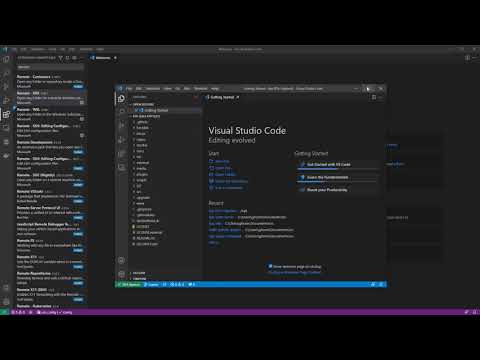
Basic steps:
- Edit "/etc/ssh/sshd_config" to set PermitRootLogin to yes
- Restart ssh
sudo service sshd restart - Set the root password (passwd)
sudo passwd root - Install the Remote-SSH extension into VSC
- Remote-SSH: Add New Host,
ssh root@x.x.x.x - Remote-SSH: Connect to New Host
- Remote-SSH: Open Folder,
/opt/fpp/
The default vscode tasks that we currently have setup include a "clean" target and a "make debug" target. If a C/C++ file is open, from the Terminal->Run Task... menu, you should be able to select either the "make clean" or "Make FPPD (debug)" tasks which will cause vscode to run "make" on the remote host. In addition, the "Make FPPD (debug)" task is setup as the default build task that is run when you hit "ctrl-shift-B" (or "cmd-shift-B" on Mac). When run, and C++ errors will appear on the "Problems" tab and allow click navigation directly to the problem.
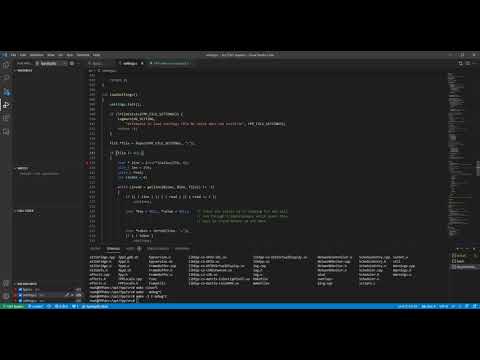
Follow video shows how to use the VS Code visual debugger along with the GDB Debugger - Beyond extension to preform interactive debugging of the fppd process on a remote Raspberry Pi. Note, launch.json is now part of the fppd code base. There you shouldn't need to manually copy it any more.
Need to install PHP Debug VSCode Extension
Need to enable XDebug in the fpp dev environment On Debian 12 you need to install XDebug with:
sudo apt-get install php-xdebug
Create /etc/php/8.2/fpm/conf.d/99-xdebug.ini and
/etc/php/8.2/cli/conf.d/99-xdebug.ini (assuming php version 8.2 - adjust as new version come into play)
add the lines:
zend_extension=xdebug
xdebug.mode=debug
xdebug.discover_client_host=1
xdebug.start_with_request = yes
to each file and restart php-fpm with: service php8.2-fpm restart
(any issues review https://xdebug.org/docs/step_debug and https://marketplace.visualstudio.com/items?itemName=xdebug.php-debug for your particular environment config)
It is recomended to install the Clang Format Extension to automatic format the FPP source code based on the included '.clang-format' file. For this extension to work, clang-format must be installed on the local machine or the remote machine (i.e PI or BBB) if using the Remote-SSH extension.
To install clang-format on a Debian Based system(FPP, Ubuntu, etc.), run the following command from terminal.
sudo apt install clang-format