


A modern TypeScript library for printing PNG images with Brother Label Printers. Features JSON-based configuration system, automatic printer detection, extensible label support, and runtime configuration loading for maximum flexibility.
This library is designed to work with all Brother QL series label printers via a flexible JSON configuration system. Simply add a configuration file for your printer model.
- QL-500 Series: QL-500, QL-550, QL-560, QL-570, QL-580N
- QL-600 Series: QL-650TD
- QL-700 Series: QL-700, QL-710W, QL-720NW
- QL-800 Series: QL-810W, QL-820NWB
- QL-1000 Series: QL-1050, QL-1060N
- QL-1100 Series: QL-1110NWB, QL-1115NWB
Currently tested and verified with QL-700. Other models should work by adding appropriate configuration files. Contributions of tested configurations are welcome!
See the Configuration System section to add your printer model.
- 🎛️ JSON Configuration System - Extend printer and label support via external config files
- 🔧 Runtime Configuration Loading - Add new printers and labels without code changes
- 🔥 TypeScript Support - Full type definitions included
- 🤖 Auto-Detection - Automatically detects printer model and loaded media
- 📏 Extensible Label Support - Add any label size via JSON configuration
- 🎯 Smart Media Detection - Auto-detects loaded label size and type
- 🖼️ Intelligent Image Processing - Auto-resize, center, and optimize for any label
- 🔬 Calibration System - Fine-tune positioning and cutting per label via config files
- 📊 Status Monitoring - Real-time printer status checking and error reporting
- 🗜️ Smart Compression - Automatically enables/disables based on printer support
- 📦 Dual Module Support - Works with both CommonJS and ES Modules
- 📝 Optional Debug Logging - Enable detailed logging when needed, silent by default
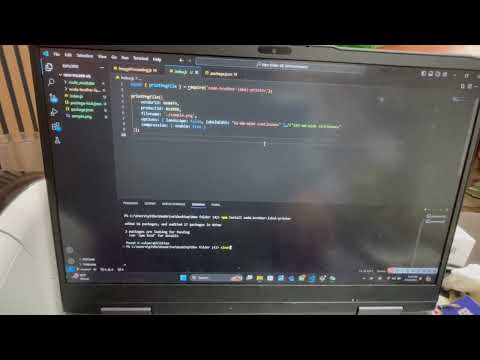
npm install node-brother-label-printerIf you use USB as an adapter:
- On Linux, you'll need
libudevto build libusb. - On Ubuntu/Debian:
sudo apt-get install build-essential libudev-dev. - On Windows, Use Zadig to install the WinUSB driver for your USB device.
Otherwise you will get LIBUSB_ERROR_NOT_SUPPORTED when attempting to open devices.
By default, the library suppresses verbose debug logs to avoid cluttering your console. Errors and warnings are always shown regardless of logging settings, ensuring you never miss critical issues. You can enable detailed debug logging in two ways:
# Enable logging for this library
DEBUG=brother-printer node your-script.js

# Or enable all debug logging
DEBUG=* node your-script.jsimport { enableLogging, printPngFileAuto } from 'node-brother-label-printer';
// Enable debug logging
enableLogging(true);
// Now all operations will show detailed logs
await printPngFileAuto({
filename: './sample.png',
options: { labelWidth: '62-mm-wide continuous' }
});
// Disable logging when done
enableLogging(false);When enabled, you'll see detailed debug information about:
- 🔍 Printer detection and capabilities
- 📏 Media detection and label configuration
- 🖼️ Image processing steps (resizing, rotation, conversion)
- 📊 Print data generation and compression
- 🔧 Calibration adjustments
Note: Errors and warnings are always visible, even when debug logging is disabled.
The auto-detection feature automatically finds your printer and optimizes settings:
import { printPngFileAuto, listAvailablePrinters } from 'node-brother-label-printer';

// Simple auto-detection usage - detects both printer AND media
await printPngFileAuto({
  filename: './sample.png',
  options: {
    landscape: false,
    // Label width is auto-detected from loaded media!
    // Specify as fallback only if auto-detection fails:
    labelWidth: '62-mm-wide continuous',
    blackwhiteThreshold: 128 // Optional, defaults to 128
  }
  // Printer detection, media detection, image resizing all automatic! 🎉
});

// List available printers
const printers = listAvailablePrinters();
console.log('Available printers:', printers);

// Example configured labels (add more via config/labels/):
// Continuous: '62-mm-wide continuous', '29-mm-wide continuous', etc.
// Die-cut:    '29x90-mm-die-cut', '38x90-mm-die-cut', etc.
// See Configuration System section to add more labels

// Force specific printer if multiple detected
await printPngFileAuto({
  filename: './sample.png',
  options: { labelWidth: '62-mm-wide continuous' },
  forceProductId: 0x2042 // Example: Force specific printer by Product ID
});For direct control over printer selection:
import { printPngFile, type PrintPngFileParams } from 'node-brother-label-printer';

const printParams: PrintPngFileParams = {
  vendorId: 0x04f9,              // Brother vendor ID
  productId: 0x2042,             // Your printer's product ID
  filename: './sample.png',
  options: {
    landscape: false,
    labelWidth: '62-mm-wide continuous',
    blackwhiteThreshold: 128
  },
  compression: { enable: false } // Set based on your printer's capabilities
};

await printPngFile(printParams);import {
detectSingleBrotherPrinter,
queryPrinterStatus,
hasStatusError,
getStatusErrorMessage
} from 'node-brother-label-printer';
// Detect printer and check status
const printer = detectSingleBrotherPrinter();
if (!printer) {
throw new Error('No printer found');
}
console.log(`Found: ${printer.capabilities.model}`);
// Check printer status before printing
const status = await queryPrinterStatus(printer.device);
if (hasStatusError(status)) {
console.error('Printer error:', getStatusErrorMessage(status));
} else {
console.log('Printer ready!');
}const { printPngFileAuto } = require('node-brother-label-printer');
// Auto-detection works with CommonJS too
printPngFileAuto({
filename: './sample.png',
options: {
landscape: false,
labelWidth: '62-mm-wide continuous'
}
}).then(() => {
console.log('Print job sent successfully!');
}).catch(error => {
console.error('Print failed:', error);
});The library includes a reference configuration for the QL-700, demonstrating how the JSON-based system works for any Brother QL printer.
- Printer:
config/printers/*.json- Defines capabilities and initialization - Labels:
config/labels/*.json- Defines supported label formats with calibration
The QL-700 configuration (config/printers/QL-700.json) demonstrates key printer properties:
- Compression support:
supportsCompression: false- some printers support TIFF compression, others don't - Bytes per line:
bytesPerLine: 90- defines raster line format (varies by max width) - Total pins:
totalPins: 720- determines maximum label width (720 = 62mm max) - Auto-cut support:
supportsAutoCut: true- enables automatic label cutting - Initialization settings: Model-specific startup sequences
Your printer may have different values - check Brother's documentation or similar models for reference.
Problem: Printer not detected or blinks but doesn't print
- Solution: Some printers have dual modes (printer mode vs. mass storage/editor mode)
- Fix: Check for a mode switch button on your printer (like E/EL on QL-700)
Problem: "Printer is in mass storage mode" error
- Solution: Switch printer to printer mode using the mode toggle button
Problem: Print quality issues or garbled output
- Solution: Verify printer configuration values (especially
bytesPerLineandtotalPins) - Check: Label configuration calibration values may need adjustment
import {
  convert,
  getPrinterCapabilities,
  type PngImage,
  type PrintOptions
} from 'node-brother-label-printer';
import { parseFile } from 'pngparse';
import { promisify } from 'util';

const parseFileAsync = promisify(parseFile);

async function processAndPrint() {
  // Parse PNG file
  const image: PngImage = await parseFileAsync('./my-label.png');

  // Get printer capabilities from config (use your printer's product ID)
  const capabilities = getPrinterCapabilities(0x2042); // Example: QL-700's product ID
  if (!capabilities) throw new Error('Printer not configured - add config file');

  // Convert to printer format with configured label
  const printData = convert(image, {
    landscape: false,
    labelWidth: '62-mm-wide continuous', // Use any configured label
    blackwhiteThreshold: 128
  }, {
    enable: false // Respects printer's supportsCompression setting from config
  }, capabilities);

  // The library automatically:
  // - Loads printer config from config/printers/YOUR-PRINTER.json
  // - Loads label config from config/labels/YOUR-LABEL.json
  // - Applies calibration adjustments from label config
  // - Optimizes based on printer capabilities
  // - Logs all processing steps (if logging enabled)
  console.log(`Generated ${printData.length} bytes of print data`);
}The library uses a powerful JSON-based configuration system that allows you to add printer and label support without modifying code. All configurations are loaded at runtime from the config/ directory.
config/
├── printers/         # Printer specifications (add your printer here)
│   └── *.json       # One file per printer model
├── labels/           # Label specifications with calibrations
│   └── *.json       # One file per label format
└── README.md         # Detailed configuration guide
Printer Example: QL-700 (config/printers/QL-700.json)
Label Examples:
62-mm-wide continuous- Standard continuous labels29x90-mm-die-cut- Die-cut labels with calibration38x90-mm-die-cut- Die-cut labels with calibration
Use these as templates for adding your own printer and label configurations.
- Find your printer's USB Product ID using Zadig or
lsusb - Create
config/printers/YOUR-MODEL.json:
{
  "model": "QL-720NW",
  "productId": "0x2049",
  "vendorId": "0x04F9",
  "capabilities": {
    "supportsCompression": true,
    "supportsHighResolution": true,
    "supportsAutoCut": true,
    "bytesPerLine": 90,
    "totalPins": 720,
    "maxWidthMm": 62
  },
  "initialization": {
    "invalidCommandLength": 200,
    "requiresRasterModeSwitch": false,
    "expandedModeSupported": true
  },
  "supportedLabelGroups": ["standard", "narrow", "special"]
}
Key fields:
productId- Your printer's USB Product ID (hex string)supportsCompression- Whether printer supports TIFF PackBits compressionbytesPerLine- Raster line byte count (usually 90 for 62mm, 162 for 102mm printers)totalPins- Print head pins (720 for 62mm printers, 1296 for 102mm printers)maxWidthMm- Maximum label width supported
- Create
config/labels/YOUR-LABEL.json:
{
  "name": "17-mm-wide continuous",
  "displayName": "17mm Wide Continuous",
  "type": "continuous",
  "widthMm": 17,
  "lengthMm": null,
  "calibration": {
    "leftOffsetAdjustment": 0,
    "topOffsetAdjustment": 0,
    "lengthAdjustmentMm": 0
  },
  "processingGroup": "narrow",
  "requiresSpecialHandling": false,
  "specialHandlingNotes": null
}- For die-cut labels, include
lengthMm:
{
  "name": "62x100-mm-die-cut",
  "displayName": "62x100mm Die Cut",
  "type": "die-cut",
  "widthMm": 62,
  "lengthMm": 100,
  "calibration": {
    "leftOffsetAdjustment": 0,
    "lengthAdjustmentMm": -3
  },
  "processingGroup": "standard",
  "requiresSpecialHandling": false
}Fine-tune label positioning and cutting:
leftOffsetAdjustment- Horizontal shift in pixels (+ = right, - = left)topOffsetAdjustment- Vertical shift in pixels (+ = down, - = up)lengthAdjustmentMm- Die-cut only: Adjust cut length (- = shorter, + = longer)
Example: If labels are cutting into the next label, use negative lengthAdjustmentMm:
"lengthAdjustmentMm": -5.25See config/README.md for detailed calibration testing procedures.
- Add your config files to
config/printers/andconfig/labels/ - Build the library:
npm run build - Test with your printer:
node test-label-printing.js- Adjust calibration values as needed and rebuild
- Runtime loading: JSON files loaded when library starts
- Caching: 1-minute cache to avoid repeated file I/O
- Validation: Invalid configs logged and skipped gracefully
- No code changes: Just add JSON files and rebuild
import {
  detectSingleBrotherPrinter,
  queryPrinterStatus,
  detectLabelWidth
} from 'node-brother-label-printer';

// Detect printer and loaded media
const printer = detectSingleBrotherPrinter();
if (printer) {
  // Query printer to detect loaded media
  const status = await queryPrinterStatus(printer.device);
  console.log(`Loaded media: ${status.mediaWidth}mm`);

  // Auto-detect from configured labels
  const detectedLabel = detectLabelWidth(status);
  console.log(`Detected label: ${detectedLabel}`);

  // Print with auto-detected settings
  if (detectedLabel) {
    await printPngFileAuto({
      filename: './label.png',
      options: { labelWidth: detectedLabel }
    });
  }
}Recommended - Print with automatic printer and media detection.
await printPngFileAuto({
  filename: './label.png',
  options: {
    labelWidth: '62-mm-wide continuous', // Auto-detected if not specified
    landscape: false,
    blackwhiteThreshold: 128
  },
  forceProductId?: 0x2042 // Optional: force specific printer
});Legacy function for manual printer specification.
Parameters:
vendorId: number- USB Vendor ID (e.g.,0x04f9for Brother)productId: number- USB Product ID (e.g.,0x2042for QL-700)filename: string- Path to PNG fileoptions: PrintOptions- Print configurationlandscape?: boolean- Rotate image 90° (default:false)labelWidth: LabelWidth- Label size specificationblackwhiteThreshold?: number- B&W conversion threshold 0-255 (default:128)
compression: CompressionOptions- Compression settingsenable: boolean- Enable/disable compression
convert(image: PngImage, options: PrintOptions, compression: CompressionOptions, capabilities: PrinterCapabilities): Buffer
Convert a parsed PNG image to Brother printer format with adaptive processing.
Detect all connected Brother QL printers.
const printers = detectBrotherPrinters();
printers.forEach(p => {
  console.log(`${p.capabilities.model} - ${p.isInPrinterMode ? 'Ready' : 'Mass Storage Mode'}`);
});Detect a single printer, optionally filtering by product ID.
List all available printers with console output.
Get capabilities for a specific printer model.
Query printer status including media information and errors.
const status = await queryPrinterStatus(printer.device);
console.log(`Media: ${status.mediaWidth}mm, Type: ${status.mediaType}`);Check if printer status indicates an error condition.
Get human-readable error message from status.
Automatically detect label format from printer status.
const labelWidth = detectLabelWidth(status);
// Returns: '62-mm-wide continuous', '29x90-mm-die-cut', etc.Enable or disable debug logging.
enableLogging(true);  // Show detailed debug logs
enableLogging(false); // Silent mode (errors/warnings still shown)Check if logging is currently enabled.
To add support for your printer, you'll need its USB Product ID (PID):
- On Windows: Use Zadig to identify the PID
- On Linux/Mac: Use
lsusbcommand and look for Brother devices - Vendor ID: Always
0x04F9(Brother) - Product ID: Varies by model (e.g.,
0x2042for QL-700)
Once you have the Product ID, create a printer config file in config/printers/ (see Configuration System).
- Format: PNG only
- Size: Any - images are automatically resized to fit your label!
- Images too large are scaled down to fit
- Images too small are centered on the label
- Aspect ratio is always preserved
- Color: Any (will be converted to black & white)
Download a sample PNG file to test with.

# Clone the repository
git clone https://github.com/Zei33/node-brother-label-printer.git
cd node-brother-label-printer

# Install dependencies
npm install

# Build the project (required before testing)
npm run build

# Run tests
npm test

# Run tests with coverage
npm run test:coverage

# Run linter
npm run lint

# Fix linting issues
npm run lint:fix

# Development mode (watch for changes)
npm run devnode-brother-label-printer/
├── config/ # Runtime JSON configurations
│ ├── printers/ # Printer specifications (add yours here)
│ │ └── *.json # Example: QL-700.json
│ ├── labels/ # Label specifications with calibrations
│ │ └── *.json # Example: 62-mm-wide-continuous.json
│ └── README.md # Configuration guide and calibration instructions
│
├── src/ # TypeScript source files
│ ├── lib/ # Core library modules
│ │ ├── calibration/ # Label calibration utilities
│ │ │ └── labelCalibration.ts
│ │ ├── config/ # Runtime configuration loader
│ │ │ └── configLoader.ts # Loads JSON configs at runtime
│ │ ├── image/ # Image processing pipeline
│ │ │ ├── compression.ts # TIFF PackBits compression
│ │ │ ├── processing.ts # Adaptive image processing
│ │ │ └── utils.ts # Image manipulation utilities
│ │ ├── printer/ # Printer communication and detection
│ │ │ ├── detection.ts # Auto-detection and capabilities
│ │ │ ├── printing.ts # USB communication and printing
│ │ │ └── status.ts # Status query and error handling
│ │ └── utils/ # Shared utilities
│ │ └── logger.ts # Debug logging system
│ ├── types/ # TypeScript type definitions
│ │ ├── config.ts # Configuration file types
│ │ ├── core.ts # Core data types
│ │ ├── external.ts # External library types (pngparse)
│ │ ├── index.ts # Type exports
│ │ ├── label.ts # Label and calibration types
│ │ └── printer.ts # Printer and capability types
│ ├── __tests__/ # Jest test files
│ ├── types.ts # Type re-exports for compatibility
│ ├── pngparse.d.ts # PNG parser type definitions
│ └── index.ts # Main library entry point
│
├── dist/ # Compiled output (auto-generated)
│ ├── *.js # ES Module files
│ ├── *.cjs # CommonJS files
│ ├── *.d.ts # TypeScript declarations
│ └── lib/, types/ # Compiled module structure
│
├── scripts/ # Build scripts
│ └── fix-cjs-extensions.js # CJS extension fixer for dual builds
│
├── samples/ # Sample label images for testing
├── test-label-printing.js # Manual test script
├── package.json # Project configuration
├── tsconfig.json # TypeScript config (ESM)
├── tsconfig.cjs.json # TypeScript config (CJS)
├── jest.config.js # Jest test configuration
└── eslint.config.js # ESLint configuration
The project uses a dual-build system for maximum compatibility:
Build Process:
- Clean:
npm run clean- Removes old build artifacts - ESM Build:
npm run build:esm- Compiles TypeScript to ES Modules (.js) - CJS Build:
npm run build:cjs- Compiles to CommonJS, then converts imports and renames to.cjs - Extension Fix:
scripts/fix-cjs-extensions.js- Ensures.cjsfiles use.cjsimports
Output:
dist/*.js- ES Module format for modern bundlers and Node.js ESMdist/*.cjs- CommonJS format for Node.jsrequire()dist/*.d.ts- TypeScript declarations (shared by both)
Package Configuration (from package.json):
{
  "type": "module",
  "main": "./dist/index.js",
  "module": "./dist/index.js",
  "types": "./dist/index.d.ts",
  "exports": {
    ".": {
      "import": "./dist/index.js",
      "require": "./dist/index.cjs",
      "types": "./dist/index.d.ts"
    }
  }
}- Add printer config: Create
config/printers/YOUR-MODEL.json - Add label config: Create
config/labels/YOUR-LABEL.json - Rebuild:
npm run build(includes config files in dist) - Test: Use
test-label-printing.jsto validate
Jest tests with TypeScript support:
npm test              # Run all tests
npm run test:watch    # Run tests in watch mode
npm run test:coverage # Run tests with coverage reportWe welcome contributions! The JSON configuration system makes it easy to add support for new printers and labels.
- Fork this repo
- Clone your fork:
git clone <your-fork-url> - Create
config/printers/YOUR-MODEL.jsonwith your printer's specifications - Test with your printer using
test-label-printing.js - Submit a Pull Request with your configuration file
- Create
config/labels/YOUR-LABEL.jsonwith label specifications - Test and calibrate using the procedures in
config/README.md - Submit a Pull Request with calibrated values
- Create a feature branch:
git checkout -b feature/amazing-feature - Make your changes and add tests
- Ensure all tests pass:
npm test - Ensure the build works:
npm run build - Run linter:
npm run lint - Commit your changes:
git commit -m 'Add amazing feature' - Push to your branch:
git push origin feature/amazing-feature - Open a Pull Request
- Write TypeScript with full type safety
- Add tests for new features (Jest)
- Follow existing code structure and patterns
- Update documentation for API changes
- Use ESLint configuration provided
- Add JSDoc comments for public APIs
If you enjoy this project and would like to support its development:
Thanks to all contributors! 🎉👏