
This is a KeePass plugin for Have I been pwned?.
It performs a secure offline check against the password file for any selected password entry.
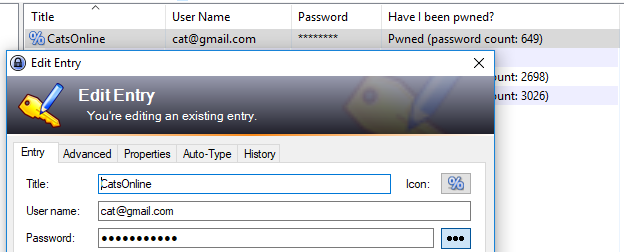
Double click the plugin column to get an instant status check, or use the right click menu to perform the same check
for all selected passwords.
Have I been pwned? is an excellent tool for checking leaked passwords. While it does provide an API for securely checking the passwords online, some bits of a hashed password still need to be sent to the service when performing this type of check.
This plugin offers the alternative of an offline check, by using the downloadable file provided by Have I been pwned?.
The plugin adds a new column to KeePass. When double-clicking the column for a specific entry, the sha1 hash is calculated for the password, which is then searched in the file. A status will be displayed on the column for that specific password.
- binary search in the large password file gives an instant result
- the status (Pwned or Secure) is saved in the KeePass database and will be retrieved when reopening the app, and updated if the password entry changes
- each password is individually checked only on user request
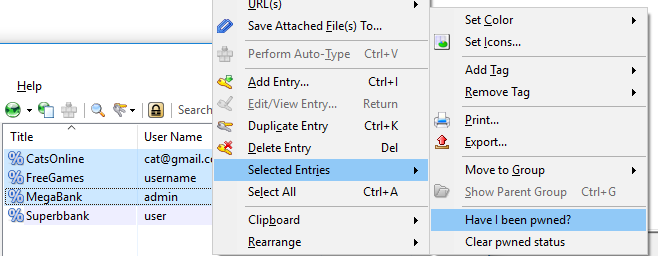
- multiple passwords can be checked in bulk by using the right click menu (under "Selected Entries")
-
Download the pwned-passwords-sha1-ordered-by-hash-v4.txt file from haveibeenpwned.com password list. Use the torrent if possible, as suggested by the author.
It's important that you get the SHA-1 (ordered by hash) version of the file, the plugin uses it for fast searching.
-
Extract the file from the 7zip archive
-
Place the
pwned-passwords-sha1-ordered-by-hash-v4.txtfile in the same location asKeePass.exe(file location is configurable in the options)
- Build the plugin from source using Visual Studio: open the .sln file and compile the Release configuration.
- Copy the .dll from
bin\Releaseto the Plugins folder of the KeePass installation
- Download HIBPOfflineCheck.plgx from Releases
- Copy it in the Plugins folder of the KeePass installation
- Enable
In KeePass, enable the plugin column in View->Configure Columns->Provided by Plugins. Double clicking the "Have I been pwned?" column for any entry will display
the password status. Editing an entry will update the status.
- Double click a password entry under the
Have I been pwned?column to get the status

- Select multiple entries, right click -> Selected Entries -> Have I been pwned?
-
Check all the passwords in the database using this simple method: Search for nothing in the search box, this will display all your passwords. Select all (ctrl+a) -> right click -> Selected Entries -> Have I been pwned?
Note that this may take several minutes to complete, depending on the number of passwords.
- Entries are checked automatically after being updated
To configure the plugin, open Tools -> HIBP Offline Check...
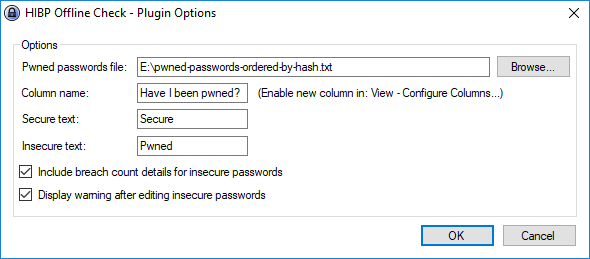
Note that after changing the Column name, a new column will be created with the new name and needs to be enabled under View->Configure Columns->Provided by Plugins. Before changing the column name, it is recommended that you clear the status of all entries (using right click->Selected Entries->Clear pwned status). To make sure that you no longer have entries under the old column name, see if it still appears under View->Configure Columns->Custom Fields.
Enjoy!