

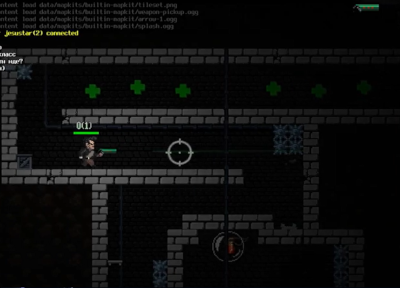
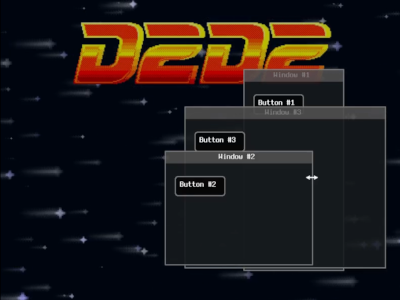
D2D2 is a fast and user-friendly 2D Java framework with a simple DSL, providing a display graph for rendered display objects, and an event model akin to JavaScript and ActionScript. One of its standout features is the ability to use the same codebase for both client (GPU) and server (no-render), offering unparalleled convenience in development.
The goal of D2D2 is to create an easy-to-use framework for rapid development of 2D games and applications in the Java language. I aim to provide developers with tools that allow them to focus on the creative process and achieve desired results without unnecessary difficulties.
D2D2 provides the ability to develop multiplayer games using the same code for both the client and the server. Developers can operate with the same objects (Stage, IDisplayObject, IContainer, event model, etc.), a unified hierarchy of nested display containers, on both sides of the application. The difference lies only in the use of different engines and control code, which can also be written in D2D2. In the current release of D2D2, there are two implementations of the Engine interface: LwjglEngine for the client side and ServerSideEngine for the server side (in practice, this is just a replacement of the value of the d2d2.engine property in the configuration properties file).
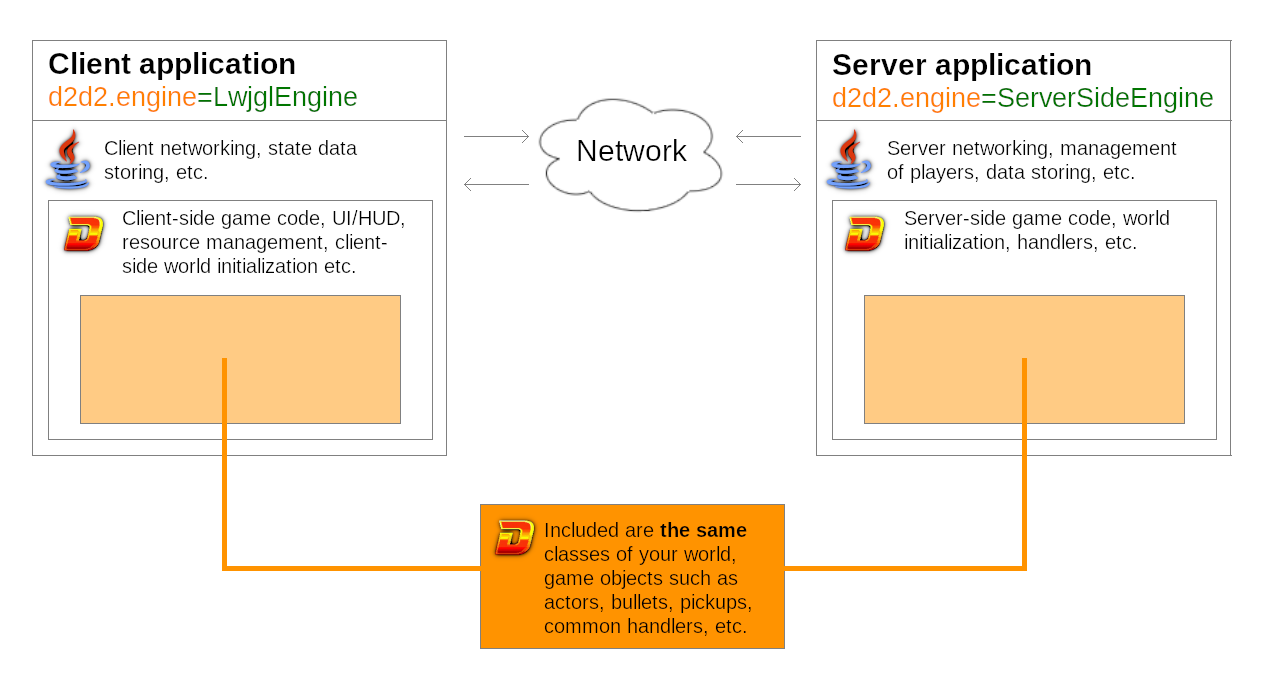
D2D2 allows for representing game objects in a unified way on both sides, ensuring convenience and consistency in the development and support of game mechanics. The difference between the client and server sides is that, ServerSideEngine does not visualize objects, does not play sounds, and does not wait for user input from devices (like keyboard, mouse, etc.). However, the event model and the global event loop will be processed in the same way. This significantly simplifies synchronization between clients and the server, as game logic and data models, such as game objects, remain consistent on both sides.
Additionally, you can develop and test your game mechanics with visualization on your computer using the client engine, and be confident that they will have the same properties and behavior on the server side.
-
Display Graph: D2D2 provides classes for working with display objects (
IDisplayObject), containers (IContainer), as well as methods likeaddandremovefor managing object display in display graph. AllIDisplayObjectand their descendants retain basic properties and methods from ActionScript 3.0, such as x, y, rotation, alpha, scaleX, scaleY, visible, and others. This ensures a familiar interface for controlling the position, rotation, opacity, and scaling of objects on theStage. -
Event Model: Support for adding and removing event handlers via
addEventListener,removeEventListener, anddispatchEventmethods, simplifying the organization of event logic. -
Text: Ability to display text using TrueType fonts, providing flexibility in formatting text elements.
-
User Input Handling: The framework provides tools for handling user input through input devices, making it easy to create interactive applications.
-
Additional Tools and Utilities: Additional tools are provided within the framework, including working with textures, sound, and other features.
To include the D2D2 dependency in your Maven project, add the following to your pom.xml:
In the <repositories> section:
<repositories>
    <repository>
        <id>ancevt</id>
        <url>https://packages.ancevt.com/releases</url>
        <snapshots>
            <updatePolicy>always</updatePolicy>
        </snapshots>
    </repository>
    <repository>
        <id>ancevt-snapshot</id>
        <url>https://packages.ancevt.com/snapshots</url>
        <snapshots>
            <updatePolicy>always</updatePolicy>
        </snapshots>
    </repository>
</repositories>
And in the <dependencies> section:
<dependency>
    <groupId>com.ancevt.d2d2</groupId>
    <artifactId>d2d2-core</artifactId>
    <version>0.1.6.1-beta</version>
</dependency>See samples source code at https://github.com/Anc3vt/d2d2-samples
After adding the necessary dependency (d2d2-core) to your project, it is necessary to add a configuration file d2d2.properties to the resources with the following contents::
d2d2.engine=com.ancevt.d2d2.engine.lwjgl.LwjglEngine
d2d2.window.width=800
d2d2.window.height=600
d2d2.window.title=Window titled2d2.enginedetermines which engine implementation should be used for graphics and input processing. Currently, in the standard D2D2 distribution, there are two engine implementations:LwjglEngine, which uses the LWJGL2 library for rendering on the client side, andServerSideEngine, which does not render anything but can be useful for implementing the server-side of D2D2 applications.d2d2.window.titlespecifies the title of the application window.d2d2.window.widthandd2d2.window.heightdetermine the initial dimensions of the application window.d2d2.window.titledefines the title of the application window.
To initialize the framework, you need to extend the D2D2Main class and call the D2D2.init(YourMainClass.class) method, passing your class into it. This class will be the entry point of your application. Then, you need to override the onCreate and onDispose methods. All the main logic of the application in the D2D2 paradigm should be defined in the onCreate method, as shown in the example below:
public class FrameworkInitDemo extends D2D2Main {

    public static void main(String[] args) {
        D2D2.init(FrameworkInitDemo.class);
    }

    @Override
    public void onCreate(Stage stage) {
        // Your application code goes here
    }

    @Override
    public void onDispose() {
        // Dispose resources & save state
    }

}
NOTE: Your class extending D2D2Main must be public
The onCreate method is called immediately after the framework initialization. The stage is the root container for the entire application and will contain all displayed display objects with the entire hierarchy of nested containers within each other.
onDispose method is automatically called when the application is closed by the operating system's standard means or after calling D2D2.exit() Here, you should program resource cleanup, saving various states, etc.
Sprite is one of the primary types of display objects, representing a static customizable image. The example below demonstrates how to create, configure, and add it to the scene. Since Sprite inherits methods from IDisplayObject, we can customize it using them.
Resource files like the one shown in the example below, flower.png, should be located in the assets/ subdirectory of the classpath. Consequently, by default in a Maven project, this would be src/main/resources/assets/.
@Override
public void onCreate(Stage stage) {
    Sprite sprite = new Sprite("flower.png");

    // Set the properties of the sprite
    sprite.setXY(100, 100);
    sprite.setAlpha(0.75f);
    sprite.setRotation(45);
    sprite.setRepeatX(5);
    sprite.setScale(0.5f, 0.5f);

    // Add the sprite to the stage
    stage.add(sprite);
}
Suppose the source resource file flower.png looks like this:

Upon running the application, the Sprite will be displayed with all the properties assigned to it, including position, opacity, rotation, X-axis repetition, and scaling.
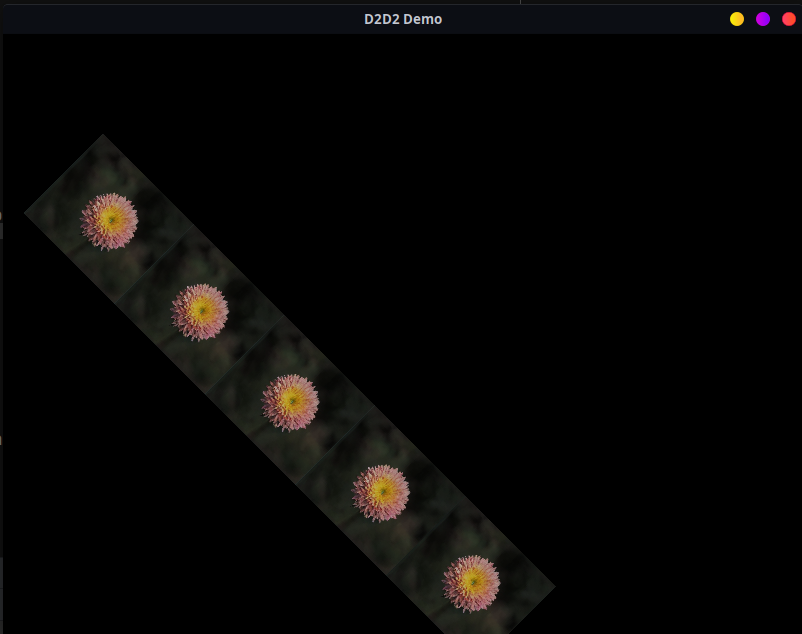
Now the stage contains one display object, which is Sprite.
Sprite provides many other useful methods. Additionally, for creating sprites, you can use the SpriteFactory class.
There's a more detailed and flexible way to manage texture resources - TextureManager. You can obtain the TextureManager by calling the static method D2D2.textureManager(). It contains all the loaded texture atlases. Texture atlases allow you to create textures from source resource files where images are combined.
This way, you can store multiple images in a single PNG file, extracting the textures we need from it based on specified coordinates on the atlas.
For example, in the ../assets/ directory of our project, there's a source resource file d2d2-samples-tileset.png, which looks like this:
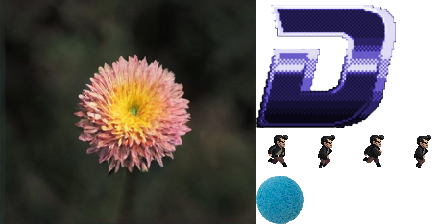
Suppose we need a sprite that will display only the large letter 'D' from this atlas. We can load the resource file, creating a TextureAtlas. The example below demonstrates how to "cut out" only the part of the image we need, creating a Texture, and apply it to an instance of Sprite, for subsequent placement on the scene.
@Override
public void onCreate(Stage stage) {
    // Get the texture manager from D2D2
    TextureManager textureManager = D2D2.textureManager();
    // Load the texture atlas from src/main/resources/assets/
    TextureAtlas textureAtlas = textureManager.loadTextureAtlas("d2d2-samples-tileset.png");
    // Create a texture from the atlas with the specified coordinates and dimensions
    Texture texture = textureAtlas.createTexture(256, 0, 144, 128);
    // Create a sprite using the created texture
    Sprite sprite = new Sprite(texture);

    // Add the sprite to the stage
    stage.add(sprite);
    // Center the sprite on the stage
    sprite.center();
}
Running example looks like this:
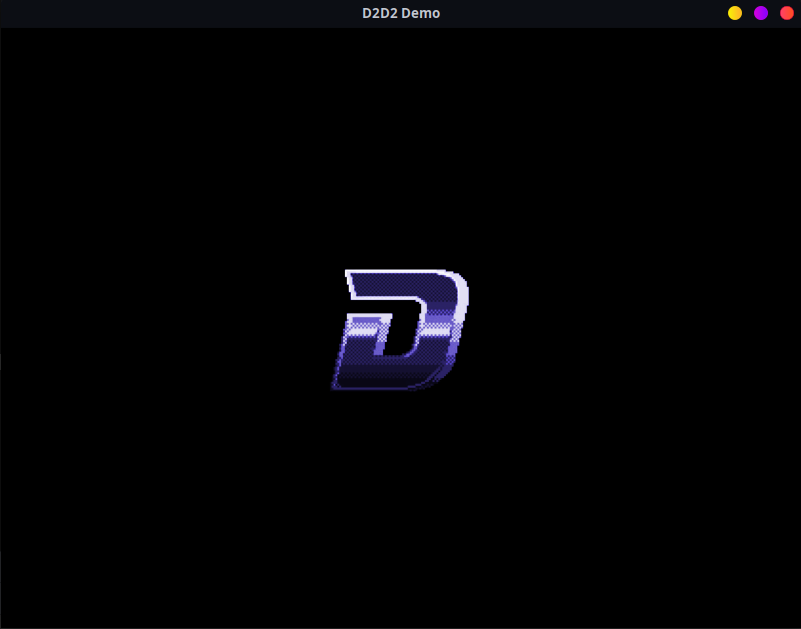
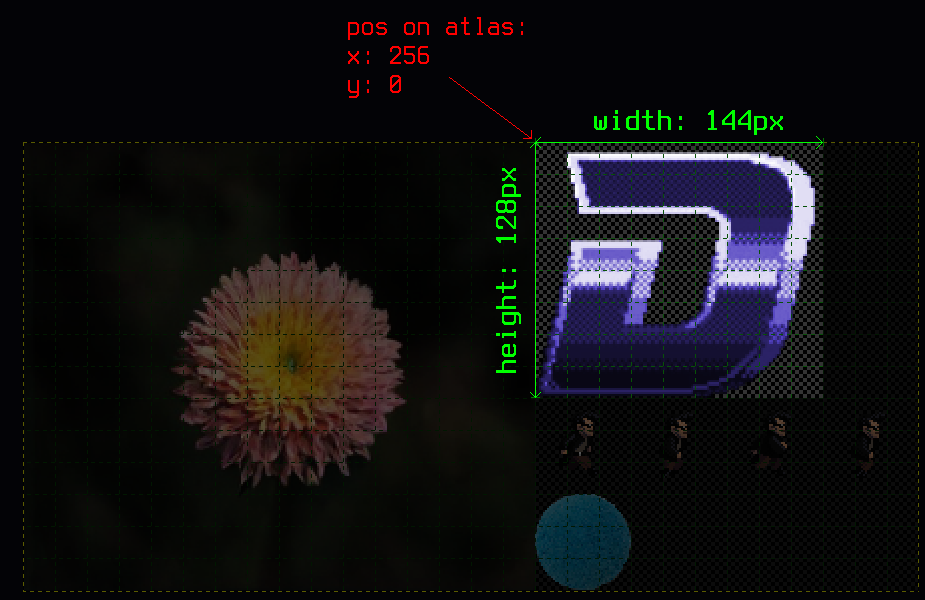
In the example above, pay attention to the method call textureAtlas.createTexture(256, 0, 144, 128), where the coordinates of the required texture on the texture atlas and its size in pixels are passed.
256,0 - are the coordinates of the top-left corner of the texture on the atlas, and 144,128 - is the size of the texture.
NOTE: The image has been scaled for convenience in the diagram.
To ensure optimal use of video memory and texture performance, it's advisable to make the dimensions of textures on the atlas power-of-two multiples. Instead of using multiples of 8, 16, 32, etc., which are suitable for specific architectures, a good practice is to choose sizes that are multiples of 2.
Here are some commonly used sizes that meet this requirement:
2x2
4x4
8x8
16x16
32x32
64x64
128x128
256x256
and so on
Use these sizes to create texture atlases. For example, if you want to create a texture atlas with dimensions of 256x256 pixels, you can place 16 textures of size 64x64 pixels on it, or 64 textures of size 32x32 pixels, and so on.
This approach ensures efficient use of video memory and reduces GPU load.
The procedure for unloading texture atlases is the reverse of loading: D2D2.textureManager().unloadTextureAtlas(textureAtlas).
Like Sprite, BitmapText is one of the implementations of the IDisplayObject interface, allowing text to be displayed on the scene. D2D2 supports runtime conversion of TrueType fonts into BitmapFont, which can be used in BitmapText.
@Override
public void onCreate(Stage stage) {
    BitmapText bitmapText1 = new BitmapText();
    bitmapText1.setText("bitmapText1: Using default bitmap font\nSecond line...\nThird...");
    bitmapText1.setColor(Color.YELLOW);
    bitmapText1.setScale(2, 2);
    stage.add(bitmapText1, 100, 100);
}
It will look like this:

public void onCreate(Stage stage) {
    BitmapFont bitmapFont = new TtfBitmapFontBuilder()
        .fontSize(24)
        .ttfAssetPath("d2d2ttf/FreeSansBold.ttf")
        .textAntialias(true)
        .build();

    BitmapText bitmapText2 = new BitmapText(bitmapFont);
    bitmapText2.setText("bitmapText2: Using TtfBitmapFontBuilder generated bitmap font");
    bitmapText2.setColor(Color.GREEN);
    stage.add(bitmapText2, 100, 200);
}
In this example, the TrueType font file is located in the resources as ../assets/d2d2fonts/FreeSansBold.ttf.
It will look like this:

public void onCreate(Stage stage) {
    BitmapFont bitmapFont = new TtfBitmapFontBuilder()
        .fontSize(24)
        .ttfAssetPath("d2d2ttf/FreeSansBold.ttf")
        .textAntialias(true)
        .build();

    BitmapText bitmapText3 = new BitmapText(bitmapFont);
    // Enable multicolor
    bitmapText3.setMulticolorEnabled(true);
    // Multicolor text should start with the `#` sign. It will not be rendered and will only signal
    // to the bitmap text that it should be rendered using multicolor
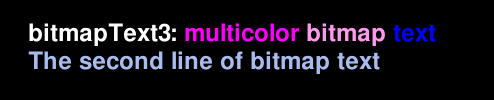
    bitmapText3.setText("#bitmapText3: <FF00FF>multicolor<FF99EE> bitmap<0000FF> text\n" +
        "<AABBEE>The second line of bitmap text");

    // place it on the stage
    stage.add(bitmapText3, 100, 300);
}
It will look like this:
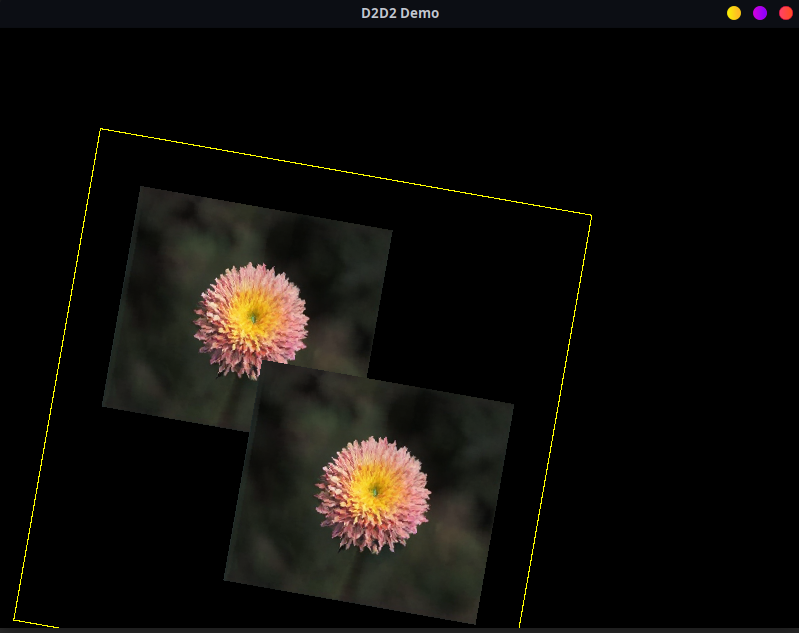
Container is an object that can contain any display objects, including other containers. By adding containers to each other, a hierarchy of display objects is organized on the Stage. The Stage itself is also a container since it implements the IContainer interface.
Initially, all empty containers are invisible to the user. Therefore, in the example below, we create a gray BorderedRect without fill, and create a Container, filling it with this BorderedRect.
@Override
public void onCreate(Stage stage) {
  BorderedRect borderedRect = new BorderedRect(500, 500, Color.NO_COLOR, Color.DARK_GRAY);

  // Create a container with an instant placement of the frame into it
  Container container = new Container(borderedRect);

  // Create two sprites
  Sprite sprite1 = new Sprite("flower.png");
  Sprite sprite2 = new Sprite("flower.png");

  container.add(sprite1, 50, 50);
  container.add(sprite2, 200, 200);

  // Rotate the entire container by 10 degrees
  container.rotate(10);

  // Add our container to the stage. In fact, Stage is also a container, since
  // it implements the IContainer interface
  stage.add(container, 100, 100);

}
In the example above, when rendered, all content of the container will also rotate along with the container. However, accessing properties of objects placed inside the container will remain unchanged.
Here's how it will look when the application is launched:
NOTE: It's important to understand that nested containers and other display objects placed inside containers apply their properties relative to their parent container, not the global coordinate axis of the
Stage. Thus, if we, for example, rotate the container using therotateorsetRotationmethods, visually, all its contents will also rotate along with it. Of course, this applies not only to rotation but also to other properties ofIDisplayObject, such as x, y, alpha, scaleX, scaleY, visible and others.
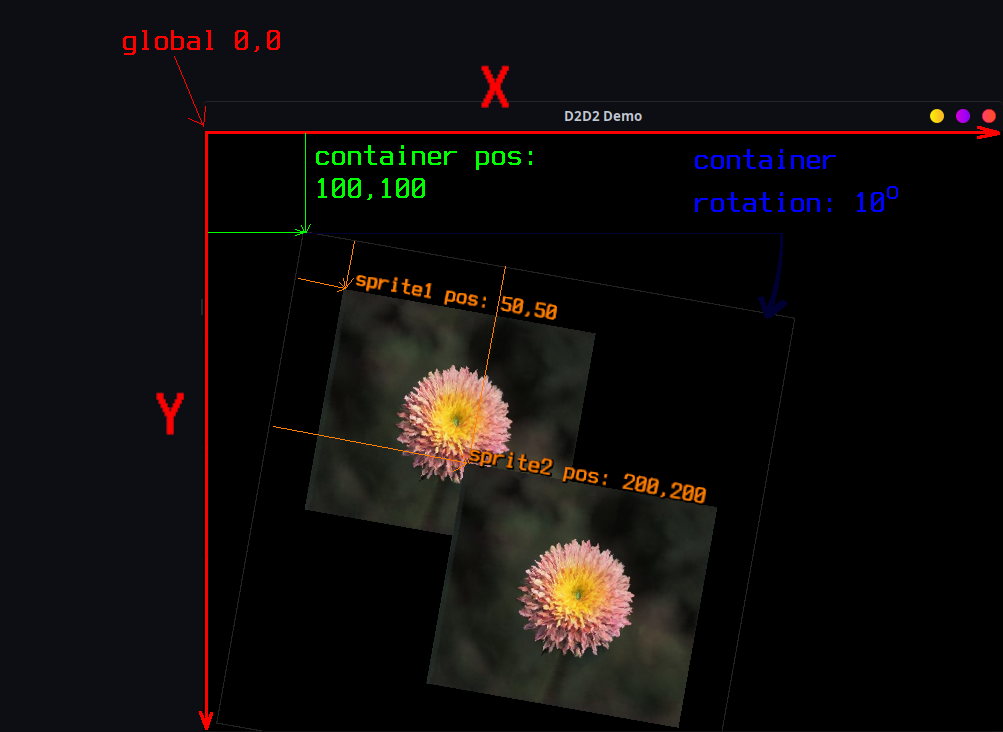
You can retrieve all display objects parent container using their getParent() method. If a display object is not added to any container, the method will return null, so it's a good practice to check for the presence of a parent container using the hasParent() method. In turn, containers have methods such as getNumChildren(), getChild(int index), and childrenStream() as a stream. Check out other useful methods in the IContainer interface in the documentation and source code.
In D2D2, an event model similar to that in JavaScript and ActionScript is implemented. Methods such as addEventListener, removeEventListener, and dispatchEvent are used.
@Override
public void onCreate(Stage stage) {
    // Create a status text for example convenience
    BitmapText statusText = new BitmapText();
    statusText.setScale(3, 3);
    stage.add(statusText, 10, 10);

    // Register a listener for the RESIZE event for the Stage
    // When the window size changes (or when switching to fullscreen mode)
    // our status text will be updated
    stage.addEventListener(Event.RESIZE, event -> {
        float width = stage.getWidth();
        float height = stage.getHeight();

        statusText.setText((int) width + "x" + (int) height);
    });
}
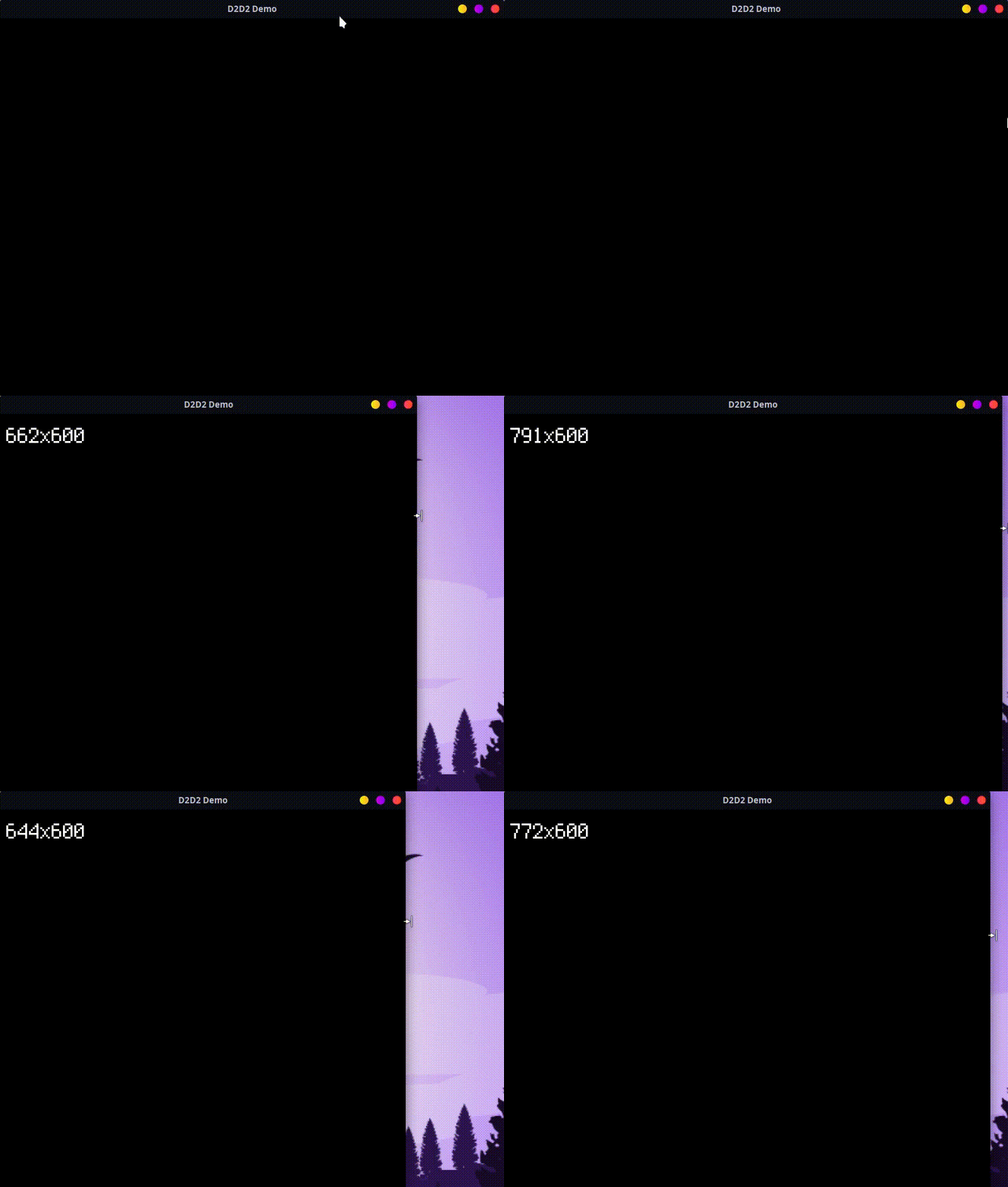
In the example above, we subscribed to the RESIZE event and implemented an event handler. In this case, we change the status text when the application window is resized.
It will look like this (animated GIF):
Display objects also can dispatch events. There are three events that occur regularly/every frame:
Event.ENTER_FRAMEdispatches before frame renderingEvent.EXIT_FRAMEdispatches after frame renderingEvent.LOOP_UPDATEdispatches during the next iteration of the global event loop, which can be useful if you need to perform any actions continuously regardless of rendering and FPS.
public void onCreate(Stage stage) {
    Sprite sprite = new Sprite("flower.png");
    sprite.setXY(400, 300);

    sprite.addEventListener(Event.LOOP_UPDATE, event -> {
        sprite.rotate(-5);
    });

    stage.add(sprite);
}
It will look like this (animated GIF):
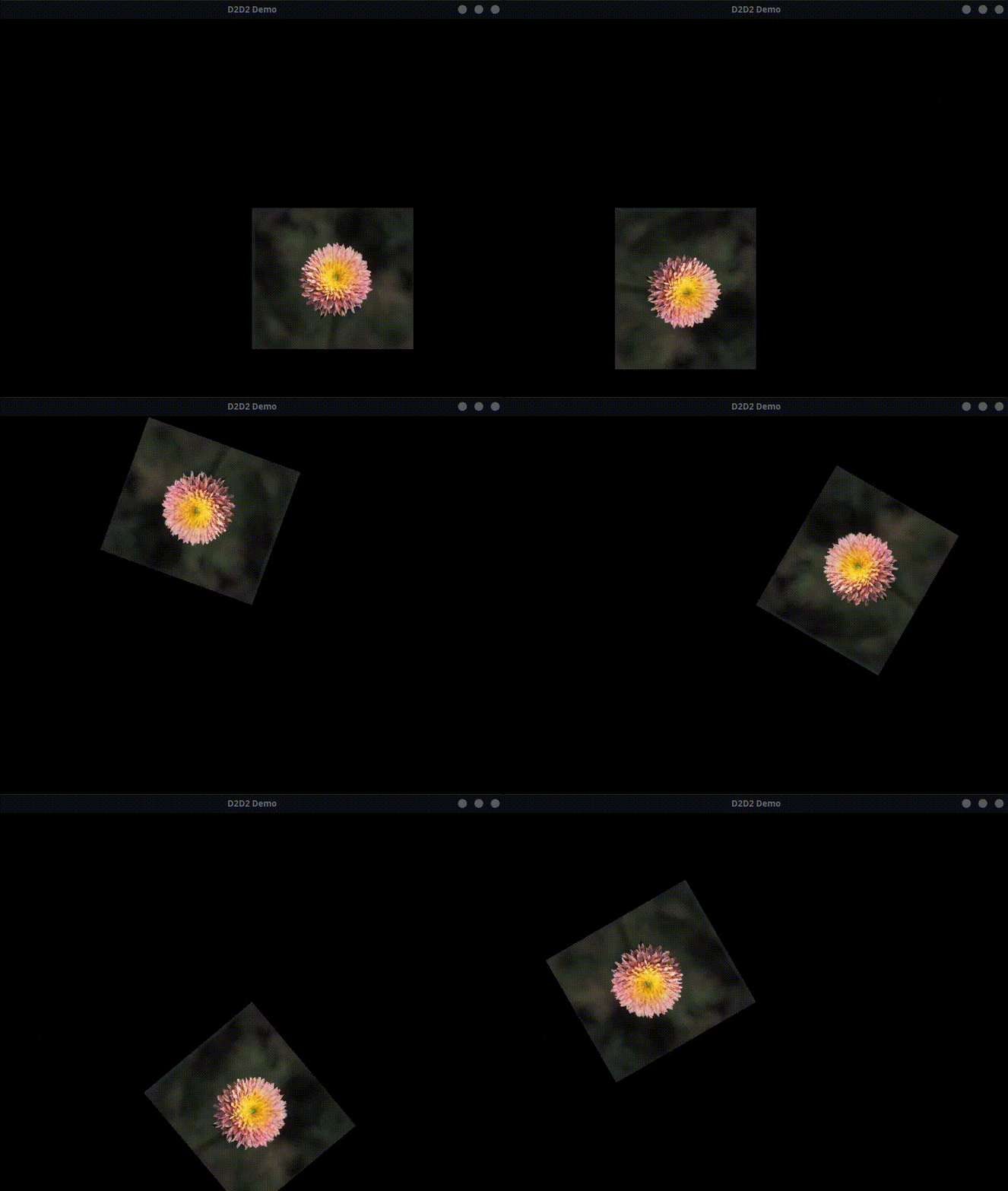
NOTE: It's easy to notice that the sprite rotates around its top-left corner, which is the correct behavior for the example above. To make the object rotate around its own center, you need to add it to a container, move sprite to the left and up by half of its size, and then rotate the container instead of the sprite itself.
Example of rotation around its own center:
@Override
public void onCreate(Stage stage) {
    Container container = new Container();

    Sprite sprite = new Sprite("flower.png");

    container.add(sprite, -sprite.getWidth() / 2, -sprite.getHeight() / 2);

    container.addEventListener(Event.LOOP_UPDATE, event -> {
        container.rotate(-5);
    });

    stage.add(container, 400, 300);
}
It will look like this (animated GIF):
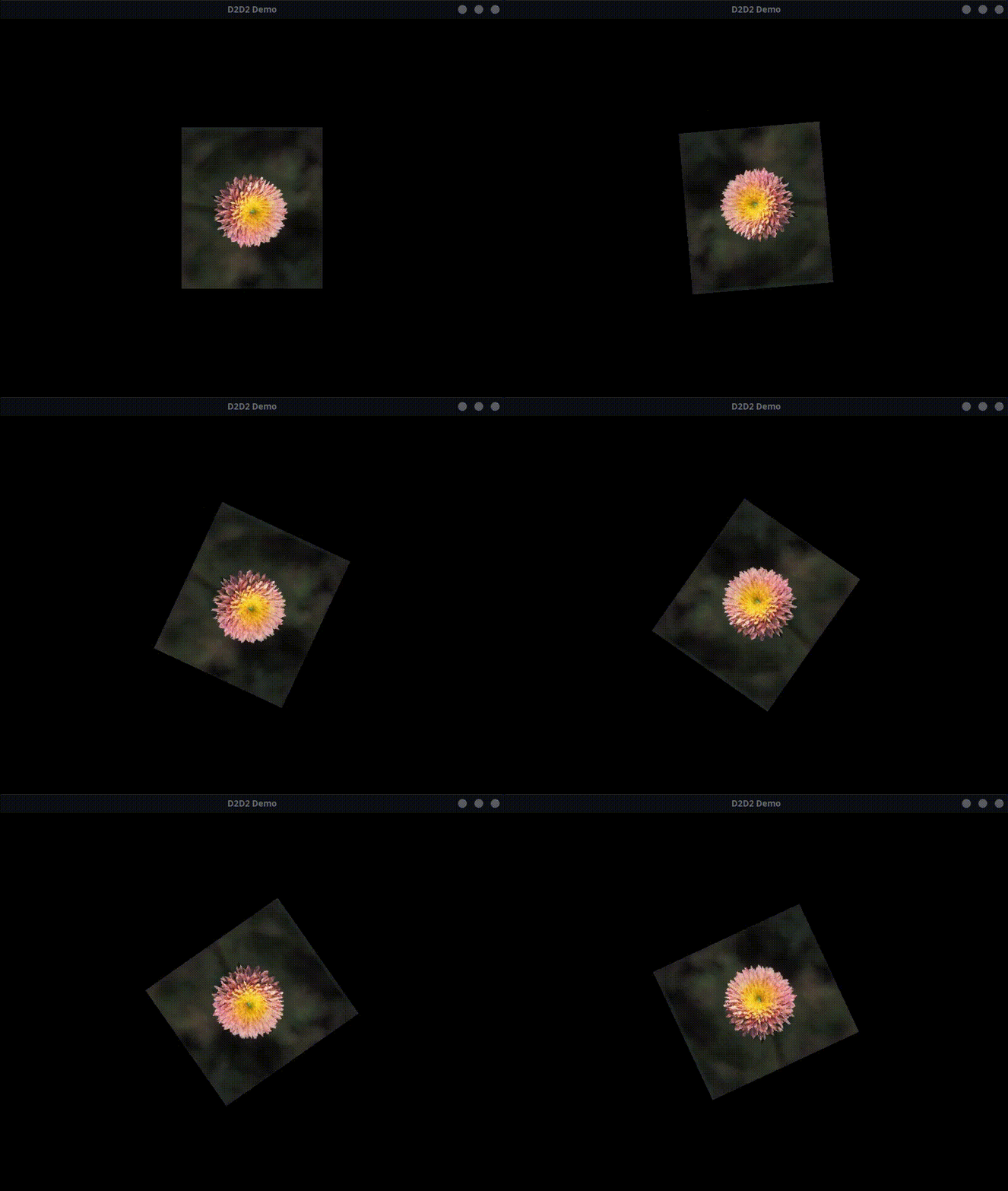
Currently, in D2D2, there are many pre-implemented events in Event and its subclasses. Additionally, you can implement your own events, dispatch them from your classes inherited from EventDispatcher, and register listener functions.
Unlike JavaScript and ActionScript, D2D2 adds the ability to remove all listeners at once or listeners of specific event types by key. For this purpose, IEventDispatcher has the following methods:
addEventListener(Object key, String type, EventListener listener);removeEventListener(Object key, String type);removeAllEventListeners();removeAllEventListeners(String type);
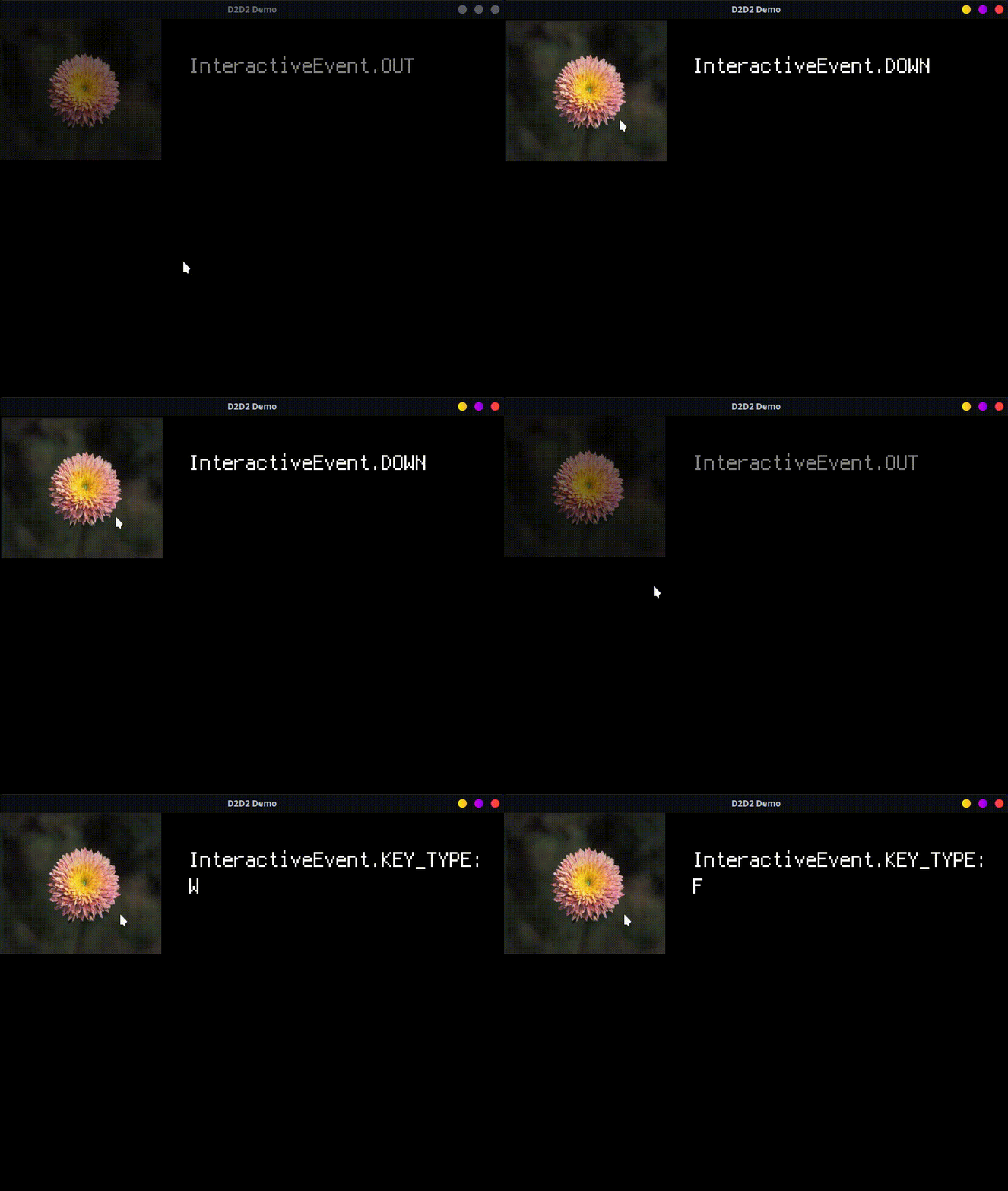
Interactive objects are based on the event model described above. Here's an example of creating an interactive container and user interaction:
@Override
public void onCreate(Stage stage) {
    // Create, setup, and add a text object for status display
    BitmapText statusText = new BitmapText();
    statusText.setScale(3, 3);
    stage.add(statusText, 300, 50);

    // Create an interactive container with the sprite "flower.png"
    InteractiveContainer interactiveContainer = new InteractiveContainer(new Sprite("flower.png"));

    // Register a listener for the DOWN event for the container
    interactiveContainer.addEventListener(InteractiveEvent.DOWN, event -> {
        interactiveContainer.move(2, 2);
        statusText.setText("InteractiveEvent.DOWN");
    });

    // Register a listener for the UP event for the container
    interactiveContainer.addEventListener(InteractiveEvent.UP, event -> {
        interactiveContainer.move(-2, -2);
        statusText.setText("InteractiveEvent.UP");
    });

    // Register a listener for the HOVER event for the container
    interactiveContainer.addEventListener(InteractiveEvent.HOVER, event -> {
        interactiveContainer.setAlpha(1);
        statusText.setColor(Color.WHITE);
        statusText.setText("InteractiveEvent.HOVER");
    });

    // Register a listener for the OUT event for the container
    interactiveContainer.addEventListener(InteractiveEvent.OUT, event -> {
        interactiveContainer.setAlpha(0.5f);
        statusText.setColor(Color.GRAY);
        statusText.setText("InteractiveEvent.OUT");
    });

    // Register a listener for the KEY_TYPE event for the container
    interactiveContainer.addEventListener(InteractiveEvent.KEY_TYPE, event -> {
        InteractiveEvent e = event.casted();
        // Get the key type
        String keyType = e.getKeyType();
        // Set the status text
        statusText.setText("InteractiveEvent.KEY_TYPE:\n" + keyType);
    });

    // Add the container to the stage
    stage.add(interactiveContainer);
}
NOTE: There is also an
InteractiveSprite, which is based on theSpriteclass and also implements theInteractiveinterface.
It will look like this (animated GIF):
For the Stage, user interaction events are also implemented.
NOTE: Unlike the
Interactiveinterface, which dispatchesInteractiveEvent, theStagedispatchesInputEvent. It's important to consider this difference to avoid encountering "nothing-happens" errors.
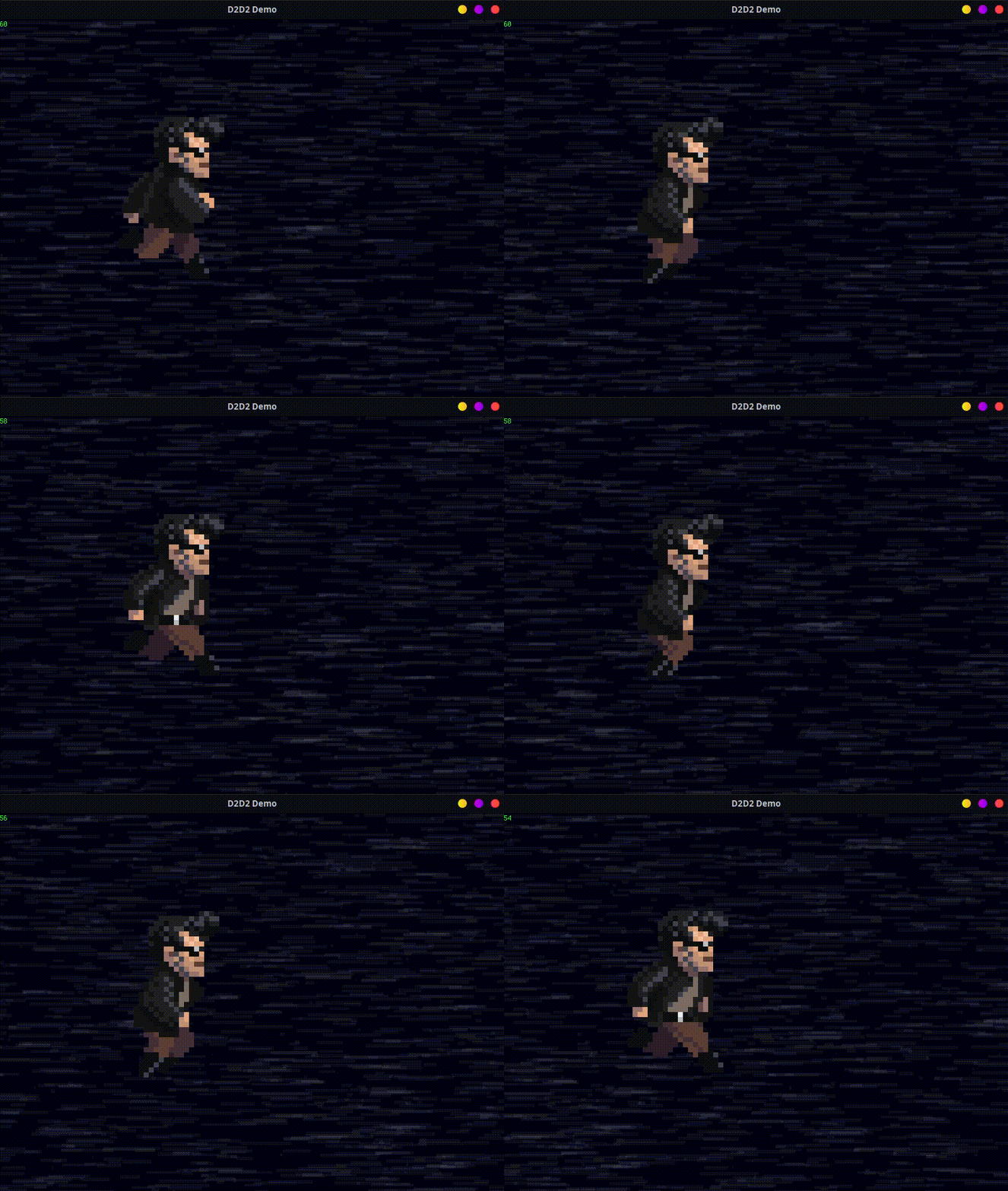
IAnimated is an interface that defines common functionality for all animated frame-based display objects. In the current version of D2D2, there are two such display objects implemented: AnimatedSprite and AnimatedContainer. As you might guess, one extends Sprite, and the other extends Container.
@Override
public void onCreate(Stage stage) {
    // Set the scene background color
    stage.setBackgroundColor(0x000010);

    // Create some funny background elements
    createSomeBackground();

    // Load the texture atlas and create textures
    Texture[] textures = D2D2.textureManager()
        .loadTextureAtlas("d2d2-samples-tileset.png")
        .createTexturesHor(256, 128, 48, 48, 4);

    // Create an animated sprite
    IAnimated anim = new AnimatedSprite(textures);

    // Set the scale of the sprite
    anim.setScale(8, 8);
    // Set the animation slowing factor
    anim.setSlowing(15);
    // Set the animation infinity loop
    anim.setLoop(true);
    // Start playing the animation
    anim.play();

    // Add the animated sprite to the stage
    stage.add(anim, 100, 100);

    // Add an FPS meter to the stage
    stage.add(new FpsMeter());
}
It will look like this (animated GIF):
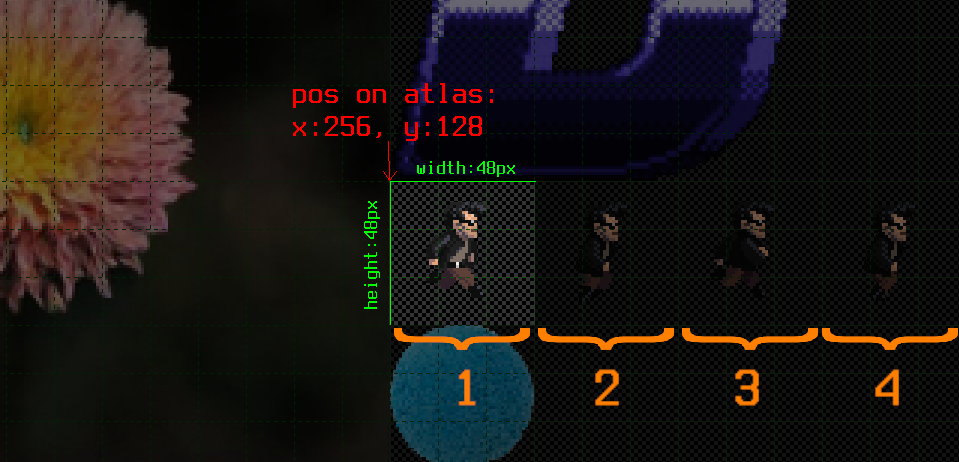
NOTE: Pay attention to the method call
createTexturesHor(256, 128, 48, 48, 4). It creates multiple textures at once, arranged horizontally on the atlas. The first four arguments are the position of the texture on the atlas and its dimensions, and the fifth argument is the number of repetitions to the right, as shown in the diagram:
To create multiple textures vertically, the TextureAtlas also has a method called createTextureVert.
Contributions to the D2D2 project are welcome. If you have ideas, suggestions, or bug fixes, please open a new issue or create a pull request in my GitHub repository.
If you have any questions regarding D2D2 or anything else, please feel free to email me at me@ancevt.com.