Watch a short demo on youtube.
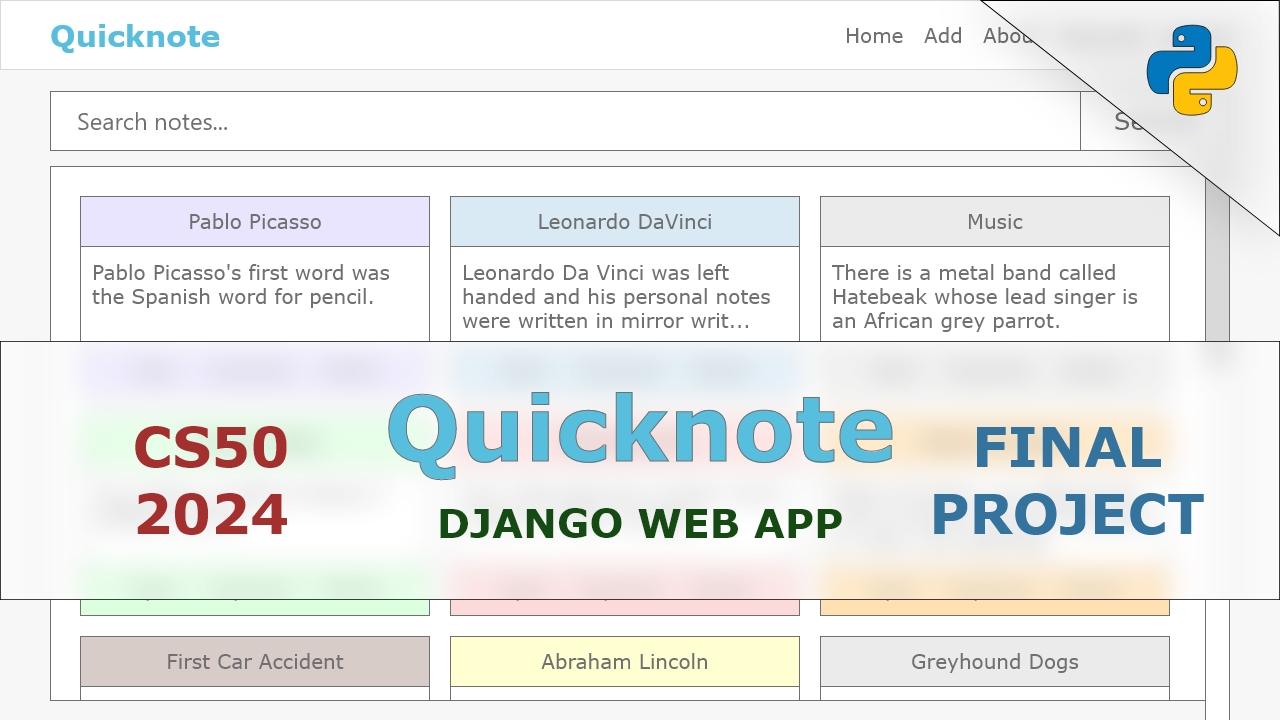
This web application was made as a final project for CS50x 2024 online course offered by Harvard University.
An easy-to-use and user-friendly app to write notes and store them in the cloud somewhere.
This web app lets users store all of their notes in one place, hence no more text files laying around your desktop. In this web app, users have the ability to write and save notes as well as edit, delete, duplicate, and/or download their notes. They also have the option to choose a color for a note from a carefully curated colors preset.
- User-friendly UI
- Easy to use
- Quick signup
- Download notes in just-one-click
- Colored notes
- Supporting Emojis
This app is made as a final project and not meant to be public for people to use on internet (even though it's a webapp) , you have to run it locally on your machine.
This project is built using
pythonanddjango(a python based web framework). you have to install both of em to run the project.
Head to python.org and download the latest version of python. (3.8+ is fine too)
Installing
pythonis easy. just follow a youtube video if you're having any difficulty!Open terminal and run
python --versioncommand.You should see output like
Python 3.12.3if python is installed correctyl.
Open terminal and run command
pip install -r requirements.txt.OR run
pip install djangoto install django directly.Once python and django are installed, you can run this project locally on your machine. There are two ways to run the project/app. Both of them mentioned below.
Open
terminalorcmdin the project's root directory.Run the command
python manage.py runserverin the terminal.You local development server should be running at this point and you should see output like below.
Watching for file changes with StatReloader Performing system checks...
System check identified no issues (0 silenced). June 29, 2024 - 15:00:01 Django version 5.0.6, using settings 'quicknote.settings' Starting development server at http://127.0.0.1:8000/ Quit the server with CTRL-BREAK.
Find this below line in the output and copy the link.
Starting development server at http://127.0.0.1:8000/(without closing the terminal) Open your webbrowser, paste the link and hit
enter.The app is now working (hopefully), Just signup and use.
Open
terminalorcmdin the project's root directory and runpython run_project.pyIt will install dependencies (if not installed) and ask you for a port number. Hit
enterfor a default port number. the project will be live on your default web browser in round about 5-10 seconds.make sure to refresh if you see
refused to connecterror on your browser.
It's relatively very simple to use this application. Just follow these steps if you're having any difficulty!
- Run Quicknote and login (or create an account).
-
Head to the
Addpage through navigation bar. -
Write the Title, a Short Description, & the Content of the Note. (You can write emojis in the title of note and also search by emojis).
-
Choose a color from the
Colordropdown or just leave the default one. -
Click
Addbutton on the titlebar to add the note orCancelto discard the note. -
You'll be redirected to
Homepage where you'll be able to see all the notes you added.
-
From
Homepage, Find the note you would like to read. -
Click
Openbutton on that note. -
This will take you to another page where you can read, edit, download, or delete the note.
-
Openthe note that you would like to edit. -
Currently you are in readmode, so that you don't accidentally change the contents of the note while reading.
-
Click
Editbutton on the titlebar of the note to go into editmode -
Now you can edit your note such as changing title, description, content or even color too.
-
Now that you've edited your note, click
Saveto save the changes you've made. And if you don't like to save the changes, justCancelto revert the note back to it's earlier state.
-
You can delete a note by two ways.
-
In the
Homepage, find the note to delete and clickDeleteto delete the note. -
OR Open the note and click
Deletebutton in the titlebar to delete the note.
-
Find the note to duplicate.
-
Click
Duplicatebutton on that note's footer to duplicate the note with the exact same content and color.
-
Open the note that you would like to donwload.
-
click
Downloadto download the note as a text file.
-
On the
Homepage, there's a searchbar that let's you search for notes by title -
Just type a portion of the title or full title, and hit enter.
-
It will show all the notes containing that query!
-
Head to
Accountpage. -
Here you'll see your account related options. And your username in the titlebar.
-
you can change username and password as well as delete your account. (Deleting your account will delete all your notes. this action is irreversible!!!)
- Now i feel like i'm insulting your intelligence! Sorry
-
Python
-
Django
-
Javascript
-
HTML
-
CSS
-
SQLite3 (File-based storage)
This web app uses django's default hashing algorithm to hash user's password.
Specifically, it uses PBKDF2 algorithm with a SHA256 hash, a password stretching mechanism recommended by NSIT. It's quite secure, requiring massive amounts of computing time to break. (pasted straight from google)
Username must not be empty
Username must be unique (that is, a non-existing username)
Username can only contain 30 characters at most, and 4 characters atleast.
Username must not contain spaces, emojis, and/or illegal characters such as (/:;*?'`|%,)
Folders such as templates and static contain the files related to the frontend UI of the application.
static folder contains styles.css which contains all the CSS code for the app. Everything was styled and designed using this file, and no bootstrap or other UI library was used in this project. Reason: I just wanted to brush up my HTML and CSS skills.
templates folders contain the HTML and some inline Javascript for the templates/views. There are two templates folders, one is in the notes app and the other is in the users app. both contain templates related to their apps.
Almost all the backend was written in the views.py files. the database models are in the models.py and urls were mapped to views in urls.py files. Separate apps contain their own views.py and urls.py files with their own logic and code and stuff, you know the drill!
NOTE (There maybe some stuff that shouldn't be mentioned or described but, it was the requirement for the project, to write a README.md with more than 700 words.)
This web application was designed, and implemented by Anas Shakeel.