






Create project structures effortlessly with a single command.
- Overview
- Why Maketree?
- Features
- Installation
- Quickstart
- Usage
- Compatibility
- FAQ
- Contributing
Maketree is a powerful CLI tool that generates directories and files based on a predefined structure. Instead of manually creating folders and files, just define your structure and let Maketree handle the rest.
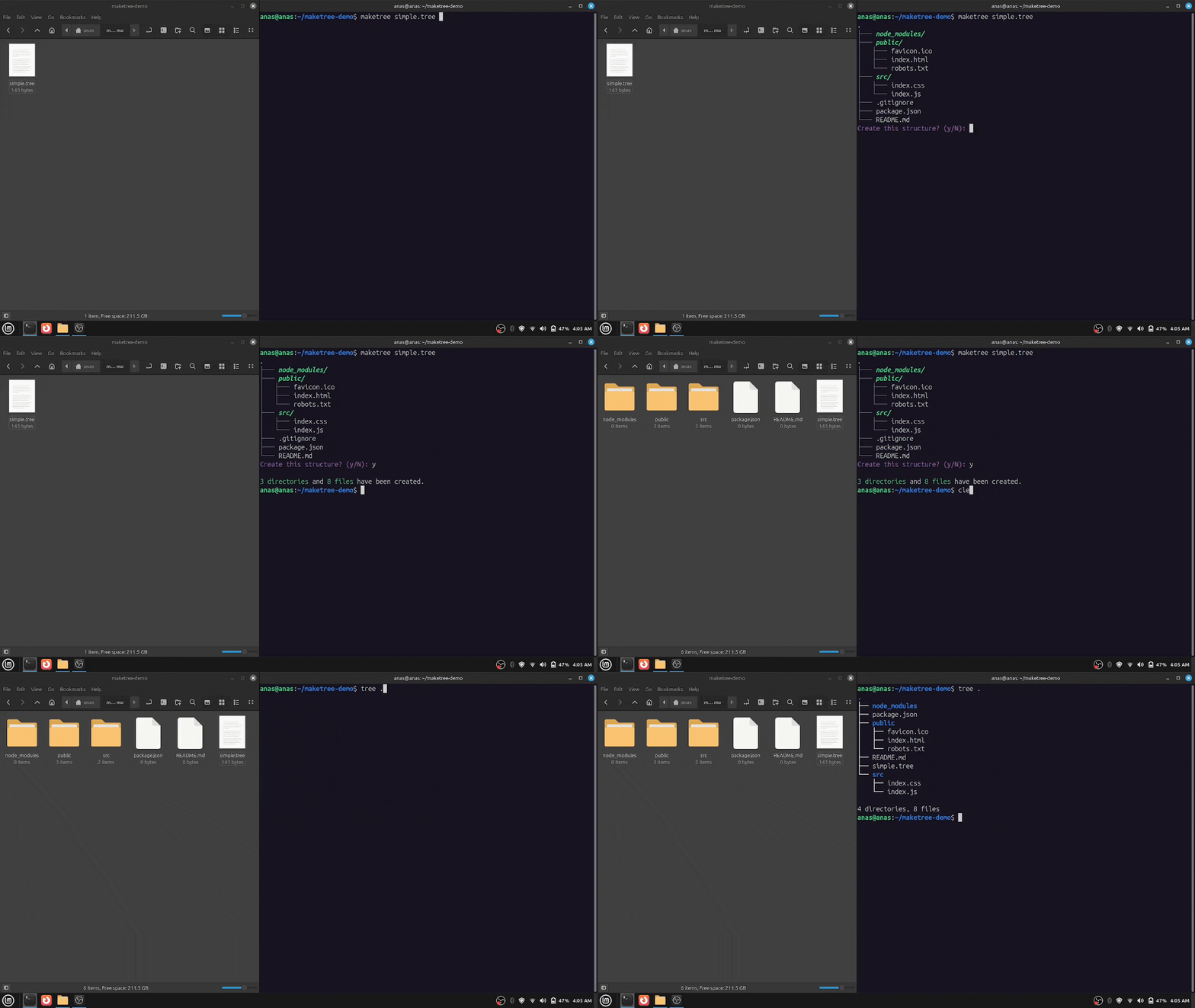
- Saves Time: No more manually creating directories and files.
- Consistency: Maintain a standard project structure across all your projects.
- Easy to Use: Define a structure in plain text and generate it instantly.
- Supports nested directory structures
- Automatically creates missing parent directories
- Flexible file handling with warning, skip, and overwrite options
- Preview the directory tree before creation
- Color support
- Simple and easy to write structure syntax
- Lightweight, fast, and has zero dependencies
- Simple and user-friendly CLI
Maketree is available on PyPI. (Recommended if you're a python developer and have python already installed on your system)
You can install it using:
pip install maketreepython>=3.8 must be installed on your system.
If you are installing from source, you will need python>=3.8.
git clone https://github.com/Anas-Shakeel/maketree-cli.git
cd maketree-cli
pip install .Maketree provides standalone binaries for Linux, macOS, and Windows. (Recommended if you don't want to install Python.)
-
Download the latest release from the Releases page.
-
(Optional) Move the executable to a directory in your system's
PATH(e.g.,/usr/local/binon Linux/macOS ORC:\maketreeon Windows). -
Run
maketreefrom the terminal.maketree -h
Define your project structure in a .tree file:
structure.tree
my_project/
    src/
        main.py
        utils.py
    tests/
        test_main.py
    README.md
    .gitignore
Then, run:
maketree structure.treeThis will instantly generate the entire structure in your current directory.
You can maketree from any location in your terminal. (If installed via pip or if moved the executable to a directory recognized by system's PATH)
maketree -hThis will show the available commands and options:
usage: maketree [OPTIONS]

Create complex project structures effortlessly.

positional arguments:
  src                   source file (with .tree extension)
  dst                   where to create the tree structure (default: .)

options:
  -h, --help            show this help message and exit
  -cd, --create-dst     create destination folder if it doesn't exist.
  -et, --extract-tree   write directory tree into a .tree file. (takes a PATH)
  -g, --graphical       show source file as graphical tree and exit
  -o, --overwrite       overwrite existing files
  -s, --skip            skip existing files
  -nc, --no-color       don't use colors in output
  -nC, --no-confirm     don't ask for confirmation
  -v, --verbose         enable verbose mode

Maketree 1.2.0Maketree reads .tree file that defines the folder and file structure and then creates the corresponding structure on your filesystem.
Create a file named myapp.tree:
src/
    style.css
    app.js
    index.html
This will create a src folder with three files: index.html, style.css, and app.js.
To generate the structure, Run:
maketree myapp.treeIt will ask for confirmation with a graphical representation of the structure.
.
└─── src/
│   ├─── app.js
│   ├─── index.html
│   └─── style.css
Create this structure? (y/N):
Output:
1 directory and 3 files have been created.By default, maketree creates the structure in the current directory.
To ensure correctness, follow these simple points:
- Directories must end with
/ - Indentation must be exactly 4 spaces (other indentations may cause unexpected results)
- File and directory names must be valid according to your OS
- Comments start with
//(inline comments are not supported)
myapp.tree
// This is a comment, and is ignored by maketree.
node_modules/
public/
    favicon.ico
    index.html
    robots.txt
src/
    index.css
    index.js
.gitignore
package.json
README.md
Now, run:
maketree myapp.treeOutput: (After confirming)
3 directories and 8 files have been created.
You can specify a destination folder instead of creating the structure in the current directory.
maketree myapp.tree myapp/It will throw an error if myapp/ does not exist.
Error: destination path 'myapp' does not exist.Use --create-dst or -cd flag, maketree then creates the destination directory if it doesn't exists.
maketree myapp.tree myapp/ --create-dstOutput:
3 directories and 8 files have been created.
If you run maketree again in the same directory without deleting files, you’ll see an error:
maketree myapp.tree myappOutput:
Error: Found 8 existing files, cannot proceed. (try --skip or --overwrite)
By default, maketree does not overwrite or skip existing files.
Use the --overwrite or -o flag to overwrite existing files:
maketree myapp.tree myapp --overwriteOutput:
0 directories and 8 files have been created.
Use the --skip or -s flag to keep existing files but create missing ones:
maketree myapp.tree myapp --skipOutput: (After deleting 3 files)
0 directories and 3 files have been created.
You can also extract an already created project structure using -et or --extract-tree flag following the directory path of structure:
maketree --extract-tree myapp/Output:
Tree has been extracted into 'myapp_1.tree'
Notice it created myapp_1.tree, because there was a myapp.tree already in the current directory.
Contents of myapp_1.tree file:
myapp/
    .gitignore
    package.json
    README.md
    node_modules/
    public/
        favicon.ico
        index.html
        robots.txt
    src/
        index.css
        index.js
Now this .tree file can be used whenever you want to create a similar project structure.
Use --graphical or -g to visualize the myapp.tree file:
maketree myapp.tree -gOutput:
.
├─── node_modules/
├─── public/
│   ├─── favicon.ico
│   ├─── index.html
│   └─── robots.txt
├─── src/
│   ├─── index.css
│   └─── index.js
├─── .gitignore
├─── package.json
└─── README.md
It is also shown before you create a structure for confirmation.
By default, maketree confirms before creating the structure. But this can sometimes be anoyying. Use --no-confirm or -nC flag to create the structure without confirming. (Notice the C is capital in -nC)
maketree myapp.tree myapp --no-confirmBy default, maketree uses ANSI escape codes to color the output.
maketree myapp.tree myapp/If you're seeing something like this:
←[1m←[3m←[92msrc/←[0m
←[90m├───←[0m ←[1m←[3m←[92mnode_modules/←[0m
←[90m├───←[0m ←[1m←[3m←[92mpublic/←[0m
←[90m│   ←[0m←[90m├───←[0m favicon.ico
←[90m│   ←[0m←[90m├───←[0m index.html
←[90m│   ←[0m←[90m└───←[0m robots.txt
←[90m├───←[0m ←[1m←[3m←[92msrc/←[0m
←[90m│   ←[0m←[90m├───←[0m index.css
←[90m│   ←[0m←[90m└───←[0m index.js
←[90m├───←[0m .gitignore
←[90m├───←[0m package.json
←[90m└───←[0m README.md
←[95mCreate this structure? (y/N): ←[0m
Then your terminal doesn't support ANSI escape codes by default. (there are workarounds but they require extra python dependencies).
You will have to disable colors using --no-color or -nc flag.
maketree myapp.tree myapp/ --no-colorThis will disable colors and you'll see normal text again.
| Feature | Command Example |
|---|---|
| Create structure | maketree myapp.tree |
| Set destination | maketree myapp.tree myapp -cd |
| Overwrite files | maketree myapp.tree myapp -o |
| Skip existing | maketree myapp.tree myapp -s |
| Extract structure | maketree -et myapp/ |
| Graphical preview | maketree myapp.tree -g |
| Avoid Confirm | maketree myapp.tree myapp -nC |
| Avoid Colors | maketree myapp.tree myapp -nc |
Maketree is compatible with the following operating systems:
| OS | Compatibility |
|---|---|
| Linux | ✅ Supported |
| macOS | ✅ Supported |
| Windows | ✅ Supported |
Maketree works with Python 3.8 and later, ensuring compatibility with the latest Python releases.
| Python Version | Compatibility |
|---|---|
| 3.8 | ✅ Supported |
| 3.9 | ✅ Supported |
| 3.10 | ✅ Supported |
| 3.11 | ✅ Supported |
| 3.12 | ✅ Supported |
| 3.13 | ✅ Supported (Latest) |
Maketree is a command-line tool that helps developers quickly generate a predefined folder and file structures for your projects. It eliminates the need to manually create directories and files, allowing developers to start coding right away with a well-organized project structure.
No, you can be anyone. You can be a lawyer, student, or heck even Yavascript programmer.
If you frequently create CLI applications, Maketree saves you time by setting up a standardized project structure instantly. It follows best practices and helps you maintain consistency across different projects.
You can install Maketree via pip. (for python developers)
pip install maketreeOr download the executable for your OS from Releases page.
Simply create a file like anything.tree and define your project structure in it:
anything.tree
src/
    app.js
    index.html
    style.css
then run the following command:
maketree anything.treeThis will create the files and folders you specified in anything.tree file.
If you encounter a bug, please open an issue on GitHub with details about the problem. Be sure to include:
- A description of the issue
- Steps to reproduce
- Expected vs. actual behavior
- Any error messages you received
To uninstall Maketree (installed via pip), Run:
pip uninstall maketreeContributions to Maketree are welcome and highly appreciated. However, before you jump right into it, i would like you to review Contribution Guidelines to make sure you have a smooth experience contributing to Maketree.