Onshape-to-CNC for FRC Teams
A web-based tool for FRC robotics teams to automatically generate CNC G-code from Onshape designs. No CAM software required! Built by Team 6238, hosted for all FRC teams.
🔗 Demo video:
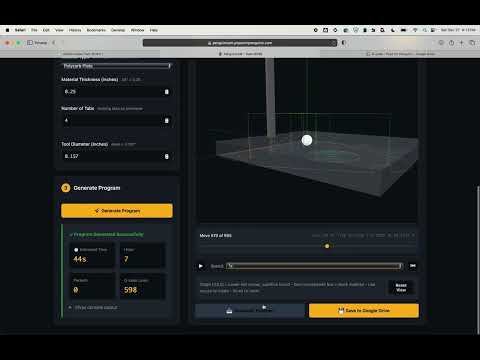
🔗 Live app: https://penguincam.popcornpenguins.com
PenguinCAM streamlines the workflow from CAD design to CNC machining for FRC teams:
- Design in Onshape → Create flat plates or tubes, with holes and pockets
- Open app → "Send to PenguinCAM" → One-click export from Onshape
- Orient & Generate → Rotate part, auto-generate toolpaths
- Download or Save to Drive → Ready to run on your CNC router
No difficult CAM software, no manual exports! PenguinCAM knows what FRC teams need.
Designed to feel like 3D printer slicers or laser cutter software. Get the design, orient it on the machine, and go. Launching directly from Onshape means no export/import steps, lost files or inconsistent naming. Every part designed by your team members automatically get the same CNC behavior. Students don't have to know feeds & speeds, understand ramp angles, risk machine collisions. Just select the part and go.
Multi-team support: Other teams can use the hosted service at https://penguincam.popcornpenguins.com! Just upload a PenguinCAM-config.yaml file to your Onshape documents to customize settings for your CNC machine. See "For Other FRC Teams" below.
✅ Automatic hole detection:
- All circular holes (preserves exact CAD dimensions)
- #10 screw holes, bearing holes, or custom sizes
- Helical entry + spiral clearing strategy
✅ Smart perimeter cutting of plates:
- Holding tabs prevent parts from flying away
- Configurable tab count
✅ Pocket recognition:
- Auto-detects inner boundaries
- Generates clearing toolpaths
✅ Aluminum tubing support:
- Tube mounts in tubing jig
- No X/Y zeroing required
- Flip part halfway through
- Automatically squares off near end
- Automatically cuts tube to CAD length
- Pattern mirrored and cut in both top and bottom faces
One-Click Export from Onshape:
- Select top face of part in Onshape → "Send to PenguinCAM"
- Opens PenguinCAM with part already loaded
- No manual DXF export needed
How to Set Up:
- Install PenguinCAM app in your Onshape classroom
- Extension appears in right side panel in Parts Studios
- Click once to send part directly to PenguinCAM
- OAuth authentication (one-time per team member)
Alternative: Manual DXF upload available for offline work
- Onshape authentication
- Secure OAuth 2.0 login
- Upload G-code directly to team Shared Drive
- Easily accessible from CNC computer
- All team members can access files
- Files persist when students graduate
2D Setup View:
- Orient your part before generating G-code
- Rotate in 90° increments to match stock orientation
- Origin automatically set to bottom-left (X→ Y↑)
- Familiar workflow for 3D printer slicer / laser cutter users
3D Toolpath Preview:
- Interactive preview with cutting tool animation
- Scrubber to step through each move
- See completed vs. upcoming cuts
- Verify toolpath for holes, pockets, and perimeter
One-Click Workflow:
- Design your part in Onshape (flat plate with holes/pockets)
- Open the PenguinCAM app in the right panel
- Select the top face by clicking on it
- Click "Send to PenguinCAM" in the PenguinCAM panel
- Orient your part - Rotate if needed in 2D setup view
- Click "Generate Program" - Review 3D preview
- Download or save to Drive - Ready for CNC!
First Time Setup: You'll be asked to authenticate with Onshape (one time per team member)
For offline work or non-Onshape files:
- Export DXF from your CAD software
- Visit https://penguincam.popcornpenguins.com
- Upload DXF file via drag-and-drop
- Orient & generate - Same as above
- Download or save to Drive
- Load G-code into your CNC controller
- Set up material and zero axes (see Quick Reference)
- Run the program!
For teams using the hosted service:
Create a PenguinCAM-config.yaml file to customize machine settings for your CNC:
- Download template:
PenguinCAM-config-template.yaml - Edit for your team (machine park position, controller type, feeds/speeds, etc.)
- Save as
PenguinCAM-config.yamland drag into your Onshape documents folder - Done! Your settings load automatically when team members use PenguinCAM
See "For Other FRC Teams" section below for complete instructions.
For teams self-hosting PenguinCAM, it's can be deployed on Railway (server-based) or Vercel (serverless) with automatic GitHub integration, or your own hosting service or server.
Setup guides:
- Deployment Guide - Deploy to Railway, environment variables
- Authentication Guide - Google OAuth and Workspace setup
- Integrations Guide - Onshape and Google Drive configuration
- Onshape Extension Setup - Install one-click export in Onshape ⭐
For daily use:
- Quick Reference Card - Cheat sheet for students and mentors
Technical references:
- Z-Coordinate System - Sacrifice board zeroing explained
Planning:
- Roadmap - Future features and improvements
Runtime dependencies:
Flask>=3.0.0
gunicorn>=21.2.0
requests>=2.31.0
ezdxf>=1.0.0
shapely>=2.0.0
google-auth>=2.23.0
google-auth-oauthlib>=1.1.0
google-api-python-client>=2.100.0
See requirements.txt for complete list.
Onshape Part Studio
    ↓ (OAuth API)
DXF Export
    ↓ (Automatic face detection)
Geometry Analysis
    ↓ (Hole detection, path generation)
G-code Generation
    ↓ (Tool compensation)
3D Preview + Download
    ↓ (Optional)
Google Drive Upload
Backend (Python):
frc_cam_gui_app.py- Flask web serverfrc_cam_postprocessor.py- G-code generation engineonshape_integration.py- Onshape API clientgoogle_drive_integration.py- Drive uploadspenguincam_auth.py- Google OAuth authentication
Frontend:
templates/index.html- Web interface with Three.js visualizationstatic/popcornlogo.png- Team branding
Configuration:
Procfile- Railway deployment configrequirements.txt- Python dependencies- Environment variables - Secrets and API keys
PenguinCAM generates optimized toolpaths:
-
Holes (all sizes):
- Helical entry from center
- Spiral clearing to final diameter
- Compensated for exact CAD dimensions
- Works for #10 screws, bearings, or custom
-
Pockets:
- Offset inward by tool radius
- Helical entry, then clearing passes
- Spiral strategy for circular pockets
-
Perimeter:
- Offset outward by tool radius
- Cut with holding tabs
Z=0 is at the SACRIFICE BOARD (bottom), not material top.
This ensures:
- ✅ Consistent Z-axis setup across jobs
- ✅ Guaranteed cut-through (0.02" overcut)
- ✅ No math required when changing material thickness
See Z_COORDINATE_SYSTEM.md for details.
PenguinCAM uses Team 6238 defaults optimized for FRC robotics:
Material:
- Thickness: 0.25" (configurable per job)
- Sacrifice board overcut: 0.008"
Tool:
- Default diameter: 0.157" (4mm endmill)
- Common alternatives: 1/8" (0.125"), 1/4" (0.250")
Feeds & Speeds:
- Plywood: 75 IPM cutting, 18,000 RPM
- Aluminum: 55 IPM cutting, 18,000 RPM
- Polycarbonate: 75 IPM cutting, 18,000 RPM
Tabs:
- Width: 0.25"
- Height: 0.1" (material left in tab)
- Spacing: ~6" (automatic placement)
Machine:
- Park position: X0.5 Y23.5 (machine coordinates)
- Controller: Mach4
All settings can be customized per team using a PenguinCAM-config.yaml file in your Onshape documents. See "For Other FRC Teams" section below for setup instructions.
No code changes required - just upload your config file!
penguincam/
├── README.md                          # This file
├── ROADMAP.md                         # Future plans
├── requirements.txt                   # Python dependencies
├── Procfile                           # Railway deployment
├── PenguinCAM-config-template.yaml    # Team configuration template
│
├── docs/                              # Documentation
│   ├── DEPLOYMENT_GUIDE.md            # Setup & deployment
│   ├── AUTHENTICATION_GUIDE.md        # Google OAuth
│   ├── INTEGRATIONS_GUIDE.md          # Onshape & Drive
│   ├── quick-reference-card.md        # Quick start
│   ├── TOOL_COMPENSATION_GUIDE.md     # Technical reference
│   └── Z_COORDINATE_SYSTEM.md         # Zeroing guide
│
├── static/                            # Static assets
│   └── popcornlogo.png                # Team logo
│
├── templates/                         # HTML templates
│   └── index.html                     # Main web interface
│
├── frc_cam_gui_app.py                # Flask web server
├── frc_cam_postprocessor.py          # G-code generator
├── team_config.py                     # Team configuration management
├── onshape_integration.py            # Onshape API
├── google_drive_integration.py       # Drive uploads
├── penguincam_auth.py                # OAuth authentication
│
└── [config files...]                  # Various JSON configs
We use uv for fast Python dependency management. This works well with git worktrees since packages are cached globally.
-
Clone repository:
git clone https://github.com/your-team/penguincam.git cd penguincam -
Install dependencies:
make install
This installs
uvif needed, creates a.venv, and installs all dependencies. -
Run G-code tests:
make test -
Set environment variables (for running the web app):
export GOOGLE_CLIENT_ID=your-client-id
export GOOGLE_CLIENT_SECRET=your-secret
export ONSHAPE_CLIENT_ID=your-onshape-id
export ONSHAPE_CLIENT_SECRET=your-onshape-secret
export BASE_URL=http://localhost:6238
export AUTH_ENABLED=false  # Skip auth for local testing
-
Run locally:
uv run python frc_cam_gui_app.py
-
Visit: http://localhost:6238
Push to main branch → Railway auto-deploys
See DEPLOYMENT_GUIDE.md for complete setup.
PenguinCAM was built for FRC Team 6238 but is open for other teams to use and improve!
Ideas welcome:
- Multiple parts in a single job
- More sophisticated pocket clearing
- Better tab algorithms
See ROADMAP.md for planned features.
This project is licensed under the MIT License.
Built by FRC Team 6238 Popcorn Penguins
For questions or support:
- GitHub Issues: https://github.com/6238/PenguinCAM/issues
- Team mentor: Josh Sirota josh@popcornpenguins.com
Interested in using PenguinCAM for your team? Great! You can use the hosted service at https://penguincam.popcornpenguins.com - no deployment required!
PenguinCAM is designed to support multiple teams using the same hosted instance. Each team can customize machine settings, feeds/speeds, and other preferences using a configuration file stored in your Onshape documents.
Setup steps (5 minutes):
-
Download the configuration template:
- Get
PenguinCAM-config-template.yamlfrom this repository
- Get
-
Edit for your team:
- Update team number and name
- Configure your CNC machine settings (park position, controller type)
- Customize feeds/speeds if needed (optional - defaults work for most teams)
- All values are optional! Only specify what you want to override from Team 6238 defaults
-
Upload to Onshape:
- Save your edited file as
PenguinCAM-config.yaml(exact name required) - Drag the file into your team's Onshape documents folder (at root level, not in a subfolder)
- The file should appear alongside your parts and assemblies
- Save your edited file as
-
Authenticate:
- Visit https://penguincam.popcornpenguins.com
- Sign in with Onshape (one-time setup per team member)
- Your team's configuration will be automatically loaded!
What you can customize:
- Machine park position (important! - set for your specific CNC)
- CNC controller type (Mach3, Mach4, LinuxCNC, etc.)
- Default tool diameter shown in UI
- Feeds, speeds, and ramp angles per material
- Tab sizes and spacing
- Z-axis reference heights
- Google Drive integration settings
Example: If you have an Omio X-8 with Mach3, you only need to override:
team:
  number: 1234
  name: "Your Team Name"
machine:
  name: "Omio X-8"
  controller: "Mach3"
  park_position:
    x: 1.0
    y: 30.0
All other values automatically use proven Team 6238 defaults.
Want to run your own instance? You can deploy PenguinCAM yourself:
Setup steps:
- Fork this repository
- Follow DEPLOYMENT_GUIDE.md to deploy on Railway
- Configure Google OAuth for your Workspace
- Set up Onshape API credentials
- Customize branding (logo, domain, etc.)
The setup takes about 1-2 hours but then requires minimal maintenance.
Most teams should use the hosted service above - it's simpler and includes automatic updates!
Go Popcorn Penguins! 🍿🐧