Welcome to the Python learning environment with Dji Tello drone! The Drone Learning Environment is a simple easy to get going yet complex introduction to Python programming.
Based on the DJITelloPy library, it provides the following features:
- Implementation of all Tello commands
- Easily retrieve a video stream
- Receive and parse state packets
- Control a swarm of drones
- Support for python >= 3.6
This manual will guide you through the basics of programming in Python and lead you throughout the challenges.
This section walks you through the basic of Drone Learning Environment and Python, helping you to create your first challenge.
This section provides a step-by-step guide for setting up your development environment for Windows.
Before you can start coding you will need an integrated development environment (IDE) and we recommend PyCharm for the upcoming challenges.
First open a New Project in PyCharm.

Then choose Pure Python and hit Create.

Then go to File > Settings > Project: ExampleName > Python Interpreter > Click the + sign.

Search for djitellopy and Install Package.

After that type this on top to import the library.
from djitellopy import telloIf you do not have access to PyCharm, Visual Studio Code is also our recommended Editor.
-
Install VS Code.
-
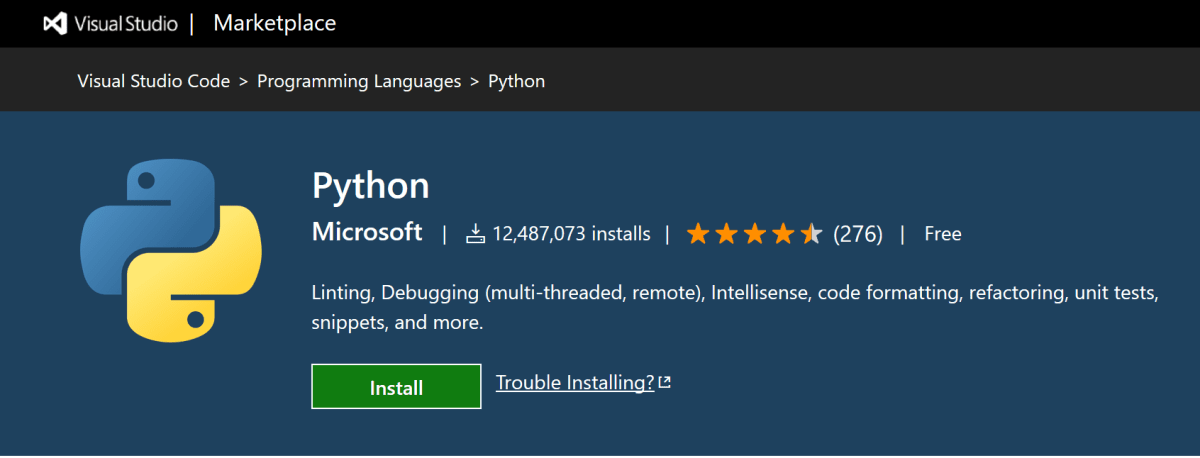
Next, install the Python extension for VS Code from the Visual Studio Marketplace. For additional details on installing extensions, see Extension Marketplace. The Python extension is named Python and it's published by Microsoft.
- Install a Python interpreter#.
Along with the Python extension, you need to install a Python interpreter. Which interpreter you use is dependent on your specific needs, but some guidance is provided below.
Windows#.
Install Python from python.org. You can typically use the Download Python button that appears first on the page to download the latest version.
Note: If you don't have admin access, an additional option for installing Python on Windows is to use the Microsoft Store. The Microsoft Store provides installs of Python 3.7, Python 3.8, and Python 3.9. Be aware that you might have compatibility issues with some packages using this method.
For additional information about using Python on Windows, see Using Python on Windows at Python.org
-
Verify the Python installation#
To verify that you've installed Python successfully on your machine, run one of the following commands (depending on your operating system):
-
Linux/macOS: open a Terminal Window and type the following command:
python3 --version -
Windows: open a command prompt and run the following command:
py -3 --version
If the installation was successful, the output window should show the version of Python that you installed.
-
-
Create a Python file. Go to File > New File.
-
Click on Select a language and type Python.
-
Use the Command Palette to run Terminal: Create New Integrated Terminal (Ctrl+Shift+`).
-
Type this in the just opened terminal.
python -m ensurepip
and then.
pip install djitellopy
-
After that type on top of the python file created to import the library.
from djitellopy import tello

-
Turn on the drone with the button on the side.
-
Turn on Wi-Fi on your PC.
-
Search for Wi-Fi name starts with TELLO.
-
Type these inside your file to connect to the drone and receives its battery from PyCharm.
me = tello.Tello()

me.connect()

print(me.get_battery())
You can start coding with the drone!
Description: Make the drone take off, move forward and land.
Description: Make the drone take off, rotate and land.
Description: Make the drone take off, flip and land.
Description: Make the drone fly in a rectangle pattern.
Description: Make the drone take off, do 8D flips and land.
Description: Make the drone fly in circle pattern.
Description: Make the drone fly in a curve motion.
Description: Make the drone take off, flip and land.
Come to this section to further learn basics in Python and how to use the library.
Python Functions
def my_function():
print("Hello from a function")my_function()Python Syntax
if 5 > 2:
  print("Five is greater than two!")
Python Comments
#This is a comment
print("Hello, World!")
Python Variables
x = 4       # x is of type int
x = "Sally" # x is now of type str
print(x)
x = str(3) # x will be '3'
y = int(3) # y will be 3
z = float(3) # z will be 3.0Python Numbers
x = 1    # int
y = 2.8  # float
z = 1j   # complex
Python If...Else
a = 33
b = 200
if b > a:
  print("b is greater than a")
Python While Loops
i = 1
while i < 6:
  print(i)
  i += 1
Python For Loops
fruits = ["apple", "banana", "cherry"]
for x in fruits:
print(x)To view the whole library and all of its functions by CTRL + Left Mouse Click on one of the functions.
def challenge1():
    me = tello.Tello()

    me.connect()

    print(me.get_battery())
For this example you can can CTRL + Left Mouse Click on Tello(), connect() or get_battery() and similarly for all functions you might use.