Description
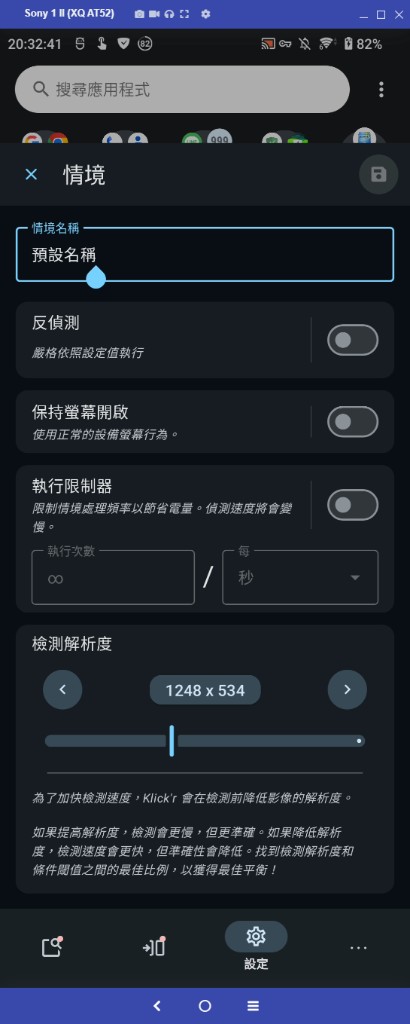
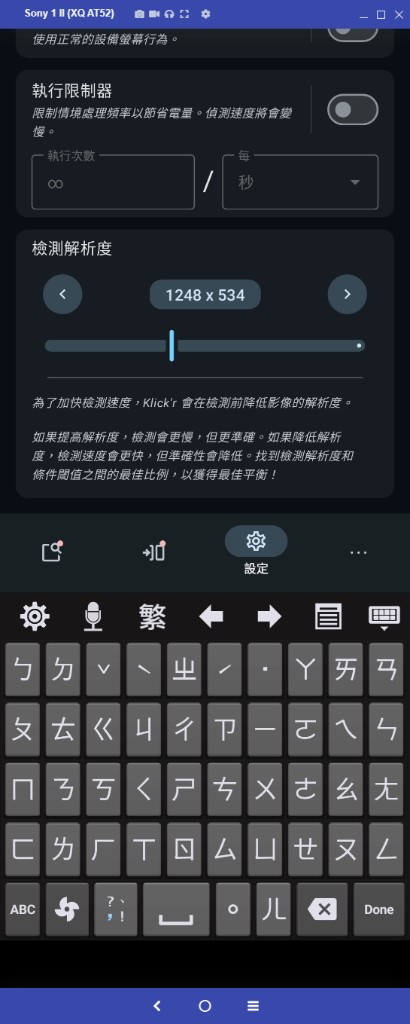
In the floating Scenario settings screen, when typing in a text field (e.g. Scenario name), the soft keyboard pushes the whole dialog/content upward. The field being edited goes off-screen, so the typed text cannot be seen.
Steps to reproduce
- Start the accessibility service and open the Scenario editor overlay
- Open the Settings tab
- Tap Scenario name (or another text field) to open the keyboard
- Start typing
Expected behavior
The focused input field stays visible above the keyboard so the cursor and typed text can be seen.
Actual behavior
The entire layout is pushed up. The input field moves out of the visible area (above the screen). Only part of the lower settings and the keyboard remain visible, so it is hard/impossible to verify what is being typed.
Environment
- App version: 4.0.0-beta05
- Device: Sony 1 II (XQ-AT52)
- Orientation: Portrait
- IME: Zhuyin (Bopomofo) keyboard
Screenshots
Before keyboard / field focused
After keyboard opens (content pushed up; name field no longer visible)
Notes
This happens on the Scenario settings bottom-navigation dialog (NavBarDialog) when the soft keyboard is shown.
Description
In the floating Scenario settings screen, when typing in a text field (e.g. Scenario name), the soft keyboard pushes the whole dialog/content upward. The field being edited goes off-screen, so the typed text cannot be seen.
Steps to reproduce
Expected behavior
The focused input field stays visible above the keyboard so the cursor and typed text can be seen.
Actual behavior
The entire layout is pushed up. The input field moves out of the visible area (above the screen). Only part of the lower settings and the keyboard remain visible, so it is hard/impossible to verify what is being typed.
Environment
Screenshots
Before keyboard / field focused
After keyboard opens (content pushed up; name field no longer visible)
Notes
This happens on the Scenario settings bottom-navigation dialog (
NavBarDialog) when the soft keyboard is shown.