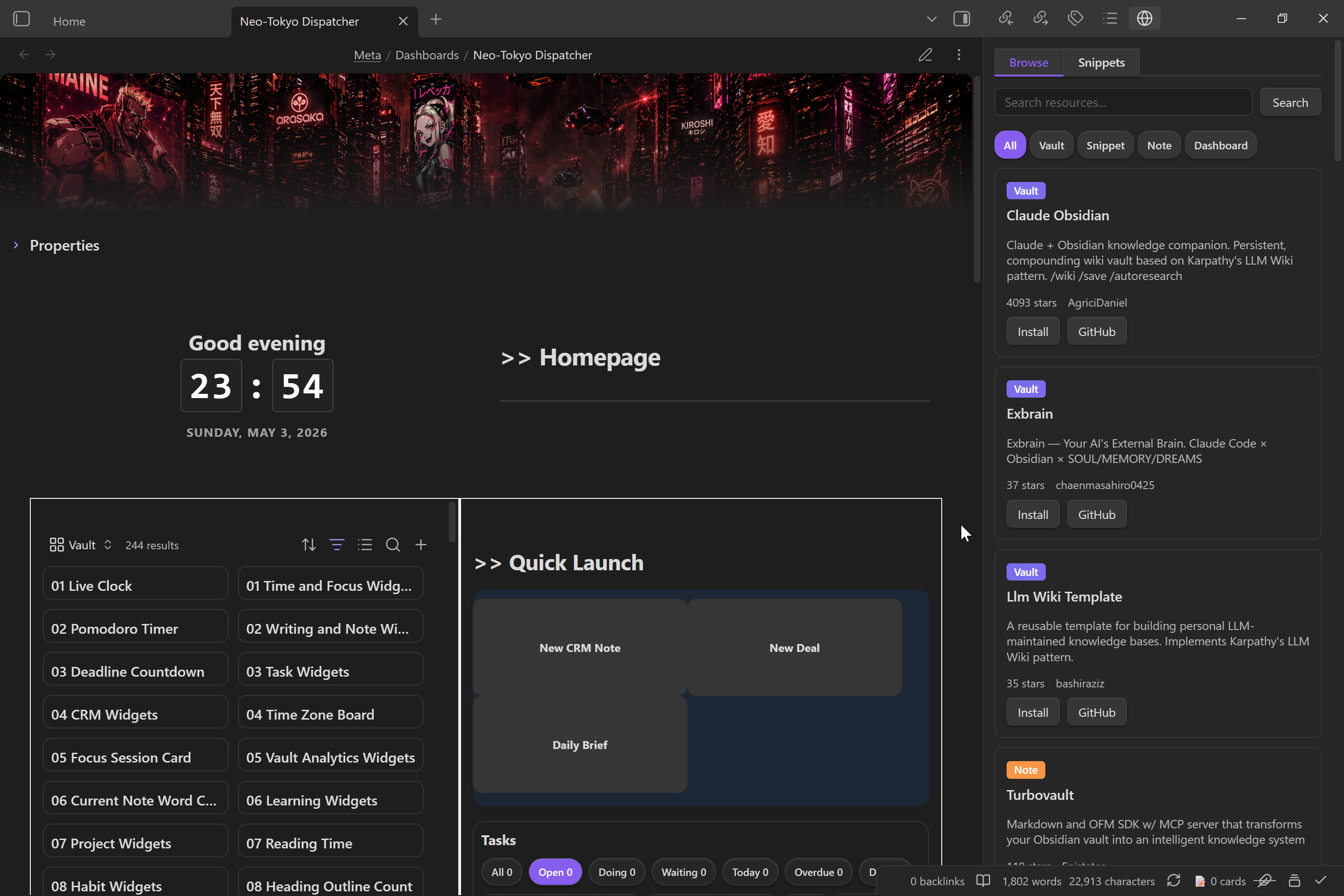
It covers three workflows:
- publish notes, snippets, and full vaults to GitHub
- browse the Vault Hub catalog from inside Obsidian
- install note packs and CSS snippets directly into your vault
- Publish a CSS snippet, a note, or a full vault as a GitHub repo
- Generate
hub.mdmetadata for Vault Hub listings - Generate and update a
README.mdfor the published resource - Detect required community plugins from selected files
- Attach CSS snippets to note and vault publishes
- Upload local screenshots or reference external screenshot URLs
- Browse the live Vault Hub catalog and install resources from it
- Manage installed CSS snippets from the plugin sidebar
- Download the latest release assets:
main.jsmanifest.jsonstyles.css
- Create a folder named
vault-hubinside your vault's plugins directory:<your-vault>/<configDir>/plugins/vault-hub
- Place the release files in that folder.
- Reload Obsidian and enable Vault Hub in Community plugins.
- Open Settings → Community plugins → Vault Hub.
- Paste a GitHub personal access token with repo access.
- Confirm the Vault Hub site URL if you are using a custom deployment.
- Optionally set default categories for new publishes.
Use one of the plugin commands:
Vault Hub: Publish resourceVault Hub: Update resourceVault Hub: Browse resources
Publishing creates or updates a GitHub repository under your account and writes the files needed for Vault Hub indexing.
- This plugin is desktop-only.
- Vault Hub install flows write files into your vault and into your vault configuration directory for CSS snippets.
- Publishing and updating require a GitHub account and a personal access token.
- Account requirement: GitHub account and personal access token required for publish and update flows.
- Network use: Calls GitHub APIs, raw GitHub content URLs, and the configured Vault Hub website.
- Access: Reads and writes files inside the current vault and its configuration directory.
MIT