| layout | cover |
|---|---|
| theme | seriph |
https://github.com/Coding-Academy-STL/GameDevWithPython
- Most game development involves the use of C++ and C#
- This is because performance is a major concern in 3D games
- We’re going to build 2D games where performance isn’t a huge concern and simplicity is.
- Enter Python

- Many libraries
- You’ll learn the concepts without the hassle of C++
- Graphics is Hard
- Graphics is platform dependent
Download Python at https://www.python.org/downloads
Install VSCode at https://code.visualstudio.com/
$ pip3 install pygameimport pygame, sys, random
from pygame.locals import *
pygame.init()
# Background color (R, G, B)
BACKGROUND = (255, 255, 255)
# Game Setup
FPS = 60
fpsClock = pygame.time.Clock()
WINDOW_WIDTH = 400
WINDOW_HEIGHT = 300
WINDOW = pygame.display.set_mode((WINDOW_WIDTH, WINDOW_HEIGHT))
pygame.display.set_caption('My Game!')# The main function that controls the game
def main () :
# The main game loop
while True:
    # Get inputs
    for event in pygame.event.get() :
      if event.type == QUIT :
        pygame.quit()
        sys.exit()
# Render elements of the game
WINDOW.fill(BACKGROUND)
pygame.draw.rect(WINDOW, (0, 0, 0), pygame.Rect(10, 10, 100, 100))
pygame.display.update()
fpsClock.tick(FPS)
main()You can find the code at https://github.com/Coding-Academy-STL/GameDevWithPython/tree/main/code/chapter_1
Your screen is made up of a bunch of little lights called pixels
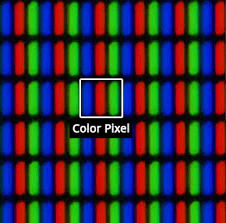
As you can see, each little box of color you see on your screen is made from blending red, green, and blue light
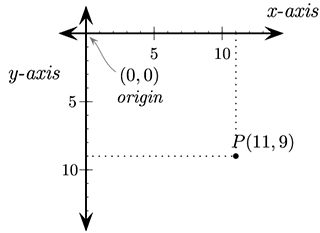
- In order to draw an image or a shape, you need to tell the computer which pixels to fill in. In order to do that, you need to be able to give them each a unique name.
- Since they are ordered in rows and columns, can give each pixel a "x" coordinate and a "y" coordinate.
- You can make any color by combining different shades of Red, Green, and Blue. This is how LCD screens work.
- In order to represent different shades of Red, Green, and Blue (RGB), we use numbers from 0-255.
You can find the code at https://github.com/Coding-Academy-STL/GameDevWithPython/tree/main/code/chapter_2
Input is a large part of GameDev. Is a game really a game if you can't interact with it?
Take this bit of code
# Get inputs
for event in pygame.event.get() :
if event.type == QUIT :
pygame.quit()
sys.exit()What is it doing?
When you run your loop, pygame accumulates a list of inputs recieved by the system
These inputs can include
- Window Events (Close, Minimize)
- Keyboard Events (Key pressed down, Key released)
- Mouse Events (Mouse position, Mouse button pressed, Mouse button released)
for event in pygame.event.get() :- This loops through all of the events python has recieved from the system
pygame.event.get()returns an array of all of the eventseventis the current event in the loop
- The
eventvariable has the typeEvent. You can find the definition for that here - The
Eventtype has a member variable calledtypewhich is an integer and represents the type of event - Pygame provides us with some constants that contain the number for their respective events. Some event types include
QUIT,MOUSEDOWN,MOUSEUP,KEYDOWN,KEYUP - So, for example, if we want to check if an event is a quit event, we use the code
if event.type == QUIT:
# Do the things you want to do when you recieve the QUIT event-
Checking for key events is simple
-
When a key is pressed down, pygame receieves a KEYDOWN event and when a key is released, it recieves a KEYUP event
-
A keyboard event has a member called key which contains the key that was pressed
-
This code checks if the
akey was pressed
    for event in pygame.event.get() :
      if event.type == QUIT:
        pygame.quit()
        sys.exit()
      if even.type == KEYDOWN:
        if event.key == K_a:
print("key \"a\" was pressed")- You can find a list of keys here if you scroll down
- This way of checking for keyboard events is annoying though, because you can only check for key presses in a single spot.
- Luckily, pygame provides a function where you can get the state of a key anywhere in your code
if pygame.key.get_pressed()[K_a]:
  print("key \"a\" was pressed")

# Does the exact same thing as
for event in pygame.event.get() :
  if even.type == KEYDOWN:
    if event.key == K_a:
      print("key \"a\" was pressed")

# But you can do it anywhere in the code- The function
pygame.key.get_pressed()returns an array of booleans that represent the up or down state of the keys on the keyboard. You can access the array using the key constants provided by python - For example,
pygame.key.get_pressed()[K_a]returns true if theakey is pressed
- You could check for mouse events in the event for loop, but we've found that there are easier ways to do this.
- Similar to the
pygame.keyboard.get_pressedfunction, there is apygame.mouse.get_pressedfunction. This doesn't return an array, however. Rather, it returns a tuple with three values. Index 0 in the tuple represents the state of the left mouse button, the second represents the state of the right mouse button, and the third represents the state of the middle mouse. - You can find the definition for the function here
You can find the code at https://github.com/Coding-Academy-STL/GameDevWithPython/tree/main/code/chapter_3
- It is also useful to determine the location of the mouse. The function for this is simple.
pygame.mouse.get_pos()simply returns a tuple with the x and y coordinates of the mouse
Object Oriented Programming gives us a way to represent things, or objects, in our world and keep all of their data in one place.
For example, if we wanted to represent a paddle in, say, pong, without OOP, we would declare its data like
paddlePos = [0, 0]
paddleColor = (255, 0, 0)
paddleSize = (100, 25)
and its functions like
def setPaddlePos(newPos):
    paddlePos = newPos
This gets very unorganized very quickly. All of these variables and functions are scattered across the code, and what if we want to create multiple paddles? There are two paddles in Pong, of course.
With OOP, we can simplify this. The data and functions above become
class Paddle:
    def __init__(self, dim, pos, color):
        self.dim = dim
        self.pos = pos
        self.color = color
    def set_pos(self, pos):
        self.pos = pos

...

paddle1 = Paddle((100, 50), (0, 0), (255, 0, 0))
paddle2 = Paddle([100, 50], (100 0), (255, 0, 0))

paddle1.set_pos([10, 10])
You may not understand the code above right now, but the point is that OOP condenses your code and helps you stay organized
Here's a quick W3 schools tutorial on OOP: https://www.w3schools.com/python/python_classes.asp
- Create a class called Paddle
- Give it these variables:
- position
- dimensions
- color
- Give it these functions:
- draw()
- This function should draw the paddle on the screen
- update()
- This function should check for keyboard input and move the paddle left and right using the arrow keys or
aandd - This function should also ensure that the paddle doesn't go outside of the screen
- This function should check for keyboard input and move the paddle left and right using the arrow keys or
- draw()
- When writing the
update()function, in order to make sure the paddle isn't out of bounds- Check if the x coordinate is < 0. If so, set the X coordinate to 0
- Check if the x coordinate minus the width of the paddle is greater than the window width. If it is, it means the paddle is out of bounds and the x coordinate should be set to the window width minus the paddle width
- Create a class called "Ball"
- This ball should have a position, velocity, color, and radius
- The class should have an update function that moves the ball using the velocity and bounces the ball off of the walls
- The class should have a draw function that draws the ball at its current position, with its radius and its color
https://github.com/Coding-Academy-STL/GameDevWithPython/blob/main/code/chapter_4/paddle.py https://github.com/Coding-Academy-STL/GameDevWithPython/blob/main/code/chapter_4/ball.py
Video games are simulations of reality. Reality is determined by the laws of physics. What good is a game without physics?
- If we play the game pong, we can see that the ball bounces off the walls at the same angle that they intercept them
- Also, the angle that the ball bounces off of the paddle is determined by the place that the ball hits the paddle. If it hits the paddle in the middle, it goes straight forward. If it hits the corners, it goes off to the side at a sharp angle.
https://github.com/Coding-Academy-STL/GameDevWithPython/blob/main/code/chapter_5/bounce.py
Contact me at aidenl@codingacademystl.org